Control exactly when, how, and under what conditions guests book your property. Use Guesty's availability tools to align your calendar with operational needs, maximize occupancy, and prevent booking conflicts. These tools help you balance guest demand with your team's capacity, ensuring your physical property is ready for every stay.
This article explains the different ways to manage listing availability across booking channels and how these tools work together.
Block a property to prevent bookings
When you block a property, it becomes unbookable on all connected booking channels. Guests can't see the listing in search results or book it.
Block dates manually or configure settings to block a listing automatically based on specific conditions. Unassigned multi-unit reservations also create automatic blocks in the calendar.
Create manual blocks
Create manual blocks in the calendar to make a listing unavailable on a case-by-case basis. For example, block dates for unexpected maintenance or add blocks before or after a reservation to accommodate early check-in or late check-out.
Set automatic blocks
Configure settings in advance to block the listing automatically in the following scenarios:
- Set rental periods: Make a listing unavailable for booking, except during rental periods.
- Accommodate early check-in or late check-out times: Set automatic blocks to block the night before or after a reservation.
- Block linked listings: Use Smart Calendar Rules to automatically block one listing when a connected listing is booked. When a reservation is made for listing A, a Smart Calendar Rule automatically blocks related listing B for the course of the reservation.
- Set night limits: Specify the maximum number of nights a listing can be booked in a year by setting an annual night limit. Once reached, the listing blocks automatically.
- Prevent last-minute bookings: Use advance notice (cut-off hours) to require a minimum amount of time before a reservation can be made. For example, if you set a 3-day advance notice on Dec 17th, the earliest check-in date available is Dec 20th.
- Prevent guests from booking too far in advance: Set a booking window. For example, a 24-month window prevents bookings for 36 months in the future.
- Block one or two nights before or after each confirmed reservation: Use preparation time blocks.
- List or unlist a property automatically on specific days and times: Use snooze publishing.
- Set a check-in window: Use a check-in window to limit availability for new check-ins after a reservation ends (for example, only 5 days after check-out). This helps minimise gaps in your calendar.
-
Maximise multi-unit availability: Deactivate consecutive availability for multi-unit reservations to maximise occupancy. Unassigned multi-unit reservations create automatic blocks. When a reservation is made for a multi-unit, you can assign it manually or automatically to an available sub-unit.
- By default, multi-unit reservations can be received even if no single sub-unit is available for the entire stay, provided the stay can be split between different sub-units.
- Activate consecutive availability to block the multi-unit if no single sub-unit is available to host all nights of the reservation.
Tip:
You can list or unlist a property on a booking channel. Unlisting makes it unbookable on the channel but keeps your Guesty calendar available. Use this option when onboarding a new property to create manual reservations in Guesty while keeping the listing blocked on channels.
Booking conditions for guests
Adjust the property’s default settings to control the conditions for new bookings.
- Set a default minimum and maximum stay requirements.
- Owner stays and manual reservations can override these settings.
- When importing from Airbnb, the Airbnb default minimum and maximum nights import to Guesty.
- Determine the maximum number of guests permitted.
- Configure house rules to allow children, infants, or pets.
Dynamic availability tools
Use dynamic tools to customize minimum stay requirements, check-in and check-out restrictions, and nightly rates for specific periods (such as off-peak seasons, holidays, or weekends).
Learn about using pricing tools to optimize rates.
Manual adjustments
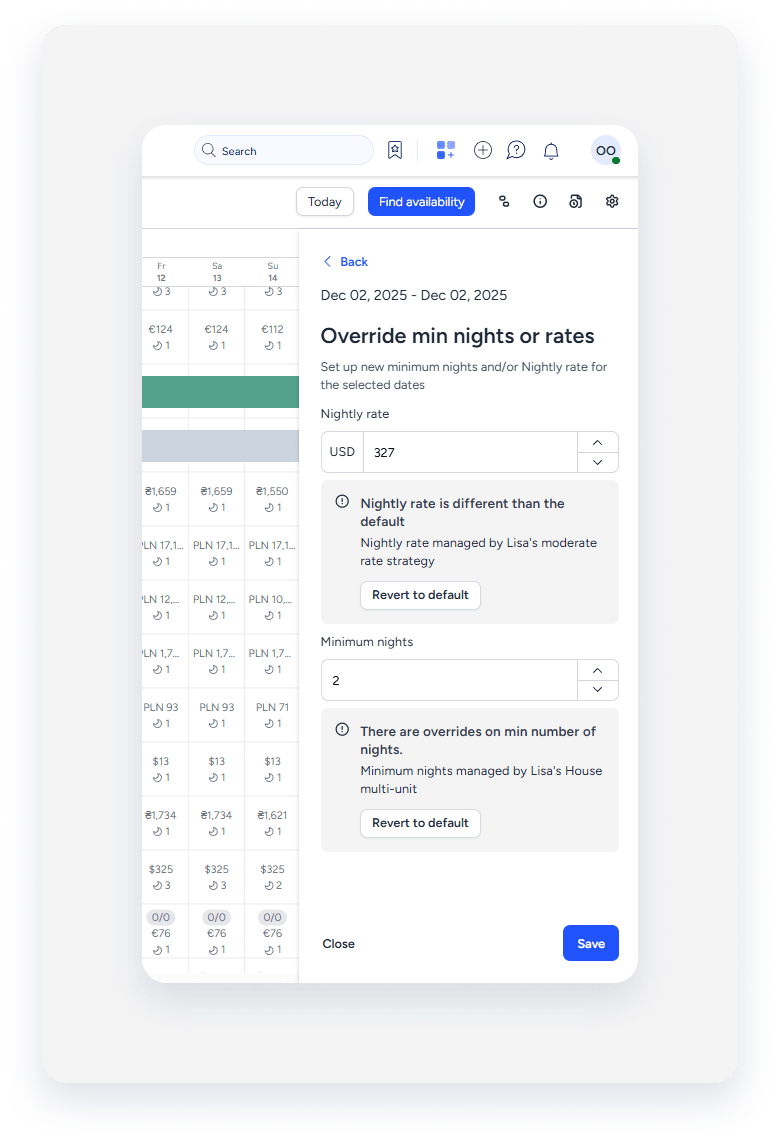
Adjust minimum nights for specific dates directly in the calendar. These changes apply instantly.
When importing from Airbnb, calendar minimum nights are imported and treated as manual overrides.
Combining with other tools
- Third-party tools: Adjustments made by third-party tools are treated as manual adjustments in the calendar. To avoid conflicts, don't use manual adjustments and third-party tools simultaneously, as they may override one another.
- Rate strategy: When making a manual adjustment, you can check Override rate strategy. If selected, strategy rules won't alter settings for those dates. To deactivate this, uncheck the box or override manual adjustments.
- Guesty PriceOptimizer: Manual adjustments (and third-party tools adjustments) sync with Guesty PriceOptimizer and won't get overridden.
Guesty PriceOptimizer
Guesty PriceOptimizer is a machine-learning tool that recommends nightly rates based on market trends. You can add minimum night rules and restrict check-ins and check-outs via the PriceOptimizer settings.
When deactivating the PriceOptimizer, minimum nights revert to the default values.
Combining with other tools
- Rate strategy: Don't use PriceOptimizer with rate strategies. The PriceOptimizer updates every 24 hours and overrides rate strategy adjustments.
- Manual adjustments (including third-party tools): Sync with PriceOptimizer and are not overridden by it.
Rate strategy
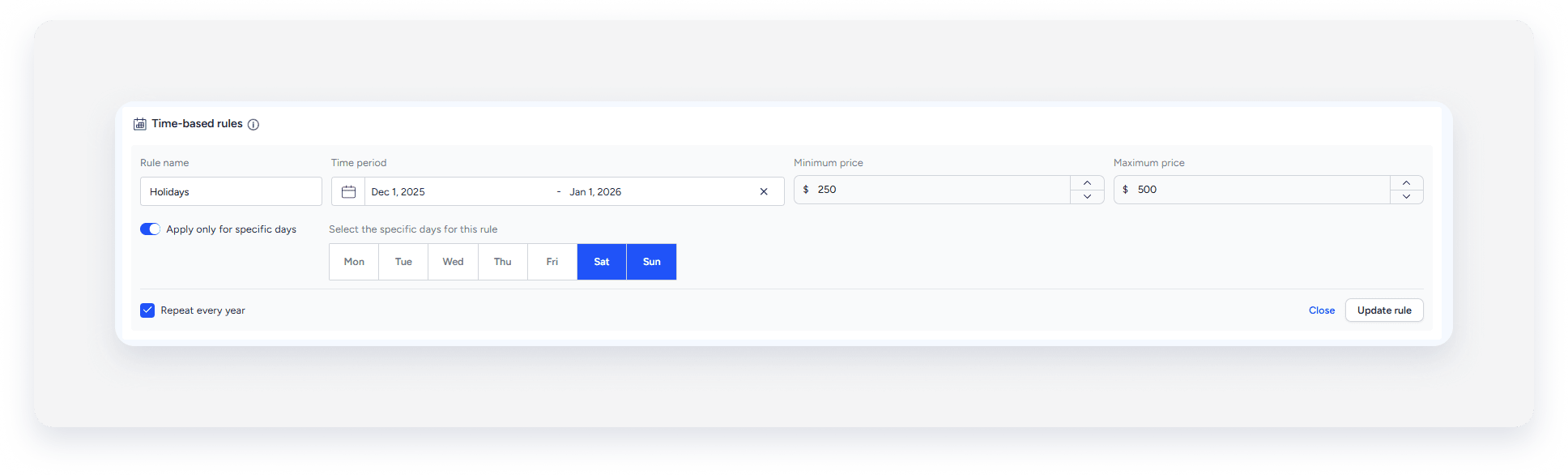
Rate strategy rules adjust price per night, minimum nights, and check-in or check-out restrictions under specific conditions (for example, upcoming availability or short stays).
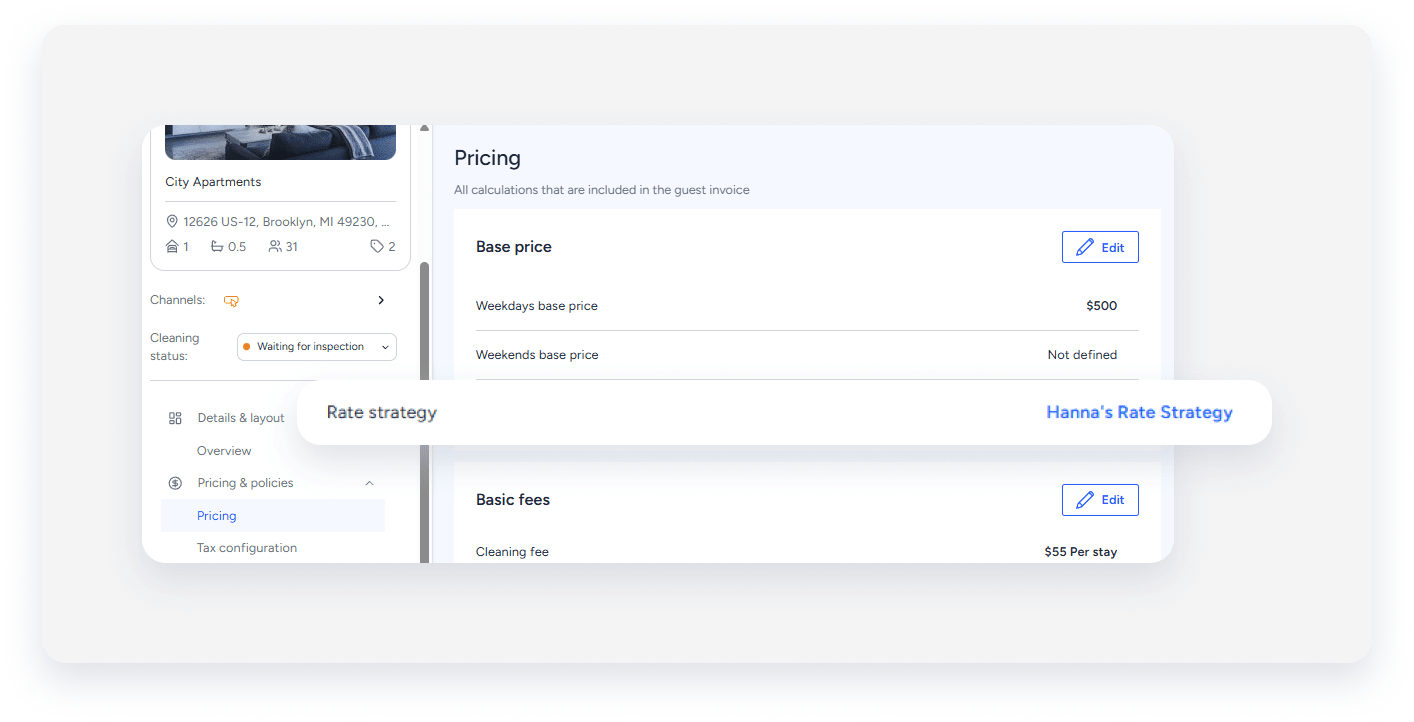
Once you activate a rule, the minimum nights update in the calendar. Check the "Pricing" tab in the property page to see which rate strategy is assigned to the property.
A listing can be assigned to only one rate strategy at a time. To change a listing’s rate strategy, unassign it from the rate strategy before assigning a new one. If you unassign a listing from a strategy, minimum nights revert to default values.
Multiple rules can be used in each rate strategy.
Overlapping rate strategy rules
If a strategy has multiple rules for the same dates, the following logic applies:
Minimum nights
- “Optimizing occupancy” rule takes precedence over other minimum night rules.
- “Upcoming availability” takes precedence if no "Optimizing occupancy" rule exists.
- If neither applies, Guesty applies the longest minimum night requirement (e.g., if both 3-night and 2-night rules exist, 3 nights applies).
Check-in and check-out restrictions
- Holidays or Recurring days: If you set both a “Holidays and events” or ”Seasons” rule and a “Recurring days” rule for the same period, the “Holidays and events” (or “Seasons”) rule overrides the “Recurring days” rule.
|
For example: A "Recurring days" rule blocks Monday check-ins. A "Holidays" rule blocks Tuesday check-ins for December. In December, only Tuesdays are blocked; the Monday rule is disregarded. |
- Holidays or Seasons: If you set both a “Holidays and events” rule and a “Seasons” rule for the same period, they combine.
|
For example: "Holidays" blocks Monday. "Seasons" blocks Tuesday. Both Monday and Tuesday are blocked. |
Combining with other tools
By default, a rate strategy only applies to dates without manual or third-party adjustments.
You can override manual adjustments when assigning a strategy. This is a one-time action that reverts minimum nights to the default (or strategy values). Future adjustments by other tools are still possible. This override applies to manual adjustments, third-party tools, and PriceOptimizer adjustments.
Don't use PriceOptimizer with rate strategies. PriceOptimizer updates the minimum nights every 24 hours and overrides rate strategy adjustments.
Third-party availability tools
Use third-party marketplace tools to adjust the minimum nights and apply check-in or check-out restrictions.
If you disconnect a third-party tool, minimum nights won't automatically revert to the default setting. You must manually adjust them to reset.
Combining with other tools
- Manual adjustments: Third-party tools' adjustments are treated as manual calendar adjustments. Avoid using them together in Guesty to prevent overrides.
- Rate strategy: When making a third-party tool adjustment, you can check Override rate strategy. If selected, strategy rules won't alter settings for those dates. To deactivate this, uncheck the box or override manual adjustments.
- Guesty PriceOptimizer: Won't override third-party tools.
Rate plans
A rate plan combines a cancellation policy with optional components like meal plans, pricing rules, minimum or maximum night rules, and availability requirements.
A rate plan (or standalone cancellation policy) is required to make a listing sellable.
If a rate plan has availability requirements (e.g., 10-night minimum), it is only bookable if the reservation meets them. Guests only see the rate plan if the entire reservation's dates are within the availability period of the rate plan.
Create several rate plans to cover more booking options. We recommend having at least one rate plan without availability requirements to ensure your listing is always sellable.
If you set a single rate plan, it will be activated by default when its availability requirements are met for the channel it applies to. If multiple plans apply, the guest can choose. For manual reservations, you select the plan.
When a cancellation policy is standalone, you can't add availability requirements to it. Learn more about the differences between a rate plan and a cancellation policy.
Combining with other tools
Manual adjustments, rate strategies, Guesty PriceOptimizer, and third-party tools all operate on the "calendar minimum nights" layer and can override each other.
If you configure availability requirements in a rate plan, they override the calendar settings (manual adjustments, rate strategy rules, and PriceOptimizer) when applied to a reservation.
The rate plan configuration doesn't impact the property's settings or the pricing and minimum nights in the Multi-Calendar.
|
For example: A rate strategy sets a 3-night minimum. A rate plan sets a 10-night minimum. The listing is sellable for 10+ nights under that plan. If another rate plan exists with no restrictions, 3+ night bookings are possible using the second plan. In the latter case, the rate plan doesn't apply, and the calendar minimum number of nights is used. |
Similarly, check-in and check-out restrictions can be configured by rate strategy rules, Guesty PriceOptimizer, and third-party tools. You can add an availability range, advance notice period, and a booking window to a rate plan. When a reservation matches a rate plan, the rate plan's settings override the property's general settings. For example, if a rate plan has a different advance notice period than the listing, the rate plan’s advance notice applies.
