Tip:
Visit the Guesty Academy for interactive courses and step-by-step video tutorials of these ongoing and month-end tasks.
To get the most out of the Accounting module and ensure your financial data is accurate, timely, and ready, it's important to follow a consistent workflow.
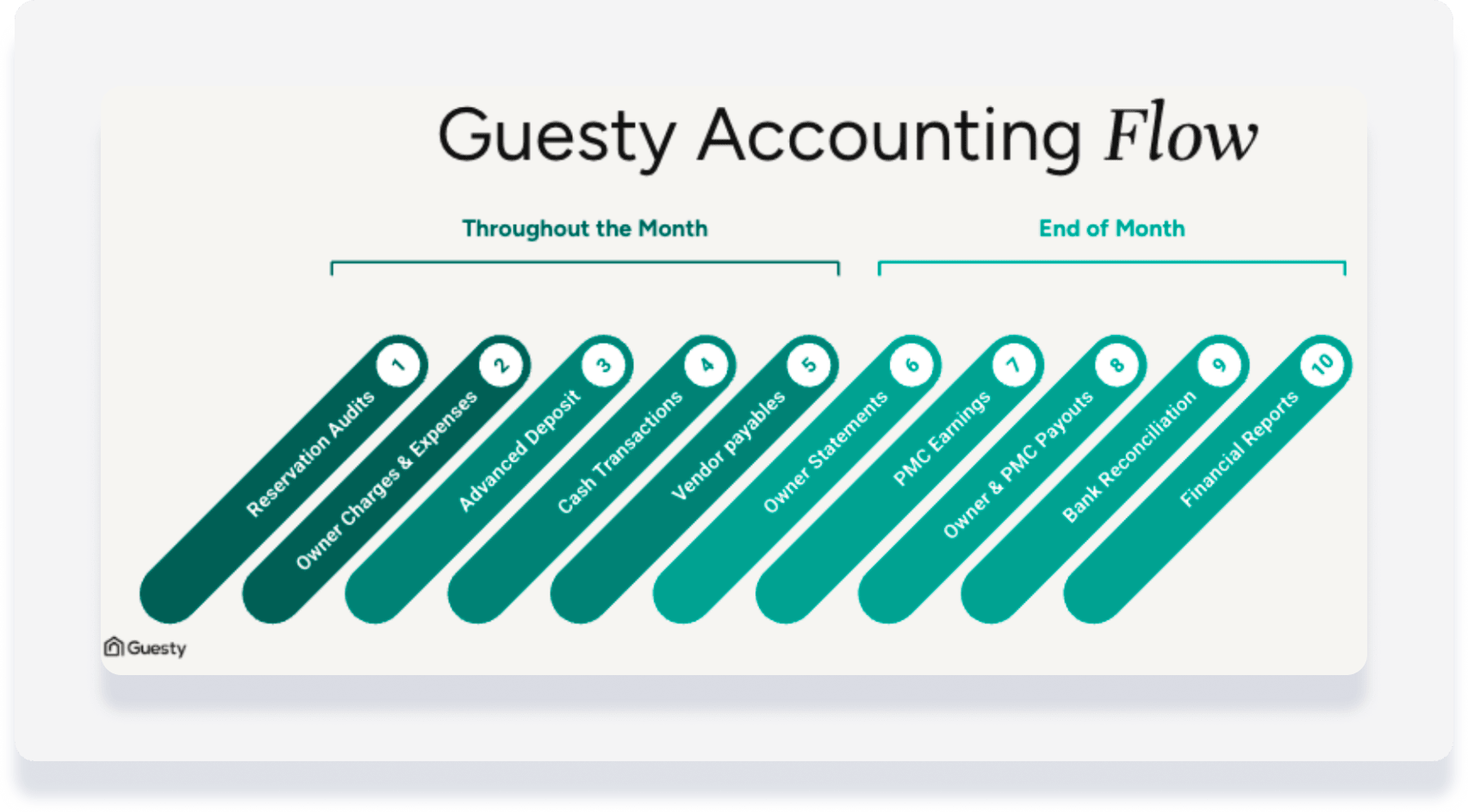
Following are tasks we suggest performing on a regular basis throughout the month - weekly, daily, or as frequently as your business requires. You can find month-end tasks here.
Audit reservations adjustments
Purpose: Checking that the accounting folio reflects any adjustments made in a reservation (change of dates, price, etc.), to make sure financial data is accurate.
Example: A guest originally booked a 5-night stay but later requests to extend the reservation by 2 nights. They also ask to add breakfast service for an extra fee. After updating the reservation:
- Ensure the new total fare reflects 7 nights, not 5
- Confirm the breakfast fee is added and properly categorized
- Check that the realization date for both changes matches when the guest confirmed the update
- Verify that the accounting folio aligns with the new reservation details before month-end reporting
Tip:
Maintain a record of all reservations that have adjustments made so you can easily access them and double check the financial data.
Tip:
You can create and save a custom report following the steps below or by using prompts.
- Navigate to the reservation page and open the accounting folio to review all financial transactions linked to that booking.
- Ensure the accommodation fare matches the expected amount based on the reservation details and pricing rules.
- Check for any incorrect rate changes or discrepancies.
- Review all additional fees (cleaning fee, pet fee, service charges, etc.) to ensure they are correctly applied and categorized.
- Verify that tax amounts are accurate and properly recorded in the system.
- Make sure the realization date for any adjustments made is correct, as this affects revenue recognition and owner statements.
- Ensure the accommodation fare matches the expected amount based on the reservation details and pricing rules.
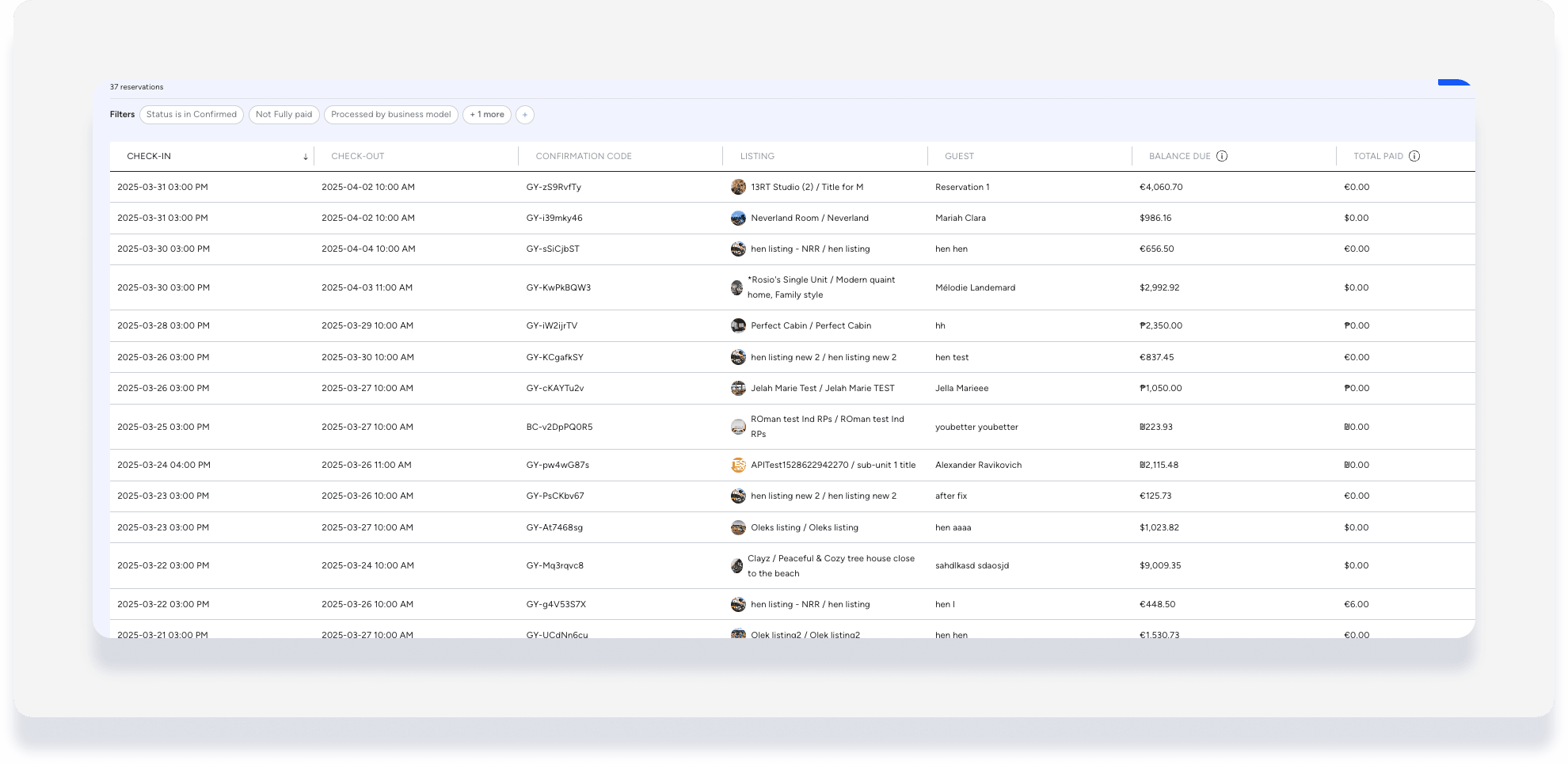
Review unpaid reservations (excluding Airbnb)
Purpose: Verify that unpaid reservations have correct balances by cross-checking with payment records. Follow up on any discrepancies or unrecorded payments.
Example report:
Tip:
You can create and save a custom report following the steps below or by using prompts.
- Navigate to Reservations. Create a report to track unpaid reservations and help identify outstanding balances that need follow-up.
- Add a filter:
- Search for "Fully paid" then set the toggle to No.
- Search for "Source" and select all sources except "airbnb2".
- Verify outstanding balances:
- Check reservation details to ensure the balance due is accurate.
- Cross-check with payment records to confirm whether any payments have been received but not yet recorded.
- Follow up on unpaid amounts:
- Contact guests or the appropriate team to address outstanding balances.
- Ensure proper documentation of payment reminders or any agreements made regarding late payments.
Additional reference: Understanding financial terms in the reservations report
Review canceled reservations
Purpose: Ensure all canceled reservations are properly documented, refunded (if applicable), and correctly reflected in financial reports.
Tip:
You can create and save a custom report following the steps below or by using prompts.
- Navigate to Reservations. Create a report for canceled reservations.
- Add a column:
- Click Columns then click Accounting.
- Toggle on Processed by Business Model.
- Add a filter:
- Search for "Status" then select Canceled.
- Additional useful filter options:
- Canceled by: Identify whether the cancellation was made by the guest, the host, or the platform.
- Cancellation Date: Filter by a specific timeframe (Before/After/Between certain dates).
- Cancellation Request Approved: Select Yes/No to check if the cancellation has been finalized.
- Consider the expected behavior depending on when the reservation was canceled:
- Canceled before check-in: Cancellation fee applied based listing cancellation policy, varies per channel. The commission split between PMC and owner for the cancellation fee is set under "Trust account income" in the business model.
- Canceled after check-in: The commission split is set under "PMC commission amount" for canceled reservations in the business model.
- Verify refunds and adjustments:
- Ensure that any required refunds have been processed correctly.
- Cross-check with the accounting folio to confirm adjustments for deposits, cancellation fees, or refunds are properly recorded.
- Resolve any discrepancies:
- If a cancellation appears incorrect, investigate further with the reservations team.
- Make corrections before generating owner statements.
Confirm Payments by Booking.com
Purpose: For accounts using accrual basis accounting, payments should be confirmed weekly to ensure that all payments have been received and properly recorded.
- Access the relevant reservation in Guesty to confirm that payments have been received from Payments by Booking.com.
- Ensure that the payment status is marked as received and check if there are any discrepancies in the payment amount compared to the reservation details.
- Compare the payment records in Booking.com with the information in Guesty to ensure the correct amount is reflected in both places.
- After confirming the payment, ensure the payment is properly recorded in the accounting folio for the relevant reservation.
- If there is a discrepancy between the system and the actual payment, investigate with Booking.com support or the relevant team to ensure accurate payment recording.
Audit Airbnb Resolution Center adjustments
Purpose: Ensure that Airbnb Resolution Center (ARC) adjustments are accurately recorded and, if necessary, properly split between the PMC, owner, or vendor. Since Guesty automatically assigns 100% of the resolution amount to the PMC, manual journal entries may be required for revenue/expense sharing.
Tip:
You can create and save a custom report following the steps below or by using prompts.
- Navigate to Reservations. Create a report to identify reservations with ARC resolution adjustments.
- Add a column:
- Click Columns then click Financials.
- Scroll down and toggle on Airbnb Resolution Center.
- Understand the default journal entries in Guesty. When Airbnb processes a resolution adjustment, Guesty records the following:
- If Airbnb refunds the PMC:
- Debit: Advance Deposit
- Credit: Accounts Payable PMC (100% to PMC)
- If Airbnb issues a payment to the guest:
- Debit: Accounts Payable PMC (100% from PMC)
- Credit: Advance Deposit
- If Airbnb refunds the PMC:
- Determine if revenue/expense needs to be split:
- By default, the entire adjustment is attributed to the PMC.
- If a portion should be allocated to the owner or vendor (e.g., 70% PMC, 30% owner), a manual journal entry is required.
- Create a journal entry for the split:
- Navigate to the accounting folio of the affected reservation.
- Enter a manual journal entry to adjust the revenue or expense allocation.
- Confirm that the allocation to the PMC, owner, or vendor is correct and appears as expected in the ledger.
Add one-time owner charges and expenses
Purpose: An owner charge is a transaction an owner is billed for on a specific date. The revenue from these charges is typically split between the property management company (PMC) and a vendor. An owner expense is a cost paid to a vendor that is billed to either the PMC or the owner. These transactions are typically added weekly on Fridays to maintain accuracy.
Example: At the end of the week, you review all owner-related expenses for the property “Seaside Villa.” You add the following transactions to the owner account:
- $200 plumbing repair bill for a midweek emergency fix
- $150 monthly marketing fee for digital ad placement
- $75 cleaning supply restock
How you add these transactions depends on where you add expenses: Under Financials or under Accounting > Business models. Learn how to identify which expenses experience you have then follow the relevant steps below.
- Add transactions. This can be done either from the posting journal or directly from the reservation page if the charge is linked to a specific booking.
- Utilize bulk upload for efficiency with multiple transactions if needed.
- Validation and accuracy checks:
- Double-check that transactions are assigned to the correct owner account, property, and category (e.g., maintenance fees, service charges, etc.).
- If needed, cross-reference with reservation or accounting reports to confirm accuracy.
- In the top navigation bar, click
 . Selct New Expense and enter the details.
 - Utilize bulk upload for efficiency with multiple transactions if needed.
- Validation and accuracy checks:
- Double-check that transactions are assigned to the correct owner account, property, and category (e.g., maintenance fees, service charges, etc.).
- If needed, cross-reference with reservation or accounting reports to confirm accuracy.
Review advanced deposit report
Purpose: The advanced deposit report represents the money the guest has paid to the trust account and hasn’t yet been distributed between the other ledgers (owners, vendors, PMC, tax). Run this report monthly to ensure advanced deposits are properly recorded and zeroed out after guest check-out. If you find past reservations with a balance, review the ledgers for that reservation and reconcile as needed.
This provides:
- Improved audit readiness by generating a key report required by auditors.
- Enhanced trust account management through clear visibility into reservation-level deposit balances for accurate tracking and reconciliation.
- Reduced risk of errors by proactively identifying and resolving discrepancies.
- Navigate to Accounting → General ledger → Preconfigured reports → Advanced deposit.
- Select a filter:
- Advanced deposit date: View deposits received
- Reservation check-out date: Confirm reconciliation
- Set your date range and click Export as CSV.
- Review the report to ensure balances zero out after check-out, and follow up on any discrepancies.
Manage cash for bank reconciliation
Purpose: Keeping up the following manual maintenance work on a regular basis will streamline the bank reconciliation process and ensure accurate records:
Group transactions together to match your bank statements
Move transactions from the default cash account to a different account (if applicable)
Record payment processor fees and reserves
Record channel commission payments
Record bank fees and interest
- Navigate to Accounting → Cash management → Check register.
- Use the filters and add columns to help find transactions.
- Click the checkbox to select transactions to group.
- In the right side panel, click Create group.
- In the pop-up, enter the group date and a description.
- Toggle on Group total tracking and enter an amount to set a deposit goal. The difference between the group total and the bank transaction should be $0.
- Click Create group.
Learn how to edit, delete, view group details and more in in Managing group transactions.
Record vendor disbursements
Purpose: Timely and accurate vendor disbursements are essential for maintaining efficient operations. Regularly reviewing and processing disbursements ensures that all outstanding vendor balances are resolved, preventing delays in operations or financial inaccuracies.
- Navigate to Accounting → General Ledger → Balances.
- Select the report "Vendors balance as of today".
- Add a filter to identify vendors who need to be paid or have pending payments:
- Select Outstanding balance.
- Select "Does not equal" and enter "0".
-
Create disbursements for vendors:
- Click the checkboxes to select one or more items.
- In the gray header that appears, click Pay.
- Click the edit (pencil) icon to access the option to pay or partially pay specific transactions for that vendor.
- Record payment or partial payment:
- Ensure that payments are accurately recorded for each individual transaction.
- If only a partial payment is being made, make sure the correct amount is allocated to each transaction.
- Review and confirm payment:
- Double-check the payment amount to ensure it aligns with the outstanding balance and the payment terms with the vendor.
- Confirm that the disbursement has been successfully recorded.
