Tip:
Visit the Guesty Academy for interactive courses and step-by-step video tutorials of these end of month and ongoing Accounting tasks.
To get the most out of the Accounting module and ensure your financial data is accurate, timely, and ready, it's important to follow a consistent workflow.
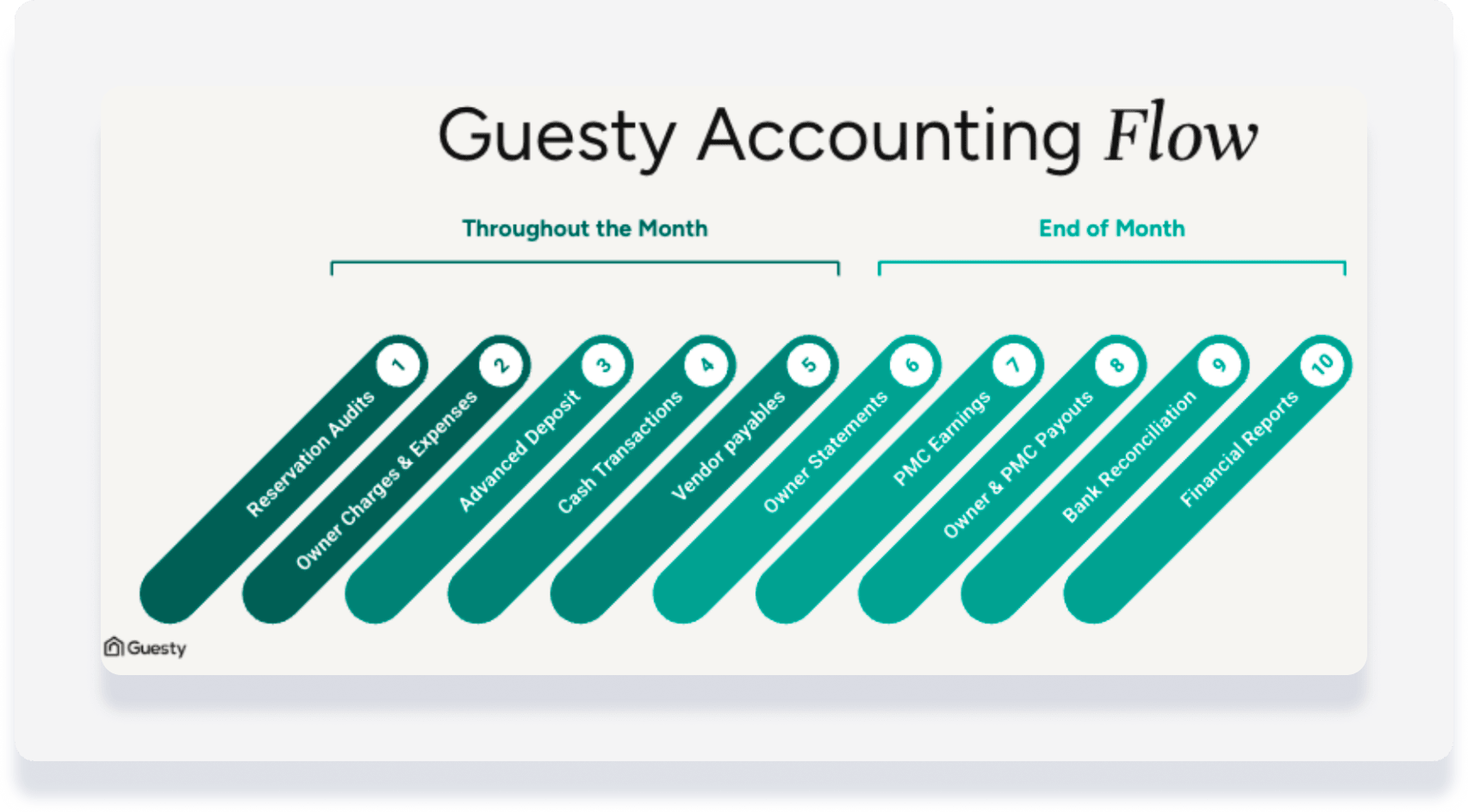
Following are tasks that we suggest performing at the end of each month. See our recommended ongoing tasks here.
Check that all listings are assigned to a business model
Purpose: Assigning listings to the correct business model ensures that reservations are properly categorized for financial reporting and revenue distribution.
Tip:
Under Accounting > Business Models, a note indicates if you have unassigned listings. 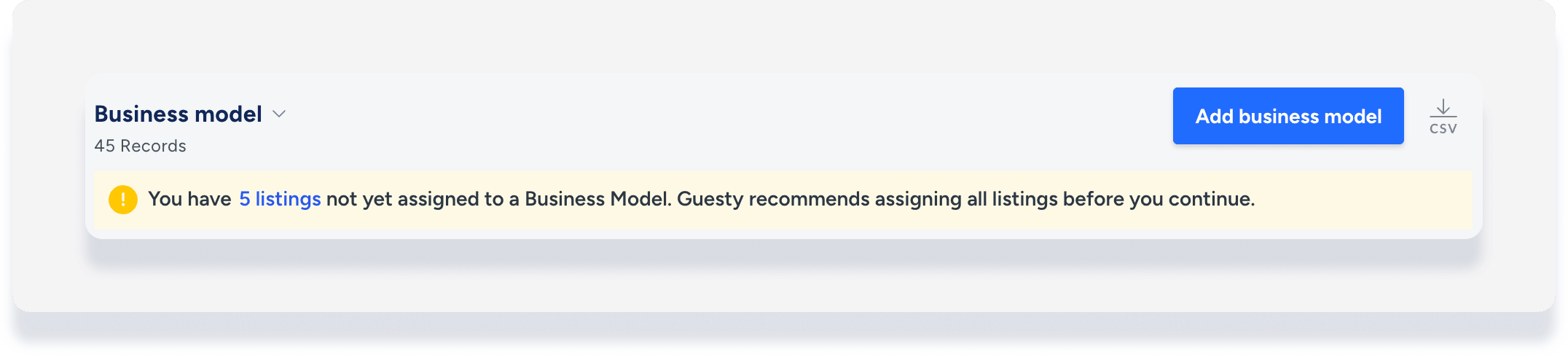
- Navigate to Properties.
- Add filter "Has business model" toggled to No.
- For listings that appear, assign each to a business model and reprocess their reservations.
Audit owner charges and owner activity
Purpose: Ensuring the accuracy of owner charges and owner activity is essential for maintaining transparent financial records. This review verifies that all debit and credit transactions associated with owners are correctly recorded and identifies any discrepancies before finalizing reports.
- Navigate to Accounting → General ledger → Preconfigured reports.
- Click Owner Charges.
- Review the report to confirm the accuracy of all expenses charged to owners for the current month.
- Compare with the previous month’s report to identify variances or discrepancies.
- Click Owner Activity.
- Download the report which provides a record of all debit and credit transactions for each owner.
- Cross-check transactions for accuracy and completeness.
- Click Owner Charges.
- Identify and add missing owner charges:
If necessary, add missing owner charges or journal entries for the current reporting period. - Validate and finalize:
- Ensure all updates are accurately reflected in owner reports before finalizing statements.
- Confirm that owner transactions align with expected charges and previously recorded activity.
Review generated owner statements
Purpose: Before sharing with owners, it is essential to review the statements for accuracy and ensure all necessary adjustments have been made. If modifications are required, the statement should be regenerated after updates.
- Navigate to Accounting → Owner Accounting → Owner statements.
- Select the appropriate month and review the generated statement.
- Verify accuracy of data. Ensure revenue, management fee, and charges align with internal records.
- Identify and apply necessary adjustments. If discrepancies are found, flag the owner statement and continue to the next task, posting journal adjustment.
- Troubleshoot missing statements. If an expected owner statement was not generated, use troubleshooting steps to determine the issue.
- Customize if necessary. Modify the owner statement template to fit your specific reporting needs.
- If needed, regenerate statements after any adjustments were made.
Audit PMC earning report
Purpose: The PMC earning report provides a detailed breakdown of all revenue due to the PMC from the trust account.
Note:
While this is recommended as an end-of-month task, the frequency should align with how disbursements are handled in your operational accounting system.
- Navigate to Accounting → General ledger → Posting Journal. Select PMC earning report.
- Verify the total earnings and confirm they align with expected disbursements.
Posting journal adjustments
Purpose: Before finalizing and regenerating owner statements, it is crucial to review and add any missing transactions or journal entries to ensure accurate financial reporting. This step ensures that all revenue, expenses, and adjustments are properly accounted for before statements are shared with owners.
- Add a journal entry via the posting journal for general expenses and owner charges. If an entry is linked to a specific reservation, it can be added directly from the reservation page.
- Utilize bulk upload for efficiency with multiple transactions if needed. Ensure you’re using the correct owner charges/expenses template provided here.
- When adding journal entries / transactions:
- Journal entries should be created for making adjustments.
- Ensure they are accurately categorized under the appropriate owner, PMC, or vendor account. Make sure to include the reservation number when adding a journal entry.
- If needed, regenerate statements after any adjustments were made and before sending to the owners.
Approve and share owner statements
Purpose: After reviewing and finalizing owner statements, the next step is to approve and send them to owners.
- Navigate to Accounting → Owner accounting → Owner statements.
-
Approve owner statements:
- Check the boxes to select one or more owner statements.
- In the gray header that appears, click Status change then select Approve.
-
Send owner statements:
- Check the boxes to select one or more owner statements.
- In the gray header that appears, click Share.
- Choose to send via the Owners Portal, email, or both.
Record payments
Purpose: To ensure accurate financial records and proper reconciliation, all payments to owners, the PMC, taxes, OTA channels, and vendors must be recorded. This is a monthly task for any payments that aren't recorded weekly.
- Navigate to Accounting → General Ledger → Balances.
- Add the relevant filter:
- Owners
- Accounts payables (Vendors)
- Accounts payables (PMC)
- Accounts payables (Taxes and VAT)
- Accounts payables (Channels)
- Optional: Click the filter Balance date to change from "today" to a specific date.
- Add column "Outstanding balance.”
- Create a new disbursement record:
- Check the boxes to select one or more items.
- In the gray header that appears, click Pay.
- Enter payment details:
- Enter the payout name, description, payment method, payout date, and reference number.
- If partially paying an amount, edit the payout amount.
- Click Payout.
- Add the relevant filter:
- (As needed) If an owner payment for a previous month was recorded after statements were generated, the owner statement must be regenerated to reflect the updated balance.
Review monthly financials report
Purpose: Reviewing key financial reports ensures that all reservations are correctly processed, financial data is accurate, and tax obligations are met. Each report provides critical insights into revenue recognition, pending folios, tax remittance, and deposit reconciliation.
Note:
The tax remittance report is only relevant if you remit taxes, and have check-in/check-out revenue recognition.
Tip:
You can create and save a custom report following the steps below or by using prompts.
- Navigate to Reservations. Create and run financial reports for monthly revenue, folios pending review, and tax remittance reports.
- Add a column:
- Click Columns then click Accounting.
- Toggle on Processed by Business Model.
- Filter for and review the following reports:
-
Monthly revenue report
- Search for "Check-in" then select Between.
- Select the start and end dates based on the revenue recognition method.
- Review revenue distribution and ensure it aligns with financial records.
-
Folios pending review
- Search for "Folio status" then select Pending Review.
- Navigate to the reservation folio and address any issues before updating the status.
-
Tax remittance report
- Click on the report name, then select TaxRemittance from the saved reports.
- Adjust filters and columns as needed based on your tax setup.
- Validate that tax amounts are correctly calculated and aligned with the applicable tax configuration.
-
Monthly revenue report
Review balance sheet report
Purpose: The balance sheet report provides a snapshot of what is owned (assets) and what is owed (liabilities). Generate a balance sheet report to determine if your trust account is in balance and to see the breakdown by ledger of assets.
- Navigate to Accounting → General ledger → Preconfigured reports → Balances.
- Under "Balance sheet", select the balance date.
- Click Export as PDF.
- Verify that the assets equal liabilities, and that you know which stakeholders own the funds being held in the cash account. If not, investigate the relevant ledger.
Reconcile your bank account
Purpose: Regular bank reconciliation is essential for maintaining trust account integrity and meeting regulatory requirements in the property rental industry. The reconciliation process matches income and expenses recorded in Guesty with your bank statement.
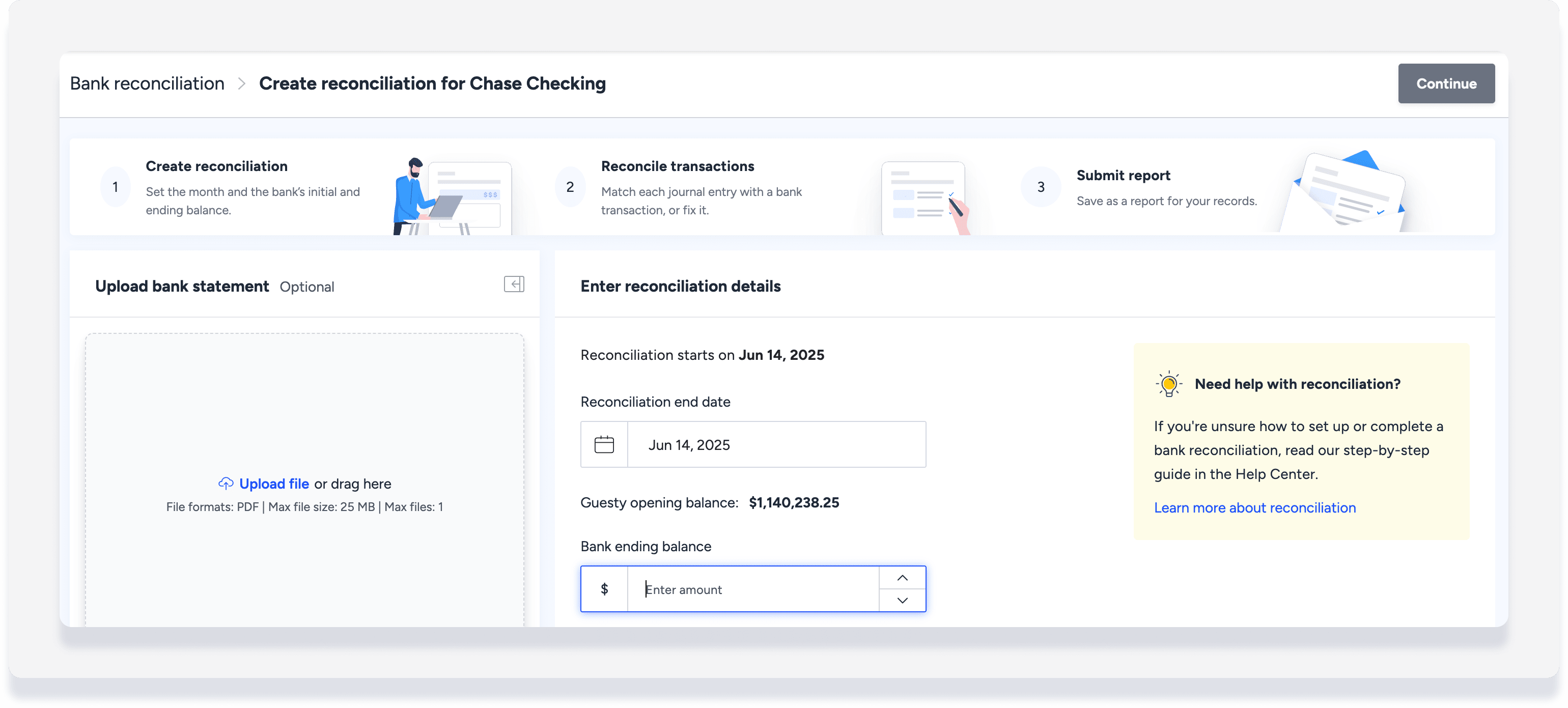
- Navigate to Accounting → Cash management → Bank reconciliation.
- At the top right, click New reconciliation.
- Enter the reconciliation end date.
- Review the "Guesty opening balance" amount to make sure it aligns with your bank account.
- Enter the Bank ending balance amount.
- (Optional) Click Upload file to upload your bank statement.
- In the top-right corner, click Continue.
- Review each transaction and check if it is cleared on your bank statement:
- If the disbursement is correct and there is an equivalent in your bank account, check the entry to clear it.
- If you do not want to clear the disbursement, click Edit and select Move to next period.
- When all transactions are reviewed, and the difference between the cleared transactions and the bank ending balance is zero, click Submit reconciliation. Alternatively, click Save as draft to complete later.
To create reconciliations for multiple accounts, simply follow the same steps for a different bank account. Learn more about Managing bank reconciliations.
Tip:
To master month-end Accounting, visit Guesty Academy for interactive courses and step-by-step video tutorials.
