An owner charge is a transaction an owner is billed for on a specific date. The revenue from these charges is typically split between the property management company (PMC) and a vendor. An owner expense is a cost paid to a vendor that is billed to either the PMC or the owner.
Expenses or charges can be associated with specific reservations (per guest, per stay, or per night) or set to post periodically (monthly or quarterly).
Depending on your Guesty Accounting version, you manage these charges in different areas of the platform.
Identify your Accounting version
Before you begin, check your Financials or Accounting menu to see which feature is available to you:
-
New Expenses feature (v2): You have a dedicated Expenses section under the Financials menu.
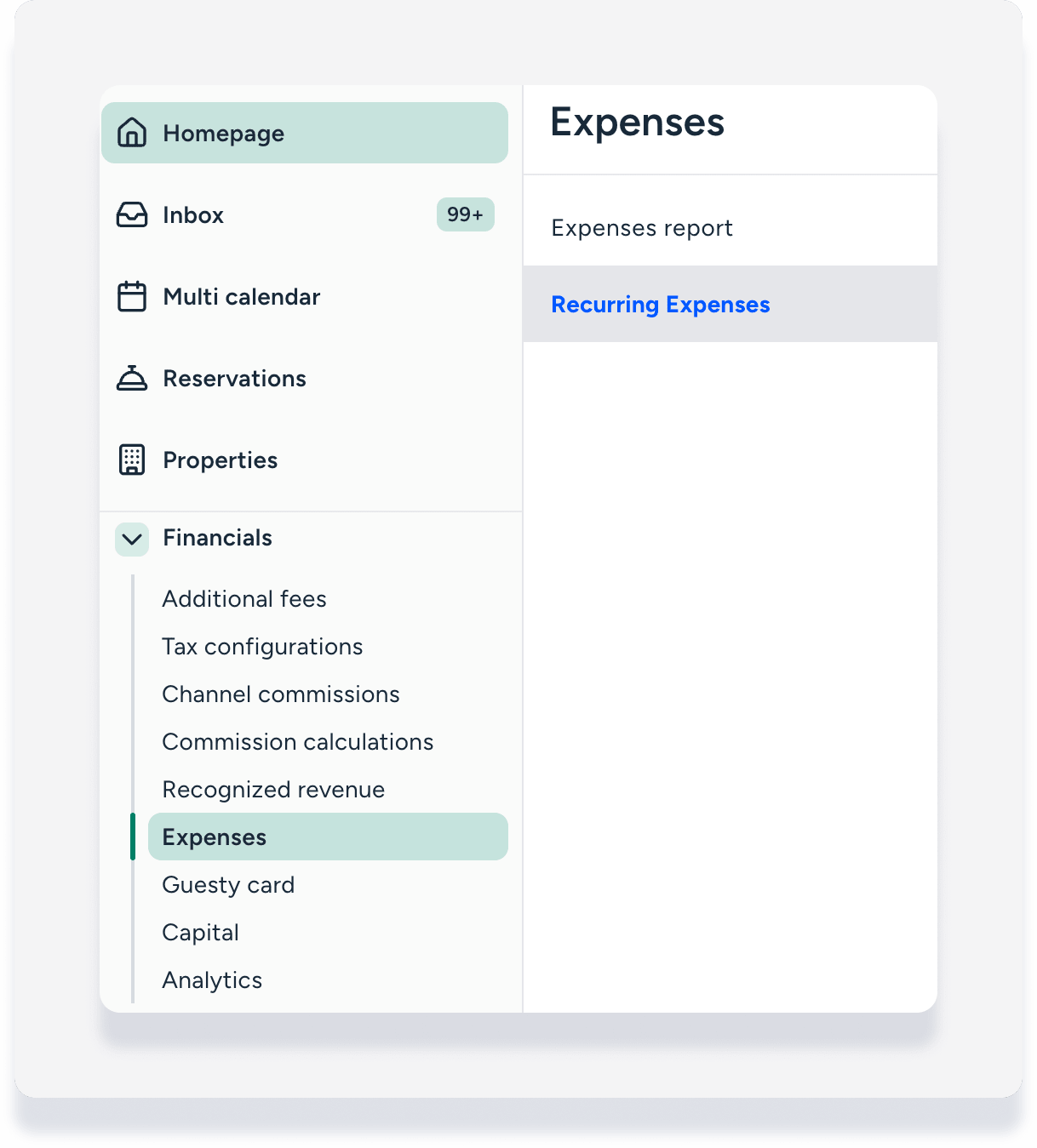
-
Standard Expenses feature (v1): You manage recurring charges within your Business models.

Create recurring charges and expenses
New Accounting experience
If your account uses the new Expenses feature, you can manage both one-time and recurring items in a single location. This standalone tool replaces the need to manage expenses within a business model.
Follow the steps in our guide to creating an expense or owner charge to set up these items.
Standard Accounting experience
For users not yet on the new Expenses feature, recurring owner charges or expenses are added through a business model. Follow the steps below.
Sign in to your Guesty account.
In the left-side menu, click Accounting to open the dropdown menu.
Under "Accounting setup", select Business models.
Click Add business model, or select an existing model to update.
Scroll down to the "Trust account income / Trust account expenses" section.
To add a charge: Click Add recurring owner charge on the right.
To add an expense: Click Trust account expenses, then click Add recurring expense on the right.
-
Fill in the transaction details, noting the following options under "Conditions":
Charge VAT or GST: Toggle on Charge owner VAT/GST for recurring expense and fill in the required fields.
Apply to Guesty Booking Engine: In the "Manual reservations" field, select both Booking Engine and website. If multiple instances appear, select all of them.
Apply to owner reservations: In the "Manual reservations" field, select owner or owner-guest. Unlike other recurring charges, these are automatically deducted from owner statement balances.
Click Add.
At the top-right corner, click Save as new, or Save and update to apply changes to all assigned listings.
Tip: New charges default to a 100% share for the PMC. You can adjust the share between the PMC, owner, or vendor when filling in the details.

Record one-time charges and expenses
The process for adding a single, non-repeating expense depends on your Accounting feature set.
New Accounting experience
If you use the new Expenses feature, follow the steps in our guide to creating a one-time expense or owner charge to record one-time costs.
Standard Accounting experience
If you aren't using the new Expenses feature, record one-time costs as individual transactions. This ensures they don’t repeat on future statements.
Within a reservation: Add a transaction to the Accounting folio section of a specific booking.
In the Posting Journal: Use the Posting Journal to log general business expenses.
See our step-by-step guide Adding a transaction.
Manage cancellations
When a reservation is canceled, Guesty handles related charges based on their type:
Automatic reversals: Reservation-related charges (such as PMC commission or taxes) and recurring charges associated with a specific stay (per guest, per stay, or per night) are reversed automatically.
Manual reversals: Periodic recurring charges (monthly or quarterly) and payment-related charges remain. You must manually reverse these transactions in the Posting Journal if they no longer apply.