The Reservation page is your central hub for managing guest stays. Whether you need to update arrival times or check payment statuses, you'll find everything you need in one place to keep your operations running smoothly.
Access a specific reservation's page
Sign in to your Guesty account. Click the reservation widget on the homepage and select the relevant reservation from the side panel.

You can also access a reservation's page through the reservations report, Multi-Calendar, and Inbox.
Follow these steps to access a reservation from the main reservations report:
Step by step:
- Sign in to your Guesty account.
- In the side navigation menu, click
 Reservations.
 - Click the relevant reservation.
Follow these steps to access a reservation from the Multi-Calendar or Inbox:
Step by step:
- Sign in to your Guesty account.
- In the side navigation menu:
- Click
 Multi-calendar.
 - Click
 Inbox.
- Click
- Select the relevant calendar block or conversation thread.
- In the right-side panel, click
.
-
Next to the reservation number, click
 to open the reservation's page.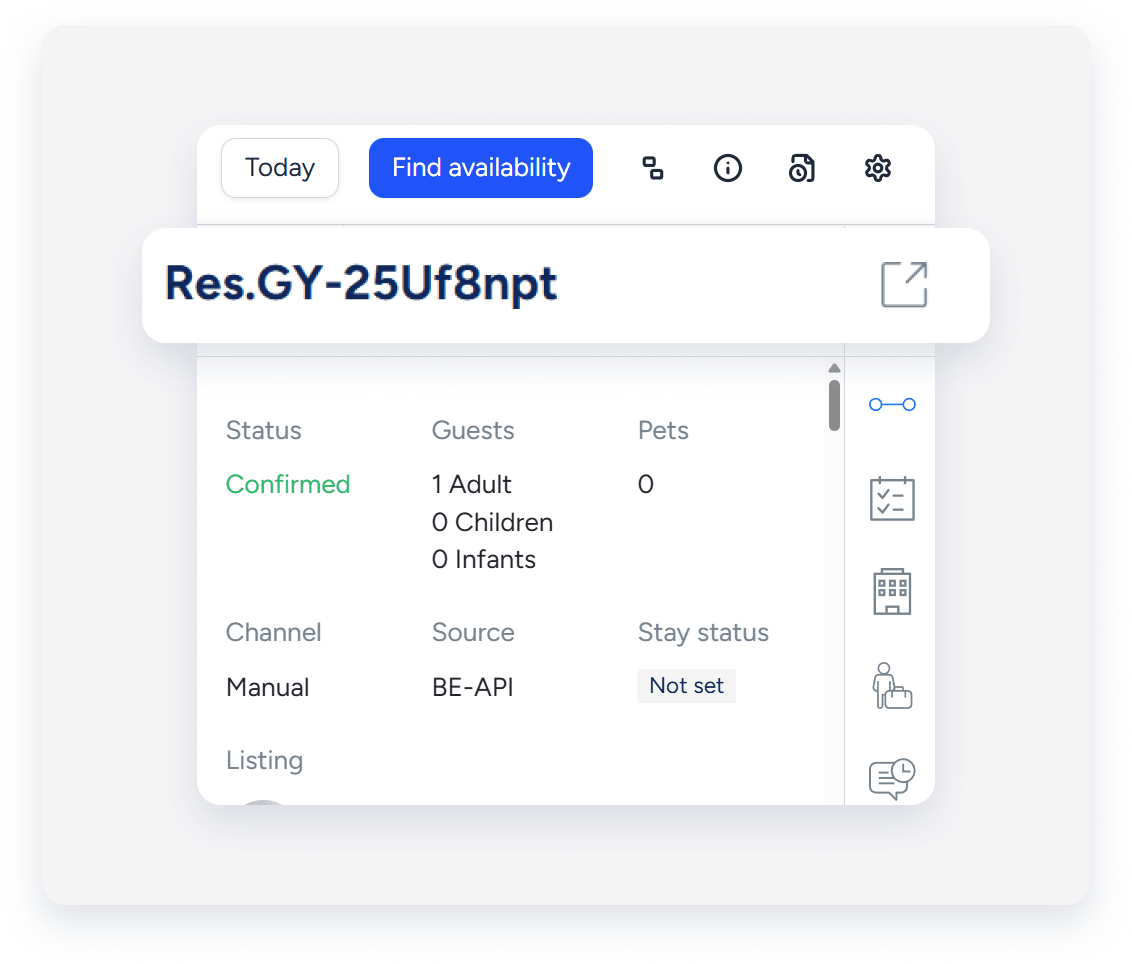
The Overview tab is the default view, but you can use the side-bar to see a summary or navigate to the Inbox and other tabs.
The reservation card appears regardless of the selected tab. It displays a general summary, including the reservation status, payment status, timing, and guest details.

Overview
Use this tab to view or change general reservation details:
Quick actions
Use the quick actions bar to manage reservations based on their status: before check-in, during the stay, and after check-out. Click to see more options, like printing or canceling a reservation.

Details to manage
- Reservation timing: View and update check-in and check-out times, the total number of nights, and the guest's stay status. You can also block the night before check-in or after check-out.
- Calendar: View the listing's monthly calendar.
- Guest: View guest identity, update the number of guests, or navigate to the Guests tab.
-
Property: Move the reservation to another property.
Pilot: You can also see an indication for mid-stay relocations.
- Channel: Identify the channel or source of the reservation and view more channel information.
-
Payment status: View the payment status, balance due, and the ANR (Average Nightly Rate). Open the Guest folio and invoice tab or the Payments tab.
- The ANR displays the average nightly rate, formatted in the reservation's currency. It's calculated by dividing the host payout by the number of booked nights. The ANR appears only on single reservations for users with financial permissions. It doesn't appear on owner reservations or if payment data is unavailable.
- Notes: View and add notes.
Reservation page tabs
Select a tab from the left-side panel to manage specific information.
Manage reservation-specific information in this tab, such as:
- View the reservation custom fields, and click Edit in the top-right corner to manage them.
- View the rate plan applied to the reservation.
- Check the status of check-in forms sent to guests, click
 to download a report, or
  to delete.
 - View the guest's travel information, and click Edit in the top-right corner to manage it.
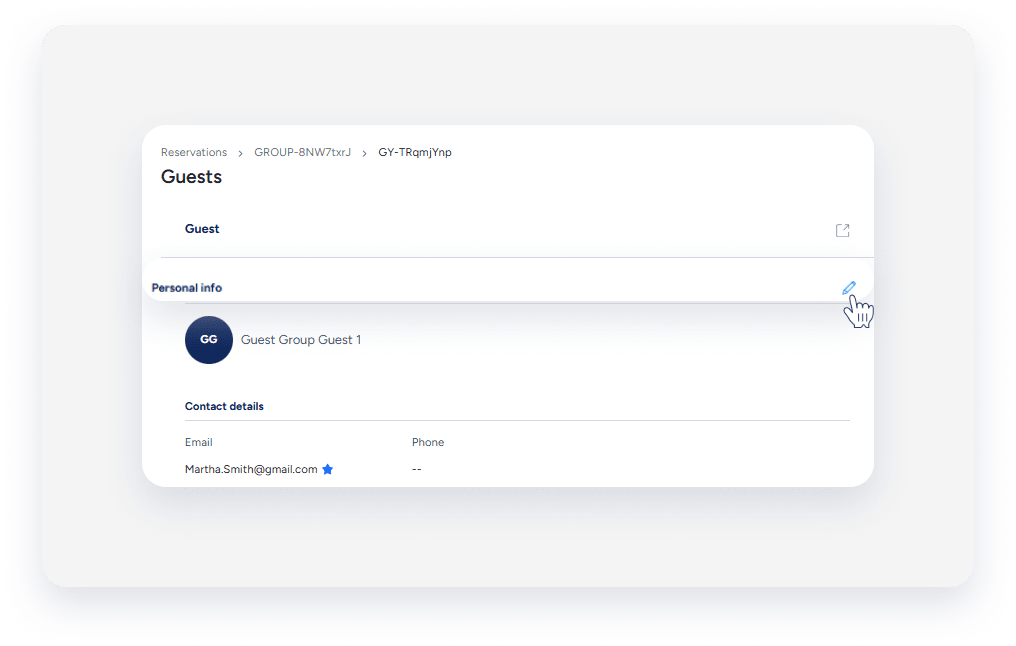
View and edit the guest's details in this tab. At the top-right corner, click to open the guest's contact profile. Hover over a section and click
to edit the details.
View and add tasks.
View and edit the guest folio, and share guest invoices. Filter the guest folio breakdown by line item or by night, and add or adjust items. Once finalized, send the invoice directly to the guest, or copy the invoice link to send it manually.

This tab is available for Accounting users only. Use it to view and edit the accounting folio and accounting dimensions.
Under "Accounting", view the owner's revenue and edit your commission.
In the blue banner, view the applied business model and when the reservation is processed. Scroll to the right to view and edit the payment status.

Under "Folio", scroll to the right to add a transaction or journal entry. Next to each line item, click  , and select View and edit journal entry or Reverse from the dropdown menu to update an existing line item.

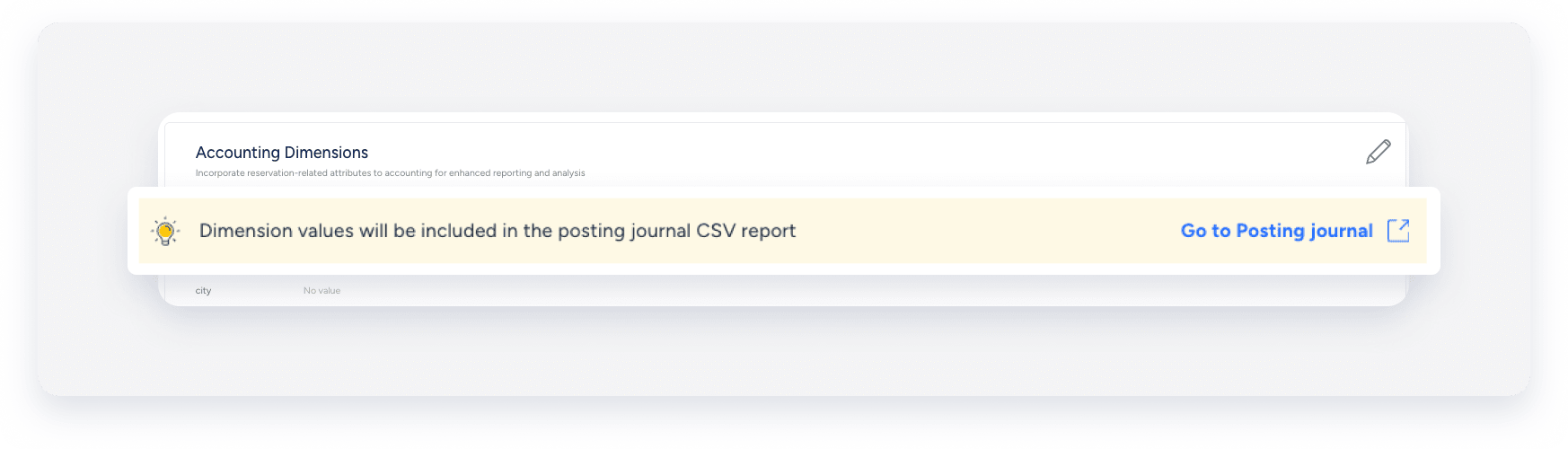
Under "Accounting dimensions", scroll to the right, and click to edit or view the posting journal.
Use this tab to manage payments. View past and future payments, add, charge, or capture payments, refund guests, and record transactions. You can also add a payment method to the reservation. Click Payment actions, and select an action from the dropdown menu.

View and change guest codes, backup codes, battery level, and remote unlock.
- Damage Protection and Screen and Protect: View coverage, deductibles, and claim status, or file a claim.
- Travel protection: View policy details, cancel, or add coverage.
- GuestVerify: View coverage, screening status, and reasons for failure.
- Liability coverage: View coverage.
View the history of changes made to the reservation. You can sort by date to see what changes were made and which team member made them. Click Activity type or Team member to filter the results or use the search bar.

