Sending a quote (or offer) to a guest allows them to add their payment details and confirm their booking for a stay. The quote gives your guest the property details, booking dates, and the total price.
Before you begin
- Add a valid email address to the guest's contact information. A quote can't be sent without a complete email address.
- Configure your quote settings.
- Define if guests need to add their payment method to secure their booking:
- To collect payment during booking, connect a payment processor.
- If you don't connect a processor, you can still send quotes without a payment method.
- Select a reservation status:
- Reserved quotes block the selected dates on all calendars until your specified expiration time. This timeframe can't be extended. Once confirmed, the quote link becomes unavailable. For late acceptances, create a manual reservation or send a new quote.
- Inquiry quotes don’t block the calendar and don't expire.
- All listings in the same quote or reservation must use the same currency. Change listing currency if needed.
Limitations
- The quote breakdown doesn't display additional fees set up per listing or account, but the total price includes them. Consequently, the total payout may appear higher than the sum of the visible items (accommodation fare, cleaning fee, etc.).
- You can't edit a quote after sending it.
- Don't send a manual invoice when sending a quote. Instead, resend the quote link to ensure the reservation status updates from “Reserved” or “Inquiry” to “Confirmed“ automatically.
- Avoid sending manual invoices before the guest confirms the booking via the quote (if no payment information is required) or if payment information is required in the quote settings.
- Resend the quote link when using the Reserve & send option. If you choose Reserve & copy, save the link elsewhere to access it later.
Channel-specific information
Review specific steps and requirements for the channels below.
Vrbo doesn't allow hosts to send quotes directly, so you can't send a quote to guests who submit a booking request or inquiry. Guests must initiate the booking process through Vrbo to securely collect payment and contact details.
Terminology
- Inquiry: A guest expresses interest but hasn't submitted a request.
- Booking request: A guest submits a request to book (Vrbo calls this "Quote and hold"). It remains pending until you accept or decline.
- Confirmed reservation: You accept the booking, and it becomes active.
Note:
You can't convert an inquiry into a confirmed reservation.
Follow the steps below according to the situation:
Step by step:
- Accept the request within 42 hours to avoid Guesty's auto-decline. The status will change to "Confirmed".
- Manually add fees to the reservation.
- Send an invoice to the guest.
Ask the guest to navigate to the listing on Booking.com and select Book now or Request to book. They will be prompted to submit their details.
- If "Quote and hold" is enabled, this generates a booking request for your approval.
- If "Instant book" is enabled, the reservation confirms automatically.
You can only adjust pricing after the reservation is confirmed.
- Ask the guest to submit a booking request (via Quote and hold or Request to book) or create a reservation using "Instant book".
- Once confirmed, update the invoice with adjusted fees.
- Send the updated invoice.
Send a quote
Send a quote offering a single listing or multiple listings so the guest can choose which one to reserve.
Choose the sending method:
- Via the Multi-Calendar: Best for checking availability and blocking dates.
- Via the Inbox: Best for sending quotes within an existing conversation.
Via the Multi-Calendar
Follow the instructions below to send a quote via the Multi-Calendar.
Step by step:
- Sign in to your Guesty account.
- In the side navigation menu, click
 Multi-calendar.
 - Locate the relevant property in the left sidebar. Then, click and drag the cursor across the dates you want to send a quote in the respective row in the calendar.
- In the right sidebar, click the New reservation or quote button.
- The button appears if the listing is available for the selected dates, or in case of flexible blocked dates.
- If the button doesn't appear, the dates are entirely blocked from booking.
- In the pop-up window, under "Contact details", click New guest to send a quote to a new guest, and fill in the relevant details. Otherwise, click Existing guest, and select the relevant guest from the upper dropdown.
-
Under "Channel & status", select a status:
- Reserved: Blocks dates until expiration.
- Inquiry: Keeps dates unblocked.
Note:
- The number of guests in the reservation page indicates only the number of adults, even if you included kids and/or infants in the reservation quote.
- Under "Channel" (in "Channel & status"), only the sources of existing reservations are displayed. To add a new channel (source), first create a reservation with the new channel.
- Choose a sending option:
- Reserve & send quote: Sends the link via Guesty Inbox. You can edit the message by changing the subject line, adding variables, adding attachments, etc. Click Send quote.
- Save & copy quote: Generates a link to paste into an external inbox.
- Reserve: Reserve the dates and price without sending the quote.
Via the Inbox
Send the quote to those guests whose reservations were created manually in Guesty or received via a direct integration source (Guesty Booking Website, Guesty Booking Engine, or Guesty Booking Engine API).
Follow the instructions below to send a quote via the Inbox.
Step by step:
- Sign in to your Guesty account.
- In the side navigation menu, click
 Inbox.
 - In the Inbox submenu, click
 .
. - Click the relevant message thread.
- In the right sidebar, click
 .
. - Click on the reservation next to
 .
. - From the dropdown, click + New inquiry.
- Customize the quote (select the relevant listing, set the number of guests, etc.).
- Choose a sending option:
- Reserve & send quote: Sends the link via Guesty Inbox. You can edit the message by changing the subject line, adding variables, adding attachments, etc. Click Send quote.
- Save & copy quote: Generates a link to paste into an external inbox.
- Reserve: Reserve the dates and price without sending the quote.
Via "Availability search"
Use "Availability search" to offer up to 25 listings in one quote.
Note:
This creates a sub-reservation for each listing. When the guest books one, the others automatically change to "Closed". Manage the statuses of each sub-reservation independently.
Follow the instructions below to send a quote for multiple listings.
Step by step:
- Sign in to your Guesty account.
- In the side navigation menu, click Multi-calendar.
- At the top-right, click Find availability.
-
Apply filters (Dates, Guests, Amenities) and click Find properties.
Filters- Dates: Search for available listings in a chosen date range.
- Guests per unit: Set the number of guests per room.
- Click Filters to add additional filters (such as Amenities or Cities).
- Check the Add blocked properties checkbox to include properties that are under flexible blocks for the selected dates. Properties under inflexible blocks won't be shown.
- Check the Ignore minimum nights checkbox to include properties whose minimum number of nights per stay is higher than the date range you selected.
- Check the Ignore maximum guests checkbox to include properties whose maximum occupancy is lower than the number of guests you selected.
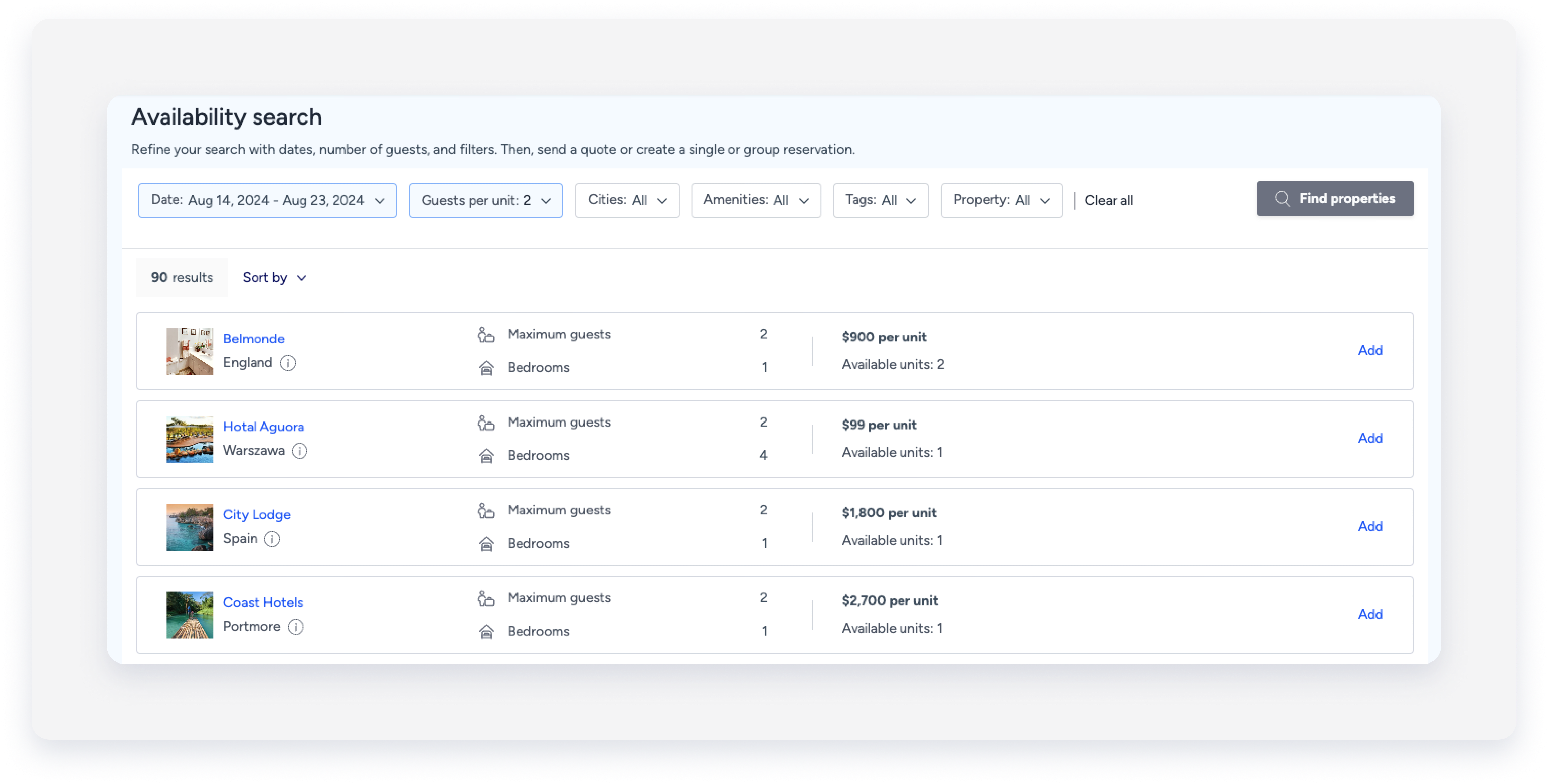
- Multi-units: All sub-units appear under one result. For example, 15 dorm rooms in a multi-unit count toward the "Available units" on that listing's row.
- Complexes: Each room type appears as a separate result. For example, duplexes and dorms in the same complex appear on separate rows.
Tip:
- You can sort the results by using the “Sort by” button.
- You can click on the listing’s name to open the property page (if you’d like to explore the listing’s specific monthly calendar, etc.).
- You can hover over the question mark icon next to the listing’s city to see its full address.
- Click Add next to all the listings you’d like to include in the quote. All the selected units are shown in the Reservations Cart to the right.
- You can add up to 25 units to the Summary page.
- If more than one unit is available for booking, use the arrows in the listing’s row to increase or decrease the number of selected units.
- Click Send quote, then select Group reservation.
- Review the summary details (dates, guests, total price).
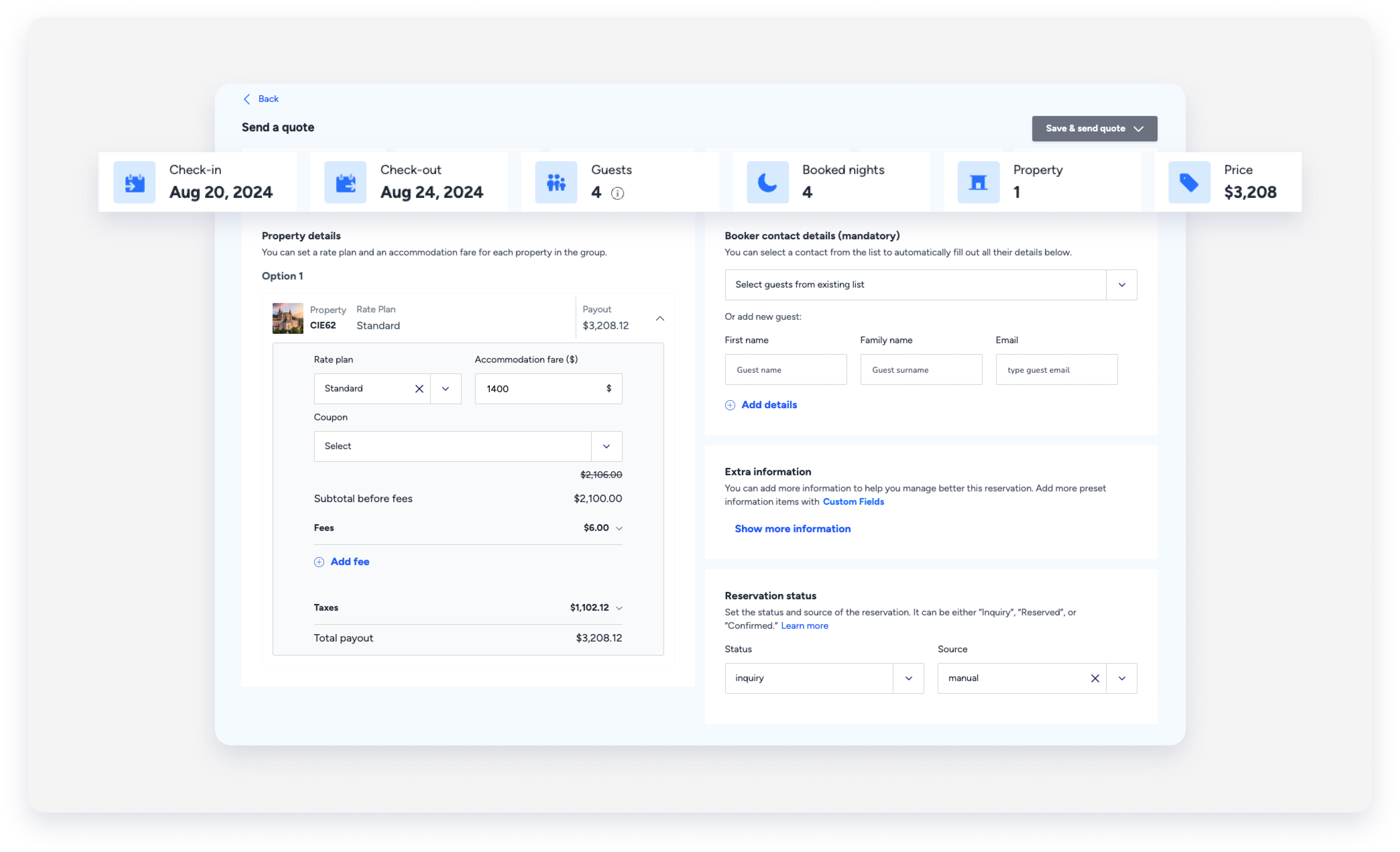
- Under the “Property details” section, adjust the pricing per booked property, such as by adding a coupon, overriding the accommodation fare, fees, or taxes, or changing the applied rate plan (if relevant).
- If you selected more than one unit, each unit is displayed in a different section, allowing you to adjust its fees separately. Click the down arrow to the right of the relevant row to expand it.
- If you've edited the additional fees, they won't automatically be recalculated if an alteration is made to the reservation after it is confirmed. For example, once you edit the cleaning fee for a night, adding a night to the reservation (after the quote has been confirmed) will set the extra night's cleaning fee to the price it was before the alteration.
- In the “Booker contact details”, add the booker's details. Click Add details to add a new guest, or select an existing guest from the dropdown. The booker is assigned to the group reservation and will be the reservation’s payer.
- Under “Reservation notes”, click Add notes to add any internal information about this reservation quote.
- Under “Reservation status”, select the relevant source & status of the quote. Use one of the following statuses:
- Inquiry: If you don’t want to block the calendar for the selected listings and dates.
- Reserved: If you want to block the calendar for the selected listings and dates. If the guest books a reservation via the quote, you will need to change the “Reserved” status to either “Confirmed”, if approving the reservation, or to “Closed”, to remove the calendar block.
-
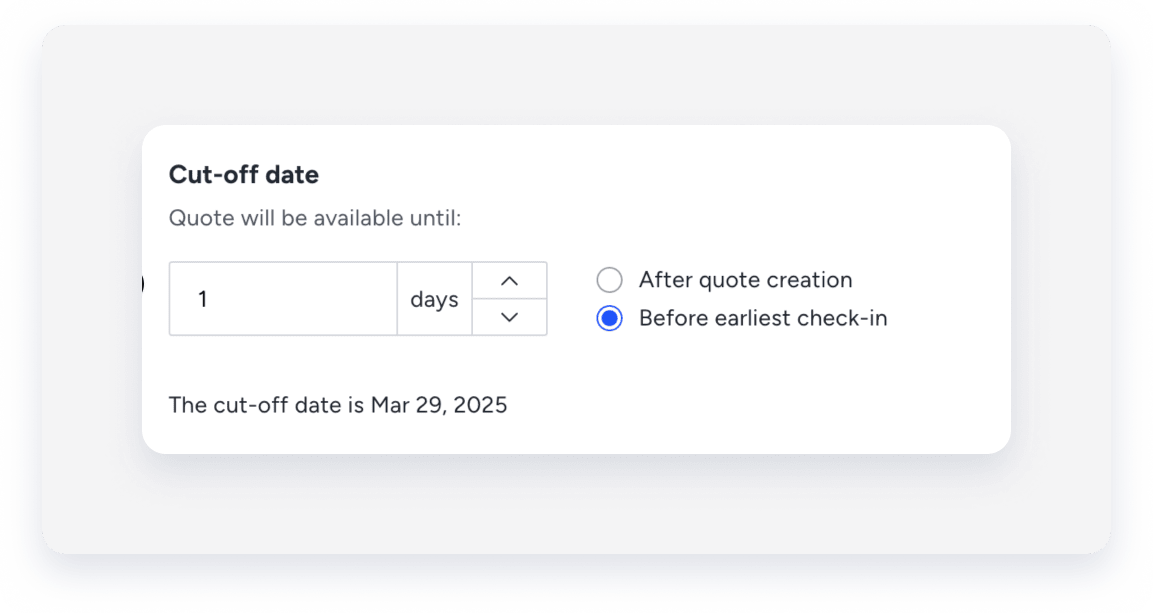
Under "Cut-off date", set the quote's expiration day.
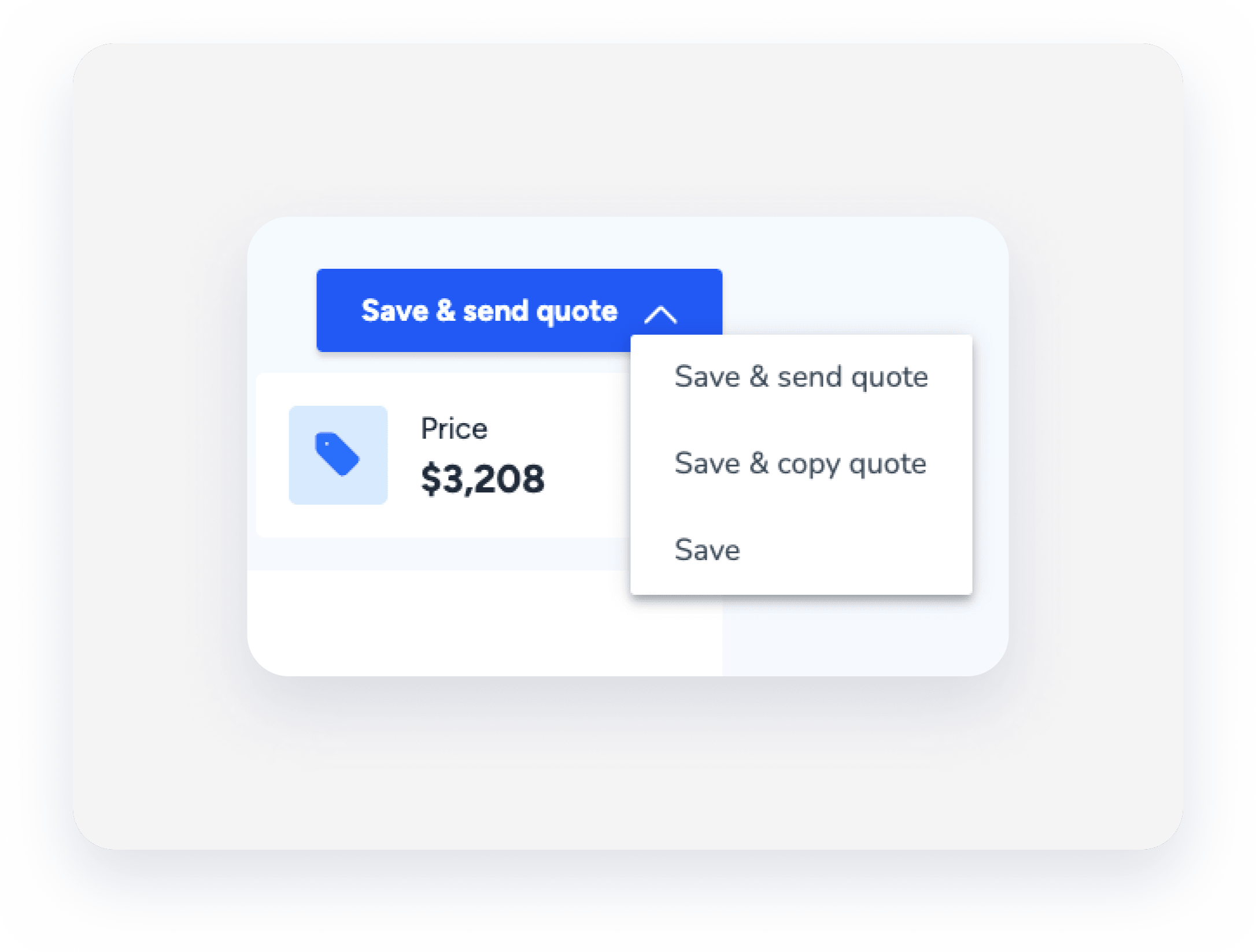
- Click on the blue button at the top right. Then, choose one of the following listed below.
- Save & send quote or Reserve & send quote: Choose this option if you’d like to send the link to the guest in a message from the Guesty Inbox.
- Save & copy quote or Reserve & copy quote: Use this option to copy the quote and edit it in a customized message (e.g., if you’d like to change the subject line, add variables, add attachments, etc.). Once done, you can send it to the guest.
-
Save or Reserve: Use this option if you'd like to reserve the dates and price in the quote, but not to send the actual quote to the guest.
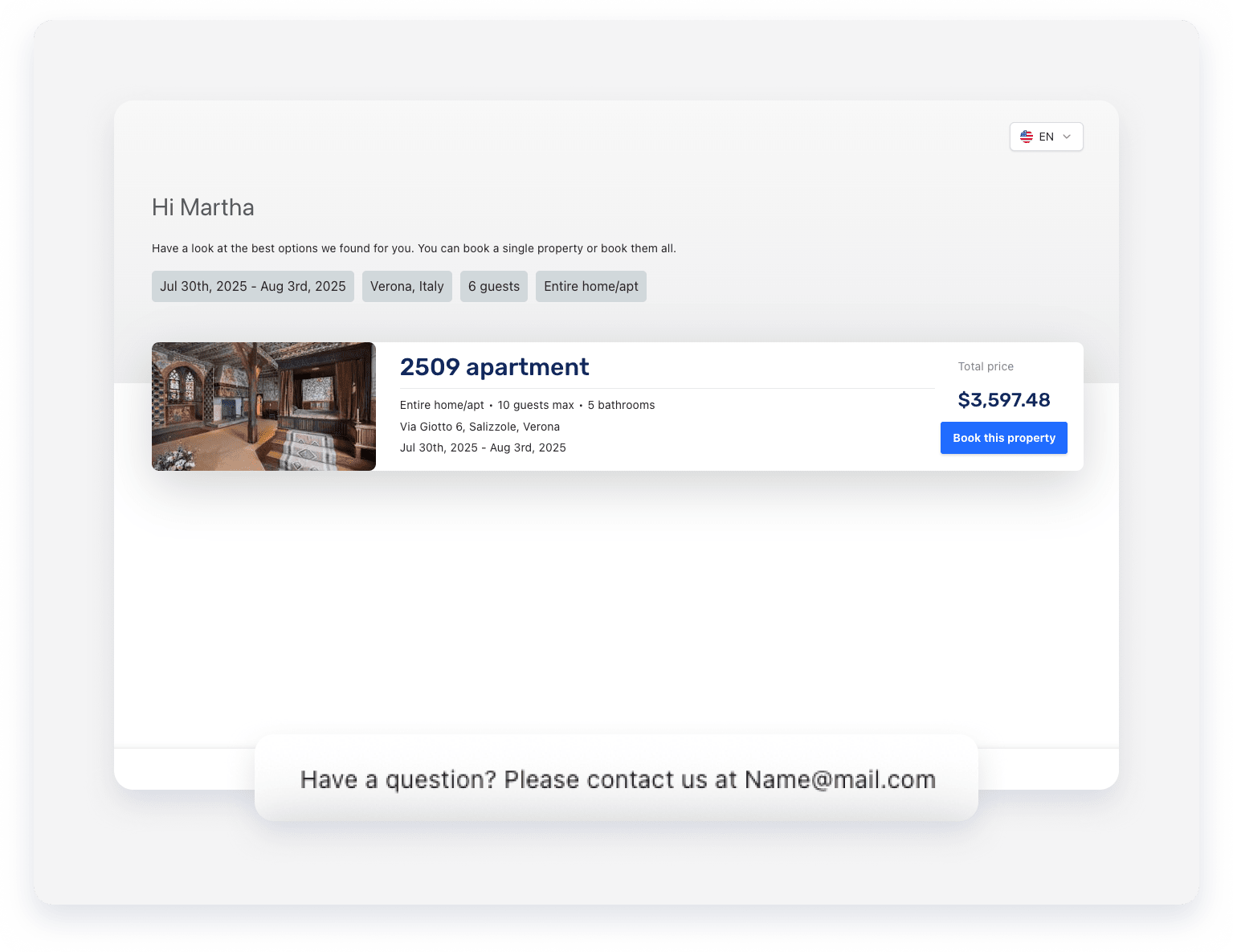
A link containing the quote is sent to the guest via email, allowing them to book their stay. It may take up to 10 minutes to arrive.
The reservation status updates based on payment:
- Confirmed: The guest added a payment method.
- Awaiting payment: No payment method was required. You must collect payment later.
You can send one quote for one guest at a time, either for a single listing or multiple listings. For multiple listing quotes, you must use the same date range for all included listings.
The email address at the bottom of the quote is the billing email provided in the "Company info" section of your Account settings.
If the guest doesn't confirm the booking by the check-in date, the status automatically changes to "Closed".
