Pre-onboard your Airbnb account to Guesty to explore Guesty’s platform without disrupting your current Property Management Software (PMS). Pre-onboarding allows you to preview how your portfolio will appear and operate in Guesty while continuing to manage listings in your existing PMS.
During pre-onboarding, Guesty creates a view-only copy of your Airbnb data, including:
- Listings
- Reservations
- Guest messages
If you later decide to complete the integration, the data already imported into Guesty remains available, so the transition to a full connection is fast and smooth.
Understanding view-only connections
A view-only connection creates a read-only state that allows you to explore Guesty without syncing data in both directions. During this stage:
- Data is copied from Airbnb to Guesty once only.
- No ongoing sync occurs.
- Changes in Guesty don't sync to Airbnb.
- You continue to manage your listings in your current PMS.
Limitations during pre-onboarding
- The ability to "Give Guesty full permissions" is disabled for listings in a “Pending” status.
- The following features aren't supported during pre-onboarding:
- Automated messages
- Reconnecting listings
- Two-way data sync
Important:
After fully connecting an account, you can’t revert to view-only (pre-onboarding) mode, even if you disconnect Guesty. Pre-onboarding is a one-time process.
Preparing for pre-onboarding
Before starting the pre-onboarding process, review these important requirements and behaviors:
- Account limitations: Pre-onboarding supports Airbnb accounts that are only connected to a single Guesty account.
- Listing nicknames: Each listing must have a unique nickname before importing. If a nickname is missing, Guesty automatically generates one with a “!” prefix.
- Other booking channels: If your Airbnb listings also connect to other Online Travel Agencies (OTA) or booking sites, they continue receiving reservations as usual during pre-onboarding.
- Billing behavior: Pre-onboarded listings are not billed initially. Listings become billable after connecting to any non-Airbnb channel.
Pre-onboard an Airbnb account to Guesty (view-only)
Pre-onboarding lets you select which listings to import, including multi-units. Guesty detects and configures multi-unit structures and their sub-units automatically.
Tip:
Select only the listings you want to explore in Guesty to control your preview experience.
Prepare your listings
Before starting, make sure all listings have a unique nickname.
Create a view-only connection
Follow the instructions below to create a view-only connection.
Step by step:
- Log in to your Guesty account.
- In the side navigation menu, click
 Marketing and sales to open the dropdown menu.
 - Under Channel management, select Distribution.
- Click the Airbnb thumbnail.
- At the top right of the integration page, click Add account.
-
Select Set up a view-only connection.
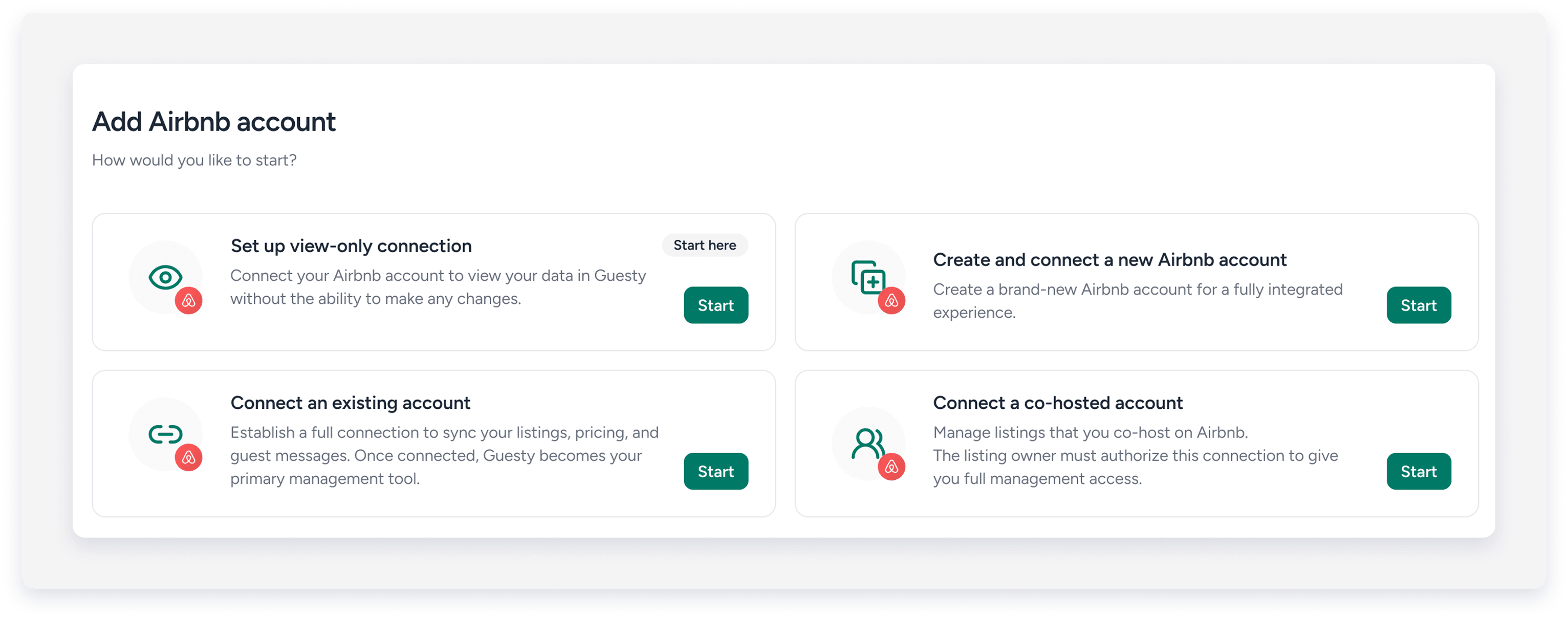
- Review the overview video explaining the connection process and click Start to begin.
- You will be redirected to Airbnb to grant Guesty permission to access your listing data.
- Choose which listings to import and click Import listings.
-
Guesty will import your Airbnb listing data.
Multi-unit listings and sub-units are automatically detected and imported with the correct structure.

- When the import finishes, refresh the page to see your Airbnb account and listings with a “Connected” status.
View-only connections indicators
- “View only connection” appears next to the account name.
-
 displays next to each pre-onboarded account and listing.
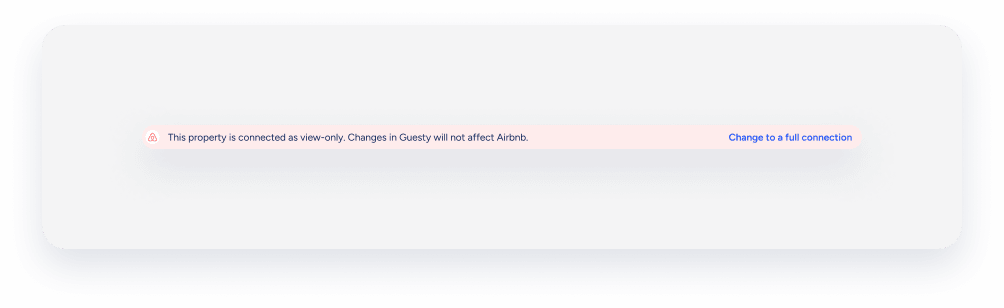
 - A view-only banner appears at the top of each pre-onboarded listing.
Fully connect a pre-onboarded Airbnb account to Guesty
Once you are ready to manage your Airbnb listings directly through Guesty, you can upgrade your connection from view-only to a full integration.
When the connection is upgraded, the following takes place:
- Guesty becomes the primary PMS for the listing.
- Listing content, rates, and availability sync between Guesty and Airbnb.
- Guesty settings override Airbnb configurations during the import.
- The default sync mode is Full sync.
Limitations
- Pre-onboarding is a one-time process. You can’t revert back to view-only once you fully connect your account.
- Guesty overrides active Airbnb rule-sets, including pricing and availability settings. While these rule-sets will remain on your Airbnb account, they won't be assigned to connected listings in Guesty. To maintain your pricing and availability rules, recreate them in Guesty using Smart Calendar Rules or a rate strategy.
Preparing for full connection
Complete these requirements before starting the full connection:
-
Account:
- Disconnect your current PMS from Airbnb.
- List Guesty as your official connectivity provider.
- Verify your identity on Airbnb.
- Add the following four items to your Airbnb account:
- Add a profile picture in "Edit profile". This is different from the official photo ID.
- Verify your email address in "Personal info".
- Verify your phone number in "Personal info".
- Upload your government-issued ID in "Personal info".
-
Listings:
- Deactivate and delete any unnecessary listings.
- Choose the connection type for each listing.
Step by step:
- Log in to your Guesty account.
- In the side navigation menu, click Marketing and sales to open the dropdown menu.
- Under Channel management, select Distribution.
- Click the Airbnb thumbnail.
- Select your pre-onboarded Airbnb account from the account list.
- Click Convert to full connection.
- Review the information shown about upgrading your integration. Fully connected listings become billable.
- Click Start.
- Disconnect your current PMS in Airbnb, then return to Guesty and check the confirmation box.
-
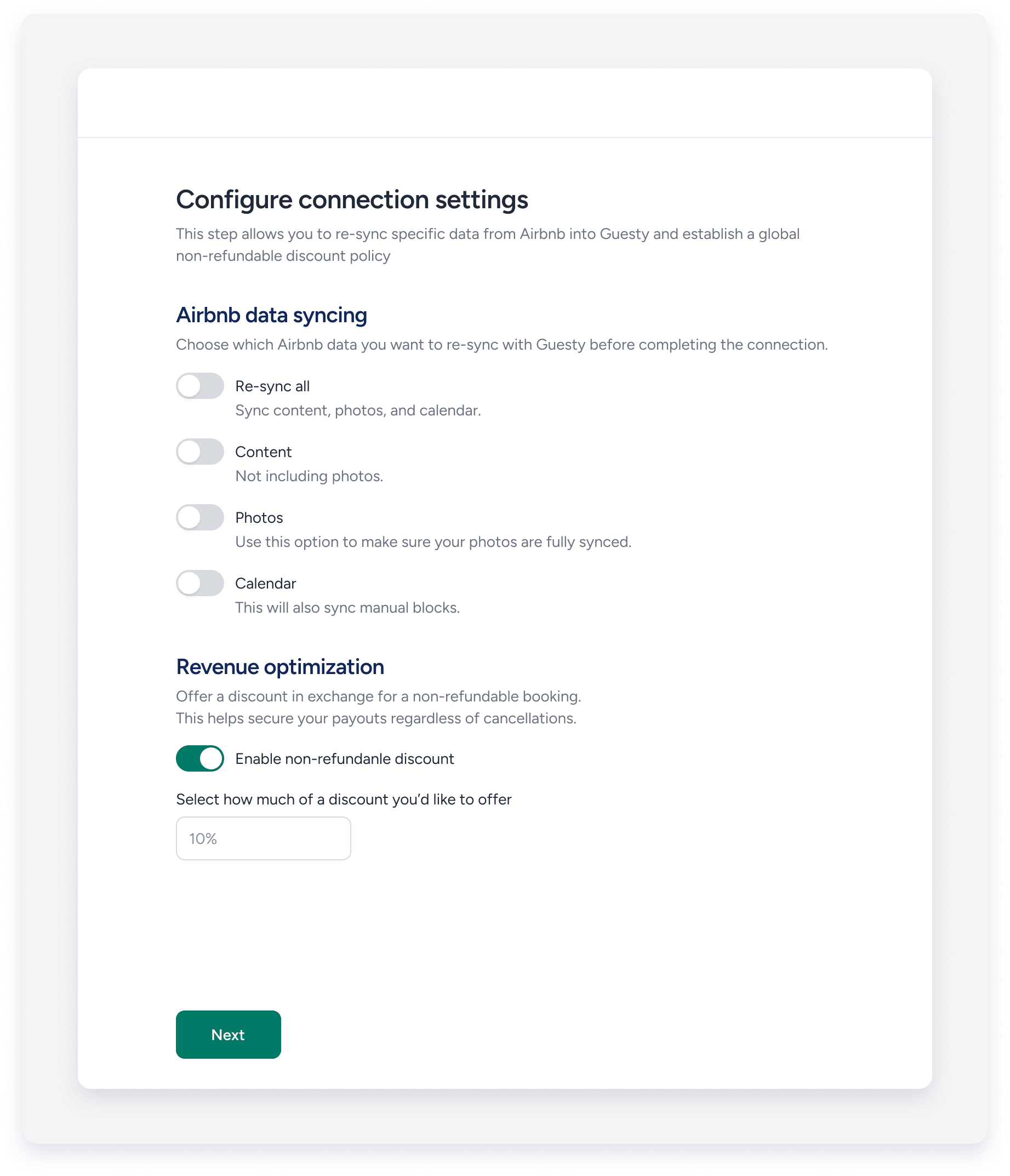
Configure connection settings (data re-sync options):
You can choose which specific Airbnb data you want to re-sync with Guesty before completing the connection. You have the following options:
-
Re-sync all: Sync content, photos, and calendar.
Note:
Choose this option to re-sync all three categories.
- Content: Sync listing content, not including photos.
- Photos: Use this option to make sure your photos are fully synced.
- Calendar: This will also sync manual calendar blocks.
- Optional: Revenue optimization: You can set up a non-refundable discount to secure your payouts regardless of cancellations.
-
- Click Next.
- Click Confirm. You will be redirected to Airbnb to grant final permissions.
- Click Allow on Airbnb.

Once the process is complete, a confirmation screen appears, and Guesty begins syncing content, calendars, and reservations.
How the import affects your listing settings and data
Learn below how the import process affects your listing's data both in Guesty and Airbnb.
Data type |
Details |
|---|---|
| Sync settings |
The listing sync type is set to “Full sync” by default, meaning rates, availability, and content should be managed in Guesty, not in Airbnb. If you prefer to manage just the listing content attributes in Airbnb (such as the property type, description fields, and amenities), change the sync settings to Limited sync once the listing is imported and connected. With Limited sync, you can select a property type, bed type, or amenity that is not supported in Guesty. Learn which data types are synced between Guesty and Airbnb for Full sync and Limited sync, and where to manage each data type accordingly. |
| Reservations | Current and future reservations are imported to Guesty. Reservations with past check-out dates are imported without the guests' details (Airbnb restricts this for privacy reasons). Past reservations are pulled to Guesty as well but with partial or outdated financial information. Contact us to retrieve the correct financial information for past reservations. |
| Calendar blocks | Your Airbnb calendar blocks will be imported as blocks to Guesty. If you were previously connected to another PMS, you might have reservations from other channels appearing in your Airbnb calendar as blocks. They'll be imported to Guesty as blocks as well. If you connect to the source channel of these reservations, Guesty will automatically replace these blocks with the actual reservations. |
| Listing's minimum and maximum nights |
|
| Additional fees | Additional fees set in Airbnb won't be pulled to Guesty. You'll need to configure them in Guesty once the listing is imported. |
| External (iCal) calendars | If you're using an external calendar (iCal): Airbnb disables the iCal connection to avoid conflicting updates. All iCal calendar blocks and notes will be removed from the listing's calendar, and the iCal link will be removed from Airbnb. |
| Photos | Photos are imported from Airbnb with a lower resolution, and only sync to Guesty upon the initial import. We recommend deleting the imported photos and adding them again in Guesty, so they appear in high resolution (check the recommendations below). Add any additional photos directly in Guesty. |
| Guest messages | Guest messages are added to the Guesty Inbox as “Unread”. |
| Smart calendar rules (Airbnb's rule-sets) | Airbnb's rule-sets are removed. You can set new Smart Calendar Rules in Guesty. |
| Airbnb Smart Pricing | Airbnb Smart Pricing is disabled, as it isn't supported in Guesty. You can use Guesty PriceOptimizer instead. |
| Listed/unlisted status | The listing will be imported in the same listed status as in Airbnb. i.e., if it is listed (or unlisted) in Airbnb, it will be listed (or unlisted) in Guesty. If the listing is imported as unlisted, you'll need to list it to make it bookable. |
| Promotions |
All promotions applied to the listing will be removed from Airbnb. You can set the following promotions in Guesty:
And add additional Airbnb promotions (such as Custom promotions) in Airbnb. |
| Instant booking/Request to book | An instant booking policy is automatically set for your imported listings. |
| Title and description fields | The listing's title and description fields will be pulled to Guesty. Descriptions in different languages will also be imported (as long as the language is supported in Guesty). The title and description fields will be used as the "default" set for all your channels. |
| Nickname | The listing's nickname is retrieved from Airbnb. If none is provided, Guesty generates one automatically. Learn more about changing a listing's nickname. |
| Guest verification requirements | Guest verification requirements settings are reset. Define them again in Guesty. |
