Use a rate strategy to manage your listings’ occupancy and maximize revenue. A rate strategy enables you to automatically adjust pricing, set minimum nights, and block check-ins or check-outs based on seasons, holidays, and specific days of the week.
Group listings in a single strategy to apply changes in bulk. While you can assign a listing to only one rate strategy, a single strategy can include multiple rules that override one another or combine.
When you apply a rate strategy rule, the adjusted price is reflected in the listing’s calendar and synced to your connected booking channels.
Combine rate strategies with other tools
Rate strategy rules can be combined with manual adjustments made via the calendar. By default, rate strategy rules don't apply to dates where prices and minimum nights have been manually adjusted. You can choose to override manual updates.
Don't combine rate strategy rules with third-party pricing tools, as these tools may override each other. PriceOptimizer overrides rate strategy adjustments once every 24 hours.
Learn more about using multiple pricing tools and availability tools in Guesty.
Create a rate strategy
Follow the instructions below to create a rate strategy.
Step by step:
- Sign in to your Guesty account.
- In the side navigation menu, click
 Marketing and sales to open the dropdown menu.
 - Under Revenue management, select Rate strategy.
- In the top-right corner, click New rate strategy.
- Add a rate strategy name and description.
- Click Save.
The new rate strategy will be added to your rate strategies page.
Edit or delete a strategy
To edit an existing rate strategy or delete it, hover over the relevant row and click  . Select the relevant option from the dropdown menu and confirm the action in the pop-up.
Rate strategy rules categories
You can add the following rule types to your rate strategy.
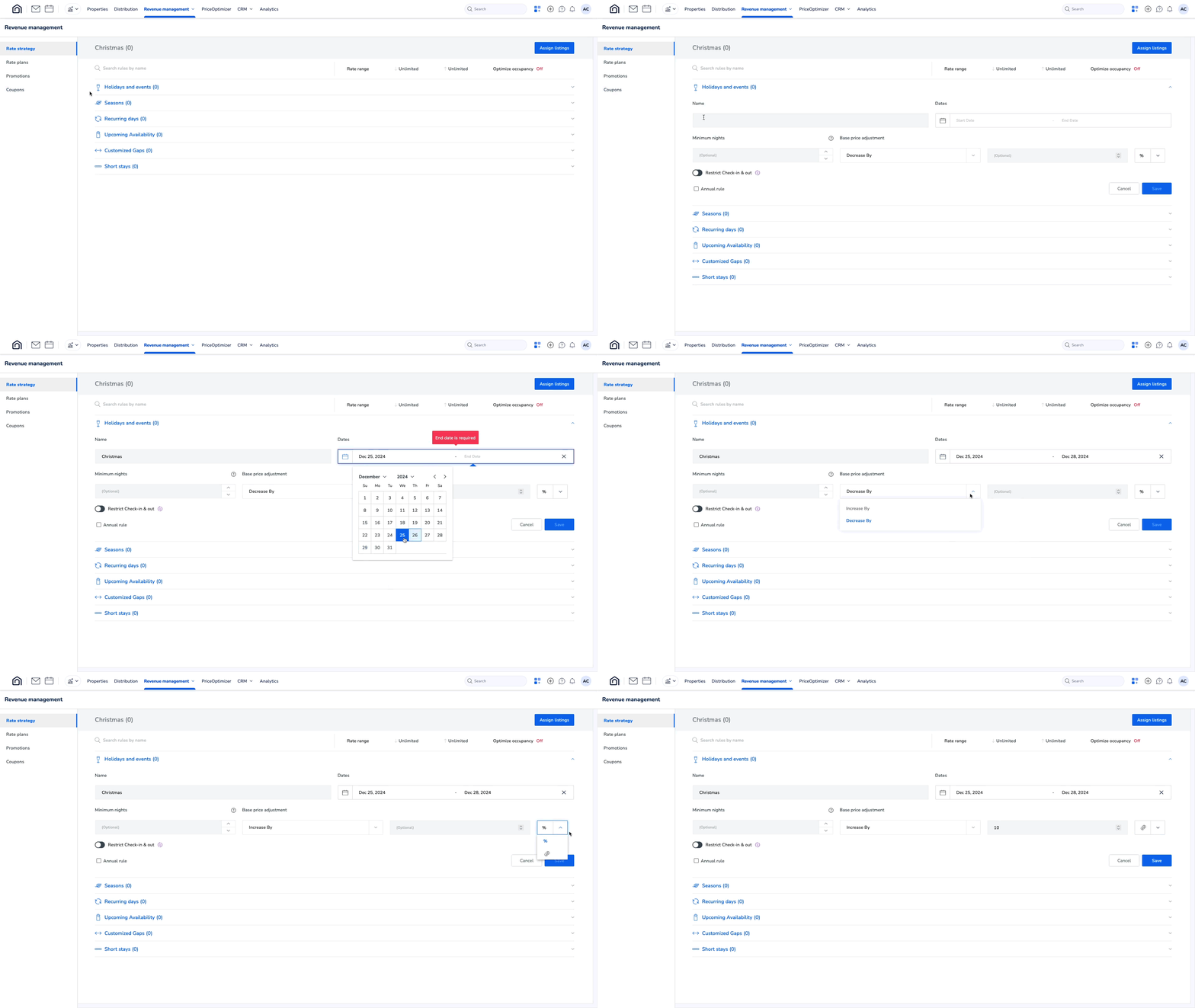
Set rules for a specific date range. In the example below, we added a fixed amount of 10 USD for the Christmas period.
Add rules for different periods of the year, such as high or low seasons. Select specific days of the week for the rule to occur within the set date range.
For example, a 25% increase for the autumn season (repeating every year), with no recurring days restrictions, will apply to all days of the week.

Create a rule to adjust pricing and minimum nights, or restrict check-ins and check-outs on certain days of the week.
For example, add a fixed amount of 10 USD to Fridays and Saturdays, and restrict check-in on Mondays and Sundays.

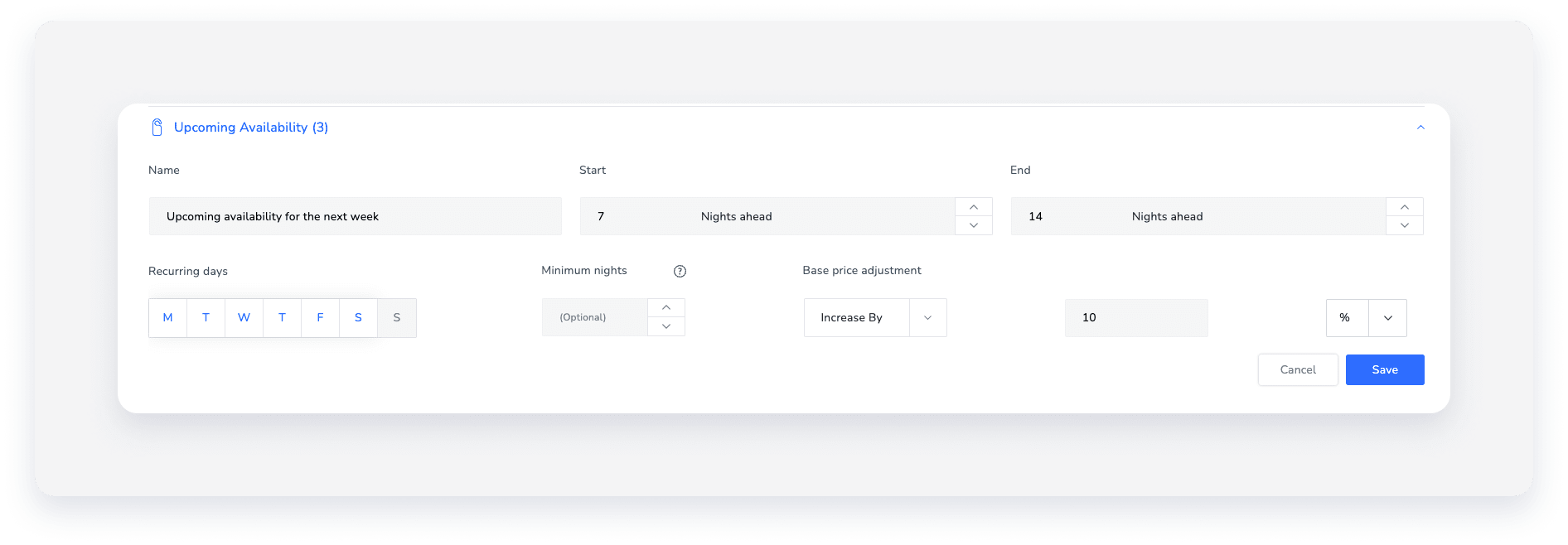
Adjust the pricing and minimum nights for available dates within the defined start/end range.
For example, a rule that starts 7 nights ahead of today and ends 14 nights ahead of today, applying to all days except Sunday (the day is grayed out), increases the base price by 10%.
Adjust prices for available days between specific dates.
For example, reduce the base price by a fixed amount of 15 USD when there is a two-day gap in the calendar to encourage increased occupancy.

Charge a higher price for short stays.
Click Short stays and define the percentage or price increase and the number of nights based on your needs. Click + Add to add additional short stay rules.
Short stay rules don’t sync with booking channels, and will not override your default minimum nights setup.
Manage rate strategy rules
After creating a rate strategy, add rules that automatically set rate restrictions based on your needs. For example, adjust the assigned listings’ pricing based on holidays, events, and seasons.
Pricing rules directly adjust the listing’s default base price, not the nightly rate. Learn how multiple rate strategy rules work in conjunction.
Pricing rules’ adjustments can't result in a price of less than 10 USD per night or the equivalent value in other currencies. The adjustment to the base price won’t apply if it lowers the price per night below 10 USD.
Create a new rate strategy rule
To create a new rule, navigate to the relevant rate strategy. Select the category and click Add rule. Fill in the information as detailed below and click Save.
Rule fields
- Enter a name for your rate strategy rule.
- Define the rule’s period by selecting or excluding dates and/or days. To exclude a day, click it, and it becomes grayed out.
- Under “Minimum nights”, add a minimum number of nights per stay for the selected period.
- To set a base price adjustment, select Increase by or Decrease by and add the relevant value (percentage/fixed value).
- Check the Annual rule box to apply the rule every year (including this year).
- Toggle on Restrict check-in & out and click the days to block check-in or check-out. This prevents guests from arriving or departing on the selected days.
Important:
- When creating an annual rule that repeats every year, ensure that the start and end dates are within the same calendar year to prevent overlapping with other rules.
- When setting up an annual rule together with a check-in/check-out restriction, the rule will only apply when the combination of days and dates exists. For example, if you choose Jan 20 and Wednesday, the rule will only apply when Jan 20 is a Wednesday.
Add additional information according to the type of category selected.
Import an existing rule
Click the relevant category and click Copy from. Locate the rule you want to import from the list, or search for it by name. The list only displays the rules associated with the current category (for example, the "Seasons" category will only display "Seasons" rules). Click  next to each rule you want to copy.
The copied rules appear immediately, with their original names. It can take up to one hour for the copied rules to sync with your booking channels.
Edit or delete a rule
To edit a rate strategy rule, click the name of the rate strategy and select the relevant rule category. Click  to edit an existing rule, or
  to delete it, and confirm the action in the pop-up.
Set rate range and optimize occupancy
Refine your rate strategy using a rate range to establish a minimum and maximum percentage by which your rates can fluctuate. The minimum nightly rate for a rate strategy is 10 USD, even after all discounts apply.
You can also optimize occupancy by automatically adjusting the minimum nights to fill gaps in the calendar. The number of minimum nights applies to the first night in the listing’s calendar gap.
Step by step:
- Select the relevant rate strategy.
- Above the list of categories, hover over “Rate range”.
- Define a range date: Click to the right and enter the relevant percentages in the pop-up.
- Optimize occupancy: Toggle on Optimize occupancy and enter the number of nights under “Minimum nights can't be shorter than”.
- Click Save.
Assign or unassign listings from a rate strategy
A listing can be assigned to only one rate strategy at a time. To change a rate strategy, first unassign the listing from its current rate strategy.
When assigning a multi-unit to a rate strategy, select only the main unit. The rules automatically apply to all sub-units.
You can override adjustments to a listing's price per night or minimum nights when assigning it to a rate strategy, or when it is already assigned.
When you unassign a listing, the price per night and minimum nights revert to the listing's default values.
Follow the instructions below to assign listings to your rate strategy.
Step by step:
- Select the relevant rate strategy.
- In the top-right corner, click Assign listings.
- In the “Unassigned” tab, select the listings you want to assign.
- (Optional) Check the Override box to override price/minimum night adjustments made to these listings. In the pop-up, select whether to override price adjustments, minimum nights, or both. Then, click Yes, override.

- Click Assign.
To unassign listings from a rate strategy, click the “Assigned” tab and check the boxes of the relevant listings. Click Unassign and confirm the action in the pop-up.
Tip:
To master increasing revenue and managing occupancy with rate strategies, visit Guesty Academy for interactive courses and step-by-step video tutorials.
