Sync your availability between Guesty and external calendars, such as Google Calendar or other booking channels, to keep your schedule centralized. Syncing calendars lets you view reservations from channels that don't integrate directly with Guesty to help prevent double bookings.
You can sync calendars through a direct integration or an iCal connection.
Calendar updates typically sync within one hour. To make retroactive adjustments, remove the connection between the calendars and start over with your specific changes.
Important:
Guesty calculates reservation blocks differently from some channels and includes check-in and check-out dates in the reservation block. Always check your dates after syncing. If the dates are off by a day, toggle on Adjust imported events as described in the steps below to fix them.
Prerequisites and limitations
- It is not recommended to sync iCal calendars between separate Guesty accounts. This creates duplicate blocks on your calendar.
- To prevent duplicate events, use either an iCal connection or channel integration, but not both simultaneously.
- To sync Google Calendar events with Guesty, confirm that your calendar uses a public address and that event access permissions are set to public. Refer to Google's documentation for more information.
- To remove iCal blocks or export links in bulk, contact us.
Before syncing the Guesty calendar with an external calendar, read the following channel limitations.
Channel limitations
Review the specific limitations for the channels below.
Airbnb
Don't use iCal if the listing is connected to Airbnb, as this causes data discrepancies. If you import a listing from Airbnb, the iCal link automatically disconnects, and any notes are removed.
Vrbo
For the best experience, use Vrbo's direct integration instead of iCal. The direct integration provides centralized management and maintains data accuracy.
If you prefer to use iCal, export your Guesty calendar first. Then, import the link to your Vrbo account to sync the calendars.
Export your Guesty calendar as an iCal
Export your listing's calendar to share your availability with external channels. This creates a link you can paste into external calendars.
The export covers a date range from one day in the past to two years ahead. Within that range, it includes:
- Manual blocks
- Confirmed & reserved reservations
- Owner reservations
- Allotment blocks
- Smart Calendar Rules
- Rental periods
- Booking window
- Advance Notice
- Annual block limit
- Preparation time block
Follow the instructions below to export the Guesty calendar to your iCal.
Step by step:
- Sign in to your Guesty account.
- In the side navigation menu, click
 Properties.
 -
Click the relevant listing.
For multi-unit listings, manage this feature via the main unit to apply settings to all sub-units, or click a specific sub-unit to manage it individually.
- In the left-side menu, click Calendar.
- Select Calendar sync (iCal) from the dropdown menu.
- Next to "Export your Guesty calendar", click Export Guesty calendar. If you previously generated a URL, click Edit.
- Under “Guesty iCalendar link”, click
 to create a URL.
 - Click
 to copy the URL.
 - If the dates require adjustment, toggle on Adjust exported events. Select the relevant options from the dropdown menus under "Adjust exported start date" and "Adjust exported end date".
- In the top-right corner, click Save.
Import and sync an external calendar with Guesty
Import an iCal link to view reservations from other channels directly in your Guesty Multi-Calendar. Imported current and future reservations appear as gray blocks labeled "Calendar sync (iCal)".
How imported reservations function
- They act as flexible blocks, allowing you to create a Guesty reservation over them.
- They are excluded from Advanced Analytics.
- They don't trigger Smart Calendar Rules.
- These blocks are placeholders to prevent double bookings, but they are not editable.
- You can't modify them, add notes, or update guest details
Importing an iCal is a one-time action. To continuously sync your calendars, activate calendar syncing after the import. You can add up to ten import links per listing.
If an import creates a double booking, remove the connection, resolve the conflict, and start over.
Note:
Third-party protection tools (like Cloudflare) may prevent the iCal import. Disable the tool temporarily until the import is complete.
Follow the steps below to import your iCal to Guesty.
Step by step:
- Sign in to your Guesty account.
- In the side navigation menu, click Properties.
-
Click the relevant listing.
For multi-unit listings, manage this feature via the main unit to apply settings to all sub-units, or click a specific sub-unit to manage it individually.
- In the left-side menu, click Calendar.
- Select Calendar sync (iCal) from the dropdown menu.
- Next to "Import external calendars", click Import calendar. If you've already imported one, click Edit.
- Click Add an iCalendar link.
-
Under "External iCalendar link":
- Enter the required name in the "Name" field.
-
Paste the iCal URL in the "External iCalendar link" field.
Vrbo:
- Enter "VRBO iCal" in the "Name" field.
- Paste the iCal URL in the "External iCalendar link" field.
- Toggle on Sync calendar.
- Toggle off Adjust imported events.
You can update the name and the link anytime.
- Toggle Sync calendar on to activate continuous syncing.
- If the dates require adjustment, toggle on Adjust imported events. Select the relevant options from the dropdown menus under "Adjust imported start date" and "Adjust imported end date".
- In the top-right corner, click Save.
Syncing status
After syncing, check the status next to the calendar name:
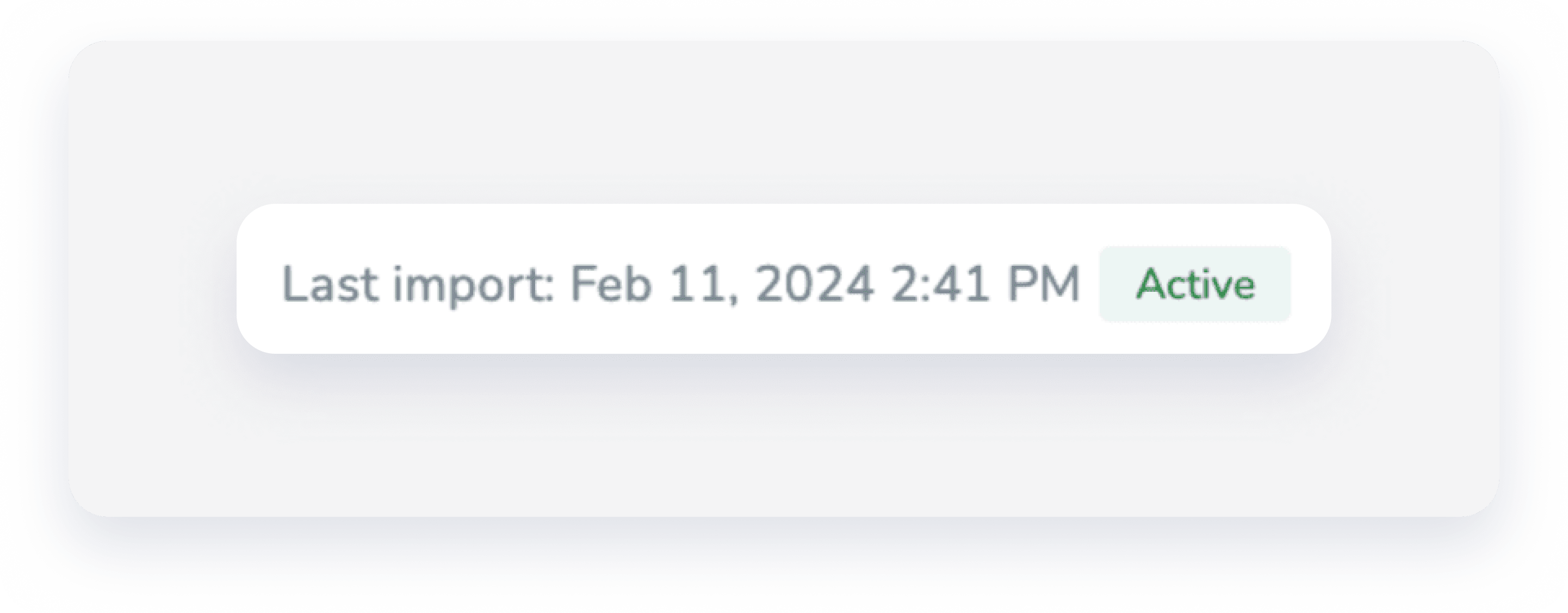
- Active: The sync is working correctly.
- Warning: The import failed. Guesty will retry for 24 hours. If successful, it changes to "Active." If it fails repeatedly, it changes to "Paused."
- Paused: The import failed for over 24 hours. We recommend that you disconnect and reconnect the iCal link.
If the status is “Warning” or "Paused” for over 24 hours, we recommend that you disconnect and reconnect the iCal link.
If you encounter issues, check our troubleshooting guide.
