Manage availability to close a listing for maintenance, block dates for an owner's personal stay, or prevent bookings during a specific period. Use the Multi-Calendar or the listing's monthly calendar to block or unblock dates instantly across your connected booking channels.
Note:
Use a rate strategy to restrict check-in or check-out on specific recurring days.
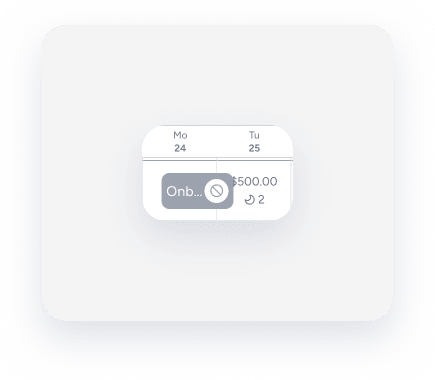
A manual block is a flexible block, meaning it can be overridden if necessary. These blocks appear in gray on your calendar. When you block dates in Guesty, they update across all connected channels.
A block must cover at least one night (spanning two calendar days). Guesty counts the arrival and departure dates as part of the blocked period. Because check-in and check-out times usually happen in the morning or afternoon, the block leaves the rest of those days open.
|
For example: If the block is for Jan 18th and Jan 19th, the calendar block covers only part of Jan 18th and Jan 19th. |
 |
Smart calendar rules
To activate Smart calendar rules for manual blocks, select the "Include manual blocks" checkbox under the relevant rule. Without this selection, manual date blocks don't trigger the rule's block.
Multi-units
A manual block doesn't block sub-units on a multi-unit listing. The number of unassigned sub-units on the calendar isn't affected. When blocking a multi-unit, a block displays on each sub-unit row, but not on the main unit.
iCal
Changes made to an imported iCal take time to sync in Guesty. Allow up to several hours for changes to reflect.
Create a manual block
Create manual blocks for past, current, or future dates by dragging the cursor across the relevant dates on the calendar, or by clicking a date and adjusting the date range in the upper part of the pop-up. To block past dates, click a future date and change the date range manually.
Tip:
Learn how to create manual blocks in bulk.
Follow the instructions below to block dates manually via the Multi-Calendar.
Step by step:
- Sign in to your Guesty account.
- In the side navigation menu, click
 Multi-calendar.
 -
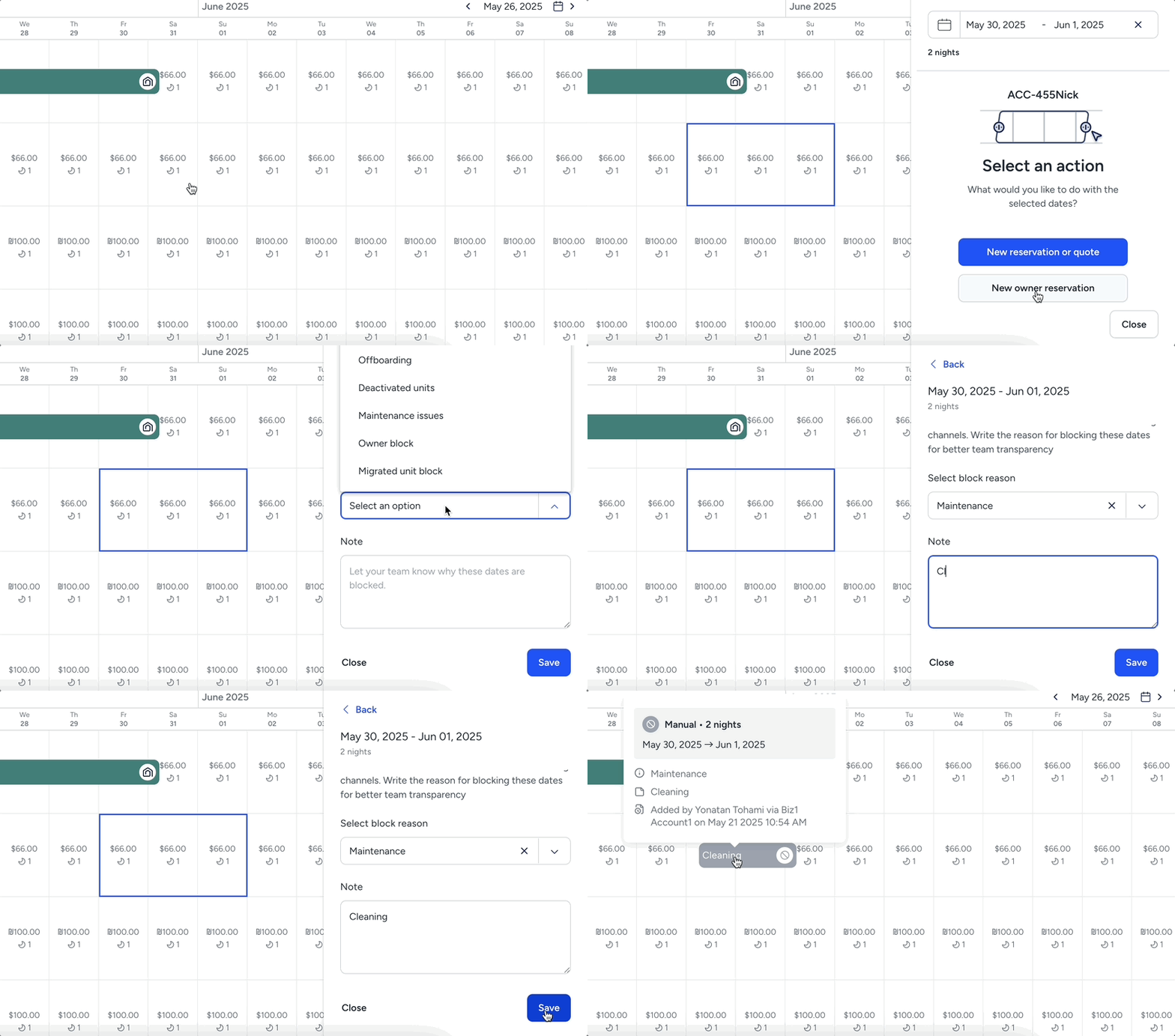
Click and drag the cursor across the nights to block on the row next to the listing. Alternatively, click a date on the listing and select your dates from the date-picker in the sidebar.
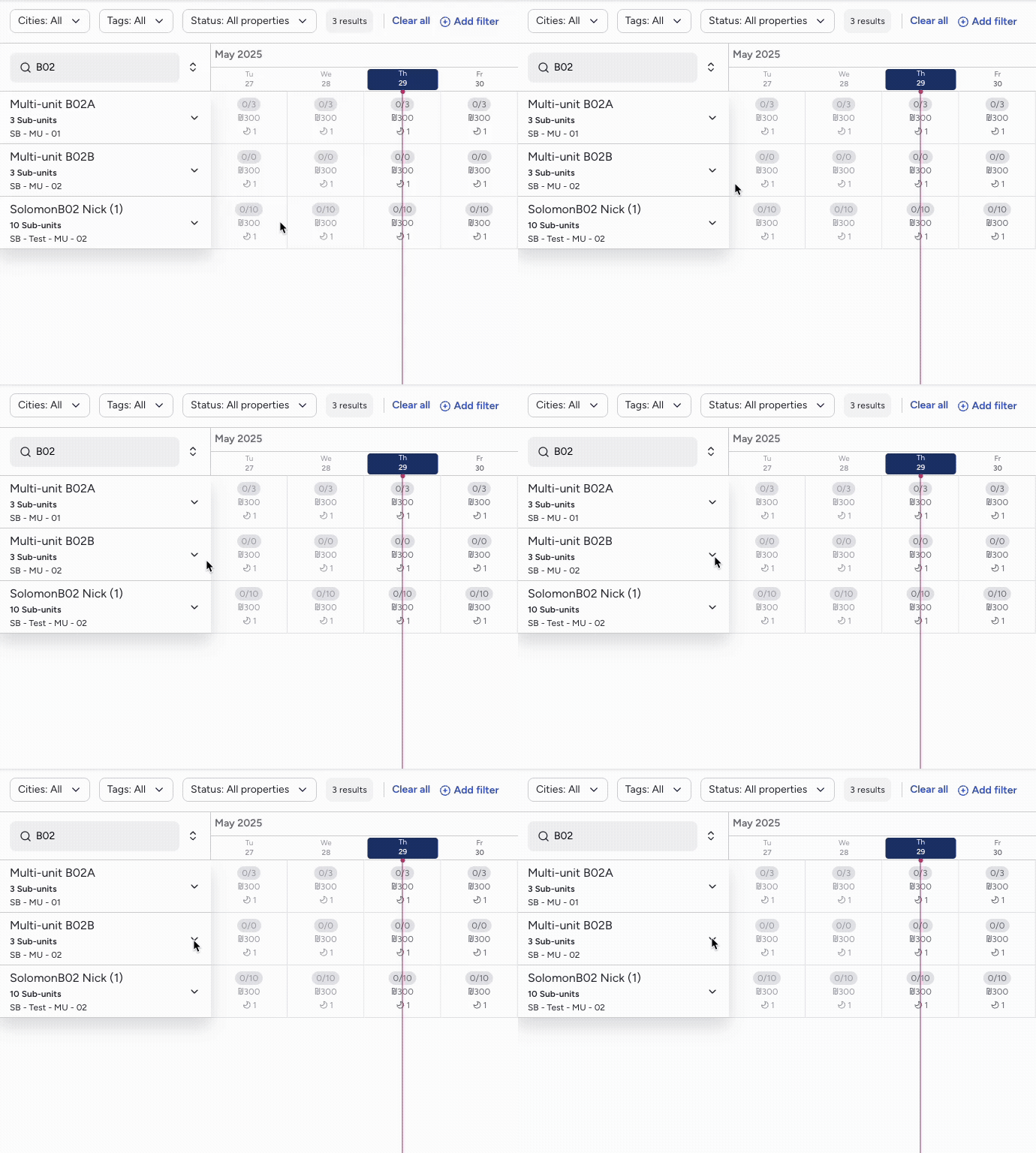
To block dates for a specific sub-unit of a multi-unit, click the dropdown arrow next to the main unit to expand and view the sub-units.
- In the pop-up, select Create manual block.
-
Select the block cause under "Select block reason". This information is included in the activity log.
Block reasons-
Onboarding
The unit was recently added and is still being set up (e.g., collecting property details, photos, or rate plans).
-
Offboarding
The unit is being removed from Guesty (e.g., contract ended or paused).
-
Deactivated units
The unit is currently inactive (e.g., temporarily paused by the owner or admin). This helps differentiate it from active but blocked listings.
-
Maintenance issues
The unit is unavailable due to operational maintenance (e.g., repairs, renovations, or safety checks). This identifies unavailable nights due to internal causes.
-
Owner block
The unit is blocked at the owner's request (e.g., for personal use or a direct booking outside of Guesty).
-
Migrated unit block
Track blocked dates due to a system migration or import process (e.g., during a transition from another PMS).
-
Do not sell
The unit shouldn't be available for bookings during this period due to internal decisions or policy.
-
Out of order
The unit is temporarily unbookable due to a known issue or exception distinct from general maintenance (e.g., missing furniture or offline utilities).
-
Other
A general-purpose reason when none of the predefined categories apply. Use sparingly and include a note when possible.
-
- Add additional information under "Note".
-
Click Save.
Follow the instructions below to block dates manually via the listing calendar.
Step by step:
- Sign in to your Guesty account.
- In the side navigation menu, click
 Properties.
 -
Select the relevant property.
For a multi-unit block the main unit and all sub-units, or a specific sub-unit. Click the main unit or a sub-unit.
- From the left-side menu, click Calendar, then select Calendar.
-
When blocking a single unit:
- Click a date on the listing's calendar.
- Adjust the date range as needed in the upper part of the sidebar.
- Click Create manual block.
When blocking a multi-unit and all connected units:
-
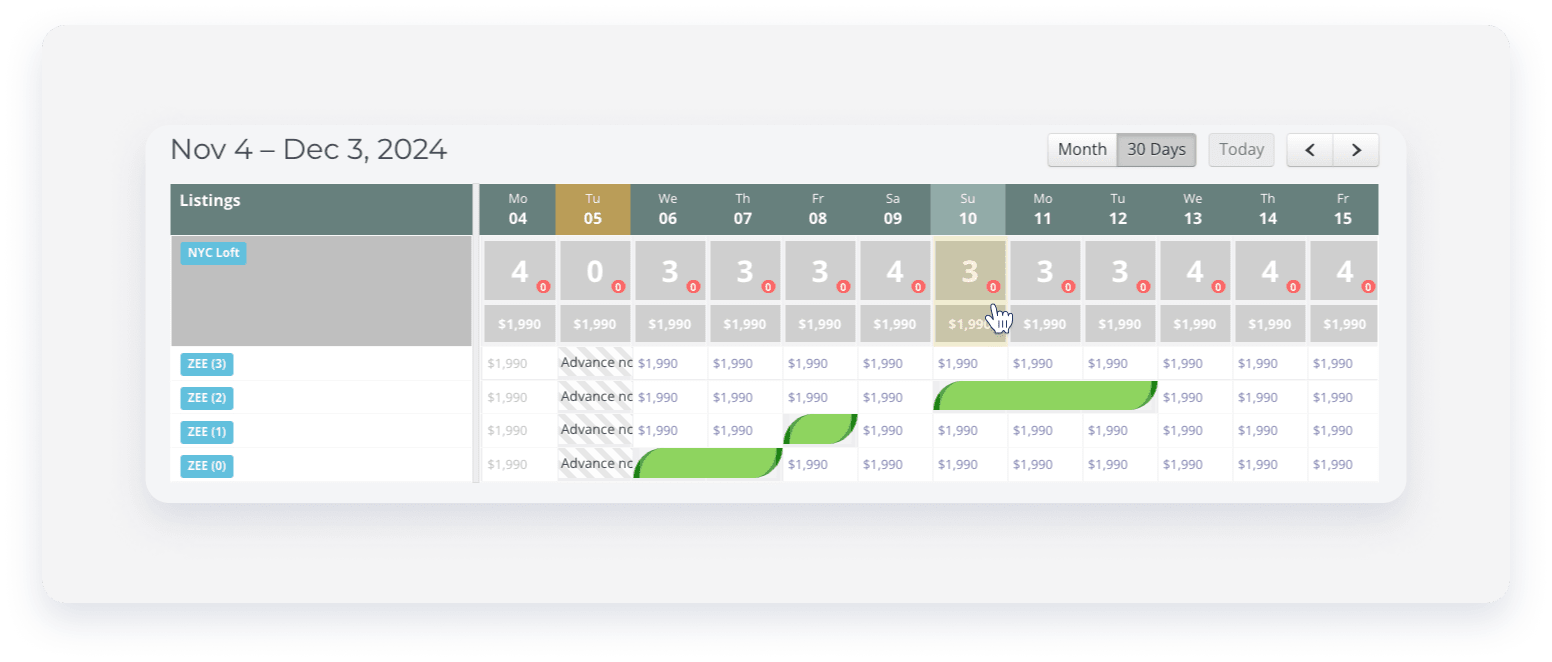
In the column of the relevant date, click the main unit's row.
-
Click Block under "Manual block all connected listings".
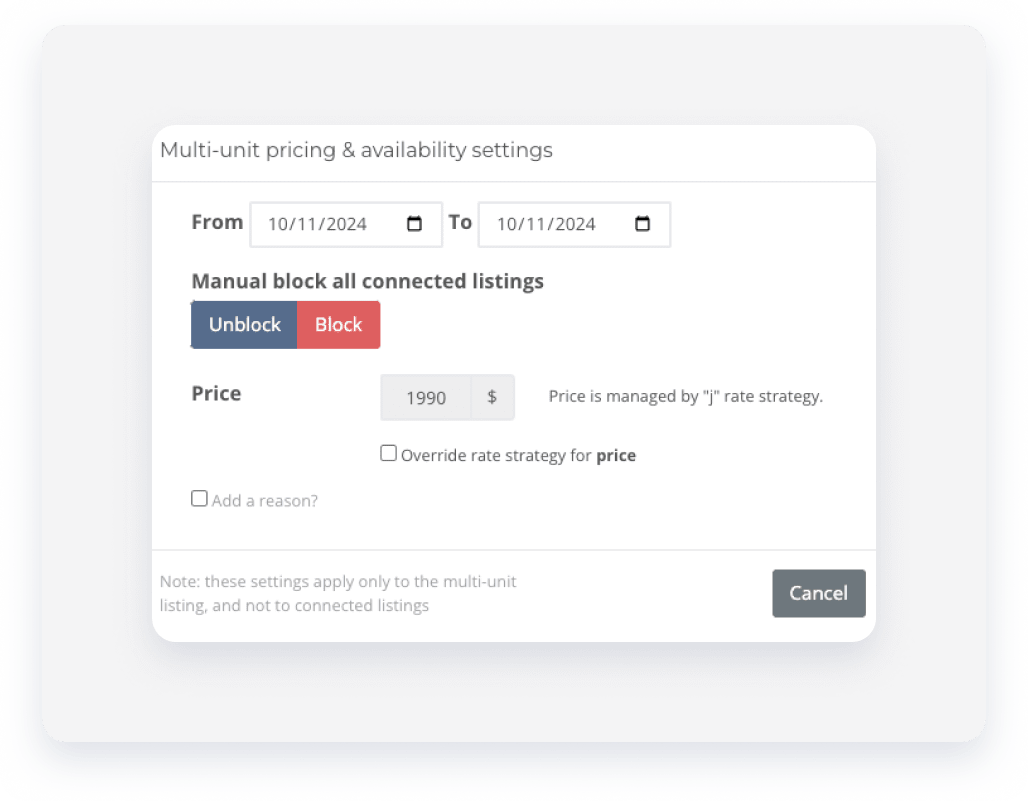
- Check the "Add a reason?" box, and add the necessary information.
- Click Save.
When blocking a sub-unit:
- In the column of the relevant date, click the relevant sub-unit's row.
- In the pop-up, check the Manual block box.
- Click Save.
Edit or remove manual, preparation time, or iCal blocks
Edit or remove manual and preparation time blocks via the Multi-Calendar or the listing's calendar.
Keep the following in mind:
- Remove iCal blocks only from the Multi-Calendar.
- Removing an iCal block is an irreversible action. The block won't appear again, even if you relink the same iCal.
- Edit or remove a flexible block for past dates via the listing's calendar.
- Contact us to remove manual blocks in bulk.
- If you experience issues when attempting to remove a manual block, refer to our troubleshooting guide for browser-related issues.
Follow the instructions below to edit or remove a block via the Multi-Calendar.
Step by step:
- Sign in to your Guesty account.
- In the side navigation menu, click Multi-calendar.
- Click the relevant block in the calendar, marked in gray. Adjust the dates as necessary.
- Edit or delete a manual block:
- Click Edit manual block. Edit the note if necessary, and click Save.
- To remove the block, click Remove the manual block, then click Confirm.
- To remove a preparation time block, click Remove preparation time.
Follow the instructions below to edit or remove a block via the listing's calendar.
To unblock all sub-units of a multi-unit, select Unblock under "Manual block all connected listings".
Step by step:
- Sign in to your Guesty account.
- In the side navigation menu, click Properties.
- Select the relevant property.
- From the left-side menu, click Calendar, then select Calendar.
- Click the relevant block in the calendar, marked in gray. Adjust the dates as necessary.
- Edit or delete a manual block:
- Click Edit manual block. Edit the note if necessary, and click Save.
- To remove the block, click Remove the manual block, then click Confirm.
- To remove a preparation time block, click Remove preparation time.
