If you're syncing your iCal with the Guesty calendar and experience a significant delay or missing events, use the troubleshooting steps below.
Important:
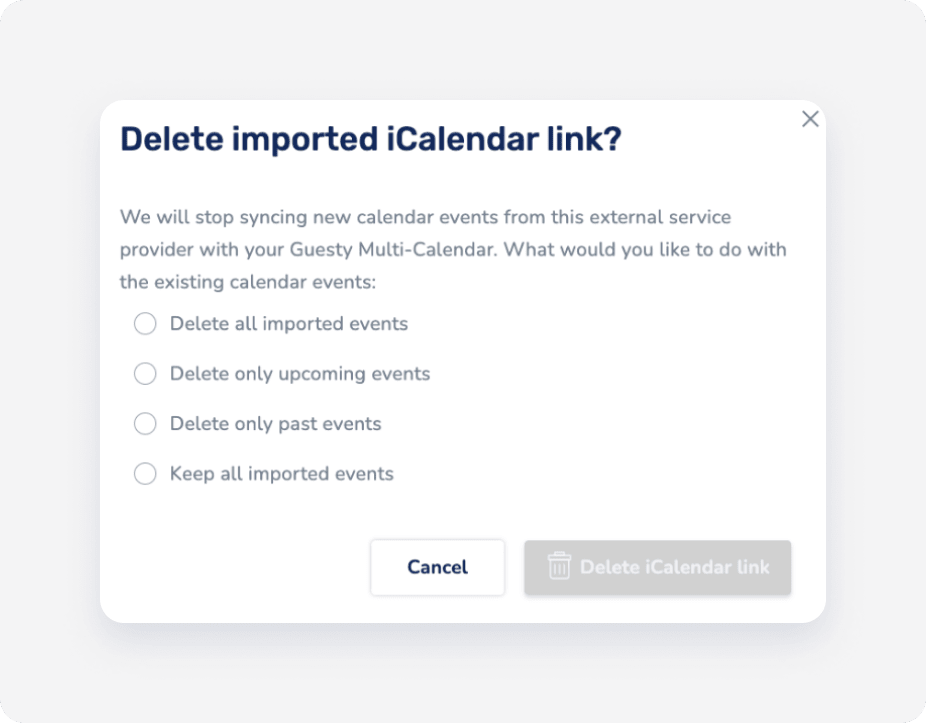
Removing an iCal block is an irreversible action. The block won't appear again, even if you relink the same iCal.
Delay in syncing
Your iCal and the Guesty Multi-calendar sync every one hour. A delay of up to one hour is expected. If syncing doesn't occur within one hour, contact us.
Events don't sync
If your events don't sync correctly, check the syncing toggle, status, and third-party tools.
Check the syncing toggle
To continuously sync the calendar, toggle on Sync calendar. Learn how to sync your iCal.
Check the syncing status
The status is displayed to the right of the imported calendar’s name. Troubleshoot a "Warning" or "Paused" status using the steps below.
Warning
Your iCal calendar couldn’t be imported. Guesty re-attempts the sync 30 times, which can take up to 24 hours.
If successful, the status changes to "Active". If it fails, the status changes to "Paused".
If the status remains "Warning" or "Paused" for over 24 hours, disconnect and reconnect the iCal link.
Paused
This status means your iCal wasn't imported for the past 24 hours, and the syncing process is paused.
- If the status is "Paused" for over 24 hours, disconnect and reconnect the iCal link.
- Check if the issue is with the iCal origin site. Copy the imported iCal link under "External iCalendar link". Paste the link into a new window. The file downloads as an .ics (text) file. If an error occurs, the issue is with the external site's exported file.
Check for a third-party protection tool
Third-party protection tools, such as Cloudflare, can prevent the iCal from importing to Guesty. Disable the tool until you complete the import.
Events display with incorrect dates
Check if the iCal data imports with the correct dates by following these steps:
- Copy the imported iCal link under "External iCalendar link".
- Paste the link into a new window. The iCal file downloads as an .ics (text) file.
- Open the file using a third-party text editor.
- Locate the event and check its dates. If the dates are incorrect, the data might not be configured correctly in your iCal.
Events display as longer or shorter than expected
Events display in your calendars as blocks. Guesty calculates blocks by night. For example, if you import an event between April 23 (start date) and April 24 (end date), Guesty considers April 24 as the last night of the block and April 25 as the check-out date.
To avoid misalignment of synced events, adjust the start or end dates during the syncing setup. Learn how to adjust dates.
Events remain after stopping the sync
If you temporarily pause the iCal sync, stopping the sync doesn't remove any iCal blocks. However, new events or updates to existing events don't take effect.
If you permanently stop syncing your iCal, selecting Keep all imported events keeps the existing blocks in your Guesty calendar after you delete the iCal link. To permanently remove the link and all imported events, select Delete all imported events.