When a property is "listed" on a booking channel, it appears in search results, and guests can book it. By default, new properties in Guesty are set to "Listed" status. You can temporarily unlist a property to make it unbookable—for example, during maintenance periods. You can automatically list or unlist properties on specific days and times by snoozing publishing.
Unlisting won't stop billing (you must deactivate the listing to stop charges) and only affects booking channels, not your Guesty calendar—you can still create manual reservations or blocks. You can relist only if the listing remains active.
For multi-units, you can still assign reservations to unlisted sub-units.
Before you begin
- You must set a base price of at least $10 to list the property on booking channels.
- If Guesty's snooze publishing feature is activated for the listing, deactivate it to prevent automatic status changes.
Channel-specific information
Review the details below for managing listing statuses on specific channels.
- When importing a listing from Airbnb, the property in Guesty retains the same listed status as in Airbnb (if unlisted in Airbnb, it remains unlisted in Guesty).
- Once connected, manage listing status through Guesty—changes will sync to Airbnb automatically.
- If you unlist directly in Airbnb, the change won't reflect in Guesty, but the property becomes unlisted on Airbnb.
- Disconnecting an Airbnb listing from Guesty won't unlist or deactivate it in Airbnb—you must handle this directly in your Airbnb account.
- If Airbnb suspends your listing for policy violations, it remains active and connected in Guesty with continued billing. The listing won't be bookable on Airbnb but will show as listed in Guesty. Contact Airbnb Support for assistance
Follow the steps below to manage listing status via Guesty. Changes take up to 24 hours to reflect in Vrbo. You can manage the listing status directly in Vrbo until syncing is done.
When you list or unlist a property on Rentals United, the change applies to all booking channels connected to Rentals United.
List, unlist, or relist for all channels
Follow the instructions below to update your listing status across all connected channels.
Step by step:
- Sign in to your Guesty account.
- In the side navigation menu, click
 Properties.
 - Click the relevant property.
- For multi-units, manage this setting through the main unit—changes apply to all sub-units. Alternatively, you can configure the settings for a specific sub-unit. Click the main unit or the specific sub-unit.
- Check if the booking channel supports multi-units and sub-units.
- In the left-side menu, click Marketing.
- From the dropdown menu, select List on channels.
-
Click Edit next to "Status on booking channels".
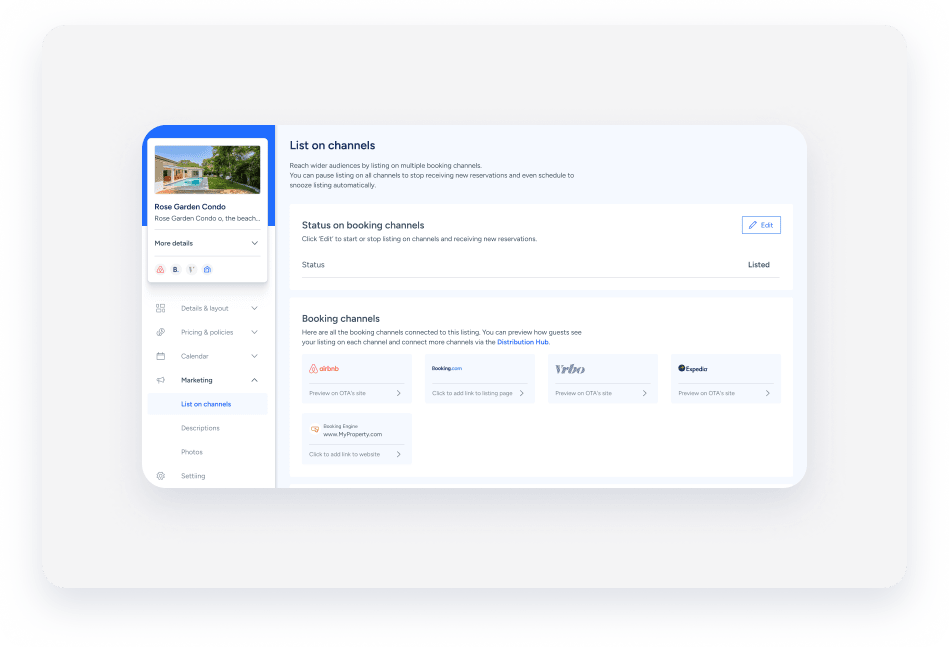
- To list, unlist, or relist on all channels, toggle on or off List on booking channels.
- For multi-unit properties, you'll be prompted to apply settings to all sub-units—click Yes or No.
- In the pop-up, click Start listing or Pause listing. If the property is deactivated and you're trying to list it, check the I agree to activate and start listing box.
- Click Save.
Once your properties are listed on Booking.com, you can connect your Booking.com listings with Guesty.
Unlist or relist for an individual channel
Currently, you can only list or unlist a property across all connected channels simultaneously. To manage specific channels:
- Airbnb: Unlist the property in your Airbnb account (it won't reflect on Guesty). Relist directly in Airbnb when ready.
- Booking.com: Disconnect the property from the integration page in Guesty. Reconnect to Booking.com when ready to relist.
- Vrbo: It's not recommended to unlist specifically from Vrbo, as this may cause synchronization issues when relisting.
Learn about the different ways to disable a property in Guesty.
Tip:
To master creating and configuring your properties, visit Guesty Academy for interactive courses and step-by-step video tutorials.
