Use the Multi-Calendar to track reservations, manage availability blocks, and monitor property changes. Customize your display and filter options to make informed scheduling decisions across all your listings.
To access the Multi-Calendar, sign in to your Guesty account and click  Multi-Calendar in the side navigation bar.
Tip:
Learn how to manage reservations and availability in the Multi-Calendar.
Set up your Multi-Calendar
Customize the Multi-Calendar to fit your daily workflow and visual preferences.
Personalize your view
Choose what to display in the Multi-Calendar and the properties panel. Click  at the top-right corner of the Multi-Calendar to open the personalization side panel.
Visible listings information
Under "What listing info would you like to see?", select the listing information to display in the properties panel.

Calendar tapes (Desktop only)
Under "Select which tapes to show and what they represent", customize your calendar's visual appearance. Add color-coded status bars and personalize reservation block colors to match your workflow. Read the icons and colors guide to understand what each color means.
- Reservation status: Click
 to open the icons and colors guide and select custom colors for different reservation blocks.
 - Payment status: Add a colored tape above reservations to show payment status (fully paid, partially paid, or unpaid).
- Guest stay status: Add a colored tape above reservations to indicate guest status (upcoming stay, checked-in, checked-out, or no-show).

Tape and block display
Under "How would you like to view the tapes?", select to view expanded blocks or minimized tapes for booked and blocked dates. Use full blocks for operational views to focus on reservation details. Use tapes to focus on pricing, viewing the nightly rate, and minimum nights for every date.

Visible general information
Under "What would you like to see on the calendar?", select the information to display on the Multi-Calendar. Under Nightly rate, choose to display the current nightly rate or the rate at the time of booking, which is indicated with a green dot.

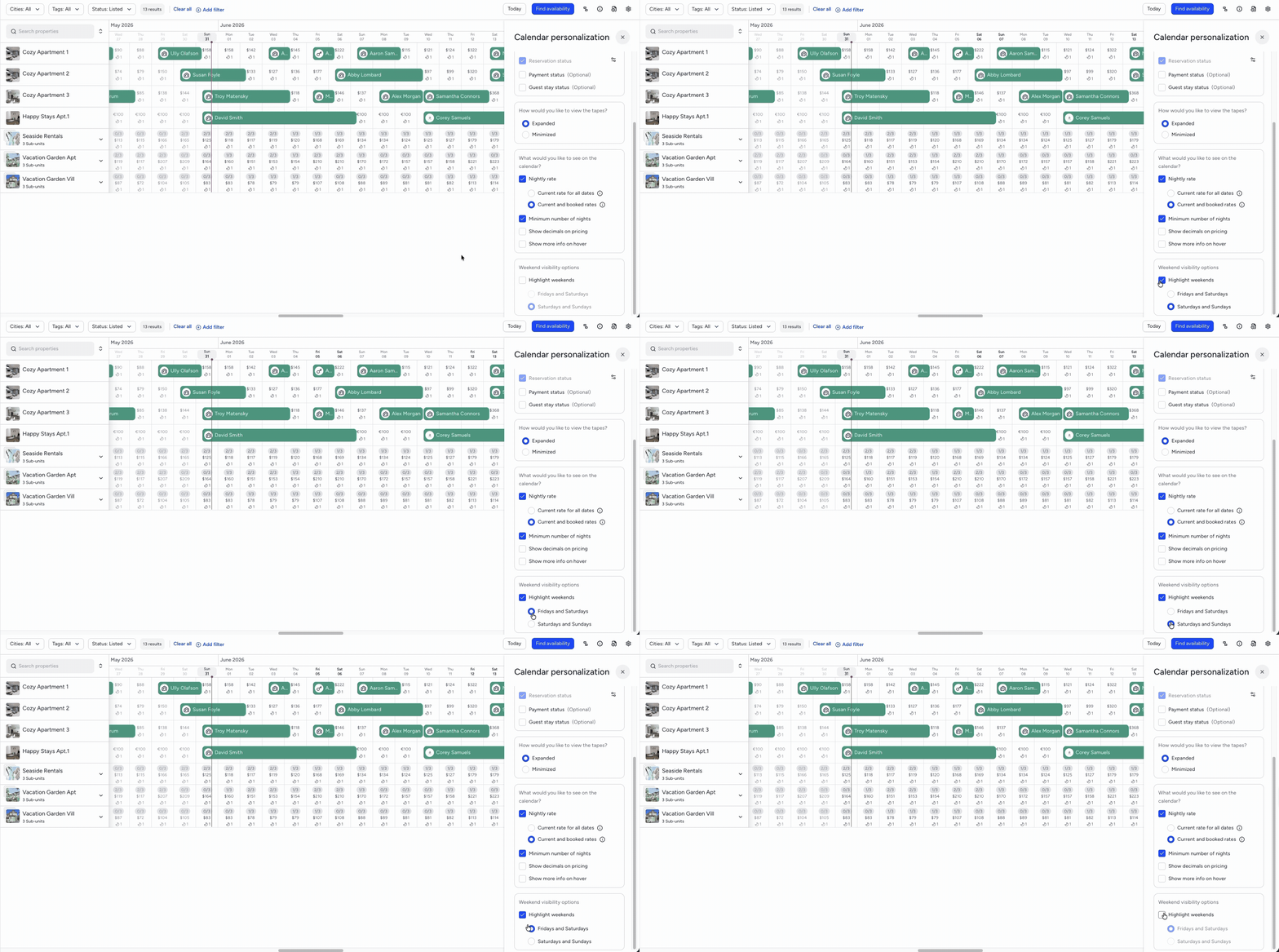
Weekend visibility
Under "Weekend visibility options", select the days to highlight on the Multi-Calendar. This applies per user and doesn't affect your weekend definitions.
Guesty PriceOptimizer
Under "Price Optimizer", select to identify PriceOptimizer-enabled listings, view detailed pricing breakdowns when hovering over a date, and see holidays and local events on your calendar.

Understand icons and colors
Click  in the top-right corner to view a complete guide to all icons and color codes. The guide opens in the right side panel and provides the following information:
- Block color representations (available, confirmed reservation, confirmation pending).
- Icons on calendar cells.
- Icons on reservations and blocks.
- Icons in tooltips.
-
Desktop version: Click next to any option under "Reservation status" and "Blocks" to select custom colors from a predefined palette for different calendar blocks. View color indicators for payment and guest stay statuses. These customizations apply to your view only.
- "Reservation status": Includes confirmed reservations, confirmed owner's reservations, and reserved reservations.
- "Blocks": Includes no availability blocks. Click Other to include and customize additional block types, such as manual, out of rental period, advanced notice, Smart Calendar Rules, iCal, and preparation time blocks. Click
 next to the relevant block to revert the customization.
Organize the listing sequence
The Multi-Calendar sorts listings alphabetically. Follow these rules to ensure the correct sequence:
- Capital letters: Listings starting with a capital letter appear before those with lowercase letters. For example, "CITY apartment" appears before "City apartment".
-
Numbering: Add leading zeros to numbers to maintain the sequence.
- For sequences up to 99, use 01, 02, and so on.
- For sequences up to 999, use 001, 002, and so on.
Manage availability and listings
Filter your view and adjust availability directly from the calendar.
Filter listings
Use filters to view and manage specific listings in the Multi-Calendar.
Change availability settings
Hover over any availability-related block on the Multi-Calendar and click Block time settings to navigate to the listing's availability settings page.

Unlike the Multi-Calendar, the listing's monthly calendar doesn't display check-in and check-out restrictions when you hover over relevant blocks.
Tip:
To master calendar management, visit Guesty Academy for interactive courses and step-by-step video tutorials.
