Manage new reservations for owners, including those made on behalf of friends and family, via the Multi-Calendar or the Owners Portal. New owner reservations function like standard guest reservations, while previous owner stays retain their original functionality.
Confirmed owner reservations are displayed in the Owners' Inbox. You can also create a reservation report to include owner reservations.
Limitations
Review the following limitations before creating an owner reservation:
- Moving an owner's reservation to another listing isn't supported.
- Changing the channel or source of an owner's reservation isn't supported.
- A canceled owner reservation can't be restored. You or the owner must create a new reservation.
Create an owner reservation
Create owner reservations for owners, or their friends and family, in Guesty via the Multi-Calendar or the Owners Portal. Dates for owner reservations will be blocked across all booking channels.
Note:
Review the listing's availability settings if a calendar block prevents you from creating an owner reservation in the Owners Portal. When an owner's reservation is created on a listing with Smart Calendar Rules, the dates for related listings will be blocked accordingly. Disable flexible blocks, such as advance notice, or remove the block directly from the Multi-Calendar.
Once you assign the owner to the listing, follow the instructions below to create an owner reservation via the Multi-Calendar.
Important:
For multi-units and complex units: You must assign the owner to a sub-unit first.
Step by step:
- Sign in to your Guesty account.
- In the side navigation menu, click
 Multi-calendar.
 - Locate the relevant listing and select the required dates.
- In the right sidebar, click New owner reservation.
- Select the relevant owner from the Dropdown menu. If the owner is missing, assign the owner to the listing first.
-
If the reservation is for friends or family, check the Reserve for owner's Friends & family box. Under "friends & family details", select New guest or Existing guest and fill in the required details. This information serves as the guest's contact details.
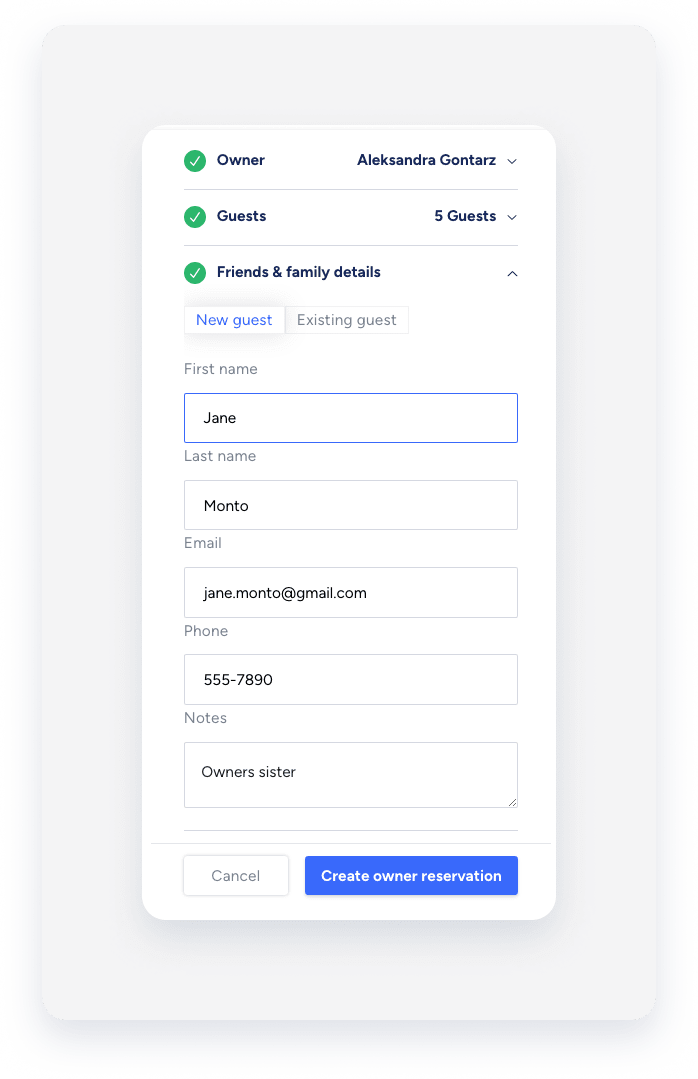
- Click Create owner reservation.
The owner's reservation is added to the Multi-Calendar and is visible to the owner in the Owners Portal.
View the property calendar under "My Properties" in the Owners Portal. You and your owners can create owner reservations here if reservations are enabled. The calendar shows the listing's availability, including owner reservations.

Owner reservations are marked in light blue.
For listings with multiple owners, reservations marked in dark blue with a  icon indicate that they belong to other owners and can't be edited.
Step by step:
- Sign in to your Guesty account.
- In the side navigation menu, click
 Operations to open the dropdown menu.
 - Under Portfolio, select Owners.
- Select the relevant owner.
- Under the owner's name on the left, click Preview Portal. This will open the Owners Portal in a new browser tab.
- Select the relevant listing.
- Click a specific date on the calendar, or click the + icon located at the bottom-right.
- If the reservation is for friends or family, check the Reserve for friends & family box. Select New guest or Existing guest and fill in the details. A first name, last name, and email address are required to make a reservation. This information will serve as the guest's contact details.
- Click Create reservation.
Understand owner reservation tags
When you or an owner creates an owner reservation, Guesty automatically generates a guest profile with an "Owner" tag. Manually creating an owner-tagged contact is not supported. Future owner reservations will link to this profile, which includes the owner's email by default. You can update the email in the guest profile without affecting the owner's profile.
When you create an owner reservation for friends or family, a new guest profile with a "Friends and family" tag is automatically generated once confirmed. This profile requires a full name and email address and can be managed like any other contact.

Update or cancel an owner reservation
Manage a new owner reservation like a guest reservation. Edit or cancel it as needed via the Multi-Calendar or the Owners Portal. Once an owner reservation is canceled, the dates will become available on all booking channels.
Important:
We don't recommend changing the name on an owner's reservation. This updates all current and future reservations for the owner, potentially confusing if reservations display an unexpected name. If the reservation is for friends and family, select Reserve for friends & family and enter the guest names. This creates a separate contact profile.
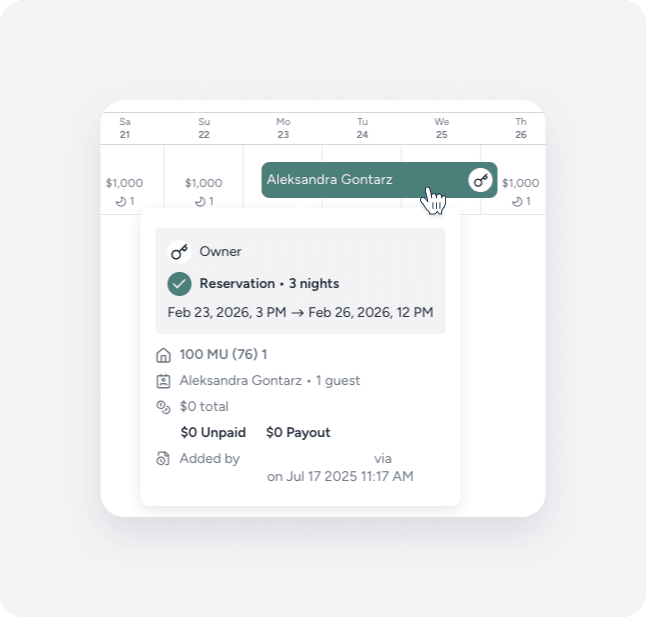
An owner reservation features an  logo. Hover over it to view the tooltip indicating it is an owner reservation. New owner reservations include an "Owner" or "Owner-guest" tag, and balances will appear as zero.
Step by step:
- Sign in to your Guesty account.
- In the side navigation menu, click Multi-calendar.
- Locate the relevant listing.
- Click the owner's reservation to open the reservation widget on the right.
- In the top-right corner, click
 .
. - Select Edit reservation from the dropdown menu.
- Make the necessary changes and click Save.
The reservation widget includes these additional actions:
- Click
 to open the reservation summary page, where you can edit or cancel an owner's reservation like any other.
 - Click and select Go to inbox to see the related message thread in the Inbox.
Follow the instructions below to edit or cancel an owner's reservation via the Owners Portal.
Step by step:
- Sign in to your Guesty account.
- In the side navigation menu, click Operations to open the dropdown menu.
- Under Portfolio, select Owners.
- Select the relevant owner.
- Under the owner's name on the left, click Preview Portal. This will open the Owners Portal in a new browser tab.
- Select My properties from the top navigation bar.
- Select the relevant listing.
-
To edit an owner's reservation, click the owner's reservation marked in light blue.
Owner reservations marked in dark blue with a
icon belong to other owners and can't be edited. -
Make the necessary changes and click Apply changes.
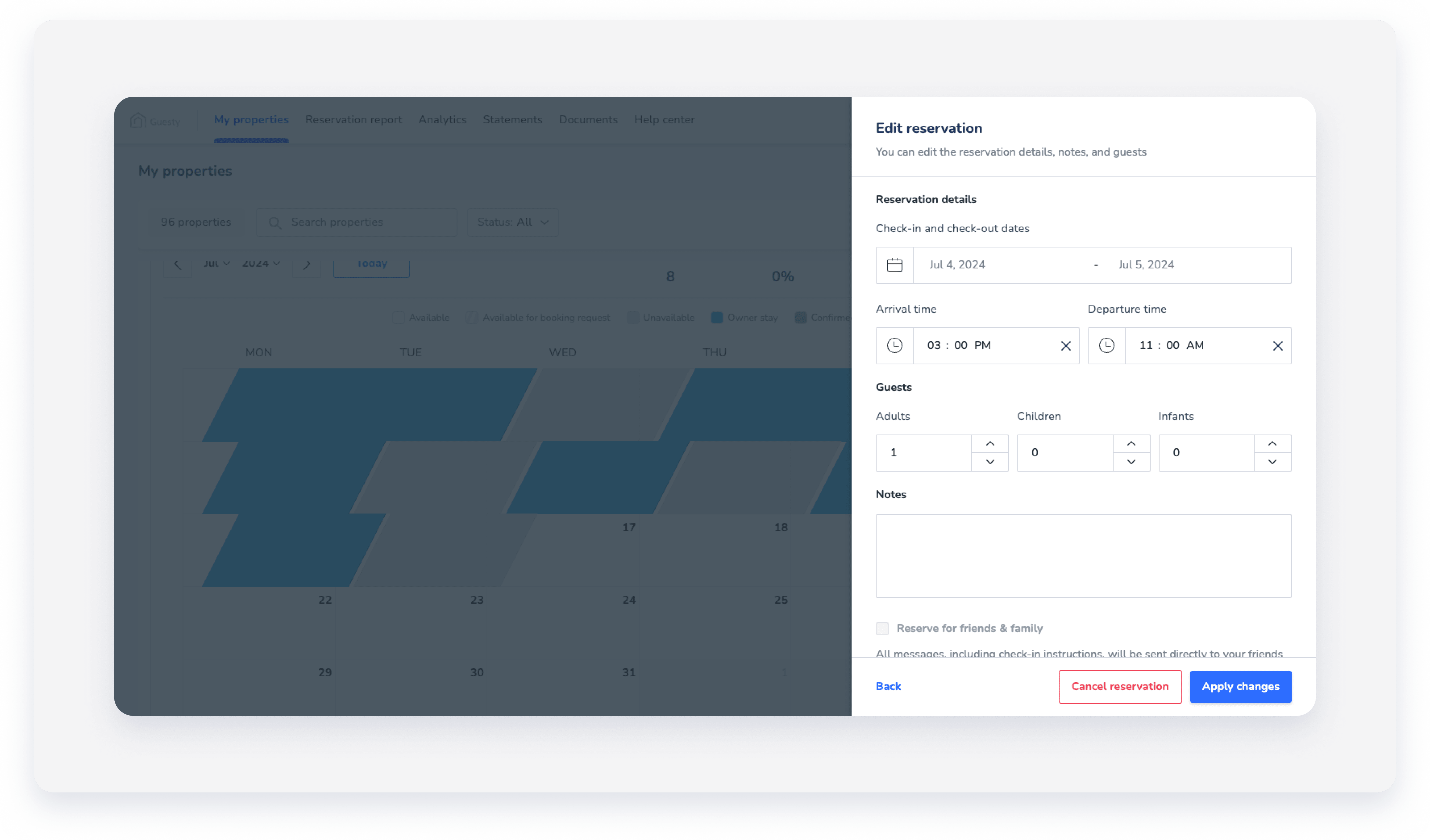
To cancel an owner's reservation, click Cancel reservation in the side panel and confirm the action in the pop-up.
Accounting for owner reservations
By default, adding an accommodation fare or additional fees to an owner's reservation is not supported. A financial invoice is not generated, and balances for owner reservations will always total zero.
To include fees and taxes for owner reservations:
- Accounting users: Create recurring owner charges using a business model to configure all applicable fees and taxes. These charges automatically deduct from the owner's statement balances.
- Non-accounting users: Create a manual reservation to include the accommodation fare and additional fees, and generate a financial invoice.
Message automation notifications
Notifications are received when an owner makes a new owner reservation. To be notified by email for new owner reservations, set up an automated message.
Create a message automation exclusively for owner reservations. This communication will be displayed in the Owner's Inbox.
Note:
Communication, including automated messages, related to manual blocks created for owners and their friends and family, isn't received or managed in the Guesty Inbox.
Tip:
To master Owner management, visit Guesty Academy for interactive courses and step-by-step video tutorials.
