Follow the instructions below to create a message automation exclusively for owners related to owner and owner-guest reservations. Owner-guest reservations are those made on behalf of the owner's friends and family.
Step by step:
- Sign in to your Guesty account.
- In the side navigation menu, click
 Operations to open the dropdown menu.
 - Under Front desk, select Message automation.
- In the top-right corner, click Add message automation.
- Click + Create custom in the top-right corner and select the relevant option for owners:
- New owner reservation
- Altered owner reservation
- Canceled owner reservation
- In the top-left corner, click
 to change the message automation's name. You can rename it at any time.
 -
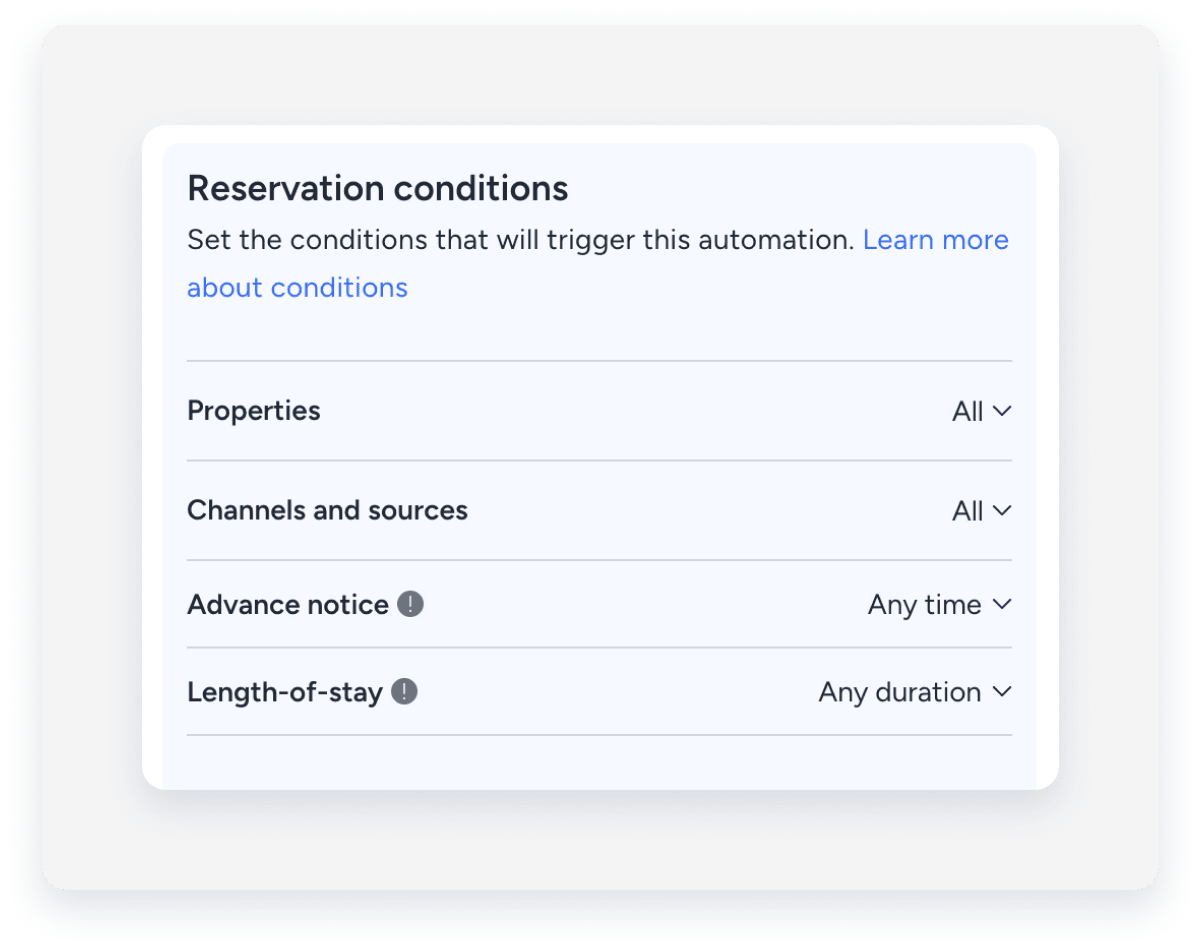
Under "Select workflow conditions", define the reservation conditions that will trigger the message automation. Select "All" to create the message automation for owner and owner-guest reservations.
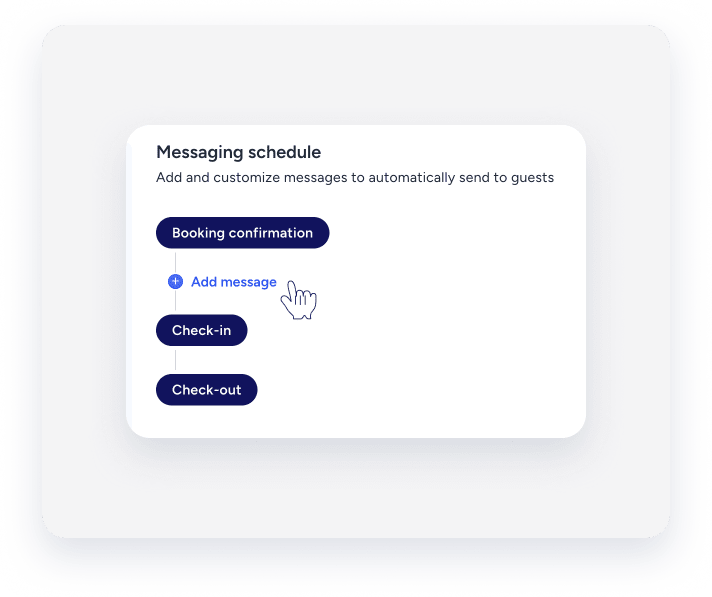
- On the reservation timeline, click the relevant message to edit it, or click + Add message to add a new message.
-
Set up your message as usual, however, to ensure the automated message is sent to the correct owner-related recipient, select one of the following options under "Who will receive it":
- Owner or guest staying: The message will be sent to the owner or to their friends and family who made the reservation.
- All property owners: The message will be sent to all of the owners of the property.
- User: The message will be sent to the internal staff member you select.
- Phone book contact: The message will be sent to the phone book contact you select.
- Click Save.
- Save the message automation accordingly:
- For a new message automation, click Save and activate if it is ready, or click Save as draft to activate later.
- For an active message automation that was edited, click Save to reactivate it automatically, or De-activate to return it to draft status.
- For a deactivated message automation that was edited, click Save and activate to activate it, or Save to keep as a draft and activate it later.
- In the pop-up, confirm the action.
