You can manage changes to Airbnb reservations on Airbnb or Guesty. When a change to a reservation is needed, ask your guest to send an alteration request via Airbnb, which you can then approve or decline. Alternatively, initiate a request and send it to the guest for approval directly from Guesty.
Read the article below to understand where to make changes to a reservation, how to initiate or respond to an alteration request, and how to make changes that will reflect in Guesty only.
Limitations
- An Airbnb reservation has a limit of three alterations per day.
-
Total price:
- When altering a reservation via Guesty, the total price is automatically recalculated according to the alteration type. To change the total price, you must do so in Airbnb, where it’s treated as a special offer.
- When you set a new custom total price for a host-initiated alteration in Airbnb, Airbnb assumes special offer behavior and will no longer provide a detailed pricing breakdown. Because standard fees are not carried forward as they would be in a standard alteration, you are expected to include all fees within this new custom total price, with the exception of the cleaning fee. Only the cleaning fee is retained as a separate line item alongside the new custom price.
-
Estimated time of arrival or departure (ETA or ETD):
Airbnb doesn't support changing an estimated ETA or ETD. If you make adjustments to these times in Guesty, they revert to the listing's default ETA or ETD during the next sync with Airbnb.
-
How automated messages are triggered:
- If a custom ETA or ETD is successfully configured on a reservation, and isn't overwritten by a sync between platforms, automated messages triggers based on that specific time.
- In most cases, however, because channel syncs constantly revert manual changes, automated messages default to the listing's standard ETA or ETD.
-
Why a reservation follows the listing's default timing:
- The reservation was originally created without a specific guest ETA or ETD.
- The ETA or ETD was manually removed from the reservation in Guesty.
- An automatic sync with Airbnb occurred, overwriting any manual updates made in Guesty.
-
How automated messages are triggered:
- Adding a pet isn’t supported as a reservation alteration. Instead, update the price on Airbnb or request payment via the Resolution Center.
- Airbnb alteration requests don't expire, even after the check-out date. If you don't take action on an alteration request, the original reservation continues as usual while the alteration request remains pending. To close a pending alteration, decline the request.
Reservation alteration types
Several types of alterations can apply to an Airbnb reservation, including changes to long-term reservations, reservation dates, the number of guests, or the reservation listing assignment.
Long-term reservations have special change requirements:
Changes requiring your approval:
- Modifications less than a month before the reservation end date
- Changes after the trip has started (with less than a month remaining)
- Start date changes or reservation extensions
Automatic changes (no approval needed):
- Pre-trip changes when reservation remains 28+ nights.
- Changes made during the trip with a month+ remaining until the end date.
- Guest-initiated changes that don't affect start dates or extend the stay.
- Changes made with 30+ days notice.
Changing a reservation’s dates by applying length of stay requirements may make the reservation eligible for promotions.
For confirmed reservations, changing the number of nights impacts the added costs, but not the original reservation price. The added nights are calculated according to the current nightly rate, while the original nights retain their original rate. If nights are removed from a reservation, the remaining nights retain their original rate. Fees and taxes calculated per night are adjusted accordingly when nights are added or removed.
|
Example: A reservation was confirmed for two nights at a rate of $30 per night. The price per night was since optimized by a revenue management tool and is now $32. If you add a night to the reservation, the price per night for the original two nights remains $30. The price of the added night is $32. Fees and taxes charged per night are calculated according to the original price for the first two nights, and according to the adjusted price for the added night. Fees and taxes charged per stay or per guest are not affected. |
Note:
For reservations made through pre-approvals or special offers, changes to the dates may cause the entire reservation to be recalculated based on the listing's current rate at the time of the change. Unlike Airbnb, where you can set a custom price during an alteration, this option is not currently available in Guesty.
Changing the number of guests for a reservation doesn’t affect the original reservation price. An extra person fee may apply if it is set. Taxes charged per guest are recalculated according to the updated number of guests, but fees and taxes applied per stay or night are not affected.
|
Example: A listing’s occupancy is four, and an extra person fee of $25 is applied for additional guests exceeding two. A reservation was confirmed for two guests for two nights at a rate of $30 per night. If you add a third guest to the reservation, the price per night remains $30, and an extra fee of $25 is applied. Other taxes calculated per guest are charged according to the updated number of guests. |
Altering the number of children in a reservation is not supported.
Effect on the reservation price
For a reservation in a "Confirmed" status, moving the reservation to another listing will not affect the reservation price, even if the new listing has a lower or higher price. Fees and taxes also remain the same and don't change according to the new listing’s pricing.
Available listings for reassignment
You can move a reservation to a listing
- Under the same Airbnb account.
- That is available on the relevant dates, or that has a "flexible" block.
- With the same currency. If needed, change the listing currency.
Use our troubleshooting guide if you’re unable to move a reservation to a different listing.
Relocate a reservation mid-stay
You can't relocate an ongoing reservation to another listing.
To overcome this, split the reservation. We recommend shortening the dates of the current reservation, ending it on the day of the split, and creating a new reservation for the second listing, starting from the day of the split until the end of the stay.
Switching between sub-units in a multi-unit
When a guest requests a reservation alteration, changes will sync across platforms. However, if the reservation is moved to a different sub-unit in a multi-unit, changes reflect in Airbnb only. You'll need to manually move the reservation to the sub-unit in Guesty.
|
Example: You accept an alteration request to move a reservation in a multi-unit from sub-unit A to sub-unit B, and change the check-in date.
|
Learn more about what data is synced between Airbnb and Guesty and where to manage it.
Approve or decline a guest alteration request
Guests can request to change their reservation by submitting an alteration request via Airbnb. Requests are received in the Guesty Inbox as part of the message thread with the guest.
Learn how to troubleshoot cases when you’re unable to approve, decline, or send an Airbnb reservation alteration request.
Once you receive an email notification, refresh the page to pull the alteration request details. You’ll then be able to approve or decline the request in Guesty by following the steps below. Alternatively, use the “Click here” hyperlink in the notification to approve or decline the request in Airbnb.
Step by step:
- Sign in to your Guesty account.
- In the side navigation menu, click
 Inbox.
 - In the Inbox submenu, select the relevant inbox.
- Click the relevant message thread.
- In the inbox widget submenu, click
 .
. - In the right-side panel, click Approve or Decline.
- To save and sync your response with Airbnb, refresh the page. It may take a few moments for the request to be updated.
Tip:
You can also approve or decline a guest’s request from the reservation page (under “Summary”) or the Multi-Calendar (under the reservation’s confirmation number).
The guest’s request and the approval or decline of the request will be recorded in the reservation log.
Send an alteration request to the guests
When you create an alteration request in Guesty, the request is sent to the guest and Airbnb for approval. The relevant listing must be active.
Only the following alteration types can be requested:
- Changing the reservation dates
- Changing the number of guests
- Moving the reservation to another listing
The reservation price is recalculated automatically based on your changes. You can’t adjust the total reservation price via Guesty.
Follow the steps to create an alteration request.
Step by step:
- Sign in to your Guesty account.
- In the side navigation menu, click
 Reservations.
 - Click the relevant reservation.
- In the Overview tab:
- Click Request to edit.
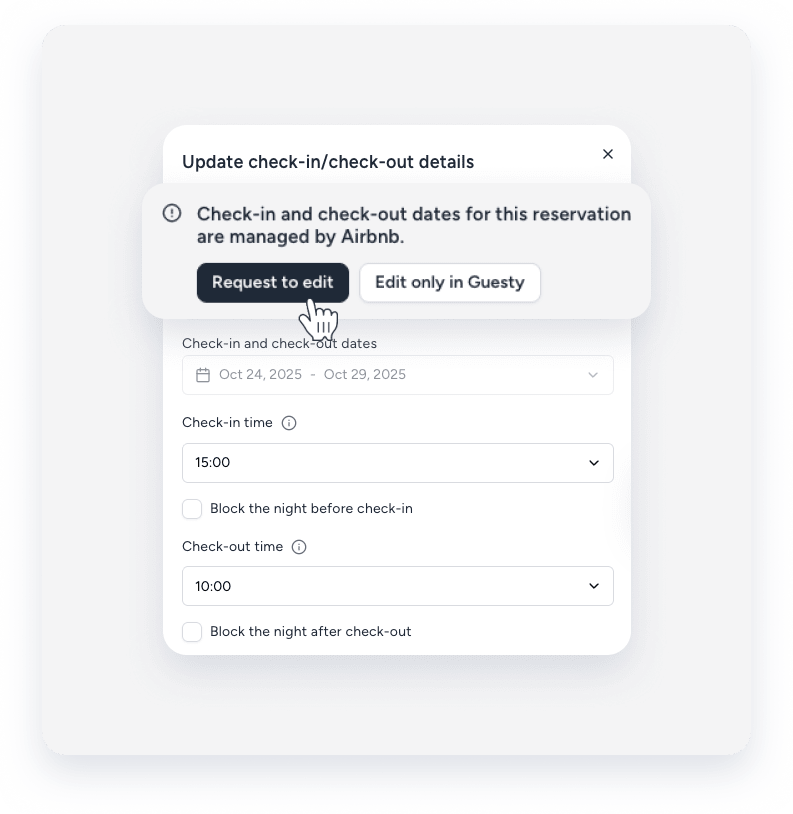
- Make the relevant changes, and click Save.
A summary of the alteration request will be displayed on the reservation page. You will receive a notification in the Guesty Inbox only after the guest approves or rejects the request.
The alteration request is also recorded in the reservation log at the bottom of the reservation page. Use the log to check who created the request (the host or the guest).
Tip:
You can also create an alteration request via the Inbox or Multi-Calendar. Click  next to the reservation’s confirmation code, and select Request edit from Airbnb.
Cancel or change a pending alteration request
There can only be one active alteration request per reservation. Therefore, to change an existing alteration request, first cancel the existing request.
Step by step:
- Sign in to your Guesty account.
- In the side navigation menu, click Reservations.
- Under "Overview", click Cancel request to edit.
- In the pop-up, click Confirm.
- Create a new alteration request (if needed).
The cancellation is recorded in the reservation log.
Change a reservation only in Guesty
You can make changes to an Airbnb reservation that reflect only in Guesty and don’t sync to Airbnb. Use this type of alteration for internal operational purposes, such as tracking and documentation. Also, only apply internal changes if they don’t affect the guest's stay, for example, updating the guest's details or switching the assigned room with another room of the same type and price.
Changes made in Airbnb later will override internal changes made in Guesty.
To make an internal change, the listing must be active. Changes to reservation dates can’t be made as internal changes. Instead, send an alteration request for the guest's approval.
If you move a reservation from one listing to another listing internally, the latter listing’s calendar will be blocked in all channels, including Airbnb. However, the former listing will remain blocked in Airbnb, since the update didn't sync from Guesty to Airbnb. This may cause disruptions in syncing updates to the reservation from Airbnb and in receiving future messages from the guest, including the guest’s payment details. Also, you can only move the reservation internally to a listing under the same Airbnb account.
Follow the steps to make an internal change to an Airbnb reservation.
Step by step:
- Sign in to your Guesty account.
- In the side navigation menu, click Reservations.
- Click the relevant reservation.
- In the Overview tab:
- Click Edit only in Guesty.
- Make the relevant changes, and click Save.
