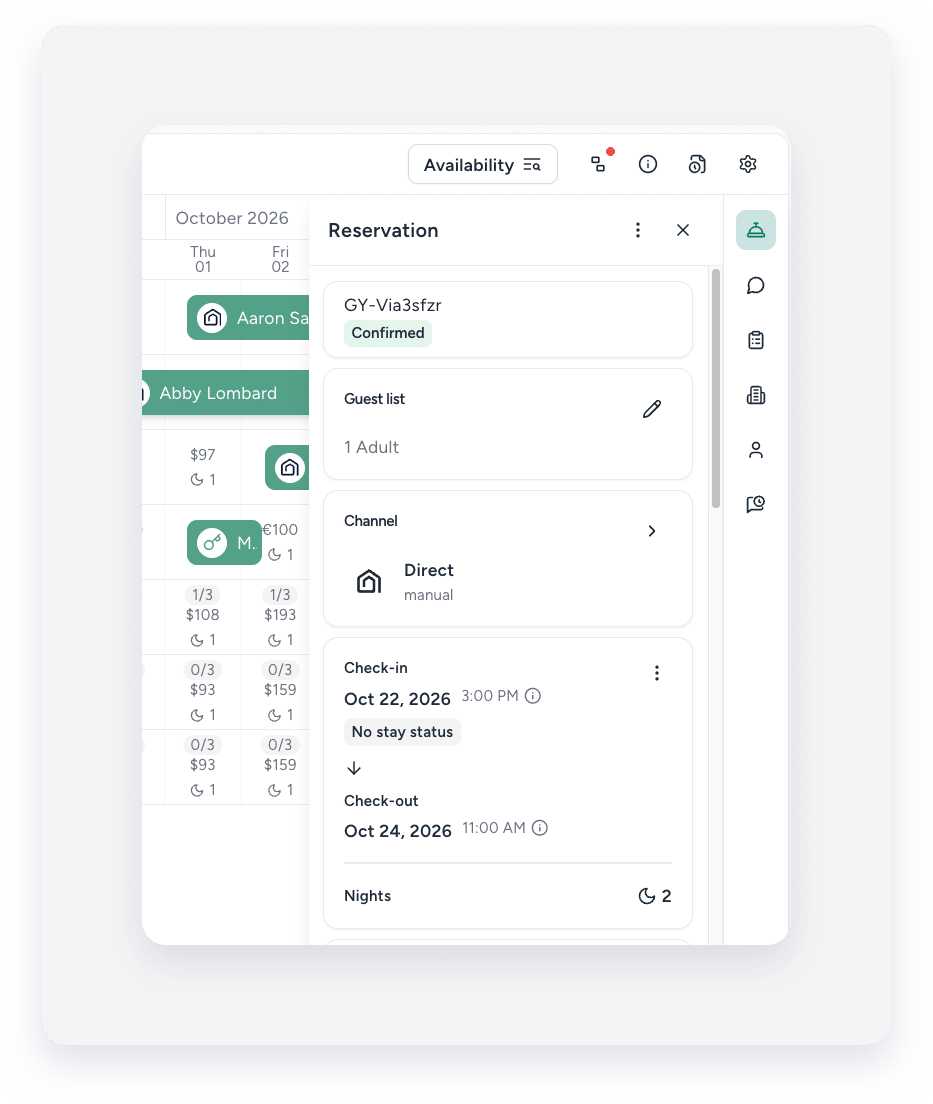
The Inbox and Multi-Calendar widget streamlines your workflow by displaying reservation details directly alongside your conversation thread or calendar. You can view and edit essential booking information without leaving the page, helping you resolve guest inquiries faster and more efficiently.
To open the widget, click  Inbox or
  Multi-calendar in the side navigation menu. In the Inbox, the widget appears automatically on the right side of your screen. In the Multi-Calendar, it appears once you select a reservation.
Note:
Some booking channels limit editing capabilities. Editable fields are clickable or display a dropdown icon.
Switch between tabs
The widget groups reservation details into tabs. Click a tab icon on the icon rail to open it. In the mobile app, the icon rail runs across the top of the panel.
Use this table to find the tab you need:
| To view or manage | Tab |
|---|---|
| Status, dates, guest count, notes, channel, payment status, and rate plan | Reservation |
| Internal comments for your team | Reservation comments |
| Tasks and task statuses | Operations |
| Listing details, such as name, address, and amenities | Property |
| Owner details on owner reservations | Owner |
| Guest contact details | Guests |
| Automated messages scheduled for the guest | Guest auto messages |
| The guest's lock code | Smart Locks |
Some tabs only appear in certain cases.
- Reservation comments appear only if you have permission to view inbox comments.
- Owner appears only on owner reservations, never on group reservations.
- Guest auto messages appear only in the Inbox.
- Smart Locks appears only if your account uses smart locks and a door lock code exists for the reservation.
Reservation 
Click this icon to view and edit booking details, including status, dates, and the guest list. Learn more about managing a reservation from the reservation widget.
Comments 
Click this icon to view, add, or reply to internal comments. Click the field at the bottom to add a comment. Click  to reply to a comment.
Operations 
Click this icon to view tasks and statuses related to the reservation. The operations widget integrates with the Inbox, the reservation page, and task reports.
Property 
Click this icon to view listing details, including name, address, and amenities. Scroll to view additional information. Click  to open the listing in Guesty.
Owner 
Click this icon to view owner details and navigate to the relevant Owners Portal. This icon only appears on the widget if the reservation is an owner reservation.
Guests 
Click this icon to view guest details. Hover over a section and click Edit to make adjustments.
You can perform the following actions in the widget's Guests section:
Guest auto messages 
This widget is available in the Guety Inbox only.
Click this icon to view and manage the relevant reservation's automated messages from the Inbox. Once the reservation is confirmed, this section displays all messages scheduled for the guest.
Smart locks 
This widget is only available when a door lock code exists for the reservation. Click this icon to view the guest's lock code for their reservation.
Understand permissions and visibility
- Disabled fields display "Permission required to edit" on hover.
- The payment status is visible only if you have financial permissions.
- Private custom fields only appear if you have custom fields view permissions.
- To edit the reservation’s channel and source, you must have the "Edit reservation source" permission.
