You can choose whether reservations made for a multi-unit listing are assigned to one of its sub-units automatically or manually. Only "Confirmed" reservations can be automatically assigned.
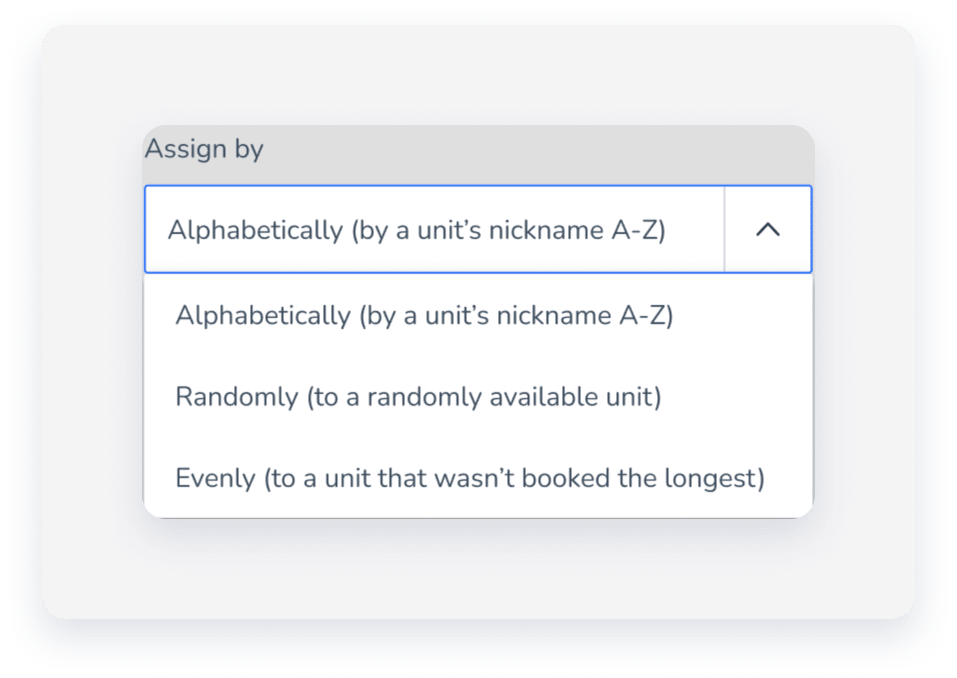
With automatic reservation assignment, reservations can be assigned alphabetically, randomly, or evenly. Learn more about how each option works.
This is set up when creating a new multi-unit listing and can be changed at any time, as described below.
Note:
Changes made to a reservation in the booking channel (such as updating amenities, adding guests, or including notes) cause the reservation to become unassigned in Guesty, even if previously assigned to a sub-unit. After any such change, you'll need to manually reassign the reservation.
Understand automatic assignment options
The option you select determines which available sub-unit receives each reservation:
- Alphabetically: Assigns the reservation to the first available sub-unit in alphabetical order, based on the listing's nickname.
- Randomly: Assigns the reservation to any available sub-unit.
- Evenly: Assigns the reservation to the available sub-unit that has gone the longest without receiving a reservation. Sub-units that have never received a reservation take priority. This option only considers when each sub-unit last received a reservation, not the occupancy rate or total booked nights.
How long stays affect even assignment
Because the Evenly option only tracks when each sub-unit last received a reservation, long stays can cause uneven occupancy.
|
For example:
As a result, sub-unit A can end up with more booked nights overall than the other sub-units. |
To balance the number of reservations across sub-units, choose Evenly.
To balance booked nights across sub-units when managing a mix of short and long stays, choose Randomly. This option doesn't favor sub-units with recent long stays. Because there is no option to assign reservations based on lowest occupancy, Randomly provides the most balanced distribution of nights.
Auto assignment limitations
A reservation will remain unassigned, even with automatic assignment to sub-units enabled, in the following cases:
- If there aren't enough consecutive nights available. When a multi-unit reservation is made, but no single sub-unit is available for the entire duration, the system splits the reservation across multiple sub-units with partial availability. The reservation will remain unassigned until you manually confirm and assign all sub-units.
- If you move a reservation to another sub-unit via the booking channel, but the sub-unit is unavailable.
-
Reservations with a Reserved or Inquiry status can't be automatically assigned.
Airbnb: Reservations that were imported as "Inquiries" and changed to "Confirmed" can't be automatically assigned.
- Auto-assignment isn't supported for Booking.com reservations
In these cases, you will need to manually assign the reservation to an available sub-unit. If there aren't available units, you can relocate other reservations to different sub-units to create vacancies. Alternatively, you can block the availability of the multi-unit in advance if there isn't a specific sub-unit available for all the nights of the reservation.
Learn how to view unassigned reservations.
Configure how reservations are assigned
Follow the instructions below to change how reservations should be assigned.
Step by step
- Sign in to your Guesty account.
- In the side navigation menu, click
 Properties.
 - Click the relevant listing.
- In the left sidebar, select the main unit of the multi-unit listing.
- In the left-side menu, under "Details & layout", click Multi-unit settings.
- Next to "Sub-unit and reservation settings", click Edit.
- Under "Reservation assignment method", choose from the following:
- Assign manually
-
Assign automatically. For this option, select "When" the assignment should be done:
- Immediately when a reservation is created.
- Ahead of check-in. For this option, also fill in the "How many days ahead" field.
- Select how the assignment will be made under "Assign by".
- Under "Highlight upcoming unassigned reservations", use the upward or downward arrows to select how many days ahead of check-in the unassigned reservations will be highlighted in the Multi-Calendar.
- Enable consecutive availability (optional).
- Click Save.
