After you connect your Booking.com account to Guesty, you can connect your Booking.com listings in two ways:
- Publish your Guesty properties to Booking.com. Create a new property or use an existing property in Guesty and add it to your Booking.com account.
- Link your existing properties in Guesty to your existing listings in Booking.com.
This article explains how to link your Booking.com listings to Guesty.
The default connection type for a linked listing is rates & availability sync. Learn where you should manage your listings, reservations, and guest communication based on this connection type. You can also switch the connection type.
Limitations
- Reservations with past dates won't be imported to Guesty when you link a listing. Learn more about uploading past reservations manually.
- A Booking.com room ID can only be linked to one Guesty listing.
- Only single and multi-unit listings can be linked to Booking.com. Linking sub-units isn't supported. When linking a multi-unit, select the main unit in Guesty, not the sub-units.
Before you begin
- Follow these steps before linking listings to Guesty.
- To integrate a hotel with Booking.com:
- Create each room type as listings under a complex on Booking.com. The complex will be assigned one hotel ID with multiple room IDs.
- Link the hotel with the corresponding complex in Guesty and each room type with the corresponding listing in Guesty. The main complex is displayed first, with each room type in a separate row below it.
- To link a new room to Guesty, connect it to a rate plan on Booking.com before attempting to link it. Only rooms with active rate plans are visible during the linking process.
1. Link a property to Booking.com
Watch our video and follow the steps to link a Guesty property to a Booking.com listing.
Step by step
- Sign in to your Guesty account.
- In the side navigation menu, click
 Marketing and sales to open the dropdown menu.
 - Under Channel management, select Distribution.
- Click the Booking.com thumbnail.
- In the Booking.com integration dashboard, verify that the relevant account status is Connected. If it is disconnected, reconnect the account first.
- Select the relevant account.
- Click Start linking your listings (or Link listing in the top right if you have linked before).
- In the Select Booking.com property page, enter the Booking.com property ID and click Next. The property ID can be found in the Booking.com Extranet’s property dashboard.
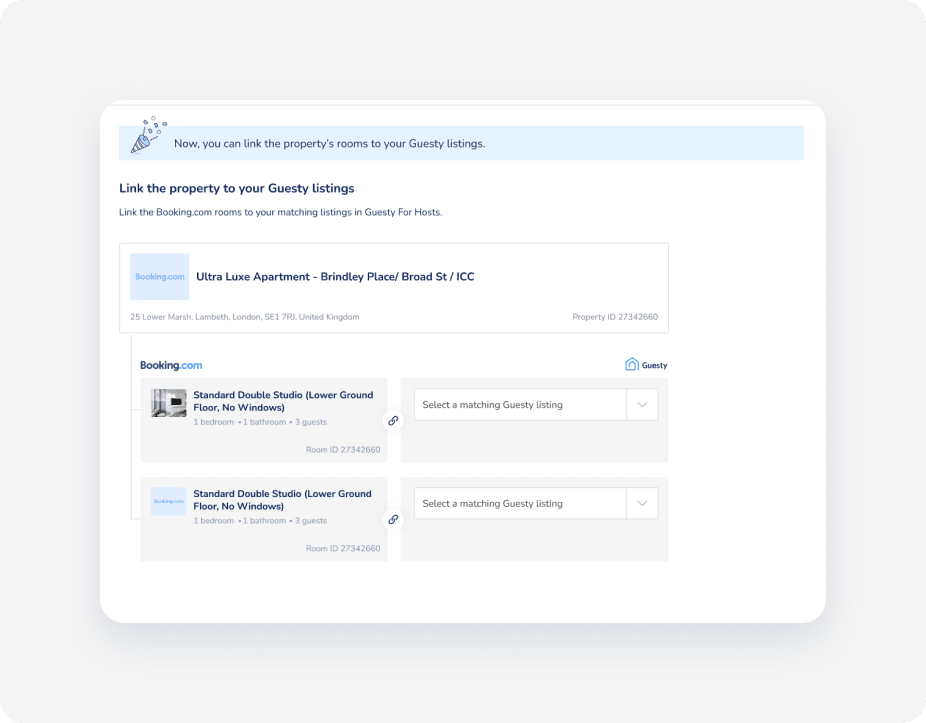
- In the Link to Guesty listing(s) page, under Matching listing in Guesty, select the relevant listing in Guesty and click Next.
-
In the Listing policy setup page, apply a rate plan or cancellation policy.
Note:
Your selection will override any existing rate plans on Booking.com. Avoid creating rate plans directly in Booking.com once connected.
- Click Link property to Guesty in the top right.
2. Finalize the setup in Booking.com
To ensure sync consistency, verify the following settings on the Booking.com Extranet:
- Taxes
- Cleaning fee
- Authorization hold
Troubleshooting issues when linking listings
If a listing doesn't appear in the dropdown menu:
- Ensure the property in Guesty is active and listed.
- Ensure you are linking at the multi-unit level, not directly to sub-units.
- Ensure each unit has a rate plan assigned to it.
- Confirm the number of units in Booking.com matches Guesty exactly. Learn more about reorganizing unit structure for Booking.com.
For additional linking errors see our linking errors guide.
