Use the Multi-Calendar to efficiently manage your reservations. View overlapping events, track reservation changes, assign reservations to specific units, and check property availability for new bookings.
Tip:
Learn how to navigate the Multi-calendar, customize your views, and filter reservations and listings.
Monitor and track reservations
Keep a close eye on your calendar to manage overlaps and track manual changes.
View overlapping events
Overlapping events appear as overlapping bands on the calendar. If more than two events overlap, a number indicating additional events appears below the bands.
Click this number to see a detailed list of all the overlapping events.

Track calendar changes
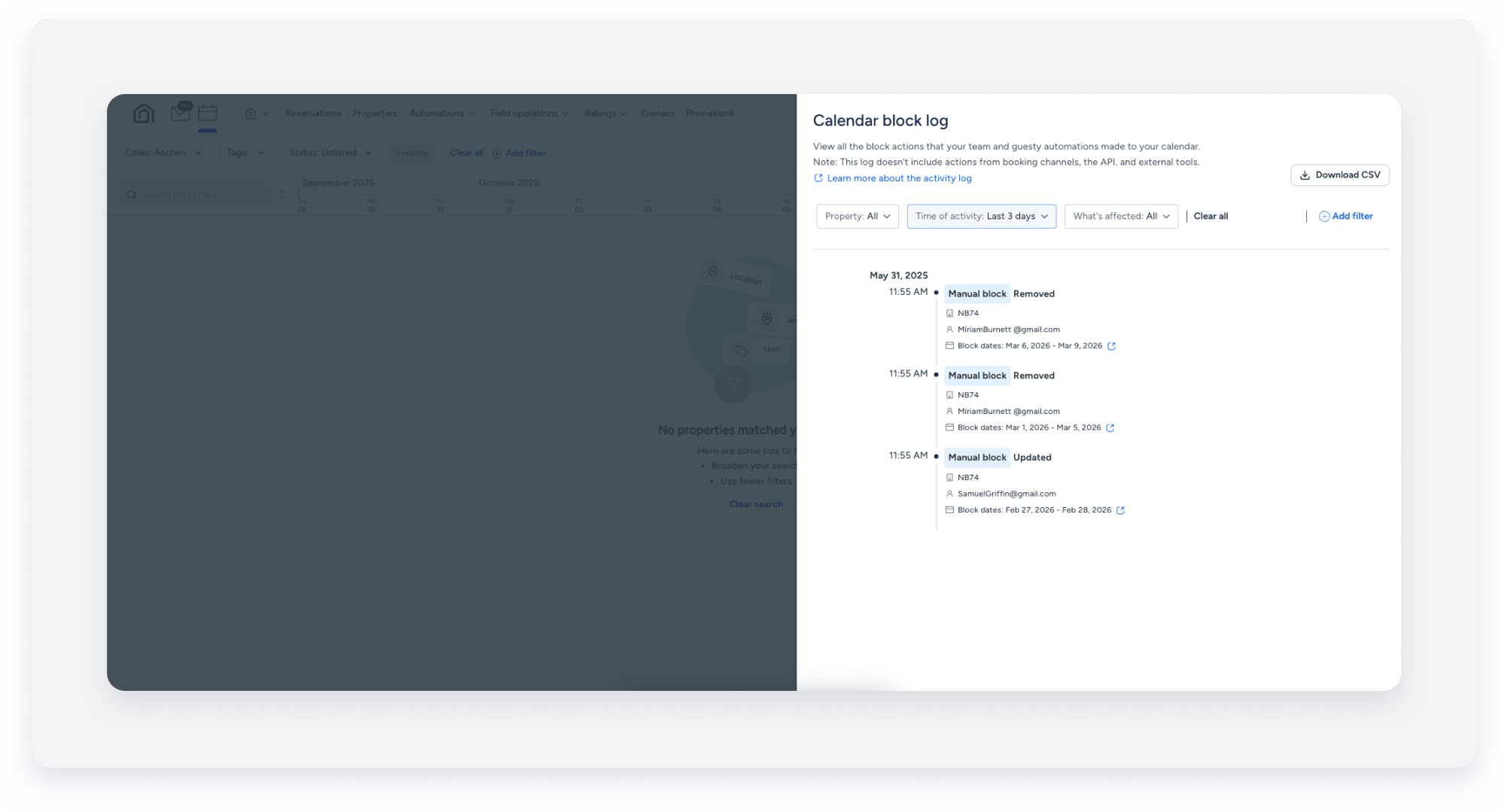
Track all Multi-Calendar changes made since March 2024 using the activity log.
- Listing name.
- Name of the user.
- Dates.
- Block type (manual block, or preparation time block).
- Block event (created, updated, or removed).
- Block notes (if added).
- Reason for the block.
Follow the steps below to access the activity log.
Step by step:
- Sign in to your Guesty account.
- In the side navigation menu, click
 Multi-calendar.
 - At the top-right corner, click
 .
. - Click Add filter to refine your search results.
- To use custom date filtering, select a specific listing from the filters.
-
After you select a listing, set your custom dates.
Note:
To use the custom date filter, first select a listing.
-
- Click Download CSV at the top-right corner to download the displayed activity log report.
Manage availability and assignments
Handle unassigned reservations and check availability to accommodate new guests or relocations.
Assign unassigned reservations
Manually assign an unassigned reservation to a sub-unit directly from the Multi-Calendar.
Check property availability
Filter the Multi-Calendar by guests, city, amenity, tags, bedrooms, or property to see which properties are available on certain dates.
By default, blocked properties are excluded from search results:
- Properties with a flexible block are included when you select Add blocked properties.
- Properties with inflexible blocks remain excluded.
Limitations
- Only listed properties appear in the search results.
- The "Find availability" search results use the property's base price. This total may differ from totals calculated using the nightly rates shown directly on the Multi-Calendar. The price updates to include additional fees and taxes when you add a property to the "Reservations cart".
- Properties assigned to a rate plan or rate strategy with availability restrictions don't appear on restricted days. For example, a property with a rate strategy prohibiting Sunday check-ins doesn't appear when searching for Sunday availability.
- Multi-units may appear in search results with "0" availability if sub-units are available, but none can accommodate the entire reservation.
Follow the steps below to check the availability of a listing.
Step by step:
- Sign in to your Guesty account.
- In the side navigation menu, click Multi-calendar.
- At the top-right corner, click Find availability.
- Enter the relevant start and end dates in the pop-up calendar.
- Edit relevant filters (e.g., guests, tags).
- Click Find properties.
-
Review the properties that meet your filtered criteria on the left.
Choose how to proceed:
- Create a manual reservation for a single property: click Add next to the relevant property, then click Create reservation. Enter the relevant details and click Create reservation.
- Send a quote to a guest.
- Create a group reservation.
Before relocating guests, check which properties are available for their dates.
Tip:
To master calendar management, visit Guesty Academy for interactive courses and step-by-step video tutorials.
