Markups increase rates so you can cover booking channel fees or channel commission. Use markdowns to decrease a listing's rate per channel.
The markup/markdown percentage applies to the listing's nightly rate, weekday and weekend base price, and the extra person fee.
You can set different markups or markdowns per connected booking channel. This must be set in Guesty. The markup/markdown is included in the fare sent to the channel and cannot be added or adjusted directly in the channel.
Channel-specific information
Guesty Booking Engine: Markups and markdowns for the Guesty Booking Engine apply to reservations made through:
- Guesty Booking Engine
- Google Vacation Rentals (GVR)
- Manual sources such as the Multi-calendar
- Misterb&b
Rentals United: Guesty doesn't support markups for Rentals United. Set up markups in Rentals United itself, including for it's various channels.
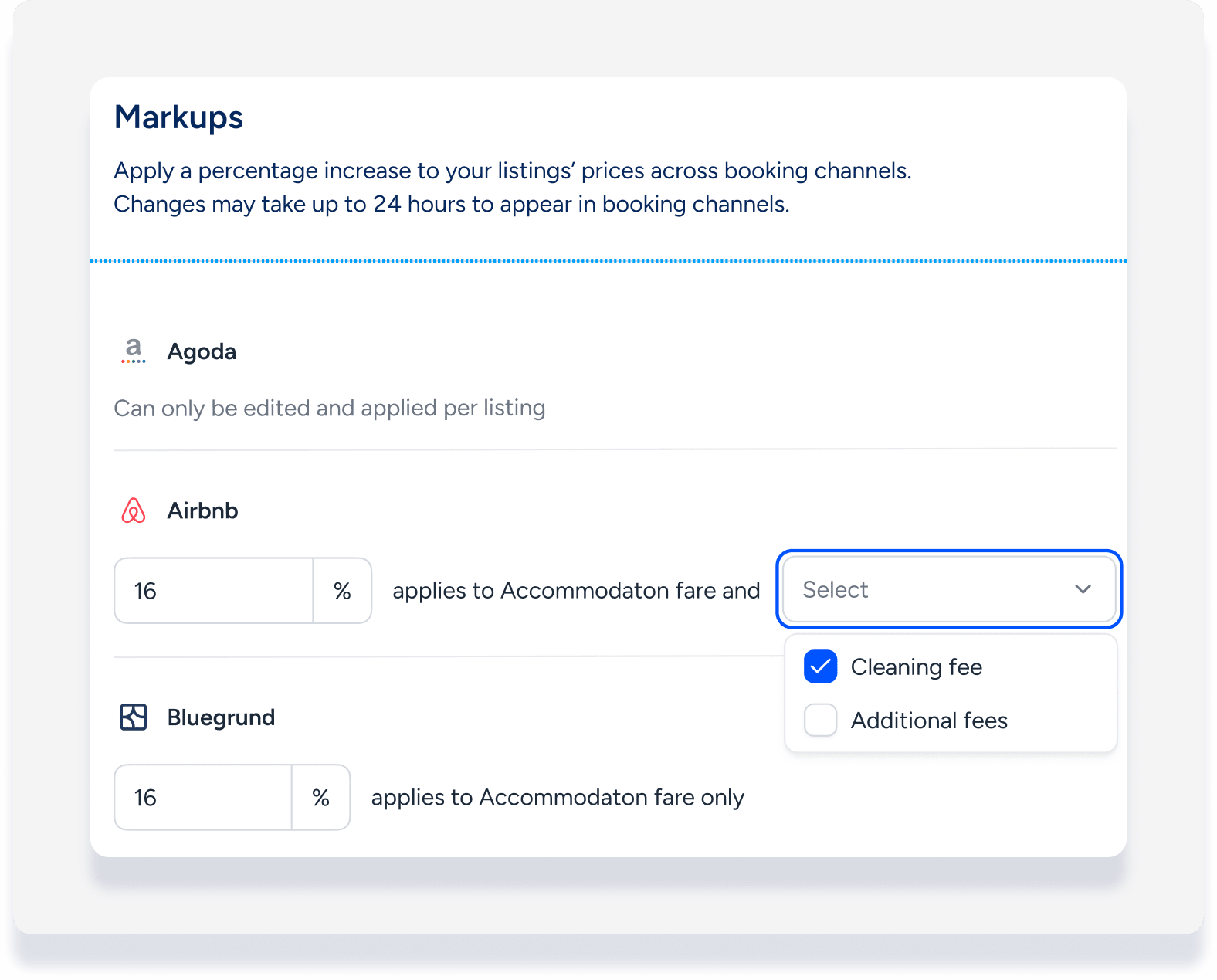
Airbnb, Booking.com, and Vrbo: Select the cleaning fee or additional fees to include in the markup calculation along with the accommodation fare. For all other channels, markups don't apply to these fees even if they're bundled with the accommodation fare.
Tip:
This aligns with Airbnb’s single fee structure.
Markup calculation suggestions
Use the table below as a guideline for how much the markup percentage should be. The channel commission is taken out of the reservation's total payout, but the markup increases the nightly rate, which is only part of the total payout. This means the markup percentage should be higher than the channel commission percentage to compensate adequately:
| Channel commission | Suggested markup |
|---|---|
| 5% | 5.26% |
| 6% | 6.38% |
| 7% | 7.53% |
| 8% | 8.30% |
| 9% | 9.89% |
| 10% | 11.11% |
| 11% | 12.36% |
| 12% | 13.64% |
| 13% | 14.94% |
| 14% | 16.28% |
| 15% | 17.65% |
| 16% | 19.05% |
| 17% | 20.48% |
| 18% | 21.95% |
| 19% | 23.46% |
| 20% | 25.00% |
| 21% | 26.58% |
| 22% | 28.21% |
| 23% | 29.87% |
| 24% | 31.58% |
| 25% | 33.33% |
| 26% | 35.14% |
| 27% | 36.99% |
| 28% | 38.89% |
| 29% | 40.85% |
| 30% | 42.86% |
Create a markup for your account
Important:
Markdowns can only be applied on the listing.
Add a markup on the account level if it's relevant to all or most of your listings. You still need to activate the settings for each relevant listing.
Create markup
Step by step:
- Sign in to your Guesty account.
- In the side navigation menu, click
 Marketing and sales to open the dropdown menu.
 - Under Revenue management, select Markups.
- To the right, click Edit.
- For each booking channel, enter the percentage you want to mark up.
- Choose to select cleaning fee and/or additional fees to include with accommodation fare in the markup calculation for Airbnb, Booking.com, and Vrbo.
- Click Save.
Activate markup in a listing
To apply the account-level settings, activate them in each relevant listing and in each sub-unit.
Step by step:
- In the side navigation menu, click
 Properties.
 - Click the relevant listing. If the listing is a multi-unit, make these changes by editing each sub-unit setting.
- In the left-side menu, click Pricing & policies and select Pricing.
- Scroll down to the "Markup/markdown" section and click Edit to the right.
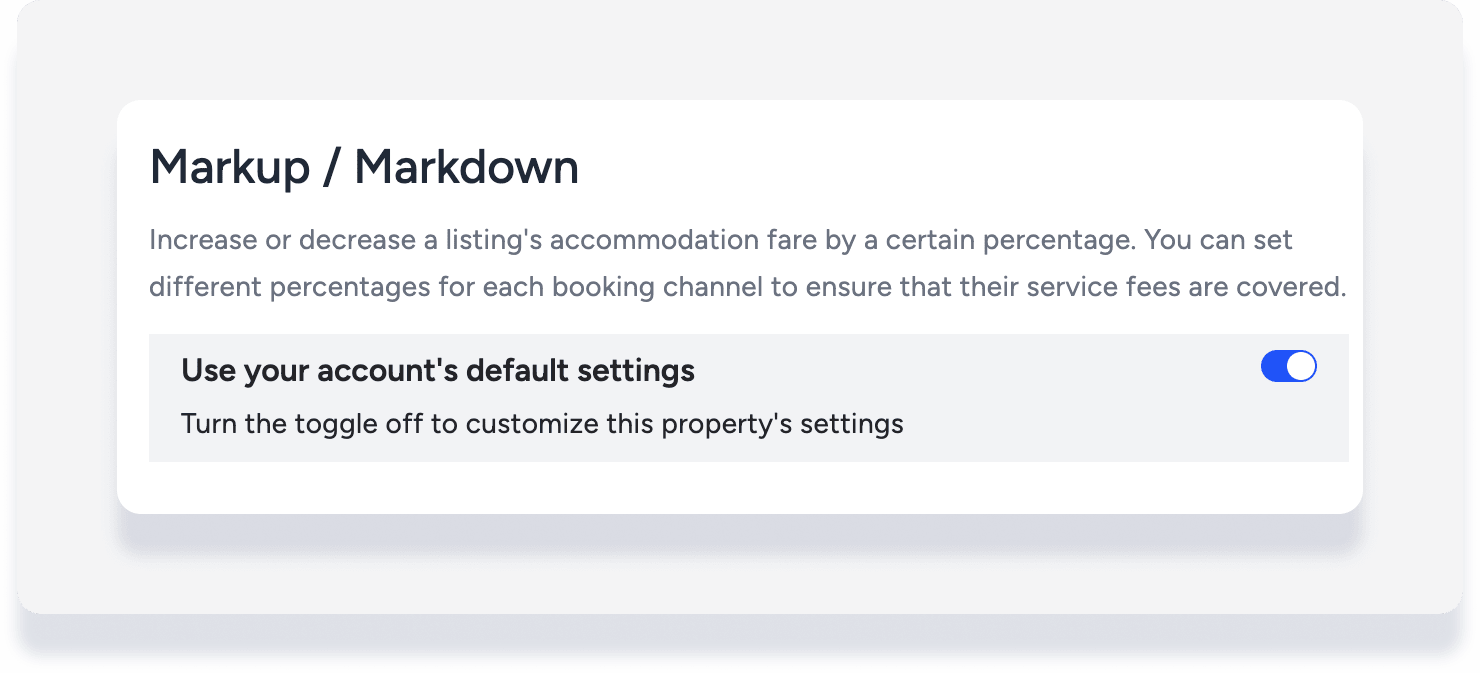
- Toggle on Use your account's default settings.
Create a markup or markdown for a specific listing
Add a markup or markdown on the listing level if it's only relevant to specific listings. Before proceeding, check that the listing is connected to all relevant channels.
Step by step:
- Sign in to your Guesty account.
- In the side navigation menu, click Properties.
- Click the relevant listing. If the listing is a multi-unit, make these changes by editing the main settings of the multi-unit. The changes will apply to all sub-units.
- In the left-side menu, click Pricing & policies and select Pricing.
- Scroll down to the "Markup/markdown" section, and click Edit to the right.
- If Use your account's default settings is toggled on, toggle it off.
- For each booking channel, enter the percentage to mark up or mark down.
- Choose to select cleaning fee and/or additional fees to include with accommodation fare in the markup calculation for Airbnb, Booking.com, and Vrbo.
- Click Save.
The price on the booking channel is calculated with the markup or markdown. If the resulting price is not a whole number, Guesty rounds it up to the nearest whole number.
For example, if a 3.5% markup is added to a nightly rate of 51 USD, the resulting price will be 51 x 1.035 = 52.785, and Guesty will round that up to 53 USD.
View markup data in a reservation
Follow the steps below to review the specific markups directly within the reservation details.
Step by step:
Access a reservation's guest folio.
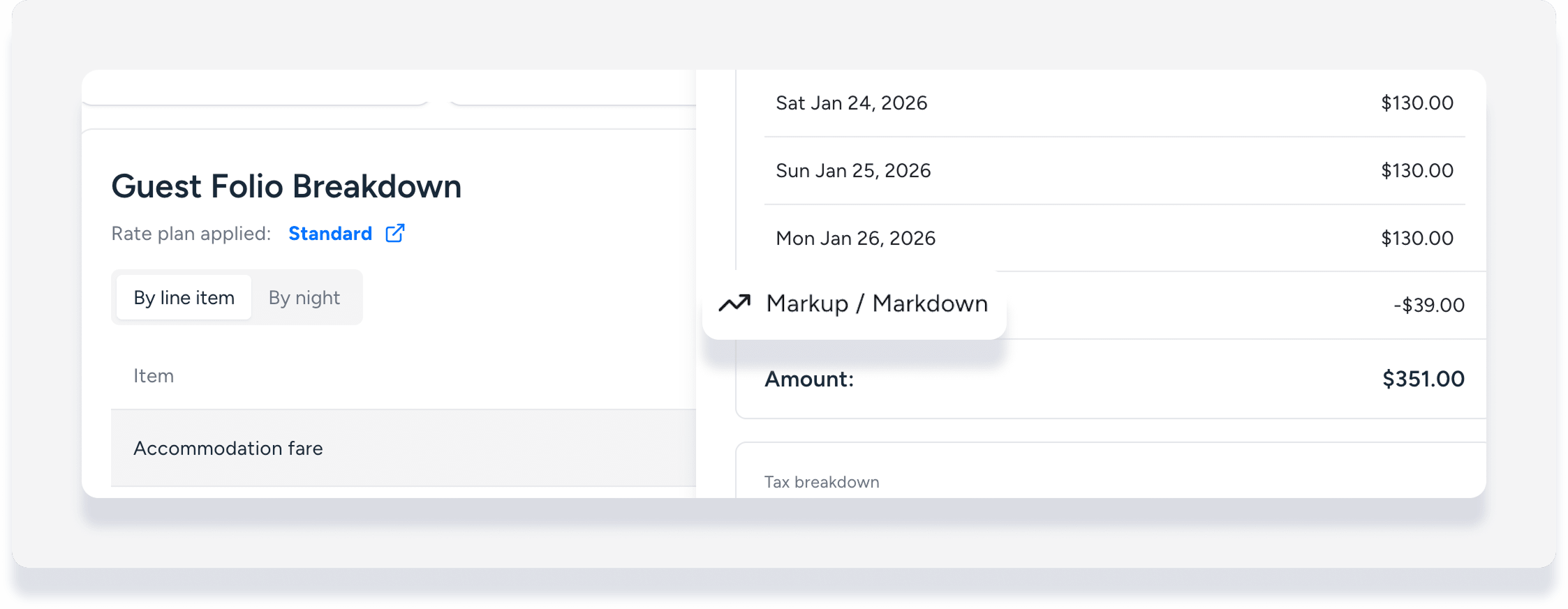
Each item included in the calculation (accommodation fare, cleaning fee, additional fees) has the markup applied in the amount displayed.
-
Click Accommodation fare to view the markup on this item in the side panel.
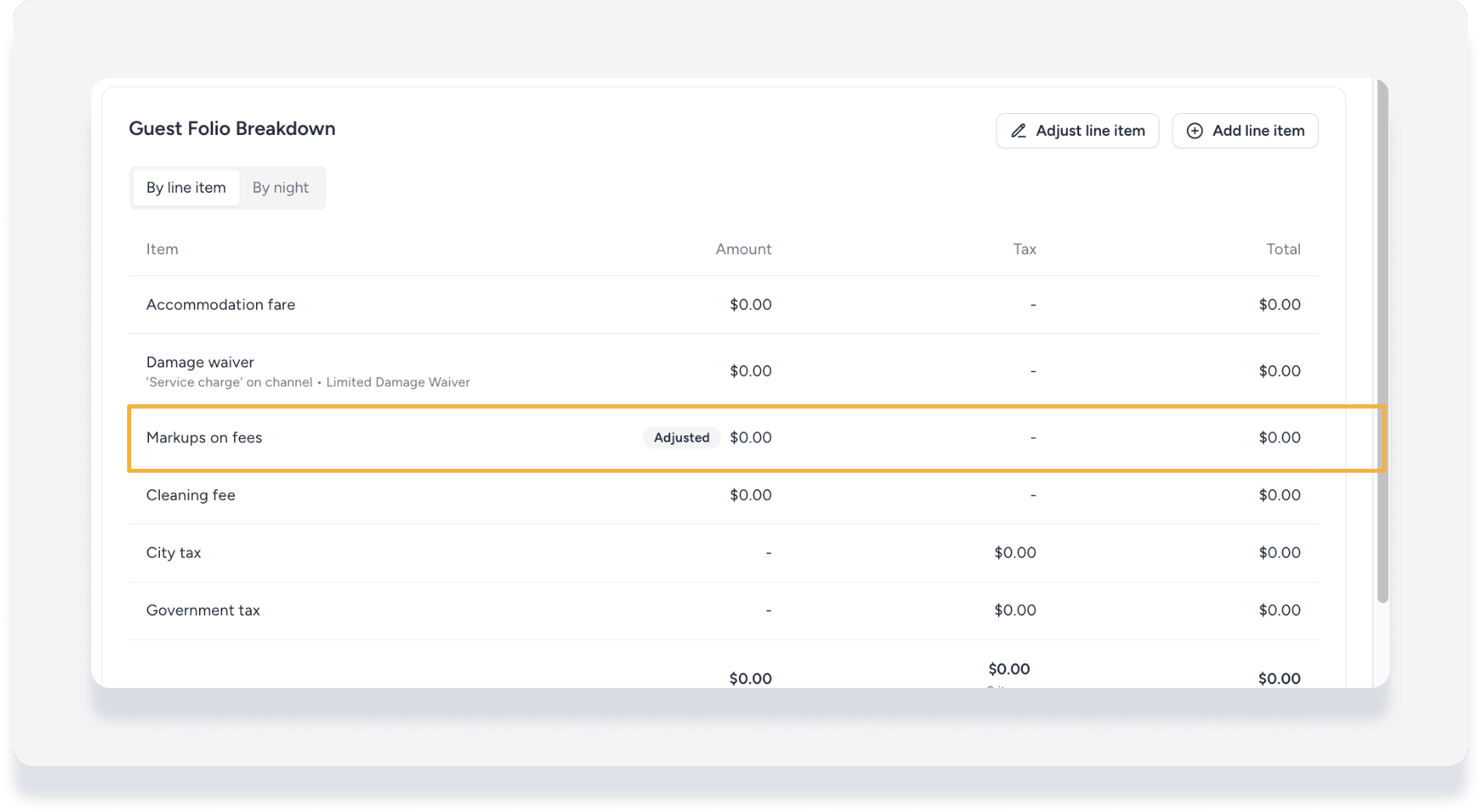
- If relevant, the markup on fees appears as a separate line item in the folio.
Reporting on markups
Track markup revenue by running a reservations reports with the added column "markup on fees". This data provides a full audit trail, helping you compare reservation financials against your fee setup without manual corrections.
Note:
Accounting users, learn about the implication for markup on fees in accounting.
Troubleshooting an error
If you get an error message when trying to save your markup settings, it is likely due to one of the following:
- User permissions: Only the admin and certain user roles and permissions can add markups. Check your user setup and refer to an admin in your organization as needed.
- Custom fields: Duplicated custom fields can cause an error. Check your custom field settings and delete any duplicates.
Update markups in bulk
Manage markups efficiently by updating them across multiple properties at the same time. To request a bulk change, first prepare your data and then send the data to Guesty.
Step by step:
- Download the markup template.
- Fill out the template including the following column headers:
- _id: The Guesty listing ID.
- useAccountMarkups: This value must always be "FALSE". (This means the account level markup settings won't be followed for the specific listing.)
- platform: A dropdown option. Choose the relevant channel.
- amount: The value of the markup. Do not add special characters.
- Save completed data file as a csv.
Create a support ticket for Guesty as follows.
- Select the following ticket classifications:
- Ticket Topic: Guesty Feature
- Guesty Feature: Property settings & reports
- Enter the subject line
Bulk Request: Update MarkUp - Copy the template below, paste it into the body of your ticket, and fill in the bracketed information.
- Attach your prepared data file.
- Submit the ticket.
Ticket template for updating markups
Hi Guesty CX,
Please update the markup policy from the following listings provided in the attached file.
Account Name/ID: [Insert Account Name or ID]
Apply to: [Indicate ALL listings OR Active listings only]
Apply to which channel: [Indicate ALL channels OR specify the channel/s]
Special instructions or previous ticket with the same request:
Thank you!
Tip:
To master markups, visit Guesty Academy for interactive courses and step-by-step video tutorials.
