Offer Generali Travel Insurance as an optional upsell, to help guests cover non-refundable trip costs if they need to cancel or interrupt their stay due to unforeseeable events.
Before you begin
Before you begin the setup, confirm your account meets these requirements:
Additional fee from total payout: You must have the "Additional fee from total payout" feature enabled. If you don't see this option, contact Guesty support to request it.
Booking Engine: This insurance upsell is only available for reservations made via the Guesty Booking Engine and Booking Engine API.
Direct Agreement: You must sign a plan and finalize an agreement directly with Generali.
Note:
To get started with Generali, contact Tony Santilli, Director of Sales, at 858-349-0905 or tony.santilli@us.generaliglobalassistance.com
Setting up Generali Travel Insurance
Configure your listings and fees to offer Generali Travel Insurance as an upsell.
In Generali
Sign up for a plan with Generali.
Finalize your agreement. Generali will confirm the insurance product and fee amount you should present to the guests.
In Guesty
Step by step:
1. Update your cancellation policies: Set up a non-refundable cancellation policy for each listing or create a rate plan with a "Super strict non-refundable" policy. This ensures the insurance is relevant to the guest's risk.
2. Create the insurance fee: Set up this fee for your entire account or for specific listings.
Go to Fee settings.
Select Total Payout Based as the fee type.
Enter the name "Generali Travel Insurance".
-
Set the pricing percentage according to your agreement with Generali.
Note:
This fee applies only to the total payout, excluding channel commissions and processing fees.
Do not toggle on Sync channels. The fee must remain optional.
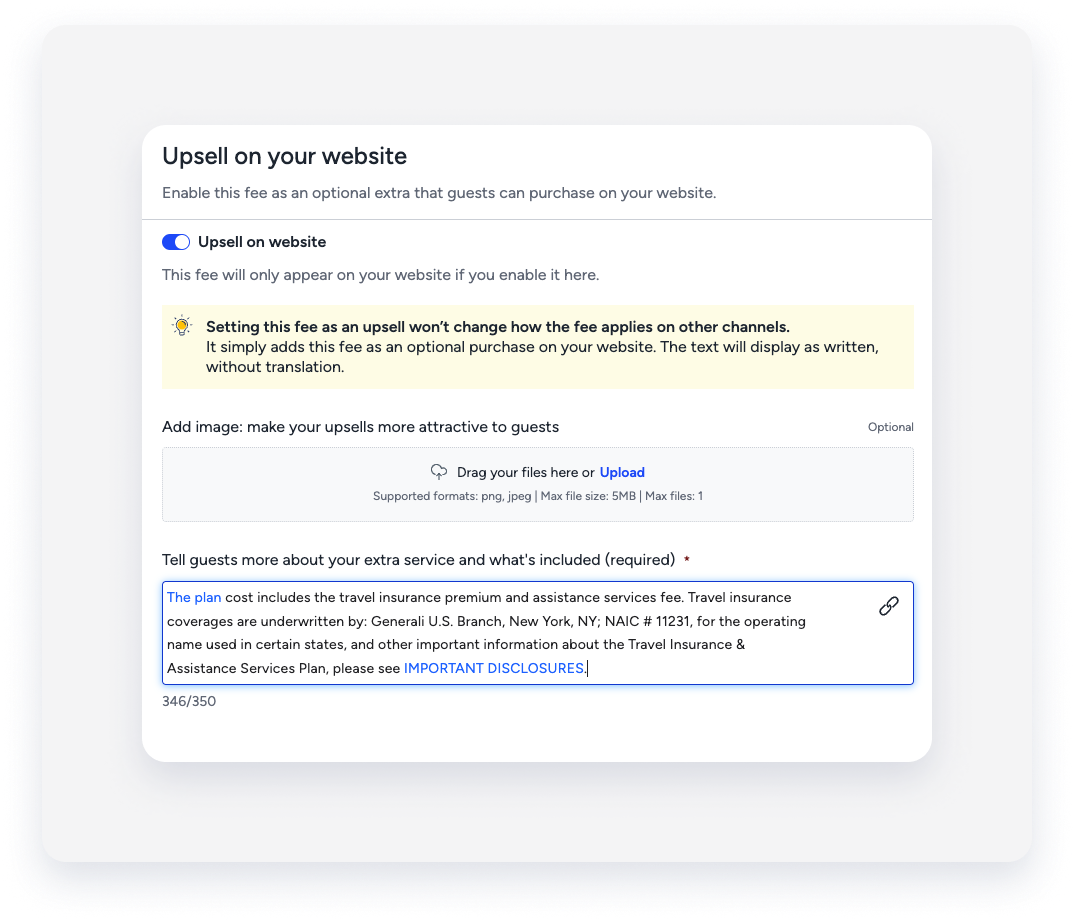
3. Add travel insurance as an upsell to the Booking Engine: Enable the insurance as an optional extra in your Guesty Booking Engine.
In the upsell text field, copy and paste the following text:
"The plan cost includes the travel insurance premium and assistance services fee. Travel insurance coverages are underwritten by: Generali U.S. Branch, New York, NY; NAIC # 11231, for the operating name used in certain states, and other important information about the Travel Insurance & Assistance Services Plan, please see IMPORTANT DISCLOSURES".
Note:
Guests can cancel the insurance upsell within 10 days of the reservation confirmation and the fee being charged. If a guest requests a cancellation after 10 days, follow Generali’s exception process.
4. Create custom fields for reporting: Generali requires specific guest data for insurance issuance. Create the following Reservation custom fields:
| Field name | Field type | Notes |
|---|---|---|
| "Guest state/province" | Text | Required for the check-in form. |
| "Net premium" | Number |
The amount owed to Generali (Gross Premium minus your commission). Example:
|
| "Action" | Option | Add options: New policy (N), Update (modification) (U), and Cancellation (X). |
5. Configure the guest app
Note:
Guests must submit a check-in form to be issued a policy.
Edit your guest app check-in form to include "Address" and "Guest state/province".
Toggle on Required for these fields.
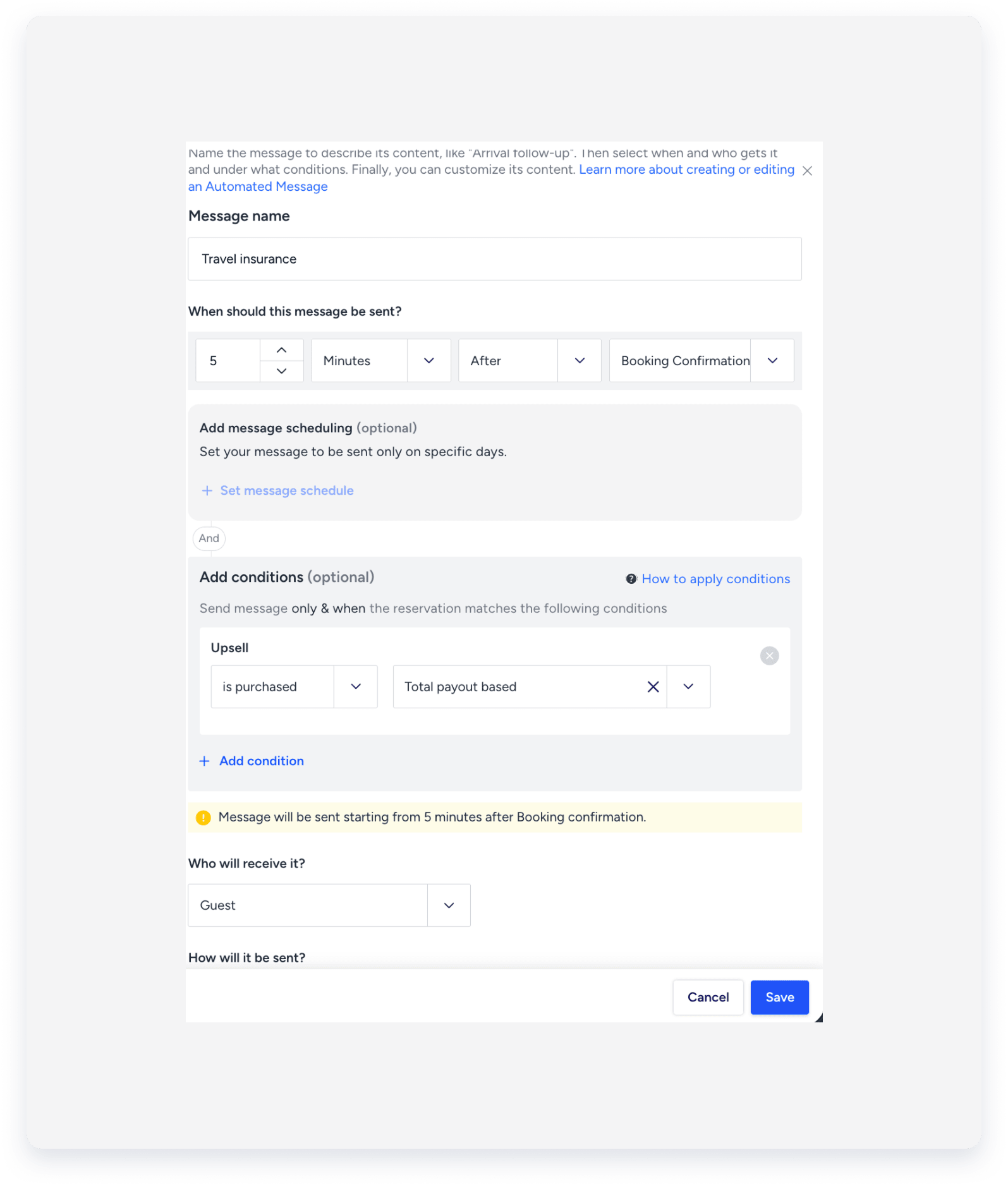
Create an automated message to send the guest app link.
You can add this to an existing automation or create a new one. Ensure the automated message reservation source is set to specific booking channels with only the Booking engine channel selected.
-
Message settings:
Set the Trigger to "5 minutes after Booking Confirmation".
Message content: Include a link to the guest app and clear instructions for guests to complete the details required for issuing travel insurance.
Add a Condition so the message sends only if the "Total Payout Based" upsell is purchased.
Managing payments and reporting
Monthly reporting
Create a custom reservation report to send to Generali once a month.
-
Create a report with the filters:
Status is "Confirmed".
Purchased Fee Type is "Total Payout Based".
Confirmation date is within the reporting month.
Include columns for guest details, financial data, and your new custom fields.
After downloading the report, manually fill in the "Net premium" and "Action" fields.
Adjust the column names to match Generali's requirements (e.g., change "Confirmation code" to "Booking number").
Email the completed report to the address provided by Generali.
After downloading the report, you must adjust the columns and manually fill in data before submitting it to Generali.
| Column category | Column name | Adjust column name to | Notes |
|---|---|---|---|
| Guest | "Guest’s name" | "First name", "Last name" |
Separate into two columns |
| "Guest’s street" | |||
| "Guest’s city" | |||
| "Guest’s state" | |||
| "Guest’s postal code" | Zip code | ||
| "Guest’s country" | |||
| "Guest’s email" | |||
| "Guest’s phone" | |||
| Reservation | "Confirmation code" | "Booking number" |
|
| "Confirmation date" | "Application date" |
||
| "Check-in date" | Arrival date | ||
| "Check-out date" | Departure date | ||
| Financials | "Total payout" | "Booking cost" |
The total reservation cost, excluding the insurance fee |
| "Total payout based fee" | "Gross insurance premium" |
Use the values in these columns to calculate the difference between the original Travel Insurance fee value and the adjusted value in case a reservation was changed. | |
| "Total payout based fee purchased" | |||
| "Total payout based fee updated at" | Last adjustment date of the invoice items. | ||
| "Total payout based fee purchased at" | Reservation creation date if the fee was added automatically or, first creation date when the fee was added manually. |
||
| Custom fields | "Net premium" | ||
| "Action Code" |
Fill this column with one of the following three codes:
|
Email the completed report to the address provided by Generali.
Important:
The Total Payout Based fee is a manual fee and is not supported for OTAs.
Changes to reservations: If dates, prices, or fees change, calculate the difference between the original "Total payout based fee purchased" and "Total payout based fee". Manually include the difference in your next monthly report under the column "Gross insurance premium". You must specify the change type on the "Action" column.
-
The Total Payout Based fee does not automatically recalculate if a reservation changes.
Manually adjust the fee after the guest confirms the change.
-
Follow the steps in these articles to adjust a folio item:
Accounting users: Adjusting a reservation's guest folio
Non-accounting users: Adjusting a reservation's guest folio
Collecting payments
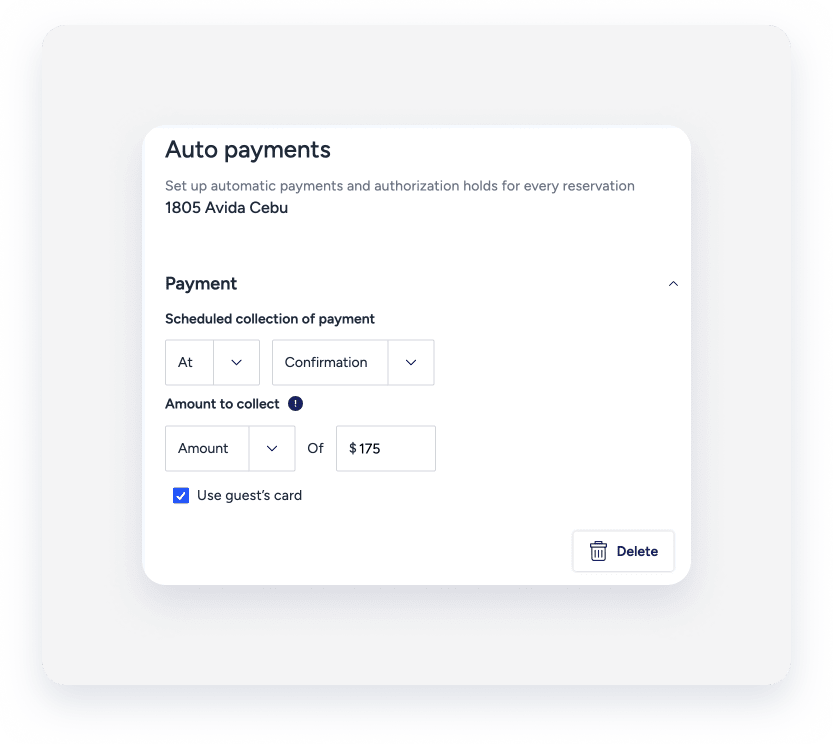
Set up an auto payment rule for each listing to collect the insurance fee at the time of confirmation.
The insurance fee must be collected in full at reservation confirmation.