When you create an additional fee, percentage fees are typically calculated based on the accommodation fare, the cleaning fee, or both. We've added a new option to create a fee type calculated on the total payout.
Total payout includes the following reservation components:
Accommodation fare
Basic fees (such as cleaning or extra person fees)
Taxes
Other additional fees (fixed or percentage-based)
Use the total payout based fee for things like travel insurance offered as an upsell in your Guesty Booking Engine.
Limitations
You must select the "Total payout based" fee type.
This fee type doesn’t sync with external channels. It is only available for direct booking channels: Guest App, Guesty Websites, and Booking Engine API.
Total payout based fees are automatically excluded from new tax calculations.
This fee is not automatically zeroed out or recalculated when a reservation is canceled or updated. You can manually adjust the guest folio to remove or change the fee.
Tip:
Customize a reservations report by adding the column Total payout based fee to see when the fee was purchased at confirmation, when it was added manually, and when the price was created or last updated.
Create additional fee on total payout
Create the fee at the account level if it applies to most of your listings. If it only applies to specific listings, create it at the listing level. For multi-unit listings, fees don’t automatically sync from the parent to sub-units and must be set up on both levels.
Follow the steps below to add a new fee.
- Sign in to your Guesty account.
- In the top navigation bar, click the mode selector and select Financials mode.
- Click Financial settings and select Additional fees.
- In the top-right corner, click Add fee.
- Enter the fee settings, clicking Next at the top-right corner to move to the next screen.
- Once complete, click Done in the top-right corner.
- Sign in to your Guesty account.
- In the top navigation bar, click the mode selector and select Operations mode.
- Click Properties.
- Click the relevant listing. If the listing is a multi-unit, the fee must be set up on the parent and the sub-unit level.
- In the left-side menu, click Pricing & policies and select Additional fees.
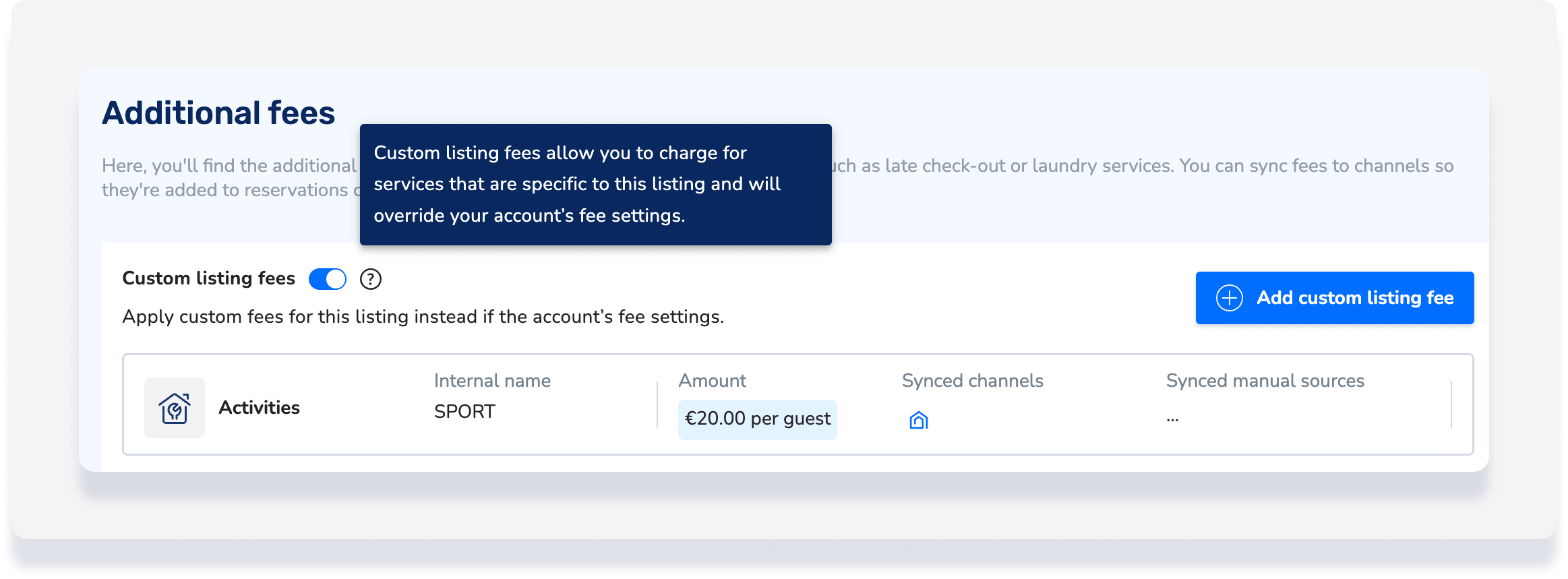
- Toggle on Custom listing fees.
- Click Add custom listing fee.
- Enter the fee settings, clicking Next at the top-right corner to move to the next screen.
- Once complete, click Done in the top-right corner.
Define fee settings
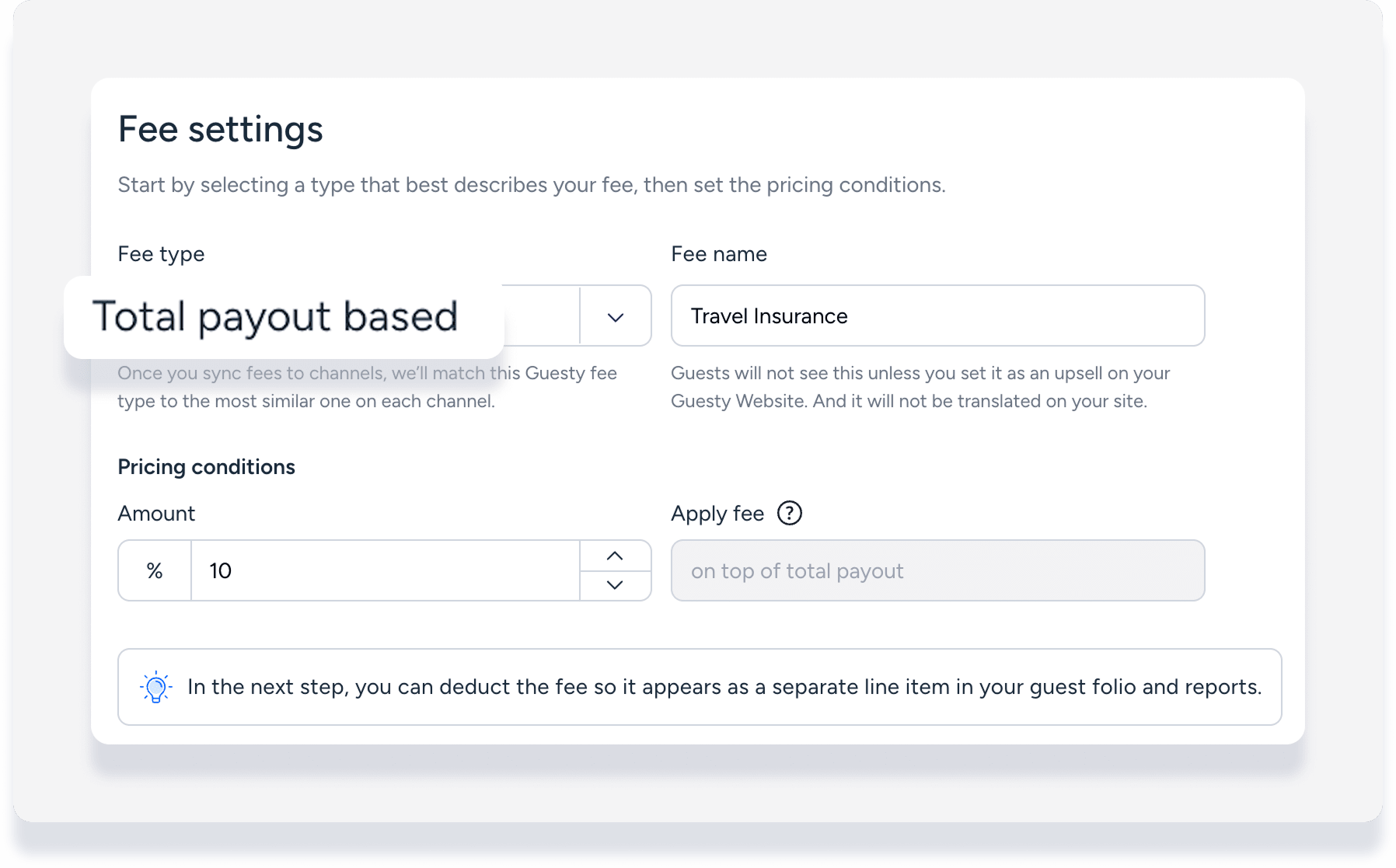
When entering the fee settings use the following configurations:
Fee type: Select Total payout based from the dropdown menu.
Fee name: Enter a name that guests will see if the fee is set as an upsell on the Guesty Booking Engine.
Pricing conditions: Enter the percentage amount. This is applied to the total payout by default.
Sync fee with direct booking channels
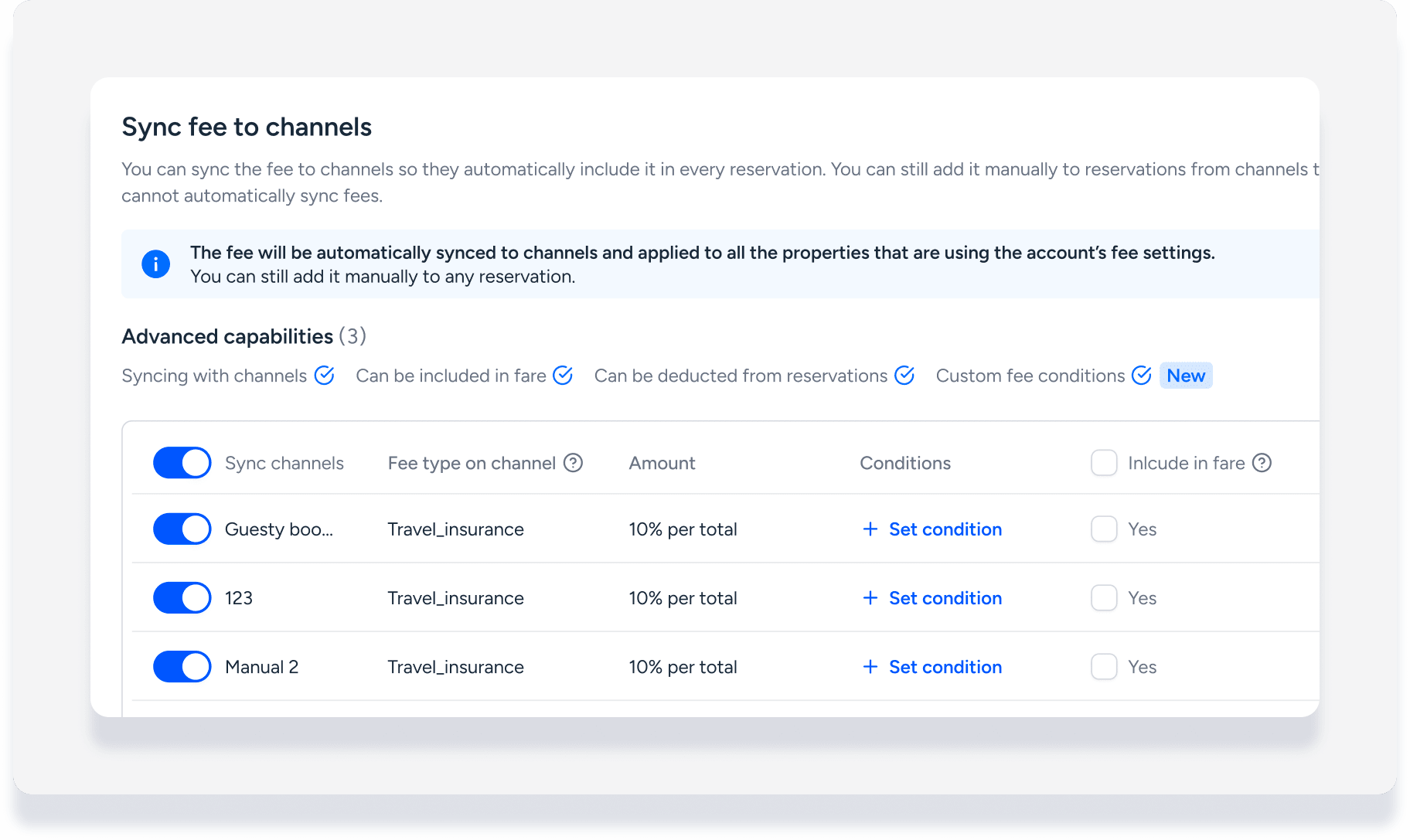
Sync the fee to your direct booking channels to automatically include it in every new reservation. You can review the fee type displayed to guests on each channel and edit it if necessary.
Tip:
After creating the fee, you can still add it manually to reservations from channels that can't automatically sync the fee.
Include the fee in the accommodation fare
Include in fare: The fee is bundled into the accommodation fare, so it's not visible to guests when booking.
Deduct from fare: The fee appears as a separate line item from the accommodation fare in the guest folio and reports.
Learn more about including and deducting fees including important limitations.
Set custom conditions
- Click Set conditions for all Advanced
 .
.
- Enter a date range.
- Enter the fee amount to apply for this date range.
- Check the box for Recurring yearly.
- To add more dates for this condition to apply, click Add a date range.
- Click New fee condition to set a new rate for different dates.
- Review the summary information for accuracy.
- Click Apply conditions to all advanced.
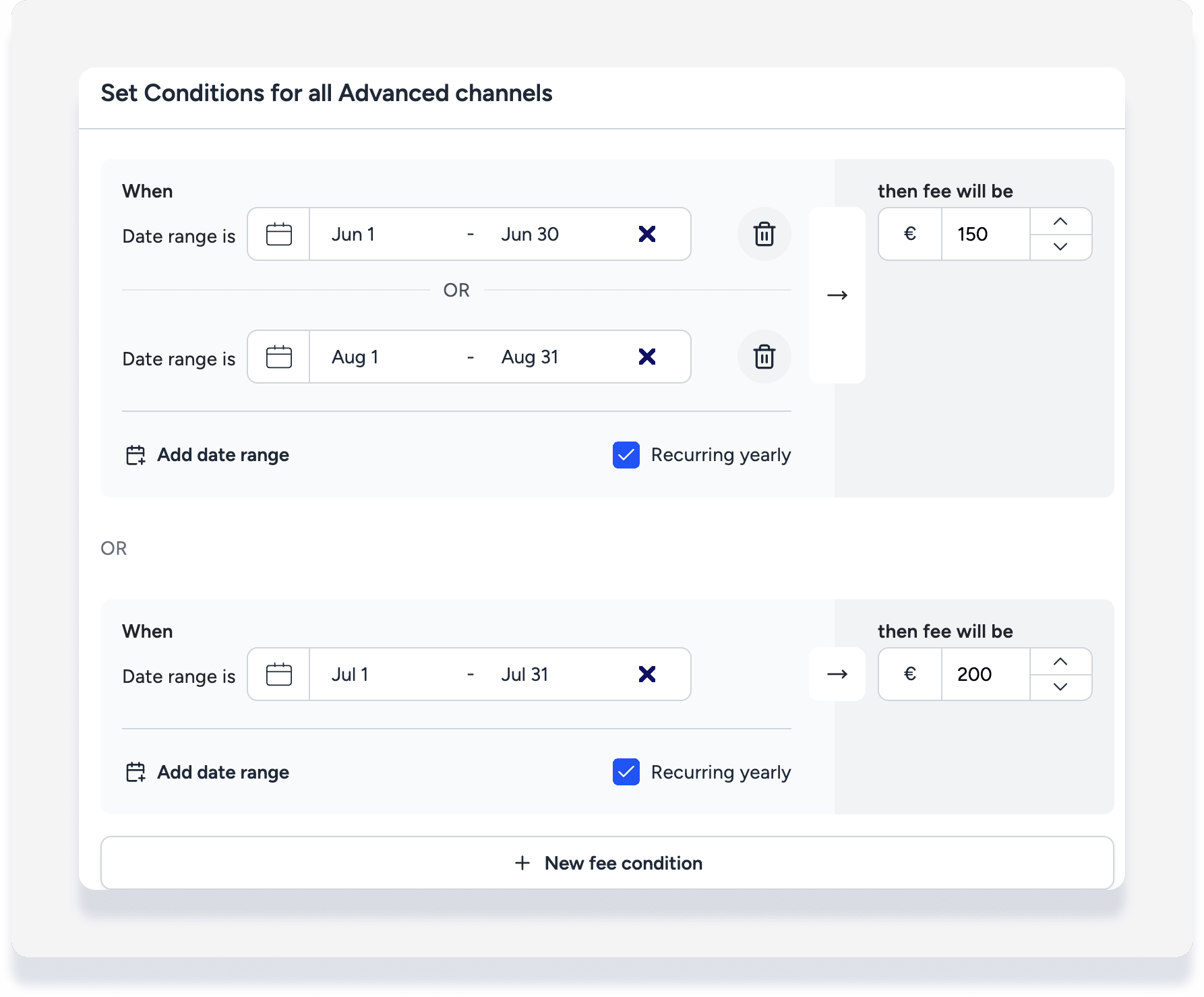
For example, from the screenshot above:
When dates are June 1 to June 30 or August 1 to August 31, the fee changes from the default 100€ to 150€ per stay. This recurs on a yearly basis.
When dates are July 1 to July 31, the fee changes from the default 100€ to 200€ per stay. This recurs on a yearly basis.
- If there are group conditions set, under "Edit" click .
- If there are no group conditions set, under "Conditions" click Add conditions.
- Toggle on Set custom conditions or exclude from group settings.
- Click Set new channel conditions.
- Enter the fee amount to apply for this date range.
- Check the box for Recurring yearly.
- To add more dates for this condition to apply, click Add a date range.
- Click New fee condition to set a new rate for different dates.
- Review the summary information for accuracy.
- Click Apply to channel.
