Boost your revenue by offering guests optional services and experiences that enhance their stay. While additional fees are usually part of the stay price breakdown, Upsells give guests the choice to upgrade their experience, helping you maximize the value of every property.
First, create a Guest App in Guesty. Then, activate and set up Upsells. Finally, connect them to the Guest App so guests can view and purchase them directly.
Tip:
Learn more about billing and payment collection for Guest App Upsells and utilizing our AI tools to automate offers.
Once the Upsell is applied, the reservation updates automatically. When a guest purchases an Early check-in or Late check-out Upsell, the reservation's check-in or check-out time is automatically updated to reflect the purchased Upsell.
| For example, if a guest purchases an Early check-in for 2:00 PM and the reservation's original check-in time is 4:00 PM, the reservation's check-in time automatically changes to 2:00 PM. Similarly, if a guest purchases a Late check-out extending the check-out time to 12:00 PM, the reservation's check-out time automatically updates to 12:00 PM. |
When sending Upsell-related automated messages, add the relevant Guest App variable to the message for easy access.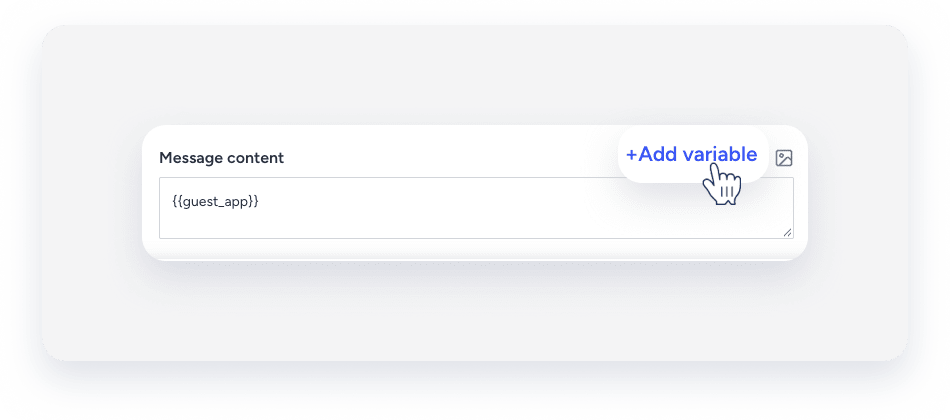
Review available Guest Upsells
Review the Guest Upsell templates Guesty offers below.
- Early check-in - Fill turnover gaps by selling unused time between stays.
- Late check-out - Offer guests a late check-out for a relaxed end to their stay.
- Welcome basket - Delight guests with a curated welcome basket filled with snacks and essentials.
- Baby crib - Help families rest easy with a safe, ready-to-use crib.
- Club card - Give guests access to exclusive club facilities.
- Extra bed - Accommodate extra guests and earn more per stay.
- Golf cart - Help your guests explore the area easily with a convenient golf cart or club car for quick local trips.
- Mid-stay cleaning - Schedule professional cleanings during your guests' stay to keep your property fresh and tidy.
- Kitchen restock - Restock the kitchen with tasty food and more during your guests' stay.
- Breakfast - Serve a fresh breakfast so your guests can skip the morning rush.
Activate Upsells
Follow the steps below to activate Upsells for the first time.
Step by step:
- Sign in to your Guesty account.
- In the side navigation menu, click
 Integrations to open the dropdown menu.
 - Select Guesty add-ons.
- Click Activate Upsells.
- Click Activate now.
- In the pop-up, check the “Terms and Conditions” box and click Activate subscription.
Click Add your first Upsell to set up an Upsell.
Set up Upsells in Guesty
Follow the steps below to configure your offers.
Step by step:
- Sign in to your Guesty account.
- In the side navigation menu, click
 Operations to open the dropdown menu.
 - Under Front desk, select Upsells.
- Click Add Upsell.
- Choose a template from the featured options.
- Enter an internal name. This name is for your records and isn't visible to guests.
-
Set the price for the offer, either per stay or per night. Some templates require additional configuration:
Early check-in and late check-out- Set the earliest check-in or latest check-out times.
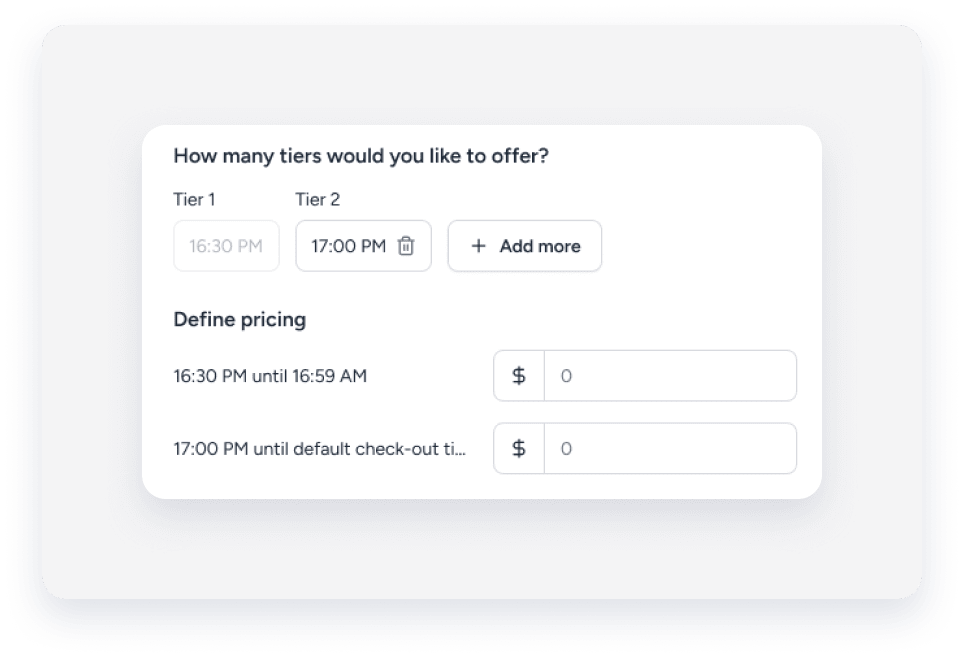
- Set the timeframe for different tiers and define the price for each. For example, set Tier 1 to 16:30 and Tier 2 to 17:00. Then, enter a price for 16:30 to 16:59, and a separate price for 17:00 to the default check-in time.
- Click Next.
Mid-stay cleaning- Under "Cleaning types", click Add type.
- In the right-side panel, enter a name, description, and price for the service. You can also upload an image for guests to see.
-
At the bottom-right, click Save.
You can add multiple cleaning types.
Kitchen restock- Under "Packages", click Add package.
- In the right-side panel, enter a name, description, and price for the package. You can also upload an image for guests to see.
-
At the bottom-right, click Save.
You can add multiple packages.
Note:
- The financial configurations adhere to the account's default accounting rules.
- Guests see the price in the set currency, but the final charge is processed in USD. The final amount may differ slightly from the initial estimate due to the exchange rate at the time of payment.
- Click Select properties to assign properties that the Upsell is relevant for.
- Select All to include every existing and future property. Click Exclude properties to remove specific ones. Click Select an option to choose properties to exclude.
- Select By rule to include reservations at properties matching a specific city or tag. If you select both, the automation only applies to properties that meet both conditions.
- Select Specific to choose specific properties. The list includes unlisted properties but excludes inactive ones.
- Click Next.
- Select the Guest Apps for these recommendations. By default, this applies to all apps.
- Click Next.
- Customize how the offer appears to guests, including images, names, and descriptions.
- Click Create and activate Upsell.
- In the pop-up, click Done.
Preview offers in the Guest App
Once set up, Guest Upsells appear as Upgrades in the Guest App. Guests can browse offers at the bottom of the Home tab or tap the Upgrades tab to view all available offers.
To preview the guest experience, create a test reservation and open the Guest App.
Manage Upsell requests
To see the status of all requests, select the Activity tab in the left-side menu. You can filter the activity by status, listing, or name.
Click on a request to review it. For pending requests, click Approve or Decline in the bottom-right corner. The guest is charged upon approval. Click Message guest to contact the guest. 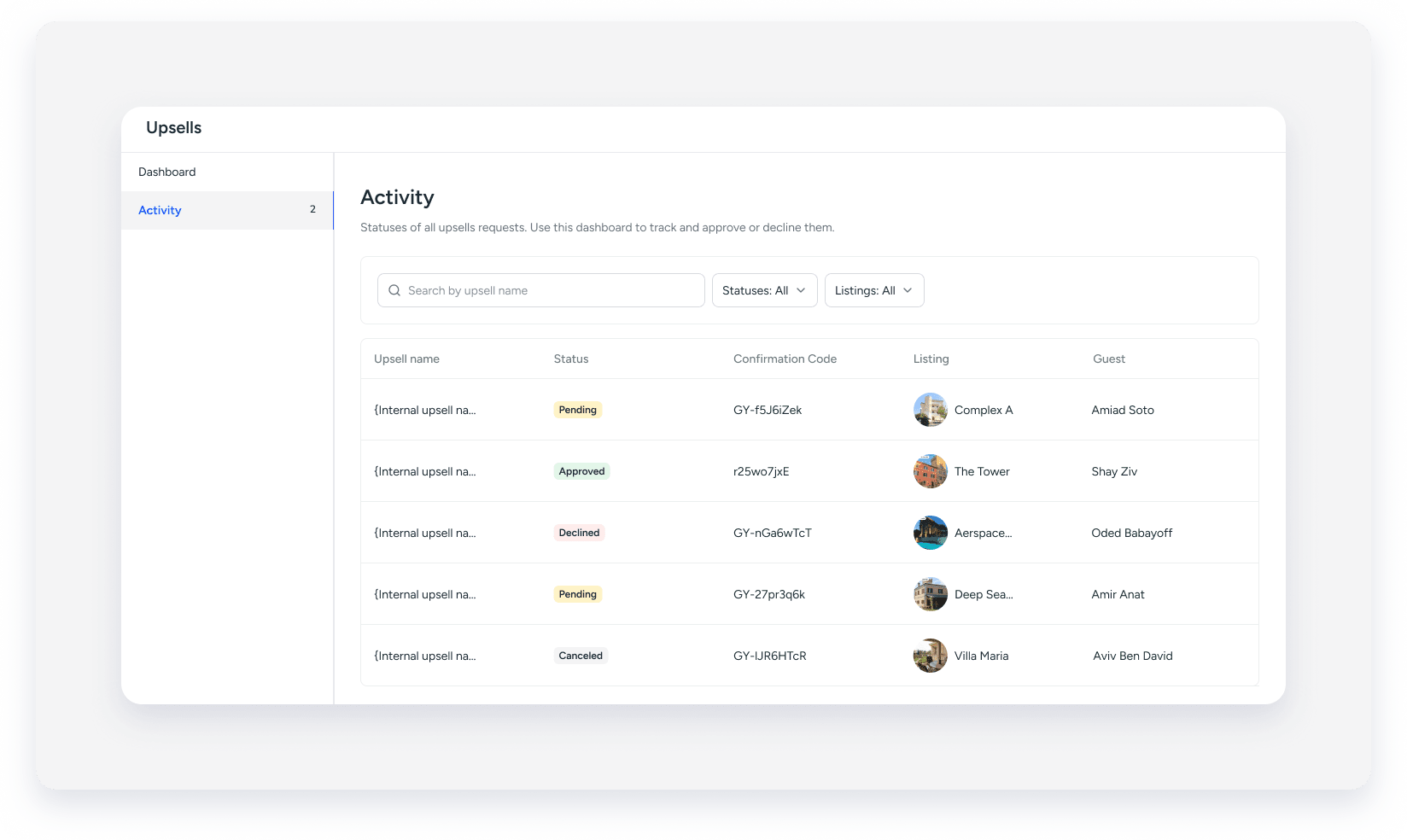
View Upsells in a reservation
Booked Upsells are shown in a separate Upsells tab in the Reservation page: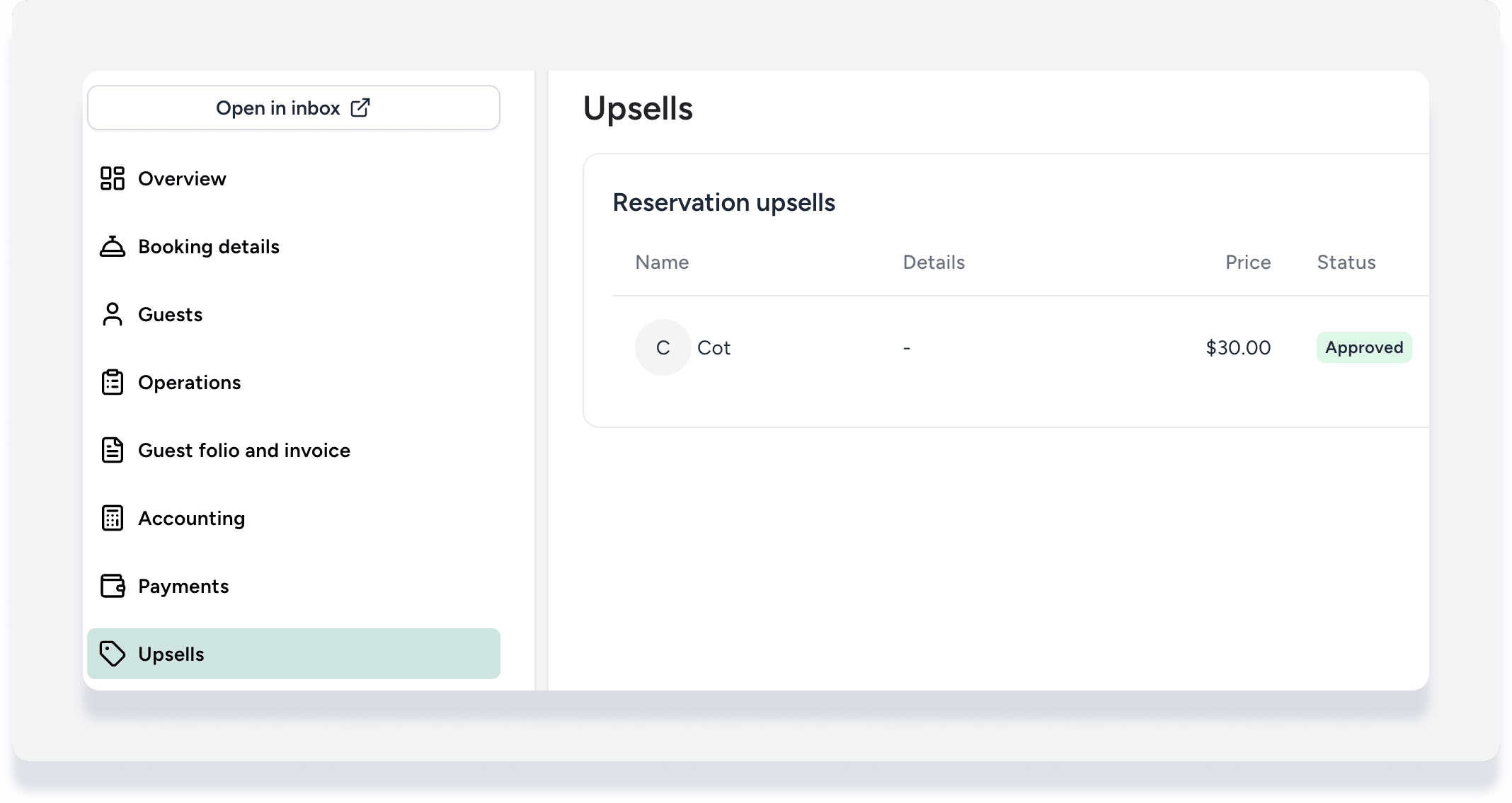
Upsells are also displayed in the guest folio and accounting folio, and can be adjusted the same as other line items.
Tip:
Learn how to extract key data and insights on your Guest Upsells using Guesty Copilot.
