The Owners Portal provides owners with instant insights into their property performance. Understanding how your back-end settings translate to the owner's front-end experience helps you provide a transparent and professional service.
Pilot: Pilot users can access an updated design for the Owners Portal to manage property details and view reports more efficiently. For details, see how to configure and manage the owner's view in new Owners Portal.
Dashboard
The dashboard is the first tab owners see when they sign in. It provides a summary of recent trends and important updates. Announcements are shared at the top of the dashboard.

Performance
This section shows the performance of the owner’s revenue and occupancy trends for the past 30 days using an interactive bar chart. Light blue bars represent owner revenue, while dark blue shows occupancy rates.
Hover over any bar for detailed information, or click View more data to open the full analytics dashboard in a new tab.
Configure the section
In the "Performance settings" section, check the following boxes:
- Owner revenue to include owners' revenue.
- Occupancy to include occupancy.

Booking sources
View the top reservation channels from the past 30 days, including source names, total reservation values, and percentage breakdowns.
The reservation value is displayed as a single value converted to the currency configured for your account, which includes all reservations for the relevant channel.
Note:
Performance data uses transaction dates, and Booking sources data uses check-in and check-out dates. This causes discrepancies between the Performance and Booking sources sections, even though both display data for the past 30 days.
For example, if no stays occurred in the past 30 days but payments were received, Booking sources may show values while Performance shows "N/A".
Configure the section
In the "Calendar reservations settings" section, check the Booking sources (OTA links) box.
Guest reservations
Track upcoming guest bookings (check-ins within 30 days) with these metrics:
- Inquiries.
- Booked nights, displaying guest booked nights only.
- Average booking value.
- Average guest stay.
Click Go to report to be redirected to the reservation report page in a new tab.
Configure the section
In the "Performance settings" section, check the following boxes:
- Booking inquiries count to include the number of guest inquiries.
- Booked nights to include the number of nights the property is booked for the specified dates.
- Average booking value to include the average revenue earned per reservation.
- Average nightly rate to include the average amount earned per night per reservation.

Owner reservations
Monitor owner bookings (check-ins within 30 days):
- Booked nights, displaying owner and owner-guest booked nights only.
- Estimated revenue loss based on the average nightly rate.
- Upcoming owner stays.
Owners will see reservations made for themselves, their guests, and other fractional owners’ reservations. For privacy, personal details for other owners’ guest reservations are displayed as ‘Owner guest’.
Click Go to report to be redirected to the reservation report page in a new tab.
Configure the section
In the "Owner reservations" section, check the following boxes:
- Display owner booked nights to include the number of nights reserved by the owner.
- Display revenue loss to include the estimated revenue loss due to owner reservations.

Guest reviews
Display overall guest rating and the most recent top guest reviews. Only reviews with written descriptions appear, and you can filter to show only 4+ star reviews.
Click View more to view up to 20 reviews.
Note:
The dashboard summary displays “all-time” reviews and ratings by default. To see reviews for a specific time period, navigate to the Analytics tab and change the timeframe.
Configure section
In the "Extras" section, check the following boxes:
- Display overall guest rating to include the average guest rating.
- Display guest reviews to include guest reviews.
- Only show reviews with 4 stars or higher to include reviews that only have a 4-star review or higher.

Help Center articles
Provide owners with clickable links to articles in PDF format that are specific to them. Click View all to be redirected to the Help Center page in a new tab to view all available articles.
Learn more about managing the Owners Portal Help Center and sending PDF manuals.
Configure section
In the "Extras" section, check the Display help center box to include owners' reservation data.

Additional Portal tabs
Review the other tabs available in the Owners Portal below.
Pilot: Learn about the Owner's Inbox, where owners see and respond to direct communications.
My Properties
This tab appears by default. Owners view a list of their properties, along with any features and display information you activate. Owners can select a property from the list to see the specific property information and calendar.

Reservation Report
This tab shows a reservations report for the owner's properties. Choose filters for the report, or allow your owner to create custom views. This tab appears only if you activate the "Activate guests report" feature.

Analytics
Owners navigate to this tab by clicking View more data in the Performance section on the dashboard.
Beta: Set up a higher-level analytics page to ensure clarity and transparency.

Accounting
This tab appears only on accounts with the Guesty Accounting feature. Learn more about owner statements.

Documents
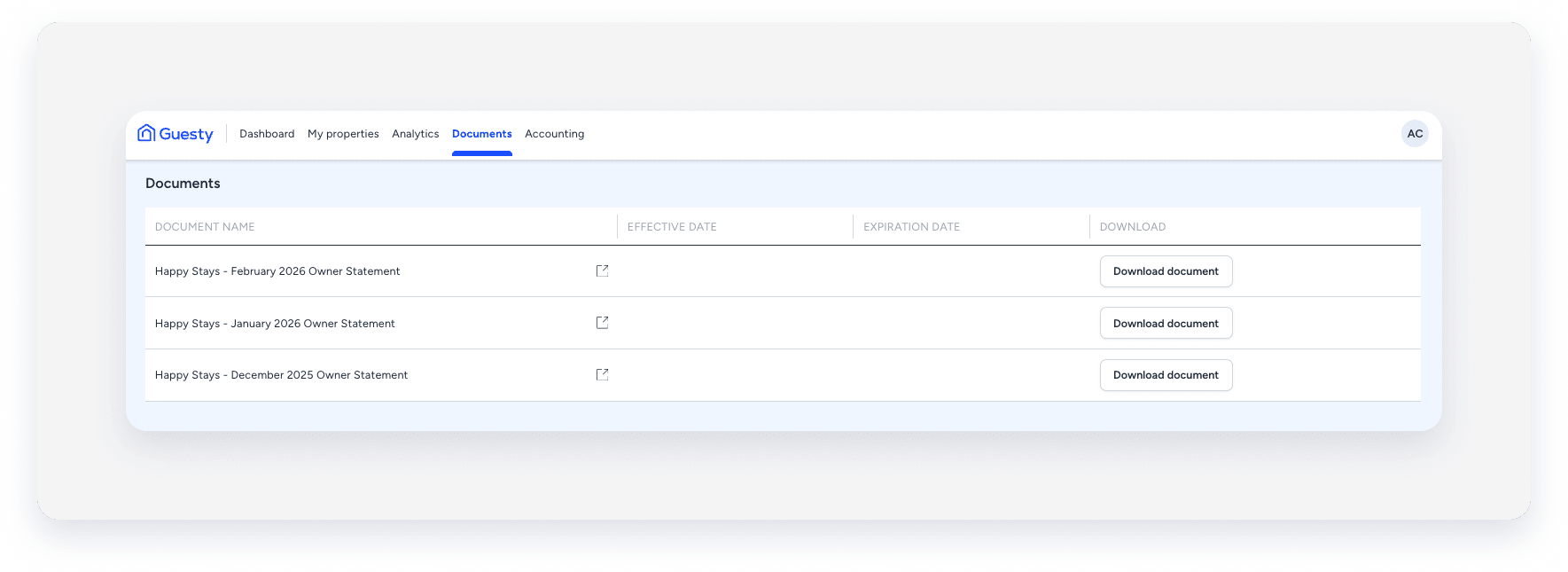
This tab appears by default. Owners view and download any uploaded documents you add for them in Guesty.
Pilot: Owners and any additional contacts with the necessary permissions can upload, edit or delete the documents directly through the Owners Portal on web and mobile.
Help center
This tab appears only if you enable the feature. Owners access additional resources and guides to help with common topics and FAQs about using the Owners Portal. Send owners PDF manuals.

