The updated owner analytics experience in the Owners Portal provides a centralized view of portfolio financial health, booking trends, and guest feedback. Owners use these insights to track performance, identify top revenue drivers, and compare data across different timeframes to make informed business decisions.
Configure the Owners Portal dashboard to share analytics with all or specific owners. The analytics page contains three specialized tabs:
Performance: Review high-level financial health and revenue distribution.
Operations: Analyze booking trends, stay lengths, and guest engagement.
Guest Reviews: Monitor overall ratings and individual guest feedback in one view.
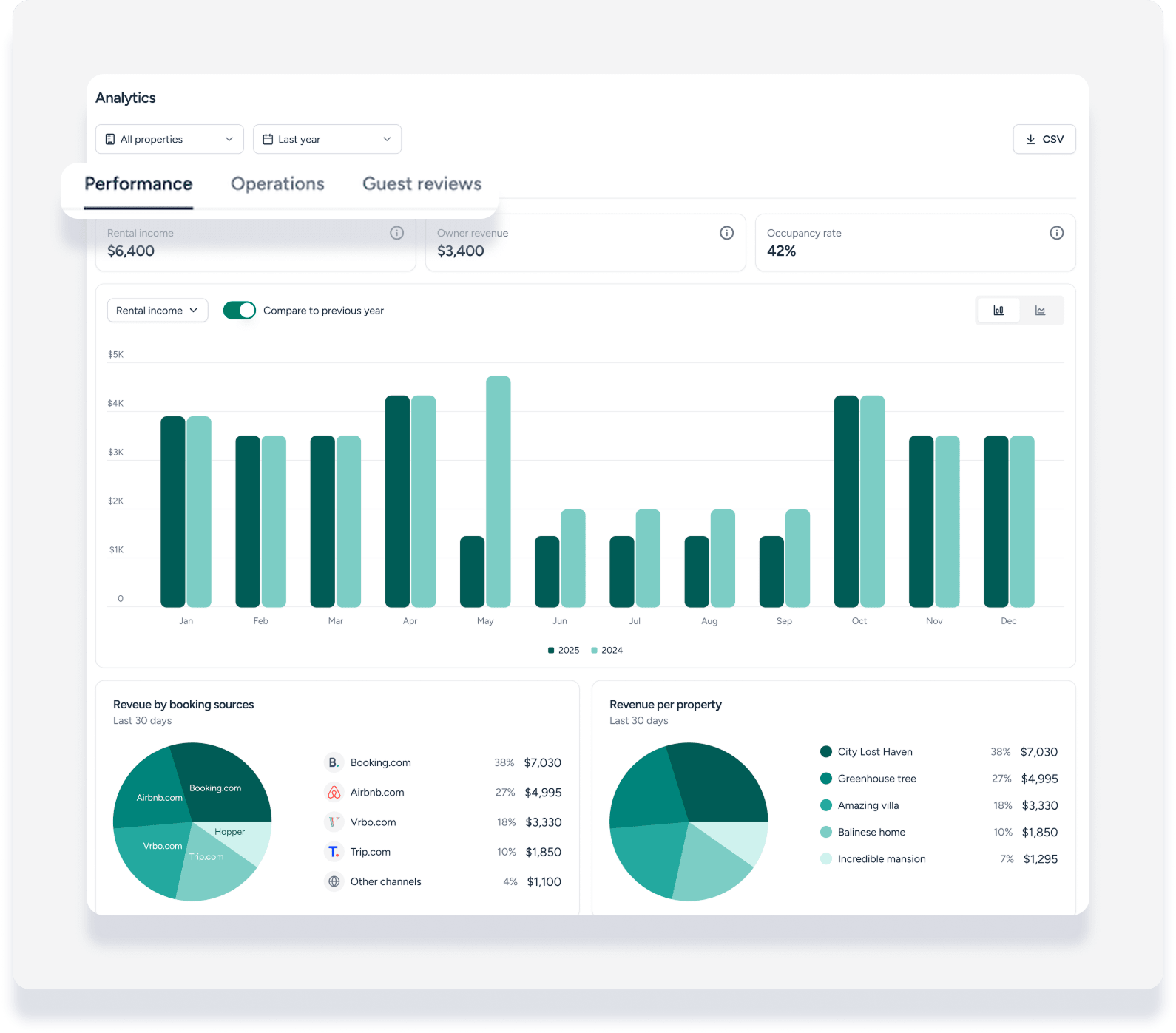
Navigate the Performance and Operations tabs
The Performance and Operations tabs offer flexible ways to visualize data and compare results year-over-year.
Performance metrics
Owners track the financial success of their listings through these key data points:
Net rental income: The net rental income for the properties. This aligns with the "Net income formula" in commission calculations for non-accounting users, or "Net rental income" in business models for accounting users.
-
Estimated owner's revenue: The net amount due to the owner. This aligns with "Owner's revenue" in commission calculations for non-accounting users, or "Owner revenue" definitions in business models for accounting users.
Note:
The owner's revenue calculation includes expenses associated with a listing. It does not include expenses that are only associated with an owner.
Occupancy: The percentage of nights booked compared to the total available nights.
Operational metrics
These metrics provide an understanding of how the business functions day-to-day:
Booked nights: The total number of nights reserved by guests.
Booking inquiries: The number of leads or prospective bookings received.
Average booking value: The average total guest payout per booking within the selected period.
Average guest stay: The average length of stay for reservations within the selected period.
Customize visual insights
Owners can customize how they view data to suit their needs.
-
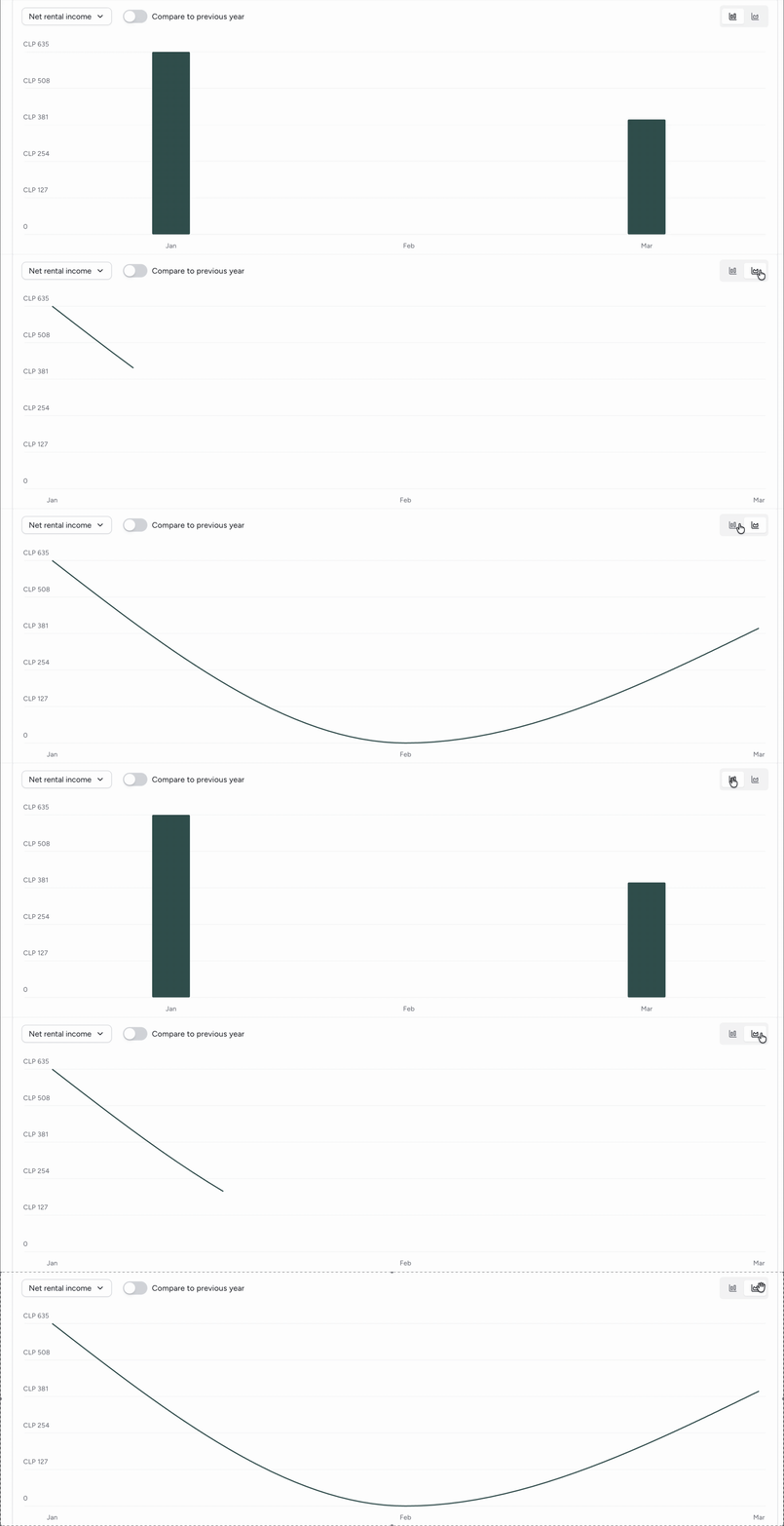
Chart toggles: Switch between bar graphs (default) and line charts for all performance and operational metrics.
Revenue pie charts: In the Performance tab, the "Revenue by booking source" chart shows which channels are most profitable. The "Revenue per property" chart compares properties at a glance.
Note:
The "No source" category in the "Revenue by booking source" chart represents any other refunds, expenses, owner charges, or journal entries that contribute to owner revenue but are not linked to a specific booking channel.
The "Owner Revenue Split by Listing" chart only appears if the owner has more than one property.
Compare and filtering data
Owners can refine the displayed data to compare current performance against previous years.
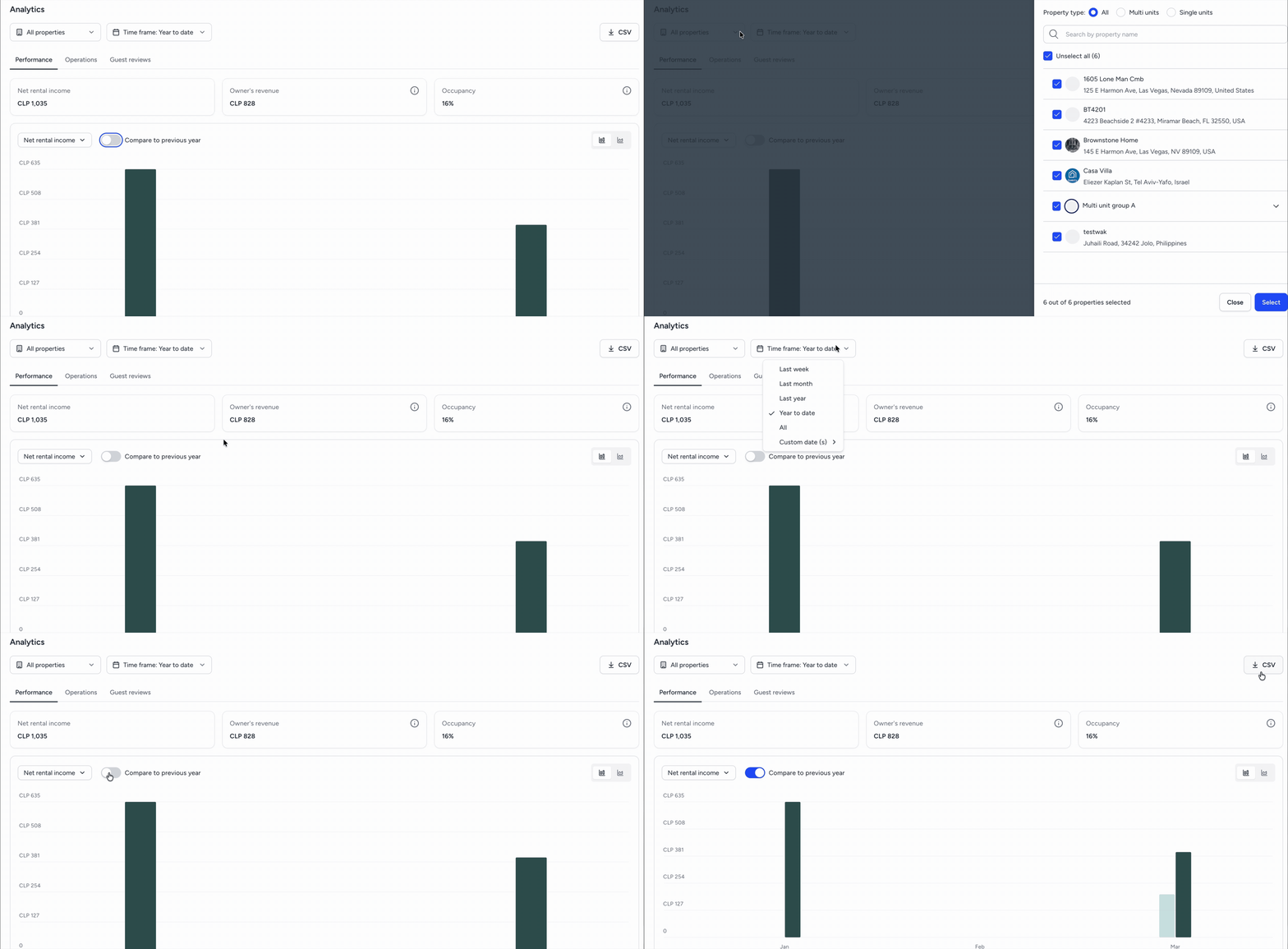
Step by step:
Use the property filter at the top-left to select specific listings or view the entire portfolio.
Select a time frame using the quick selects (1W, 1M, 1Y, YTD, or All) or use the custom date picker.
Toggle on Year on year comparison to compare the selected data against the previous year.
Click Export CSV to download the filtered data for offline analysis.
Limitations
Year-over-year comparison is only available for timeframes longer than one month and when the chart is set to show month or quarter groupings.
Additionally, the month-by-month breakdown is no longer available in the web portal when a full year is selected.
Tip:
Owners who want to see a month-by-month breakdown when a full year is selected can do so by clicking the View fullscreen button in the Owners by Guesty mobile app.
Owners Portal settings
See details below for the specific Owners Portal settings linked to each section and graph.
| Toggle | What it controls |
|---|---|
| Net Rental Income | "Net Rental Income" metric card and chart for accounting users |
| Rental Income | "Rental Income" metric card and chart for non-accounting users |
| Owner Revenue | "Owner Revenue" metric card and chart |
| Occupancy | "Occupancy" metric card and chart |
| Platform Breakdown | "Platform Breakdown" pie chart showing booking sources |
| RevPAL | "Revenue Per Property" pie chart (requires more than one listing selected) |
| Toggle | What it controls |
|---|---|
| Booked Nights | "Booked Nights" metric card and chart |
| Booking Inquiries | "Booking Inquiries" metric card and chart |
| Avg Booking Value | "Avg Booking Value" metric card and chart |
| Avg Guest Stay | "Avg Guest Stay" metric card and chart |
| Toggle | What it controls |
|---|---|
| Show Overall Guest Rating | "Overall Review" summary including the rating and breakdown bars |
| Show Guest Reviews | "Guest Reviews" list featuring individual reviews and infinite scroll |
The Guest Reviews section is hidden if both options are toggled off.
