Connecting your Airbnb listings to Guesty ensures your rates, availability, and reservations stay in sync.
Link listings when they exist on both platforms and you want to connect them. Once a listing is linked, it receives a "Connected" status in Guesty within 24 hours.
Unlink listings to stop the sync between them while maintaining the connection for billing purposes.
Relink listings if you need to move an Airbnb listing to a different Guesty property. This requires careful management to avoid duplicate reservations or calendar conflicts.
Watch our video and learn more about the linking processes below.
Linking expectations
When linking your listings between Airbnb and Guesty, you can expect the following behaviors regarding your data and reservations:
- Automatic syncing: Past reservations and all related guest communications automatically sync from Airbnb directly to Guesty.
-
Reservation assignment: Existing reservations always remain tied to the original Airbnb ID and Guesty listing ID when first linked.
Important:
Guesty doesn't reassign existing reservations to newly linked listings. If you relink an Airbnb listing to a different Guesty listing, the reservations that were already imported to the original listing won't be transferred or reimported to the new one.
Case one
You link listing A in Guesty to listing B in Airbnb. Later, you relink listing B in Airbnb to listing C in Guesty.
Reservations that originated from listing A in Guesty remain tied to listing B in Airbnb. They won't move to listing C in Guesty.
Case two
You link listing A in Guesty to listing B in Airbnb. Later, you relink listing A in Guesty to listing C in Airbnb.
Reservations that originated from listing A in Guesty remain tied to listing B in Airbnb. They won't move to listing C in Airbnb.
Reservations tied to listing C in Airbnb are assigned to listing A in Guesty.
As reservations do not transfer to newly linked listings, we highly recommend using Smart Calendar Rules to sync availability between the old and new listings to prevent any double bookings or calendar conflicts
Choosing a sync setting
Manage other listing data according to the sync setting you select during the linking process as follows:
- Full sync: Manage the listing's settings in Guesty, including rates, availability settings, guest messages, reservations, and listing content, such as descriptions, property type, cancellation policy, booking options, and amenities. Updates to listing settings made in Guesty will override settings configured in Airbnb during the next sync, which typically occurs within minutes but may take up to 24 hours during high-load periods.
- Limited sync: Manage rates, availability settings, guest messages, and reservations in Guesty. Manage listing content, such as descriptions, property type, cancellation policy, booking options, and amenities in Airbnb. Changes made in Airbnb don't sync to Guesty.
If a listing doesn't exist in Airbnb yet, publish the listing.
If the listing only exists in Airbnb and you want to recreate it automatically in Guesty, import the listing.
Before you begin
Ensure both the listing in Airbnb and Guesty meet the requirements below before initiating the linking process.
- Guesty currently doesn't support co-host accounts.
- Your Airbnb account in the Guesty integration page has a “Connected” status.
- The listing in Airbnb isn't flagged or suspended.
- The listing status in Airbnb can't be linked with an “In progress” status. The listing status in Guesty will keep the same listed status as it does in Airbnb.
-
Your listing is listed in Guesty.
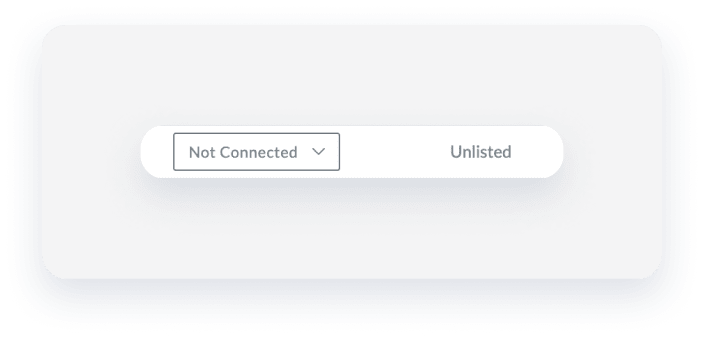
An unlisted listing displays "Unlisted" in the Airbnb integration page.
-
Your listing is disconnect and unlinked from another Airbnb listing.
An unlinked listing displays "No listing is connected" under the "Listing in Guesty" column.

Add your license details to Airbnb before linking the listing if your jurisdiction requires you to have a license to lease the property.
Ensure your listing’s minimum/maximum number of nights per stay is aligned with your region’s requirements.
Guesty only supports several Airbnb property types. Use one of the following types in Guesty and Airbnb to avoid the syncing failure.
- Apartment
- Studio
- Bed & Breakfast
- Boat
- Bungalow
- Cabin
- Camper/RV
- Castle
- Cave
- Chalet
- Condominium
- Earth house
- Dorm
- House
- Hut
- Igloo
- Island
- Loft
- Plane
- Tent
- Townhouse
- Treehouse
- Villa
- Yurt
Add only one shared space to a studio property type.
For a multi-unit, ensure you select one of the following property types:
- Apartment
- Condominium
- Dorm
All content (titles and descriptions) should adhere to Airbnb’s content policy. Additionally, the following content isn’t allowed in Airbnb, and if added, will cause the syncing to fail:
- Email addresses
- Website links
- Phone numbers
- Emojis and symbols
- Abbreviations (Mr, Ms)
- Repetitive special characters
- All-capitalized words (such as "CC").
- Two words (or more) connected with a dot will be considered a website address and will cause an error to appear. I.e., [word].[word]. To solve it, ensure adding a space after the dot: [word]. [word].
The listing in Guesty must have at least one photo. Ensure the photo resolution does not exceed 1920x1080px, and the file size does not exceed 4 MB.
Follow the instructions below to sync a new listing from Airbnb, and then link it to a Guesty listing.
Step 1. Display Airbnb listings in Guesty
After you create a new listing in Airbnb, follow the instructions below to display it in Guesty. It can take 3-5 minutes for a new listing to appear. If the listing already displays in the integration page, continue to link the listing.
Step by step:
- Sign in to your Guesty account.
- In the side navigation menu, click
 Marketing and sales to open the dropdown menu.
 - Under Channel management, select Distribution.
- Click the Airbnb thumbnail.
- Click the relevant Airbnb account.
- At the top right, click
 .
. - In the pop-up, click Sync account.
-
Refresh the page.
The listing will appear with a “Not connected” status within a few minutes.

Step 2. Link a listing
Once your listing is synced in the Airbnb integration page in Guesty, follow the instructions below to link the listing.
Step by step:
-
To the right of the relevant listing, click Not connected and select Link from the dropdown menu.
Important:
Refrain from selecting "Import" from the dropdown menu as this will duplicate your listing.
-
In the pop-up, select the relevant listing in Guesty, and choose the sync settings.
Note:
You can change the connection type between limited sync and full sync at anytime. Switching to full sync is irreversible for changes already synced to Airbnb.
- Click Link.
Unlink a listing
Follow the instructions below to unlink a Guesty listing from an Airbnb listing.
Step by step:
- Sign in to your Guesty account.
- In the side navigation menu, click Marketing and sales and select Distribution.
- Click the Airbnb thumbnail.
- Click the relevant Airbnb account.
- If the listing is connected, click Connected and select Disconnect.
- Once the status displays Not connected, click the status and select Unlink.
- Confirm the action in the pop-up.
