Note:
If you are using the new Expenses feature in pilot/beta, this article does not apply. Learn how to handle processing fees with the new Expenses feature.
Add a recurring owner charge or expense in your business model to automatically allocate the processing fee charged by the following payment processors:
-
Stripe
- Enter a % or flat amount for the processing fee
-
GuestyPay
- The exact % amount of the fee per transaction is automatically created one day after the charge is made. GuestyPay includes both the payment processing fee and the gateway fee.
-
Payments by Booking.com
- Booking.com's % processing fee is automatically deducted when the amount is transferred into the trust account in Guesty
Follow the steps below to update your business model and add a recurring charge or expense.
Automate processing fee expense distribution
Note:
The recurring charge or expense needs to be added to all business models.
Expenses that are calculated as a percentage (%) cannot be included in your business model's Net Rental Income (NRI) calculation. Only flat fee expenses can be included in NRI.
Charge to Owner
- In the relevant business model, scroll down to the trust account section.
- Click Trust account income.
- To the right, click Add recurring owner charge.

- Under "Amount to charge", in the "Per" field select Stripe payment, GuestyPay payment, or Booking.com payment from the dropdown.
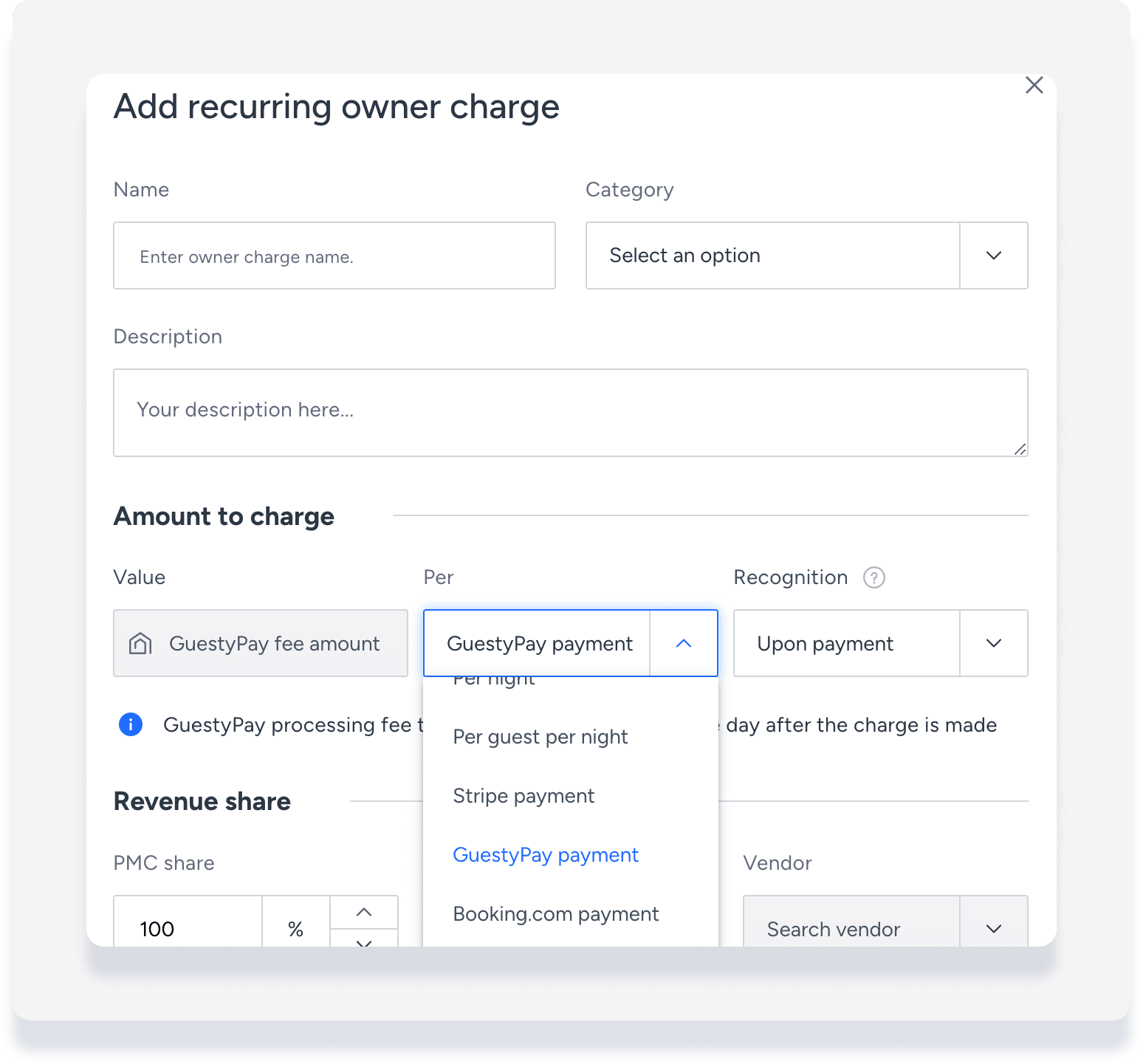
- Value:
- If Stripe was selected, enter the relevant % or flat amount.
- GuestyPay or Booking.com processing fee transactions will be created one day after the charge is made.
- Recognition: Automatically set to "Upon payment".
- Scroll down and click Add.
Charge to PMC
Important:
This transaction does not affect the cash account. It creates a debit to the PMC ledger, and a credit to Accounts Payable PMC. Learn how to enter Stripe or GuestyPay fees against the cash account.
- In the relevant business model, scroll down to the trust account section.
- Click Trust account expenses.
- To the right, click Add recurring expense.

- Under "Expense to add", in the "Per" field select Stripe payment, GuestyPay payment, or Booking.com payment from the dropdown.
- Value:
- If Stripe was selected, enter the relevant % or flat amount.
- GuestyPay or Stripe processing fee transactions will be created one day after the charge is made.
- Recognition: Automatically set to "Upon payment".
- Scroll down and click Add.
