When you link your listings, there are some cases when the connection fails. In these cases, the listing status will display "Failed".
The self-service dashboard is the easiest way to troubleshoot why listings failed to sync independently.
Below are additional types of errors you may encounter and how to resolve them.
Country name missing content
Error message displayed |
Explanation/resolution |
|---|---|
| Country name missing content element | The name of the listing country is listed differently in Guesty than in Booking.com. Contact us for assistance. |
Hotel doesn't have room rates
Error message displayed |
Explanation/resolution |
|---|---|
| Hotel doesn't have room rates |
If you receive this error message, confirm that Guesty is the connectivity provider for the listing. Follow the instructions below to check this on Booking.com:
|
Hotel integration error
Error message displayed |
Explanation/resolution |
|---|---|
| Hotel is already integrated with Guesty. |
The property is still connected to the previous or current owner in Booking.com. Request the owner remove the listings from the Booking.com Distribution Hub. Once the listings are fully removed, attempt to link the listing again. |
Listing postal code is incorrect
Error message displayed |
Explanation/resolution |
|---|---|
| Listing's postal code is incorrect |
The listing's postal code does not correspond with the country in which the listing is located. Follow the troubleshooting steps below to resolve the issue.
Attempt to link the listing again. |

Listing status prevents connection
Error message displayed |
Explanation/resolution |
|---|---|
|
There was a problem linking your property. Please fix the following issues and click to refresh. The status of the hotel on Booking.com is ‘Closed Operations Temporary’ and properties in this status cannot be connected. To connect the listing, please contact Booking.com’s support to request to change the hotel’s status to ‘Open/Bookable’. |
The property status in the Booking.com Connectivity Tool is set to “Closed Operations Temporary”, which prevents successful linking. Update the property status directly in the Booking.com extranet:
The status will change to Open/Bookable, which allows the property to be successfully connected. |
Parking charge frequency
Error message displayed |
Explanation/resolution |
|---|---|
| We only support parking ChargeFrequency: xxx |
Follow these steps to resolve the issue:
Once the listing has successfully connected, you can toggle on Use your account's default settings again. |
 Marketing and sales and select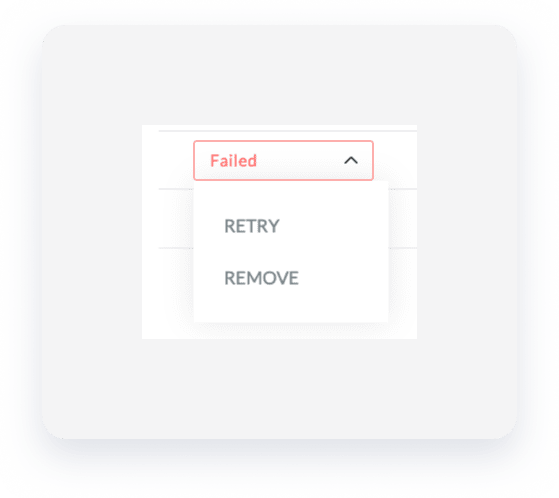
Rate x on room x is not RLO
Error message displayed |
Explanation/resolution |
|---|---|
| Rate x on room x is not RLO | Contact Booking.com support for assistance. |
Room Type
Error message displayed |
Explanation/resolution |
|---|---|
| When Room[@RoomType=x], the room must contain more than 1 bed (Amenity[@AmenityCode]) | Check your listing settings according to the hotel, room and bed types supported by Guesty and update your listing accordingly. If you still encounter issues after updating the settings, consider changing the property or room type. |
| RoomType: Invalid RoomTypeCode: xxx |
Set Guesty as your PMS in Booking.com
Error message displayed |
Explanation/resolution |
|---|---|
| Set Guesty as your PMS in Booking.com |
If you receive this error message, check that the property ID is correct and that Guesty is confirmed as the channel manager in your Booking.com account. Follow the instructions below to check this on Booking.com:
If Guesty is not set as your listing's connectivity provider, follow these instructions. Please contact us if you require further assistance. |
