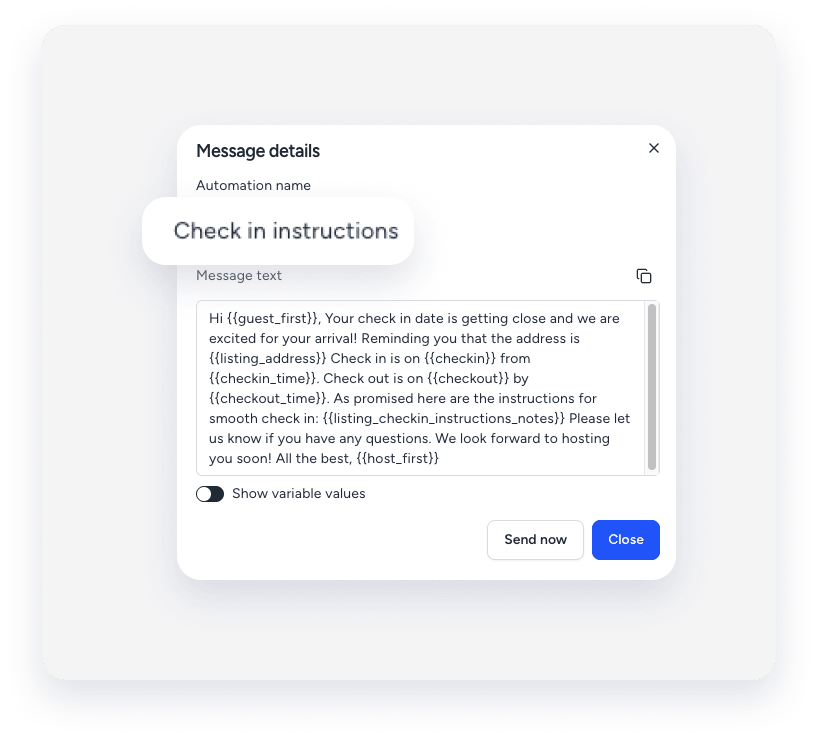
Messaging automations save you time by sending your repetitive messages automatically. Use this feature to streamline guest communication and ensure the right information is delivered at the right time.
If an automated message sends unexpectedly, follow the troubleshooting steps below to identify the cause.
Determine why the message was sent
Follow these steps to determine why an automated message was sent unexpectedly.
- Ensure the message is an automated message from Guesty
If the message indicates it is an automated message, proceed to the next step. If not, the message was sent by an external or third-party tool connected to your account. Coordinate with your team to check and correct the tool's setup if necessary.

- Check if the feature is enabled
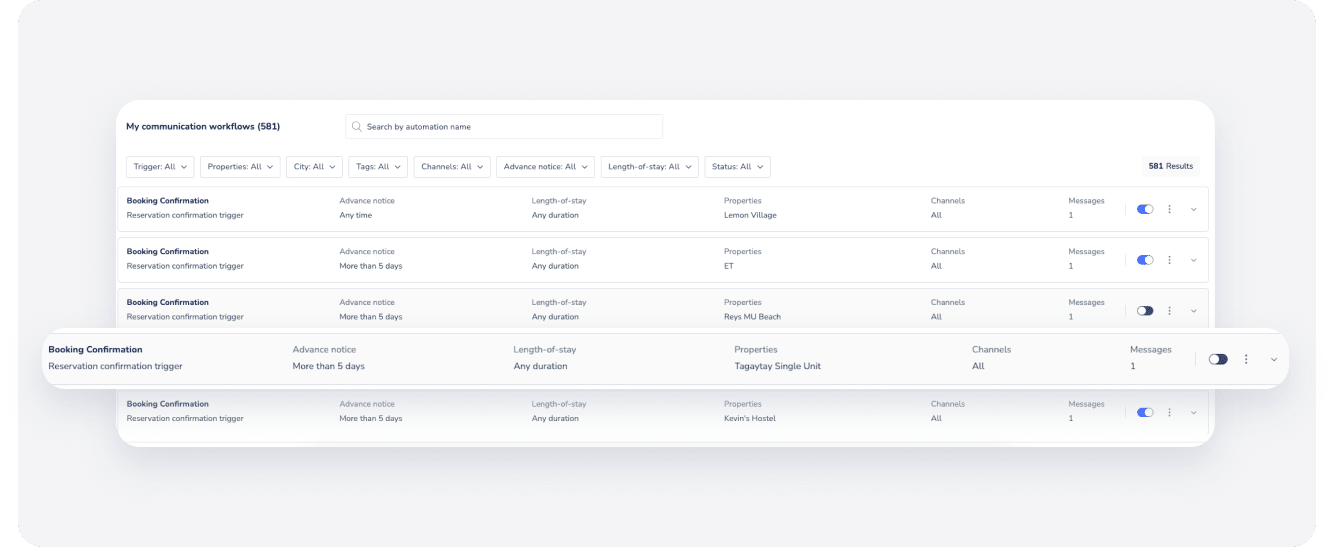
Once you create an automated message template, you can activate or deactivate it at any time. Check if the specific message automation template was activated when it should be deactivated.
- Check if all automated messages were turned on for a particular reservation
You can enable or disable scheduled automated messages for a specific reservation. If an automated message was sent for a reservation unexpectedly, it might have been enabled. Learn how to disable automated messages for a reservation.
- Check when the automated message template was last edited
Changes to a template only apply to new, future-scheduled messages. Guesty doesn't recalculate messages that are already in "Waiting" status (messages that already attempted to send).
|
For example: The setup: On January 1, a template is set to send 24 hours before check-out: "Please leave the keys on the kitchen table." The situation: Guest A stays January 2–5. On January 2, the message generates and enters "Waiting" status (scheduled for January 4). The change: On January 3, you change the template to: "Please leave the keys in the lockbox outside." The outcome: Guest A receives the old message ("kitchen table") because it was calculated and waiting in the queue before the change. Guest B (who books on January 4) receives the new message ("lockbox outside") because it generated after the template update. |
Check the activity logs of the message automation to verify when the automated message was edited.
- Check the message conditions
You can choose whether an automated message is sent based on message conditions that you set. Added conditions may have enabled the message to be sent unexpectedly.
If a condition is added based on a custom field that has a Yes/No answer, check the relevant listing or reservation to see if the toggle is on. The toggle may have been incorrectly set, or only changed after the message was due to be sent.
- Check to see if a guest has multiple reservations
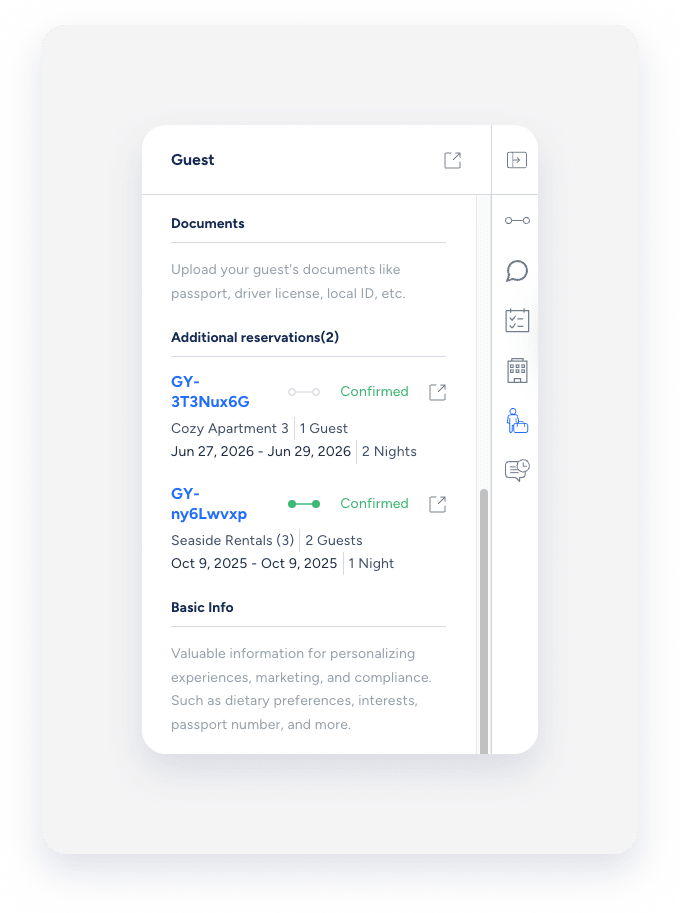
If a guest has multiple reservations, all of their messages are displayed within the same conversation thread in the Guesty Inbox. As such, it may appear as if an automated message was sent for a certain reservation when it was sent for a different reservation.
When a guest has multiple reservations, a dropdown arrow is displayed next to the confirmation code at the top of the reservation widget in the Inbox. Click the arrow and select the relevant reservation from the dropdown menu. The automated messages widget will display upcoming and previous automated messages for the selected reservation.
Locate details for contacting support
If you confirm the configuration is correct and the issue persists, contact us to begin troubleshooting.
To help us triage the issue quickly and accurately, provide the following details along with a screenshot showing any error messages:
The reservation code is a unique identifier assigned to each booking. The code's format depends on the booking channel.
Code formats
- Airbnb: Starts with "H" (e.g., HMEXF9BKQ4).
- Booking.com: Starts with "BC" (e.g., BC-1000gAmP).
- Vrbo: Starts with "HA" (e.g., HA-8XTV36).
- Manual/Direct Bookings: Have their own specific format.
Location
-
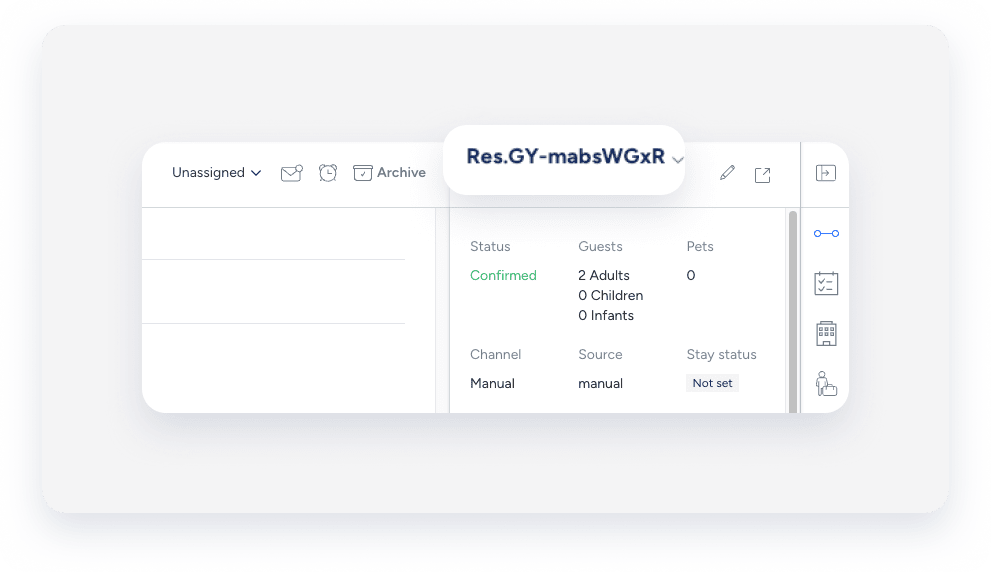
On the Reservation Page: Select the relevant reservation. The reservation code displays at the top of the reservation card, in the top left corner.

-
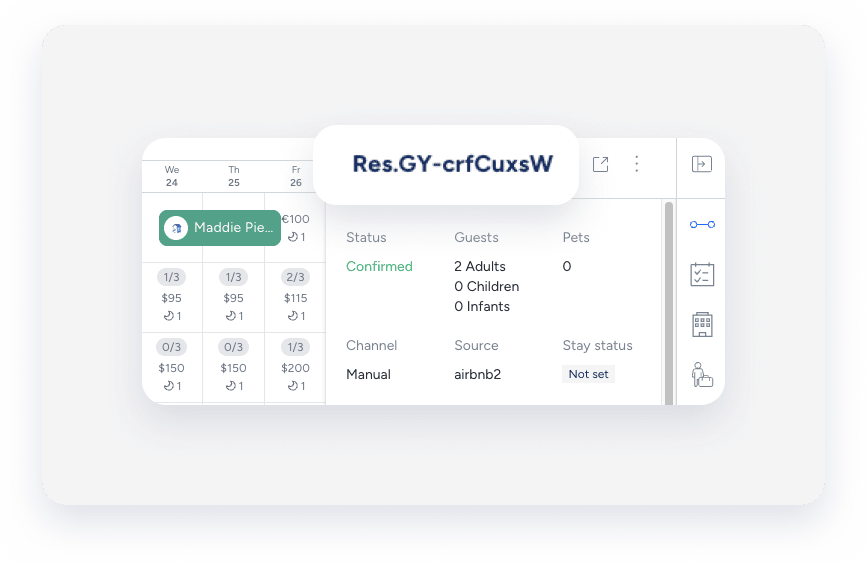
On the Multi-Calendar: Click a reservation in the Multi-Calendar to access its details. The reservation code displays in the side panel.
-
In the Guesty Inbox: The reservation code displays in the Inbox Reservation widget of the relevant conversation thread.
The label you assign to identify a specific message in your message automation workflow. The name is only for user identification and is not visible to guests.
Location
-
In the messaging automation page: In the side navigation menu, click
 Operations and select under Front desk, select Message automation. Click the relevant automation. The automated message name displays in the automations list.
-
In the Guesty Inbox: (for scheduled or sent messages): Select the relevant conversation thread. In the right side panel, click Automated messages. The automated message name for sent or scheduled messages displays in the History tab.

Tip:
Use a consistent naming convention (e.g., channel + purpose + trigger) so automations are easy to find with partial searches.
A message automation, sometimes referred to as a workflow, is the visual framework you use to set up automated guest communication based on the reservation lifecycle. The automation name is for internal use only and is not visible to guests.
Location
-
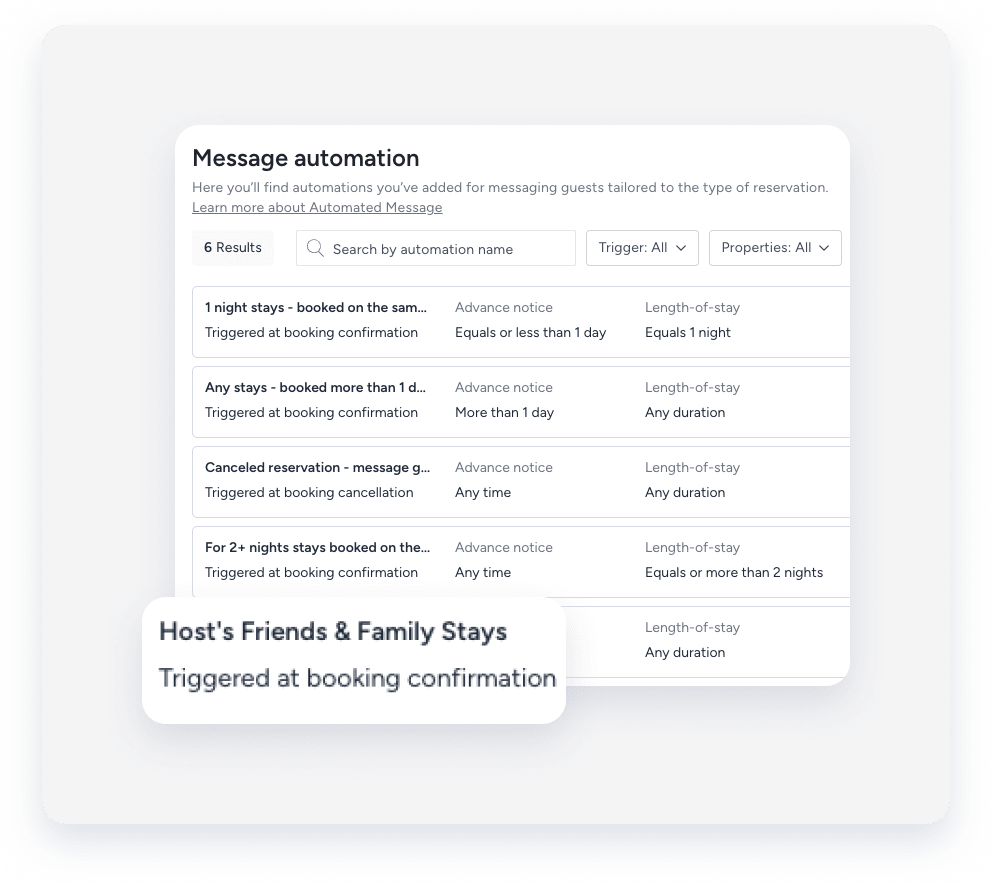
In the messaging automation page: In the side navigation menu, click Operations and select under Front desk, select Message automation. The message automation name displays in the automations list. To search for a specific automation, use the search bar at the top of the page: Type the full or partial name to quickly find it.
-
In the Guesty Inbox: (for scheduled or sent messages): Select the relevant conversation thread. In the right-side panel, click Automated messages. Select the Scheduled or History tab. Under the relevant automation, click See more. The message automation name displays in the pop-up.