Important:
Creating new owner stays is no longer supported. Create and manage owner reservations instead. You can still manage any existing owner stays.
Learn how to manage a listing's calendar and existing owner stays via the Owners Portal below. The selected dates are blocked on all booking channels.
Limitations and prerequisites
- Owners will be able to book their own stays via the Owners Portal after you've enabled reservations via the Owners Portal "Features" section.
-
Accommodation fares and additional fees can't be added to an owner stay, which does not generate a financial invoice.
If you need to collect payments from owners or their friends and family for their reservations, you can create a manual guest reservation for an owner instead. This will allow you to include accommodation fares and additional fees, which will generate a financial invoice.
The Owners Portal property calendar/s
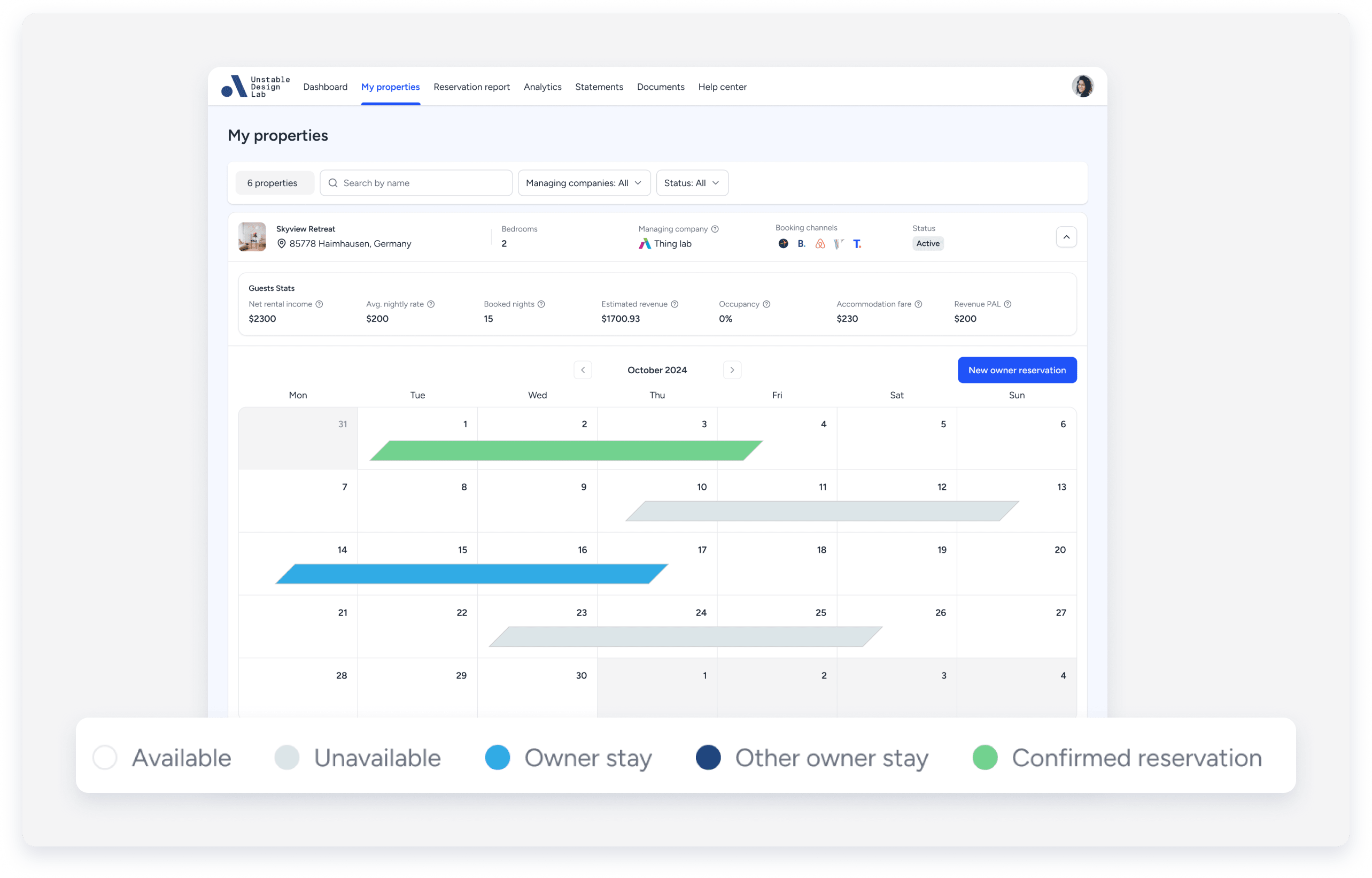
The property calendar can be viewed under the My Properties page in the Owners Portal. This is where owners can create their personal stays.
Each property calendar shows the calendar's availability, including personal stays and other owners' stays. As an example, the image below displays the following:
- 10 December: today’s date highlighted in blue
- 16-19 December: confirmed reservations blocked in green
- 20-22 December: manual block blocked in grey
- 26-28 December: owner stay blocked in blue
- 12-14 December: other owner stays blocked in dark blue
Refer to the key at the bottom of the calendar to explain each color code on the calendar.
Update or cancel an owner stay
Follow the instructions to edit or cancel an owner's reservation via the Owners Portal.
Note:
- An "other owner stay" blocked in dark blue can only be edited by the owner who created it.
- Only future stays can be updated/edited.
- Once an owner's reservation is canceled, the selected dates will be available on all booking channels.
Step by step:
- Sign in to your Guesty account.
- In the side navigation menu, click
 Operations to open the dropdown menu.
 - Under Portfolio, select Owners.
- Click the relevant owner.
- Scroll down to the "Owners Portal access" section, and click Preview Portal.
This will open the Owners Portal in a new browser tab. - Select the relevant listing.
- Click on the dates of the reservation (marked in blue).
- To edit a reservation:
- In the right-side panel, update the relevant reservation dates or times.
- Click Apply changes.

- To cancel the reservation:
- In the right-side panel, update the relevant reservation dates to cancel.
- Click Cancel reservation.
- Click Yes, cancel reservation.
Tip:
Learn how to choose a web address for your Owners Portal and how to invite property owners to use it.
Stay updated on your owners' reservations and how to view them in Guesty.
Email notifications
Both you and your owner will receive automated emails for the following:
-
Owner reservation confirmation
An email notification will be triggered when the owner creates a personal stay via the Owners Portal. -
Owner reservation updates
An email notification will be triggered when the owner updates their personal stay via the Owners Portal -
Owner reservation cancellation
An email notification will be triggered when the owner cancels a personal stay via the Owners Portal.
Note:
These types of automated email notifications that your owner will receive can't be deactivated, edited, or changed.
You can also create specific automated messages for owners or send an owner statement to an owner.
