Inviting owners to the Owners Portal is a streamlined process. When you send an invitation to an owner who doesn't have portal access yet, Guesty automatically enables their access for you.
Note:
Owners receive invitation emails from noreply@owners-portal.com. Tell owners to check their inbox and spam folder for messages from this address.
Guesty sends invitation and password reset emails in the owner's selected display language.
Inviting owners to the portal
Follow the steps below to invite owners individually or in bulk. Owners who aren't registered to the portal receive an invitation email, while owners who are already registered receive a login reminder.
Step by step:
- Sign in to your Guesty account.
- In the side navigation menu, click
 Operations to open the dropdown menu.
 - Under Portfolio, select Owners.
- Check the box to the left of one or more owners.
- Click Send invite to portal.
- Confirm the action in the pop-up.
Tip:
Send the owner our PDF guide to accepting an invitation to the Owners Portal.
Monitor portal status
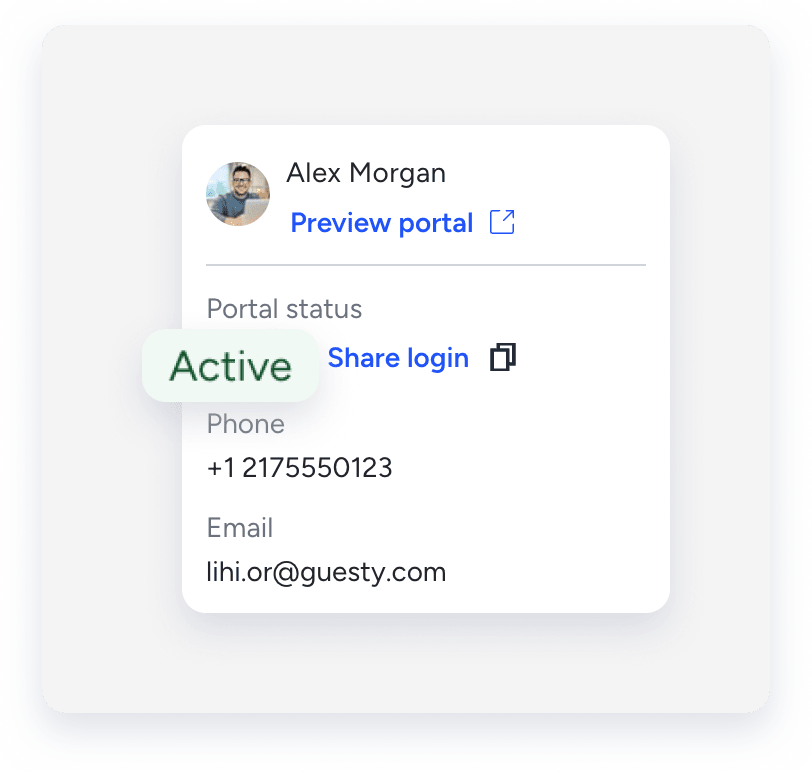
The "Portal status" remains "Not registered" until the owner accepts the invitation. You can keep track of whether an invitation is accepted in the owner's dashboard using the "Owner registered" filter.
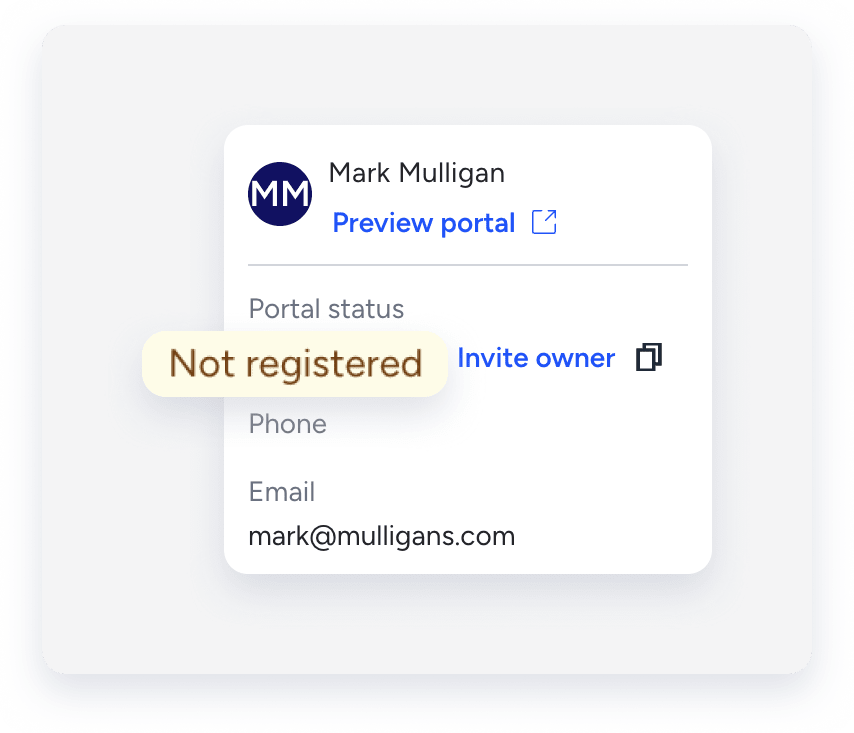
When the owner registers, the "Portal status" changes to "Active", and the Send invite button changes to Share login.
Tip:
Learn how to reset an owner's password and other troubleshooting tips.
