Connecting your Booking.com account to Guesty is an easy process that enables you to efficiently manage your listings, reservations, and availability in Guesty.
You can connect multiple Booking.com accounts to Guesty. Follow the instructions below to create a new Booking.com account, or connect an existing account to Guesty.
Create a Booking.com account
Follow the steps below to create a new Booking.com account via Guesty.
Step by step:
- Sign in to your Guesty account.
- In the side navigation menu, click
 Marketing and sales to open the dropdown menu.
 - Under Channel management, select Distribution.
- Click the Booking.com thumbnail.
- In the top-right corner, click Add account.
- In the pop-up window, click Create account.
-
Fill in the legal representative information and company information and click Next.

-
Enter the account nickname, add an optional forwarding email, and click Next.
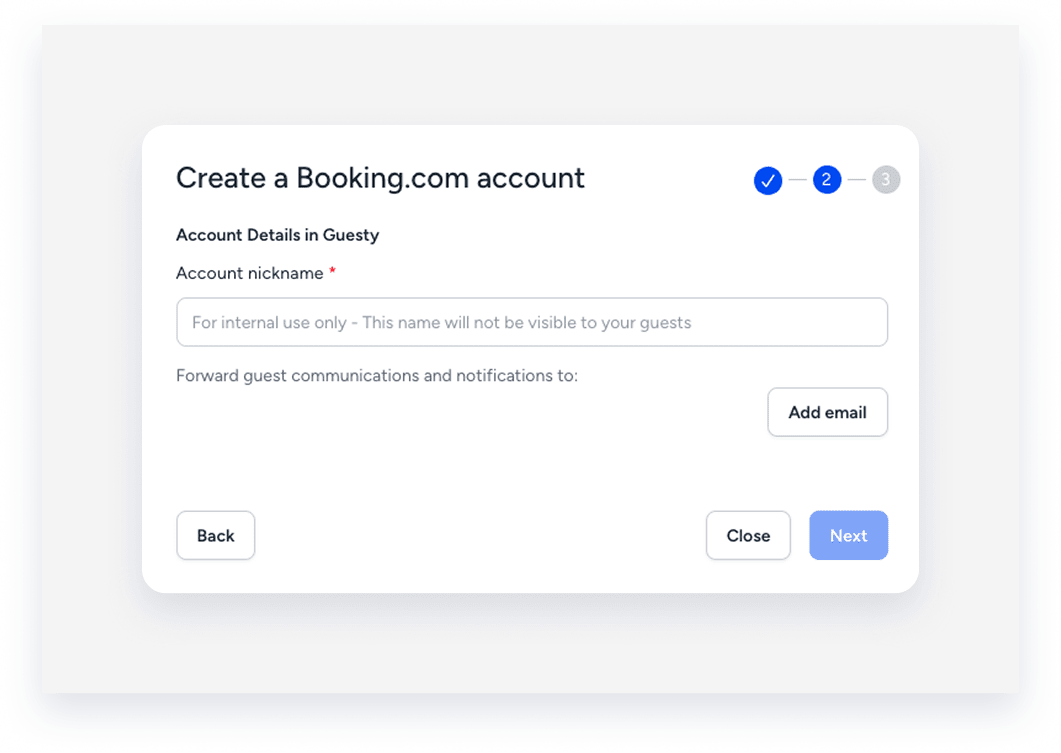
- In the pop-up window, review the information and click Got it!
Within a few minutes up to several hours, you will receive an email from Booking.com with a link to sign a contract. During this process, a Legal Entity Identifier (LEID) will automatically be created for your account.
Once the status updates to "Connected", you can connect your listings.
Connect an existing Booking.com account
Follow the steps below to connect an existing Booking.com account to Guesty.
Step by step:
- Sign in to your Guesty account.
- In the side navigation menu, click Marketing and sales to open the dropdown menu.
- Under Channel management, select Distribution.
- Click the Booking.com thumbnail.
- In the top-right corner, click Add account.
- In the pop-up window, click Connect account.
- Enter the property ID of one of the listings in the Booking.com account and click Next.
- If Guesty isn't the connectivity provider, click Connect. A Booking.com window will open for you to log in to the Extranet and set Guesty as the provider.
- If Guesty is already the connectivity provider, proceed to the next step.
- Enter the Booking.com Hotel ID associated with the LEID account you want to connect. If you do not have a LEID, create one in Booking.com.
- Enter the account nickname (for internal Guesty use).
- Enter the company name (used for the proxy email address).
- Click Add email to enter a forwarding address, then click Submit.
- In the pop-up, click Got It!
Important:
If you see the error message “Integration email is already in use” while connecting an existing Booking.com account, your property is already associated with an LEID in Guesty. The system prevents duplicate integrations because the property is already linked to an active integration email.
Troubleshooting integration error issues
Follow these steps to fix the issue:
- Verify whether the Booking.com property is already connected to an existing LEID in Guesty.
- Use Booking.com's connectivity tool to check which LEID is associated with the Hotel ID or Property ID.
- Identify the correct existing LEID that already manages the account.
- Instead of creating a new connection, link the property to the existing LEID in Guesty.
- Manage all properties under the same Booking.com account with a single LEID to avoid duplicate integrations.
Once the status updates to "Connected", you can connect your listings.
Remove a Booking.com account
Before you begin
- Ensure all listings have a "Disconnected" status. If not, disconnect them.
- Remove Guesty as the listing's connectivity provider.
Follow the instructions below to remove a Booking.com account from Guesty.
Step by step:
- Sign in to your Guesty account.
- In the side navigation menu, click Marketing and sales.
- Under Channel management, select Distribution.
- Click the Booking.com thumbnail.
- Click
 next to the relevant account.
 - Click Remove account.
