If you need to connect or remove Guesty as your Booking.com connectivity provider for a specific listing, you can do so on the Booking.com Extranet or directly in Guesty.
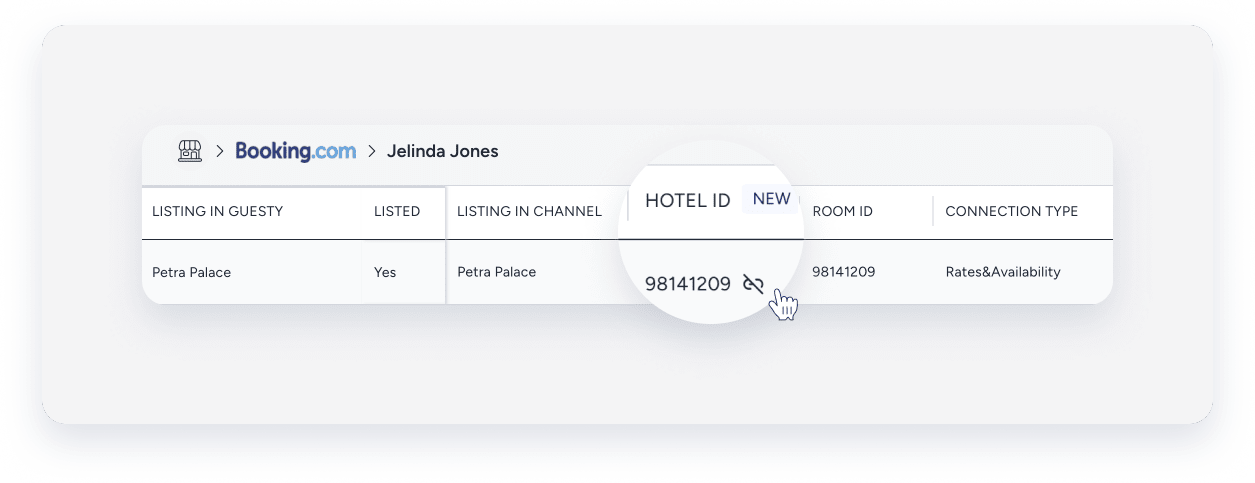
You can verify that Guesty is the connectivity provider for a listing in the Booking.com integration page in Guesty. If you see  when you hover over the listing's hotel ID, it indicates that Guesty is already configured as the connectivity provider for the listing. If you don't see this icon, follow the steps below to connect Guesty as the connectivity provider.
In Booking.com
Set Guesty as your connectivity provider in Booking.com
Follow the instructions below to set Guesty as your connectivity provider on Booking.com Extranet.
- Sign in to your Booking.com account.
- Select the relevant listing.
- In the top menu, click Account.
- From the dropdown, click Connectivity Provider.
This will direct you to the Connectivity Provider page. - Click Search.
- Type in and select Guesty in the "Provider name" search box.
You'll be automatically directed to the next page. Important:
We highly recommend keeping all provider management checkboxes selected. The connection will only work if Rates & Availability, Reservations, Content, and Photos are selected.
- Under "Connection management," check the Extranet access checkbox.
- Click Next.
- Follow the flow on Booking.com to complete the setup.
Remove Guesty as your connectivity provider in Booking.com
- Sign in to your Booking.com account.
- Select the relevant listing.
- In the top menu, click Account.
- From the dropdown, click Connectivity Provider.
- Scroll down to "Connection management" and click Disconnect.
In Guesty
Set Guesty as your connectivity provider in Guesty
Prerequisites:
- You have properties in Booking.com.
- You have a valid property ID.
Note:
Setting Guesty as the connectivity provider is a required step, but it is separate from ensuring your listing's content is complete in Guesty. Both are needed for a successful connection. For example, if you encounter a publish error like "room.surface_value.invalid", you must add the missing property details (e.g., surface area) in Guesty. Fixing this content gap does not automatically set Guesty as the connectivity provider, and vice-versa.
Step by Step:
- Sign in to your Guesty account.
- In the side navigation menu, click
 Marketing and sales to open the dropdown menu.
 - Under Channel management, select Distribution.
- Select the Booking.com thumbnail.
-
If you have a Booking.com account, select the account you want to link your listing to and click Link listing.
If you don't have a Booking.com account created or if you want to link a property to a new account, in the top right corner, click Add account, and then click Connect account.
- Enter the property ID number and click Next.
- If Guesty is not the connectivity provider, you will be prompted to set it up. Click Connect.
- A Booking.com widget will open within Guesty. Log in to the Extranet to complete the configuration.
Remove Guesty as your connectivity provider in Guesty
When you disconnect a listing in Guesty, it will be removed from the integration page. Existing data remains but will no longer sync.
Important:
Once removed, the listing is automatically disconnected in Guesty during the next daily sync.
Step by step:
- Sign in to your Guesty account.
- In the side navigation menu, click Marketing and sales to open the dropdown menu.
- Under Channel management, select Distribution.
- Click the Booking.com thumbnail.
- Click the relevant account.
- Hover over the hotel ID in the relevant listing's row and click .
- In the pop-up, click Disconnect hotel and its listings.
