Guesty generates owner statements at the start of each month to summarize an owner's income from the previous month. If a specific reservation is missing from a generated statement, use this guide to identify the cause and resolve the issue.
Why a reservation is missing from an owner statement
Reservations often don't appear in a statement for the following reasons:
Missing business model: The listing doesn't have a business model or is assigned incorrectly.
-
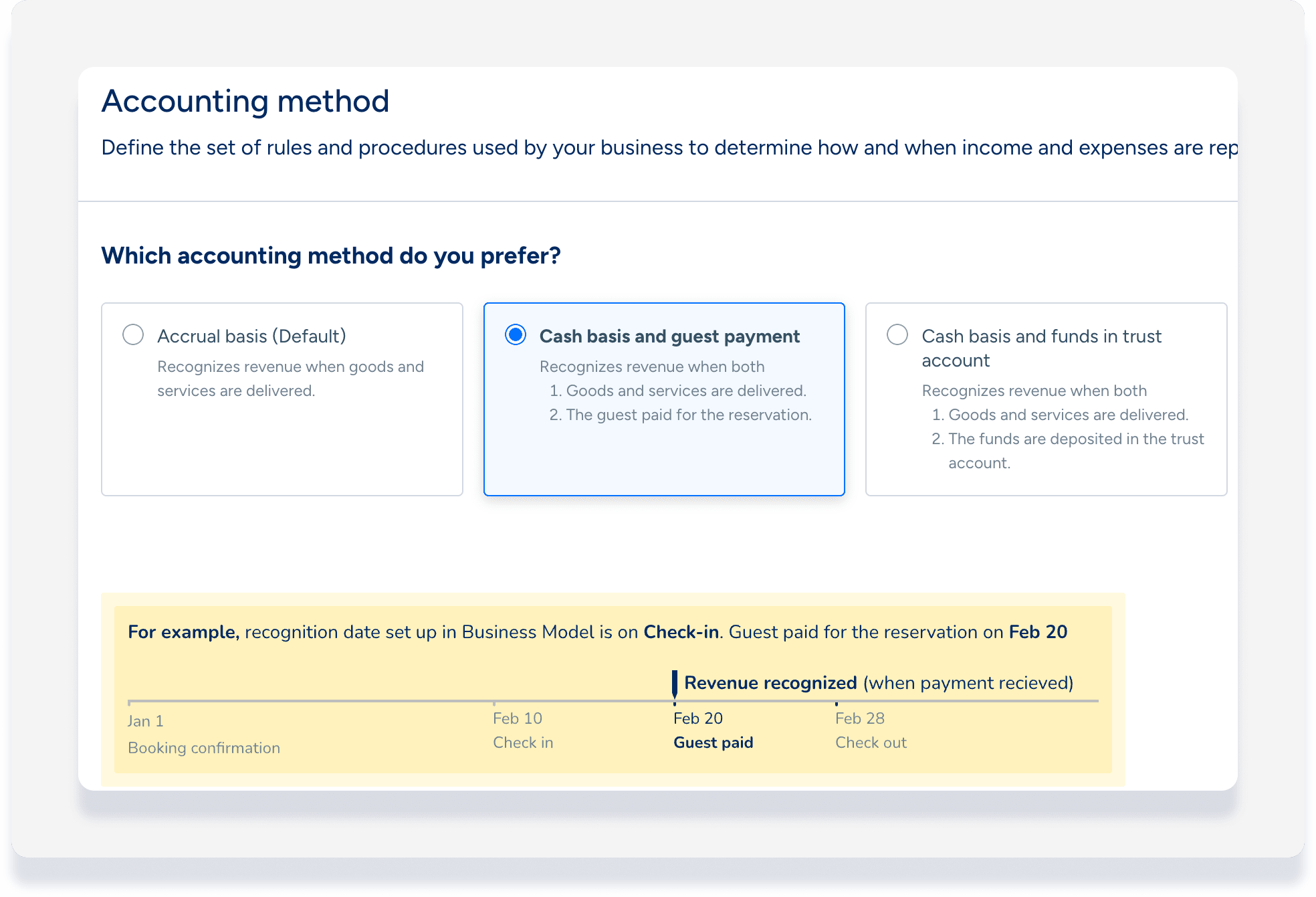
Accounting method: You're set up for the "cash basis and guest payment" accounting method. Revenue only appears when the recognition date passes and you receive the full guest payment.
Note:
If you adjust a reservation with a recognition date that is in a different month than the guest's stay, Guesty displays an adjustment line in the owner statement for the month the adjustment is recognized.
Owner reservations
An owner or owner-guest reservation may be split between different owner statements. For example, a reservation Jan 28-Feb 2 shows on the January owner statement as Jan 28-Jan 31 (4 nights) and on the February statement as Feb 1-Feb 2 (1 night).
The value for owner reservations is always zero, so this does not affect the statement balances but allows the owner to see nights booked during the month with no revenue.
Any related owner expenses will appear in the owner statement based on the expense date.
Investigate a missing reservation in an owner statement
Follow the steps below to find a missing reservation and ensure it appears in your owner statements. Once you complete these steps, regenerate the owner statement to verify the reservation appears.
Step by step:
- Sign in to your Guesty account.
In the side navigation menu, click
 Reservations.
Select the relevant reservation.
If you use the "cash basis and guest payment" accounting method, confirm that the recognition date passed and you collected the full guest payment.
Click Accounting then follow the relevant path below.
The Accounting tab has a folio

Click Re-process reservation.
In the pop-up, click Re-process and verify the correct business model is selected.
Click Re-process Reservation.
The Accounting tab doesn't have a folio
If there is no accounting folio section in the reservation, this indicates that the related listing does not have a business model or is assigned incorrectly.
Note the reservation's listing name in the top banner.
In the side navigation menu, click
 Properties.
Add the "Business model" column to your view.
-
Locate the listing and check its business model status:
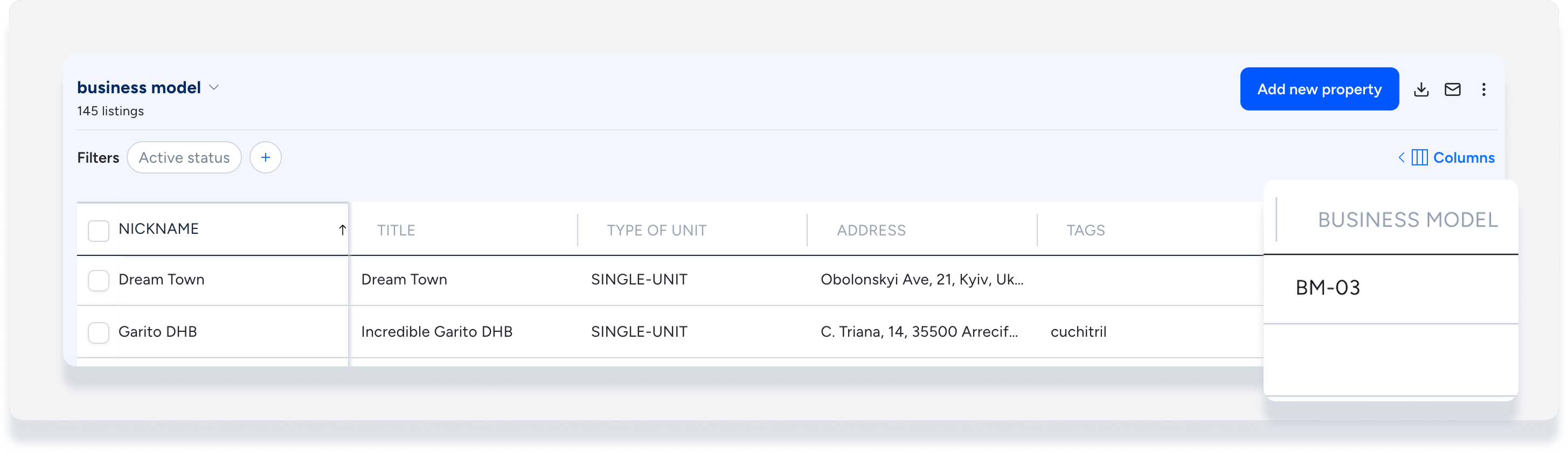
Listing has a business model: Click the business model name to open it in a new tab. In the top-right corner, click Assign listings. Select the listing and click Assign and reprocess. Ensure the "Reprocess starting date" is before the missing reservation's check-in date.
Listing has no business model:Create a business model for the listing. During the assignment, click Assign and reprocess and ensure the "Reprocess starting date" is before the check-in date for the missing reservation.
Regenerate the owner statement to include the revenue.
