Guesty allows you to collect payments in various ways, depending on the booking channel and your preferences. This article explains the different payment collection types, how to manage them for your channels, and how to update payment settings for Vrbo.
Understanding payment collection types
How payments are collected determines the merchant of record—the entity that processes payments and taxes, ensures compliance, and issues refunds or chargebacks. If the channel collects the payment, it is the merchant of record.
Hotel collect: You are responsible for charging the guest. You collect credit card details and use payment automations or process payments manually. You can also accept cash or use an external processor and record the transaction in Guesty.
Channel collect: The booking channel handles the payment and sends you payouts directly, usually via bank transfer.
Virtual Credit Cards (VCCs): The booking channel collects the payment from the guest and sends the funds to you via a temporary, digital card to protect the guest's personal details.
Working with VCCs
Virtual Credit Cards (VCCs) are secure payment methods provided by booking channels. VCC details appear on the reservation page like any other credit card.
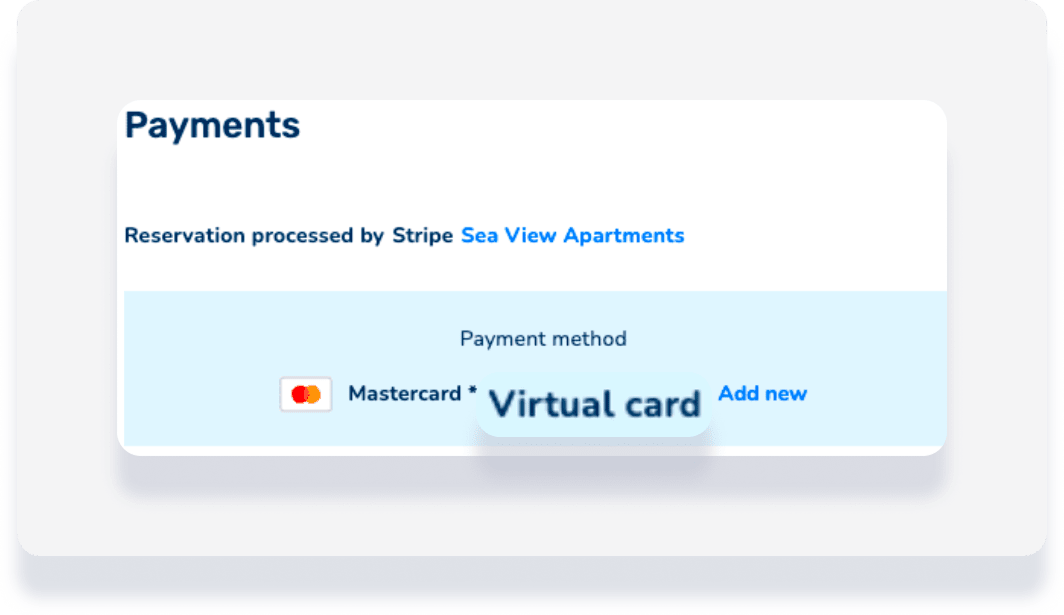
Each VCC has a specific activation and expiration date. The card can only be charged between these dates. Charging a VCC before it activates, after it expires, or for more than the loaded amount results in a failed payment.
For Booking.com and Expedia Connect, Guesty automatically charges the exact amount provided by the channel and waits until the activation date to start the charge.
Follow the steps below to manage VCCs effectively:
Use payment automations: Guesty automatically charges the VCC on or after the activation date for the exact amount provided by the channel.
Manual charges: If you prefer to charge manually, process the payment at least 24 hours after check-in.
Security deposits: VCCs can't be used for security deposits or authorization holds.
Compare payment collection per channel
Review the table below to see which collection methods are supported by each booking channel.
| Booking Channel | Hotel Collect | Channel collect | VCC |
|---|---|---|---|
| Agoda | ✓ | ✓ | |
| Airbnb | ✓ | ||
| Booking engine | ✓ | ||
| Booking engine API | ✓ | ||
| Booking.com | ✓ | ✓ | ✓ |
| BookingPal | ✓ | ||
| Channels connected through Siteminder | ✓ | ✓ | |
| Expedia | ✓ | ✓ | ✓ |
| Feratel | ✓ | ||
| Glamping Hub | ✓ | ||
| Google (Bookings happen in PMCs Booking Engine) | ✓ | ✓ | |
| Holidu | ✓ | ||
| HomeToGo - non-UE properties | ✓ | ||
| HomeToGo - UE properties | ✓ | ||
| Hopper | ✓ | ✓ | |
| HVMB (aka Marriot) | ✓ | ||
| Misterb&b | ✓ | ||
| Plum Guide | ✓ | ||
| Reconline CIH | ✓ | ||
| Rentals United | ✓ | ||
| Smiling House | ✓ | ||
| StaysCo | ✓ | ||
| Travelstaytion | ✓ | ||
| Trip.com | ✓ | ✓ | ✓ |
| TrustedStays | ✓ | ||
| Vrbo | ✓ | ||
| Whimstay | ✓ |
We recommend using GuestyPay for a fully integrated and cost-efficient solution. Booking.com offers "Payments by Booking.com" (bank transfer) and "Online Payments" (VCC). These services involve commissions and require approval through your Booking.com Extranet finance page.
Learn more about GuestyPay compared to Booking.com payment collection.
Whether you collect payment via Guesty or Booking.com, the reservation's total amount and payment breakdown in Guesty are based on Booking.com.
The options when setting up channel payments settings are:
- Process payment through Guesty payment processor (GuestyPay)
- Process payment through another payment processor (connected to Guesty, e.g. Stripe)
- Collect and charge at front desk
Note:
A Booking.com VCC is designed only for the cost of the rental itself. It can't be used to authorize or hold a security deposit or authorization hold. Learn more about managing Virtual Credit Card (VCC) payments for Booking.com.
Expedia uses three business models, which you can view under "Payment type" on the Expedia integration page in Guesty. Updates made in Expedia sync to Guesty within 24 hours.

Expedia collect ("Pay Now"): Expedia collects payment at booking and sends it to Guesty as an Expedia Virtual Card (EVC). EVCs deactivate six months after check-out. If a reservation is altered, you must update the financials in Guesty manually before charging the EVC to ensure the data matches.
Hotel collect ("Pay Later"): You are responsible for collecting and recording payments manually. This model allows guests to book same-day reservations without a credit card.
ETP (Expedia Travel Preference): A combination where guests choose to pay at booking or pay later at the property.
Collect Hopper payments via automations or manual VCC charges. If you don't use automations, contact Hopper directly for VCC details, as they don't sync to Guesty automatically. VCCs do not include deposits or extra fees; collect these directly from the guest.
Vrbo offers flexible payment options, though users in the Asia-Pacific (APAC) region must use Stripe.
Guests enter credit card details at booking, and Guesty collects payment via your connected processor and payment automation rules.
Includes cash, check, or debit.
If you select at least one of these options, guests aren't required to enter payment details at booking.
Guests are informed of your offered payment methods, and Guesty automatically records the payment based on your listing's automation rules.
Note: You must contact the guest directly to retrieve their payment details and collect the funds outside of Guesty.
If you select both, guests choose their preferred method at booking. Their experience will follow the rules of the specific method they select.
The payment methods can be updated at any time by following the instructions below or watching our video.
Change the payment method per listing or on the account level. The Vrbo account's settings will not be affected by a change made to a listing's payment method.
Step by Step:
- Sign in to your Guesty account.
- In the side navigation menu, click
 Marketing and sales to open the dropdown menu.
 - Under Channel management, select Distribution.
- Click the HomeAway/Vrbo thumbnail.
- Next to the relevant account, click the
 icon.
icon. - Under "Payment Methods", edit the relevant details.
- Click Save.
Step by step:
- Sign in to your Guesty account.
- In the side navigation menu, click Marketing and sales to open the dropdown menu.
- Under Channel management, select Distribution.
- Click the HomeAway/Vrbo thumbnail.
- Click the relevant Vrbo account.
- Click the relevant listing:
- For a multi-unit, each sub-unit should be updated individually by accessing the sub-unit's settings.
- In the left-side menu, click Pricing & Policies.
- In the dropdown, click Channel payment settings.
- In the Vrbo section on the right-hand side, click Edit.
- If already turned on, turn the "Use your account's default settings" toggle off.
- Edit the relevant information.
- Click Save.
Manage channel payment settings
Follow the steps below to edit your booking channels payment collection.
Step by step:
- Sign in to your Guesty account.
- In the side navigation menu, click
 Properties and select the relevant listing.
 - In the listing's side menu, click Pricing & Policies and select Channel Payment Settings.
- To the right of the “Channel Payment Settings” window, click Edit.
- Edit the channel payment settings and click Save.
Collect direct booking payments
For the Guesty Booking Engine or Booking Engine API, you can process payments inside or outside the platform.
Processing via Guesty
Connect a payment processor to approve reservations automatically. You can then use payment automations or charge guests manually.
Processing outside Guesty
Collect payments via bank transfer or cash. You must record these as "paid manually" in the reservation's financial section to ensure your reports are accurate. Reservations handled outside Guesty are created as "Requests to Book" and don't support payment automations.
Booking Engine API options
When setting up a Booking Engine API instance, choose one of these three options:
Guesty invoice: Best for "Request to Book" scenarios.
Stripe through Guesty: Uses Stripe Checkout to process payments and supports automations.
External payment processors: Used for manual tracking and recording within Guesty.
Note:
Your available payment options depend on your booking settings. If you choose "Only inquiries", you can only collect payments using the Guesty invoice. If you choose "Only instant booking", all three payment options are available.
