To receive messages from booking channels in Guesty, you must have two types of email addresses set up: an integration email and a forwarding email.
- The integration email address is a unique email that enables you to manage your communication with guests in Guesty and syncs reservation-related notifications from booking channels.
- The forwarding email address is the email that receives account-related emails (e.g., password reset emails, messages from their support team, etc.) sent by the booking channel.
Integration email address
When you link a booking channel with your Guesty account, you can choose a custom Guesty integration email address ending in @user.guesty.com, provided it’s available.
For some booking channels, the integration email address is automatically set up when you link the booking channel account with Guesty. For other booking channels, you may need to manually configure the integration email after completing the integration process.
Forwarding email address
Once you set up your integration email address, you can add or edit your forwarding address in Guesty. This ensures that messages from the booking channel are delivered to your Guesty Inbox and forwarded to the email address you’ve configured. Forwarded messages will be sent from forward@guesty.com. If no forwarding email address is set up, messages will be sent to the email address associated with your Guesty account.
Important:
Your integration email address cannot be used as your forwarding email address. Attempting to do so may cause issues such as duplicate messages appearing in your Guesty Inbox.
Locate your integration email address
Follow the instructions below to locate your integration email address.
Step by step:
- Sign in to your Guesty account.
- In the side navigation menu, click
 Marketing and sales to open the dropdown menu.
 - Under Channel management, select Distribution.
- Click the relevant booking channel thumbnail.
- Next to the relevant account, click
 to open the account settings.
 - In the pop-up window, the integration email address is displayed in the "Custom integration email" field.
Expedia: Click in the top left corner to open the account settings. Your integration email address is found next to “Expedia Partner Central”.
You can customize your integration email so that messages sent to guests reflect a private domain. Learn more about changing your sending email address for branding purposes.
If you update your integration email, send a new message to guests from the Guesty Inbox. This will ensure that the email address associated with the booking channel is updated and all future guest communication is received as expected.
Integration with booking channels
When integrating with any of these booking channels, follow the instructions below:
-
Agoda
Set your integration email address as your primary email on Agoda. Follow Agoda's instructions to manage your contact information. Please note that Agoda messages that were sent from guests before the integration with Guesty are not pulled into Guesty; only new messages (including special requests and inquiries) will be received in the Inbox. -
Booking.com
As of September 2023, the integration email is no longer required when setting up a connection with Booking.com. -
Expedia
After linking at least one listing within the Expedia integration, Guesty automatically generates your integration email address. Follow Expedia's instructions for creating a new user, where you will manually add your integration email to complete the setup.To ensure you receive all messages:
- Under "Role selection", choose Reservation user.
- Under "Guest Messages", toggle on Email.
-
Rentals United
Your integration email is allocated to you when you connect Rentals United with Guesty. You must enter the integration email address (which is also your username) in every channel connected within Rentals United.
You can find the information you need as follows: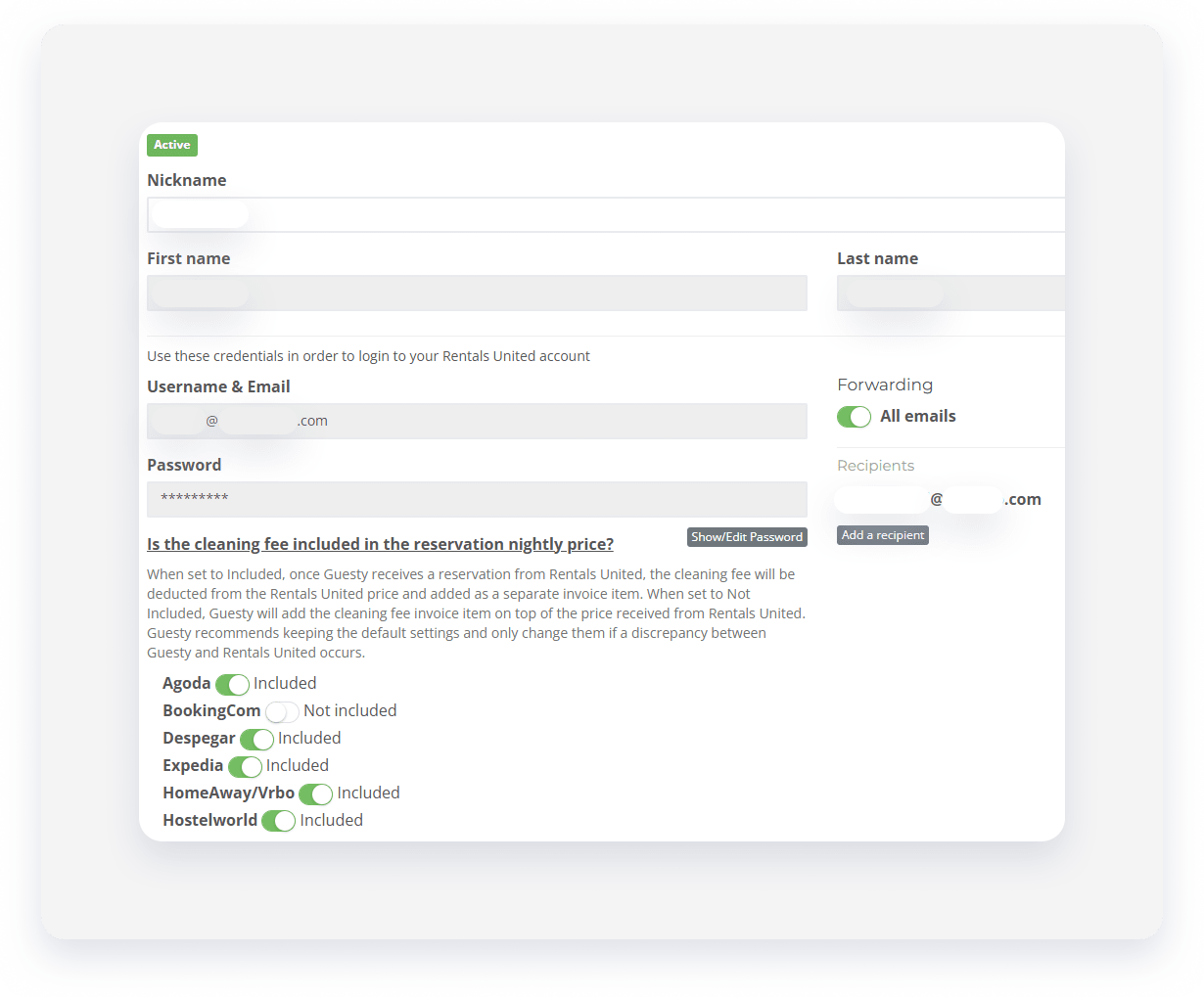
Username & Email: Your integration email
Recipients: Your forwarding email -
Vrbo
In your Vrbo "Account Information", add your integration email to the "Email 2" field and your forwarding email address to the "Email 3" field. Check that the integration email address is also entered in the "Contacts" section of each property.
