Note:
The new version of the Owners Portal is not available to everyone yet. Contact your CSM to join the pilot program and access the latest features.
The Owners Portal provides owners with instant insights into their property performance. Understanding how your back-end settings translate to the owner's front-end experience helps you provide a transparent and professional service.
Dashboard
Dashboard provides a summary of recent trends and important updates. Let owners track their portfolio's performance, manage reservations, and review guest feedback directly from the main dashboard.
- View important announcements
- Monitor performance and occupancy
- Track guest booking and owner reservations
- View guests' reviews and feedback
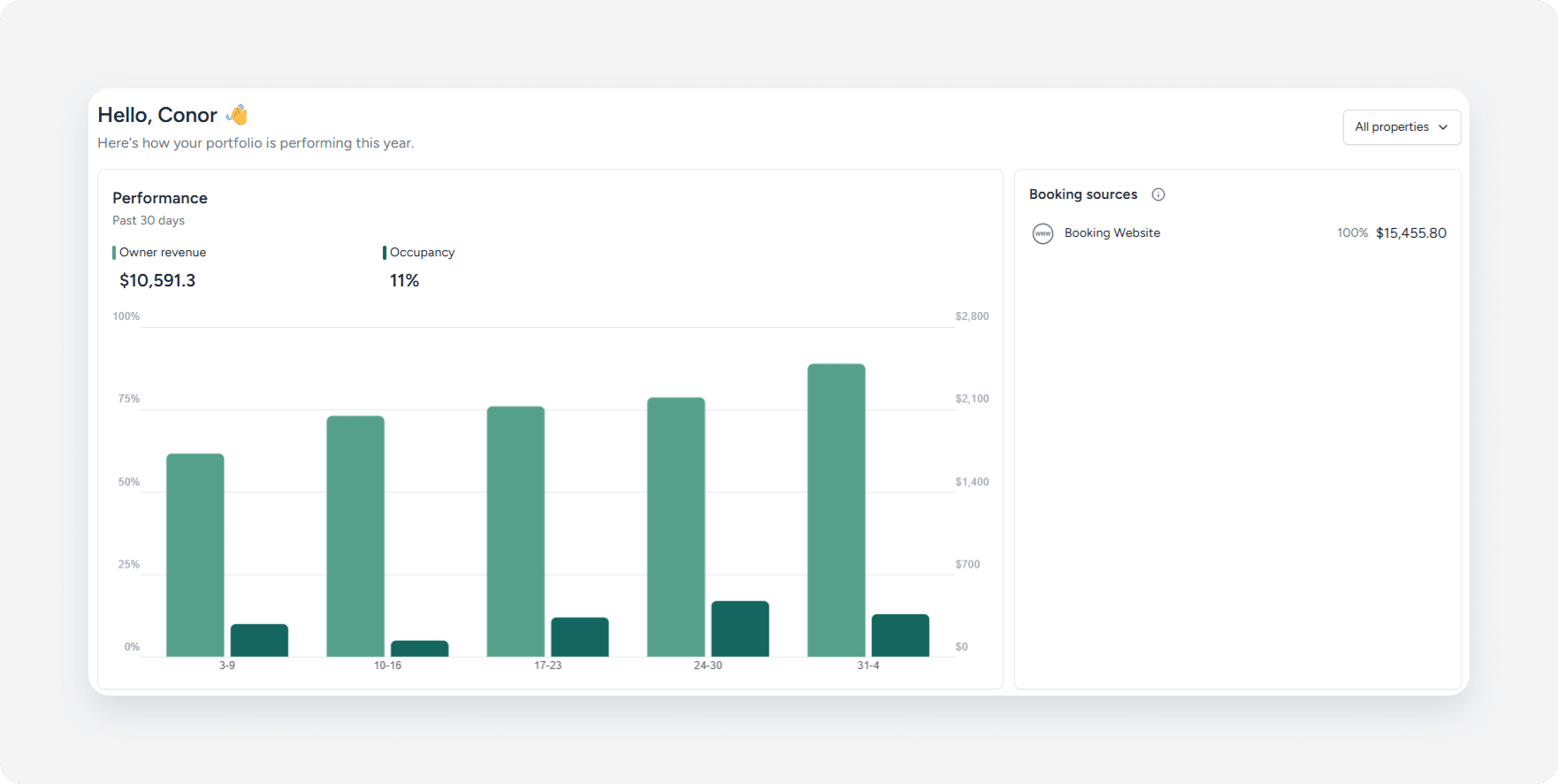
Performance
This section shows the performance of the owner’s revenue and occupancy trends for the past 30 days. Hover over the chart bar to display more details.
In the "Performance settings" section, check the following boxes:
- Owner revenue to include owners' revenue.
- Occupancy to include occupancy.
Booking sources
View the top reservation channels from the past 30 days, including the source channel names, total reservation values, and the channel's share in total reservation number.
The total reservation value display in the currency configured for your account.
Note:
"Performance" data uses transaction dates, and "Booking sources" data uses check-in and check-out dates. This causes discrepancies between the "Performance" and "Booking sources" sections, even though both display data for the past 30 days.
For example, if no stays occurred in the past 30 days, but you received payments, "Booking sources" may show values while "Performance shows" no data.
In the "Calendar reservations settings" section, check the Booking sources (OTA links) box.
Guest reservations
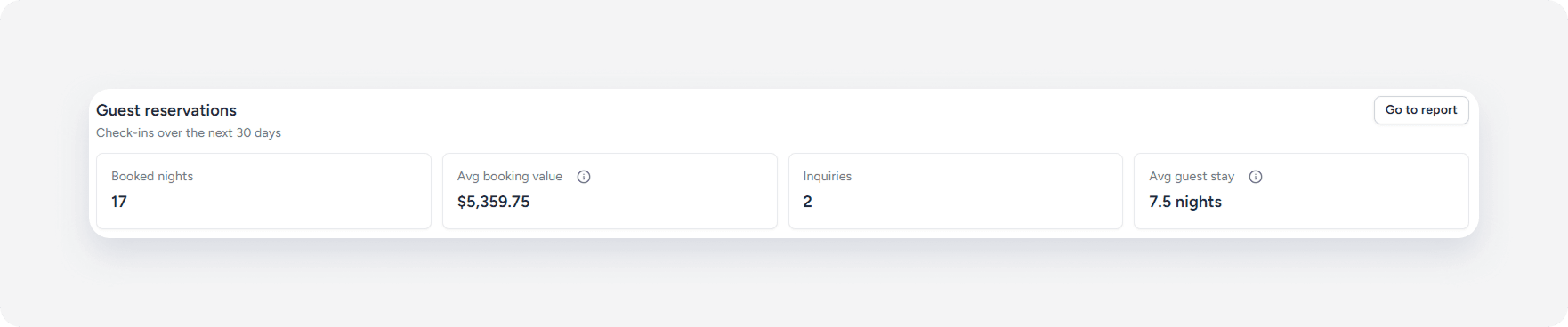
Track upcoming guest bookings (check-ins within next 30 days) with these metrics:
- Booked nights (displays guest booked nights only)
- Average booking value
- Inquiries
- Average guest stay
Click Go to report to display detailed reservation report in a new tab.
In the "Performance settings" section, check the following boxes:
- Booking inquiries count to include the number of guest inquiries.
- Booked nights to include the number of nights the property is booked for the specified dates.
- Average booking value to include the average revenue earned per reservation.
- Average nightly rate to include the average amount earned per night per reservation.
Owner reservations
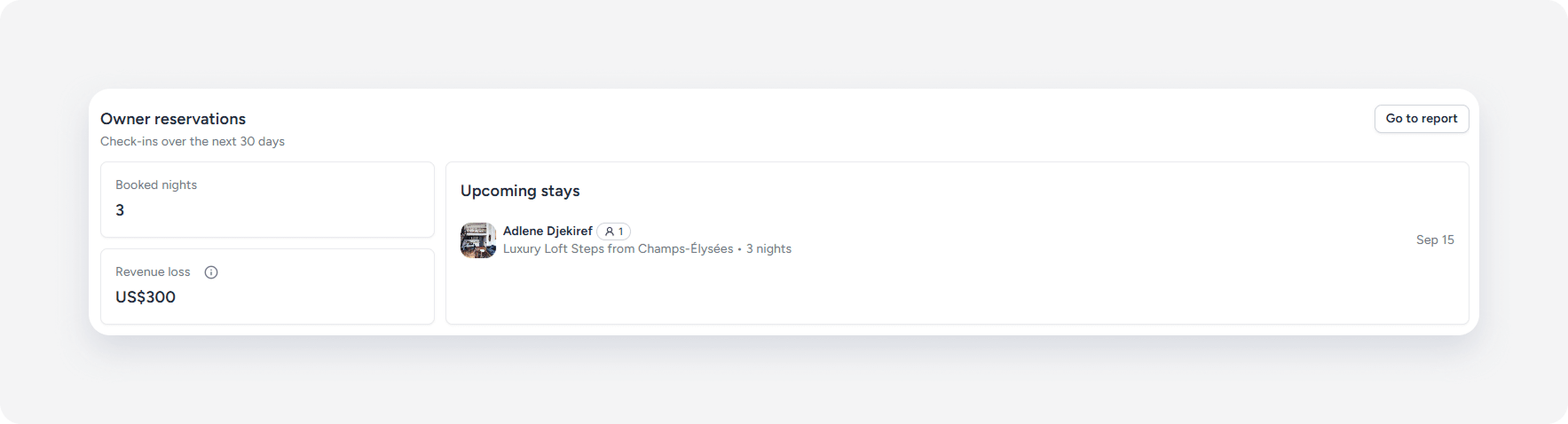
Monitor owner bookings (check-ins within next 30 days):
- Booked nights (displays owner and owner's guest booked nights only)
- Estimated revenue loss based on the average nightly rate
- Upcoming owner stays details
Owners see reservations made for themselves, their guests, and other fractional owners’ reservations. For privacy, personal details for other owners’ guest reservations are displayed as "Owner guest".
Click Go to report to display detailed reservation report in a new tab.
In the "Owner reservations" section, check the following boxes:
- Display owner booked nights to include the number of nights reserved by the owner.
- Display revenue loss to include the estimated revenue loss due to owner reservations.
Guest reviews
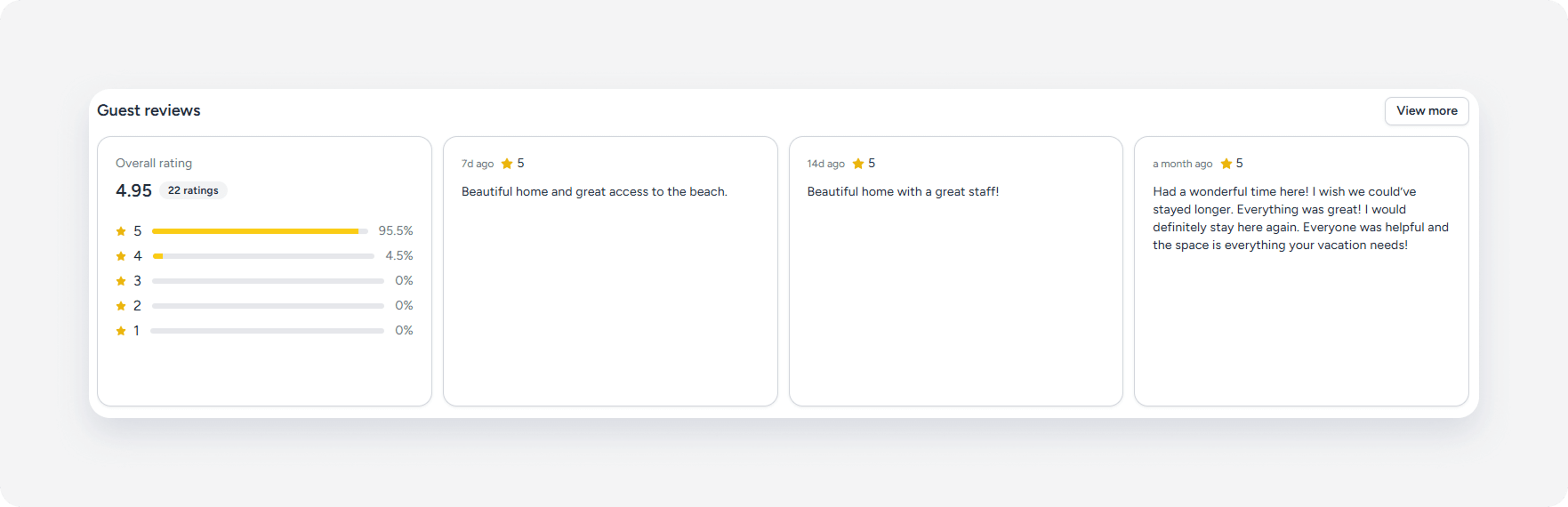
Display overall guest rating and the most recent top guest reviews. Only reviews with written descriptions appear, and you can filter to show only 4+ star reviews. Click View more to view up to 20 reviews.
In the "Extras" section, check the following boxes:
- Display overall guest rating to include the average guest rating.
- Display guest reviews to include guest reviews.
- Only show reviews with 4 stars or higher to include reviews that only have a 4-star review or higher.
Inbox
Allow owners to manage guest communications and view reservation updates. You can message owners directly from the Guesty Inbox, and owners can also contact you in the "Direct" tab in the owner's inbox.
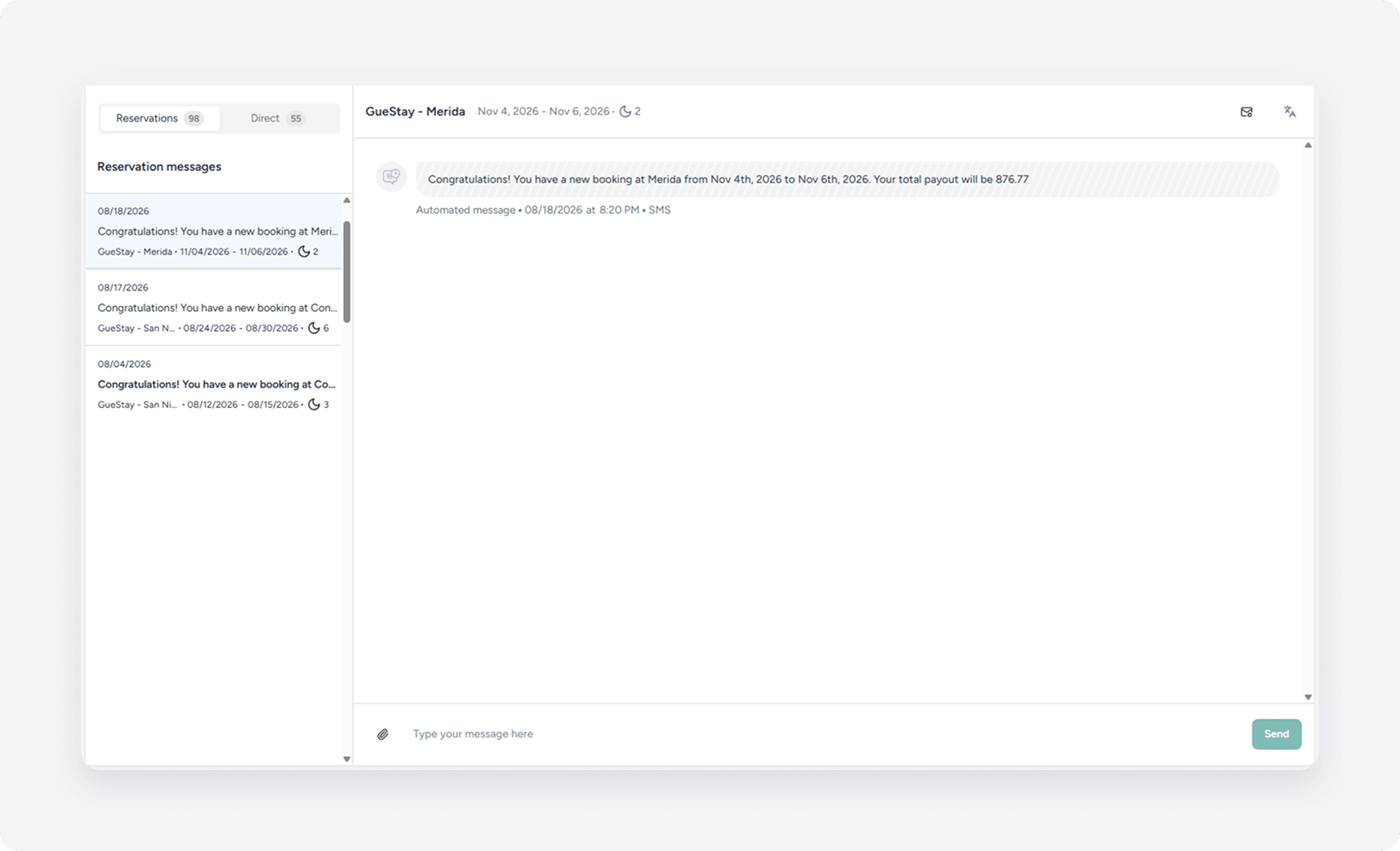
In the "Extras" section, check the Display owner inbox box to display owners' inbox.
Reservations
Display a reservation report for the owner's properties. Create a custom reservation report for owners.
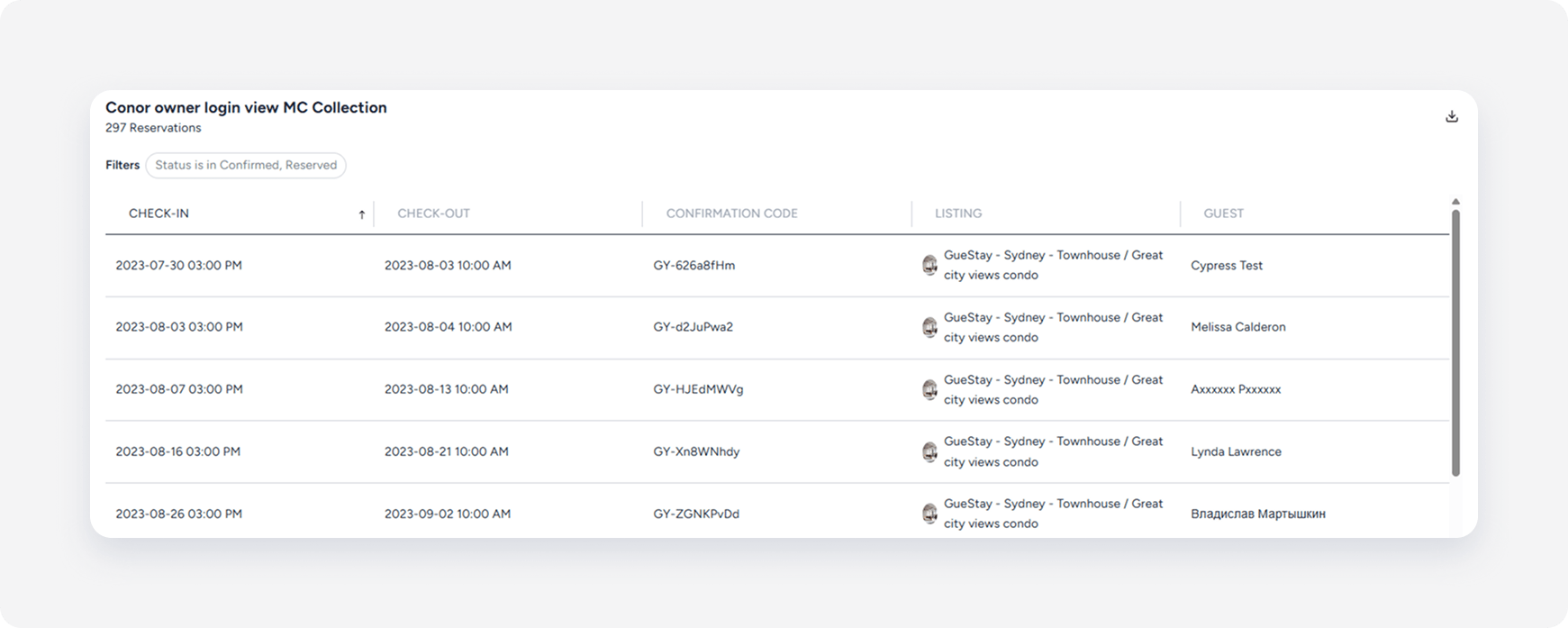
In the "Owner reservation report" section, check the Display reservation reports box.
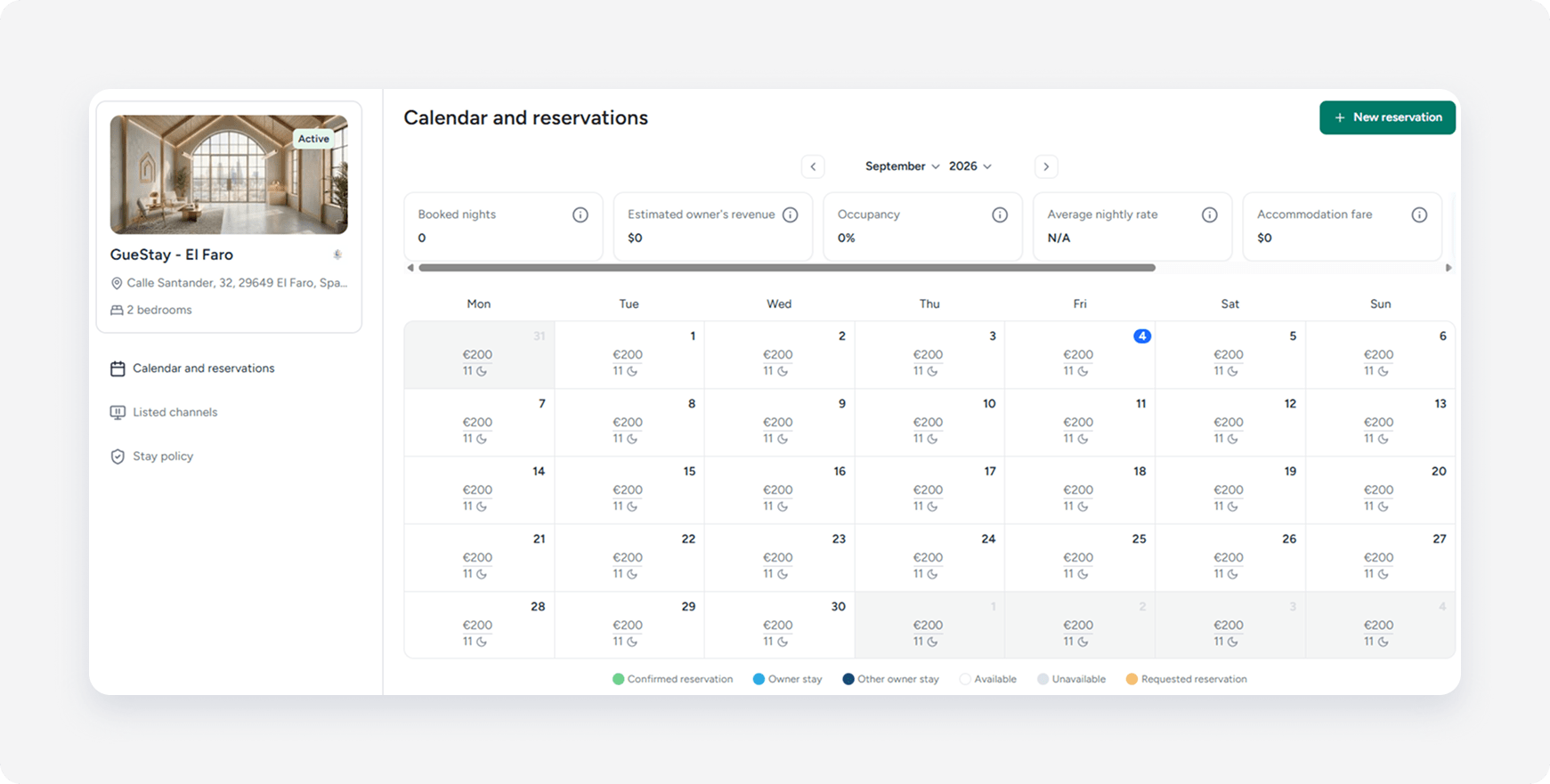
Home information
"Home information" displays a list of owner's properties. Owners select a property from the list to see the property's calendar, assigned tasks, connected channels and property policies.
This tab displays by default.
Accounting
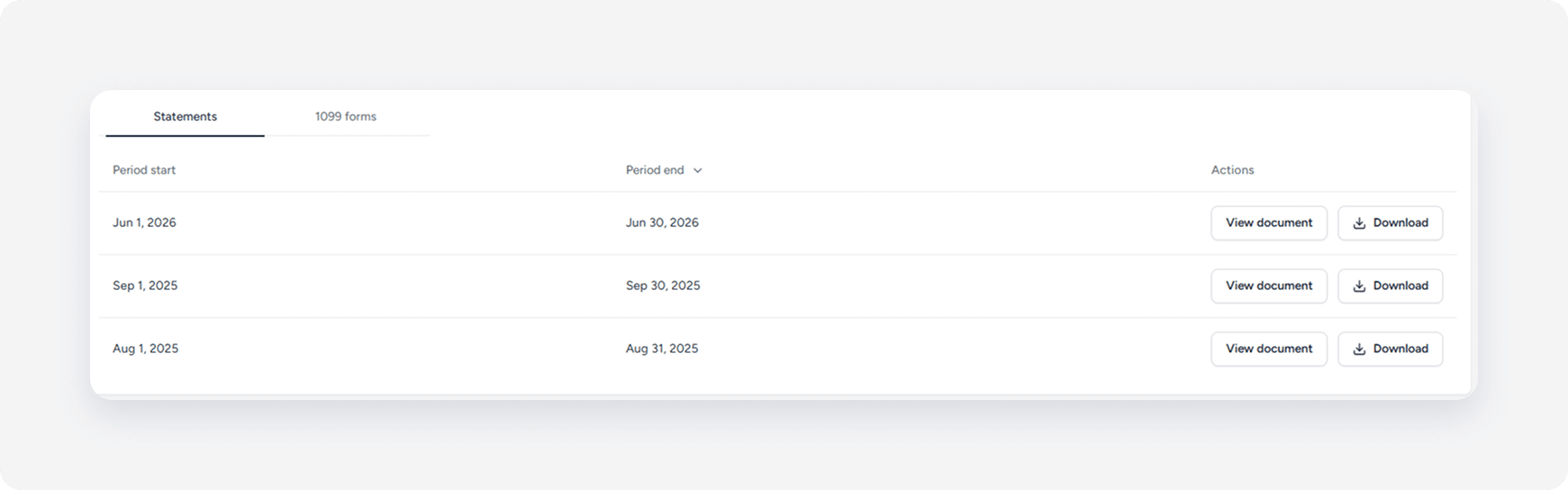
This tab appears only on accounts with the Guesty Accounting enabled. Learn more about owner statements.
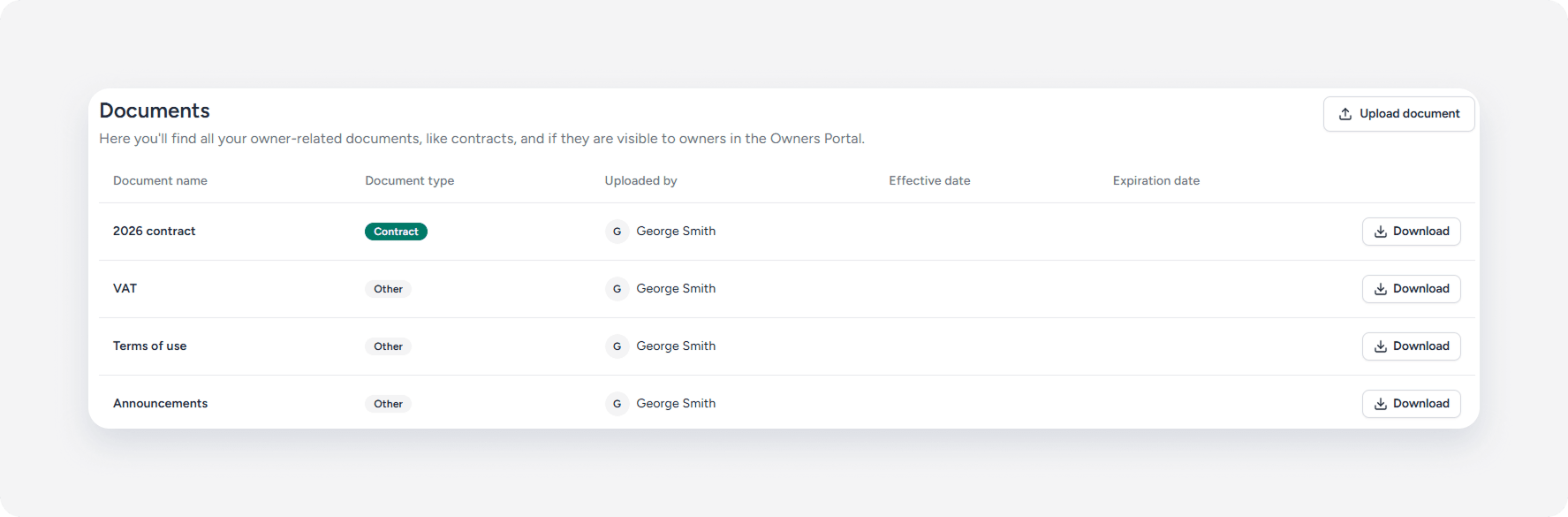
Documents
Owners view and download any documents you uploaded for them in Guesty, and upload own documents.
This tab displays by default.
Work orders
Owners track, and execute maintenance tasks assigned to their properties to maintain great guest experience.
This tab displays by default.

Help center
Provide owners with specific PDF articles that help them manage the day-to-day work.
Learn more about managing the Owners Portal Help Center and sending PDF manuals.
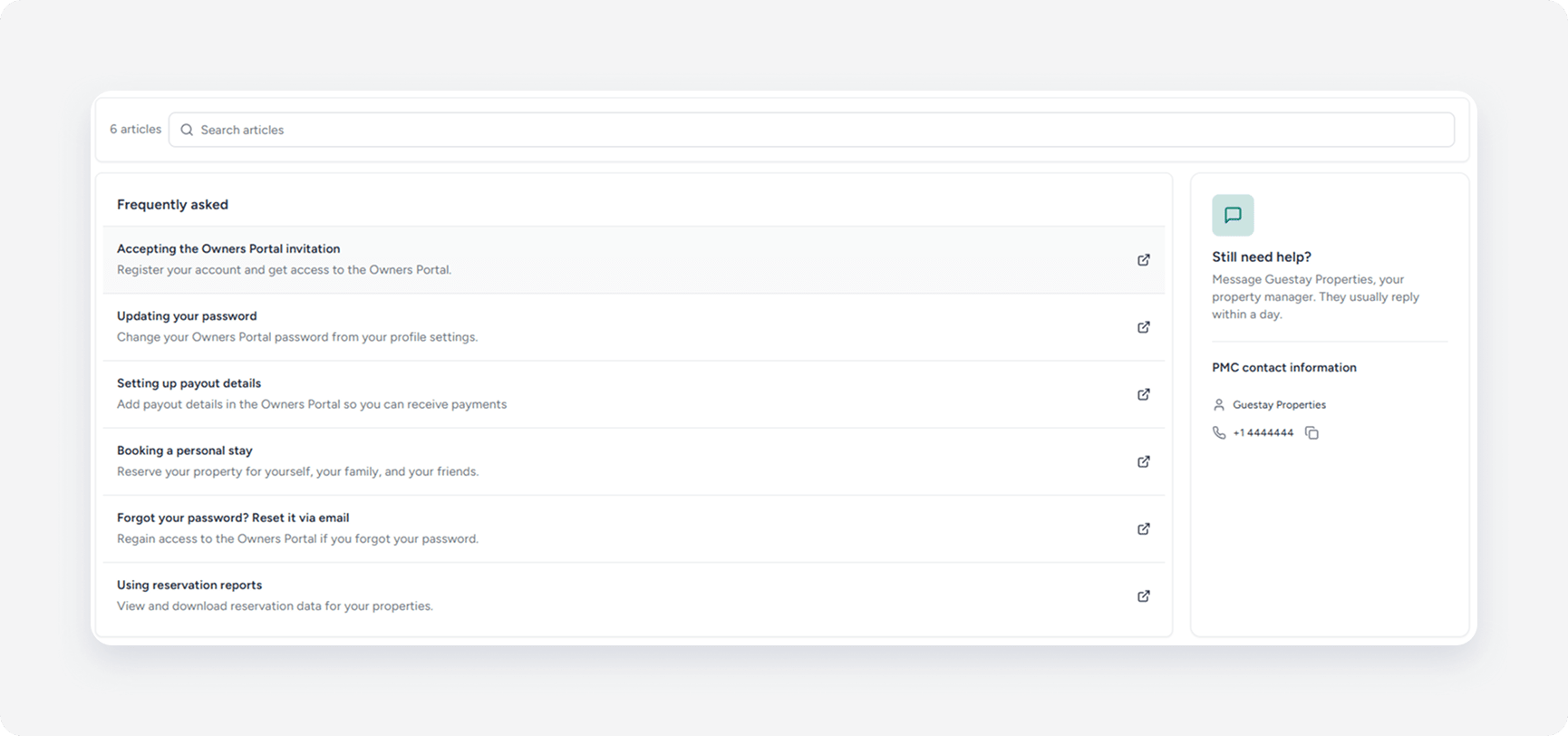
In the "Extras" section, check the Display help center box to add the "Help center" tab in the navigation menu.