Publish multiple Guesty listings to Booking.com in a single process. This helps you sync your properties in bulk with Booking.com, reducing setup time, and simplifying onboarding for a portfolio that includes multiple units.
Before you begin
To avoid publishing errors, ensure each listing meets Booking.com’s minimum requirements before you start.
- Connect your Booking.com account to Guesty.
-
Set up at least one rate plan in Guesty.
This enables simpler restriction management and more flexibility for revenue strategies on Booking.com.
- Verify that your listings meet Booking.com's requirements before publishing to avoid errors:
- List the listings.
- Configure the listing's space arrangements and amenities.
- Verify the room type is compatible with Booking.com.
- The listings have at least one week of availability within the next 90 days.
- Configure taxes, additional fees, and if applicable, an extra person fee.
Publish multiple listings
The bulk publishing process applies the same settings to all listings in batch. To use different settings for different listings, group those properties and run separate bulk publishing flows.
Step by step:
- Sign in to your Guesty account.
- In the side navigation menu, click
 Marketing and sales to open the dropdown menu.
 - Under Channel management, select Distribution.
- Click the Booking.com thumbnail.
- Locate the relevant account and click + Publish listings.
- Click Start.
- Check the boxes for the relevant listings. You can use the filters to narrow your search by city, tag, and type, or search for listings by name in the search bar.
- Click Select [] listings.
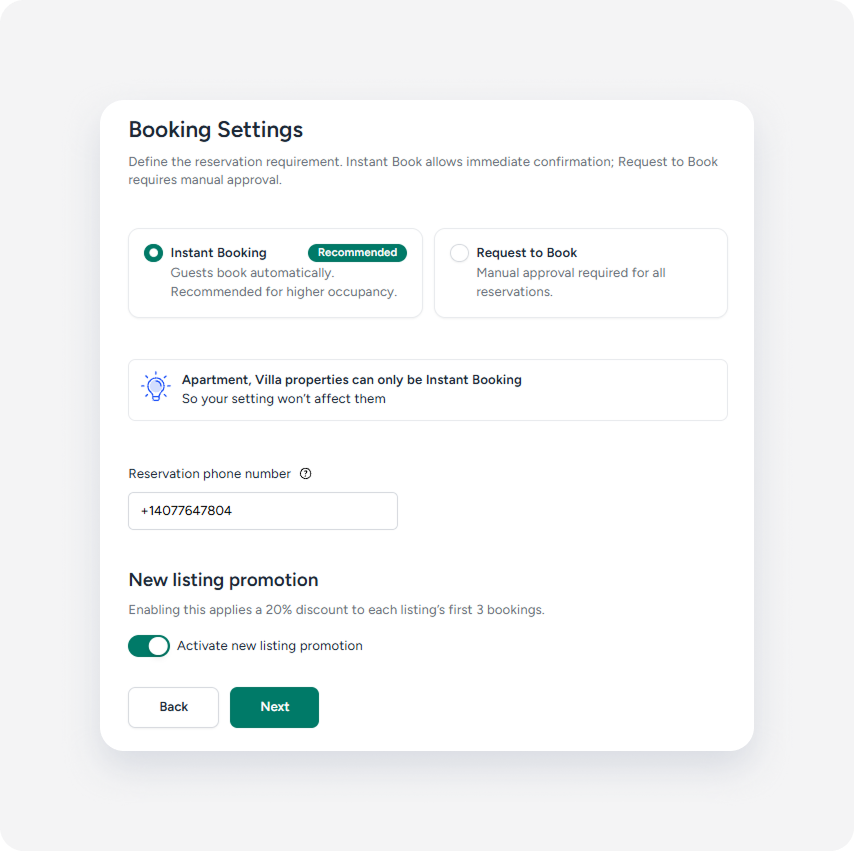
- Configure the following settings for the selected bulk publishing batch:
- Booking settings: Choose Instant Book or Request to book and enter your reservation phone number.
-
New listing promotion: To apply a y, enable the Activate new listing promotion toggle. Click Next.
-
Child policy and rates:
Select the relevant option:
- Do not allow booking with children. Click Next.
-
Allow booking with children:
- Enter the number of children the property can accommodate.
- Enter the start and end age range to which the child rate will apply.
- Enter the cost per child.
- Click Next.
-
Rate plans:
- If some listings don't have a rate plan: Select a cancellation policy for Booking.com. Rate plans can be added later. Click Publish.
- If no selected listings have a rate plan: Select cancellation policy for Booking.com. Rate plans can be added later. Click Publish.
- If all listings have a rate plan: No action is required. Click Publish.
-
Payment processing:
Select the relevant option:
- If you are the Merchant of Records:
- Select You will charge guest payments.
- Select the credit cards you accept.
- Click Next.
- If Booking.com is the Merchant of Records:
- Select Booking.com will charge guest payments
- Select the relevant payment service:
- Payments by Booking.com
- Online payments
- Click Next.
- If you are the Merchant of Records:
-
Review your listing requirements:
Eligible: Listings are ready to publish.
Not eligible: Listings have missing or invalid information. Click Fix missing requirement to be redirected to the relevant page to make the required changes.
- Click Publish to Booking.com.
Publishing typically takes up to one business day. During this time, the listing status appears as "Pending". Once approved by Booking.com, your listings update to "Connected" and are ready to receive bookings.
Failed listings
If a listing's status is "Failed", the license details or tax information for France or Brazil may be missing. Add the missing information on the Booking.com integration page to resolve the issue.
To see other reasons why listings enter a "Failed" status, see our troubleshooting guide.
