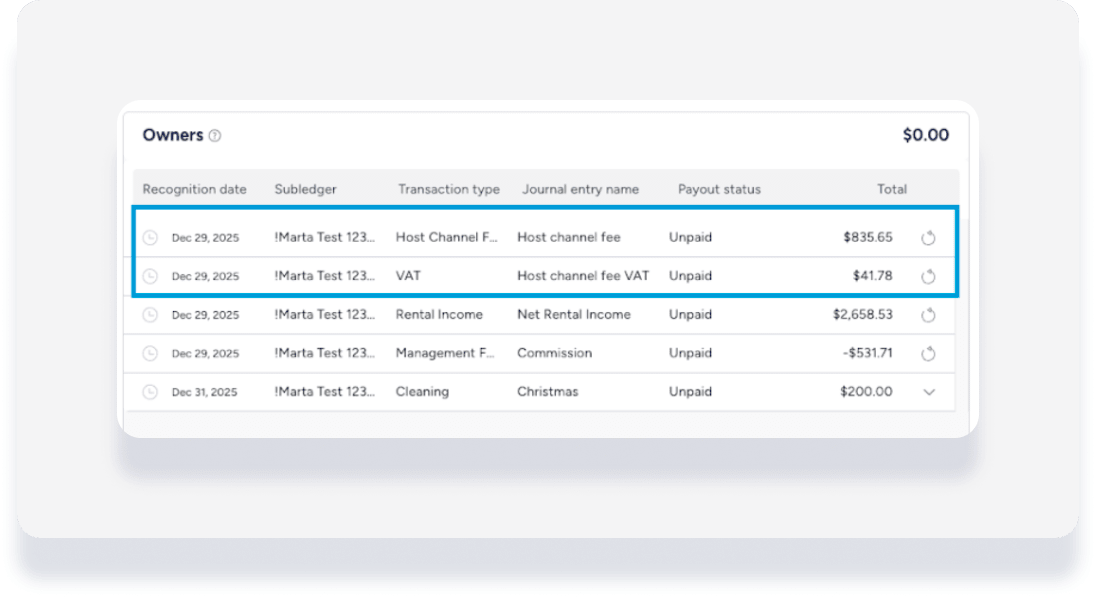
Guesty provides a detailed breakdown of channel commissions, separating the net commission from taxes like GST or VAT. This visibility ensures your accounting remains compliant and matches the invoices you receive from channels like Booking.com or Airbnb.
This feature allows you to configure tax rates for specific channels at either the account or listing level. Once set up, view these line items directly in the guest folio and accounting folio for all new reservations. The data is also visible in Accounting reports.
Understanding the breakdown logic
Guesty uses a specific hierarchy to display commission data:
Channel-provided values: For Airbnb, Guesty pulls the actual net, tax, and total values directly from the channel.
User-configured settings: For all other channels that don't provide a breakdown, Guesty uses the tax rates you define in your financial settings.
Default values: If no configuration exists, the tax amount defaults to zero.
Important:
This breakdown is only available for new reservations confirmed after this feature is enabled.
Configure channel commission taxes
Step by step:
Access your channel commission settings on the account or listing level.
At the top-right, click Edit.
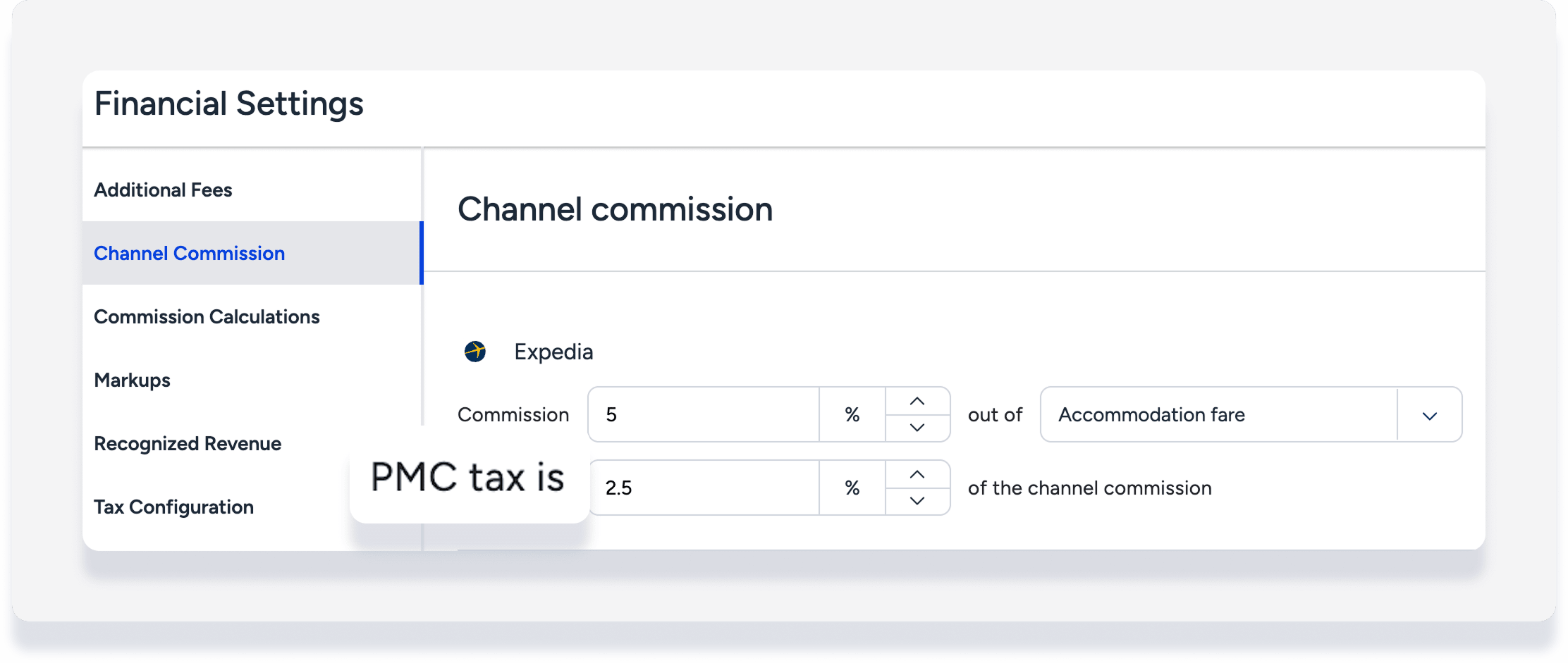
Locate the specific channel to update.
-
In the "PMC tax is" field, enter the applicable tax percentage.
- At the top-right, click Save.
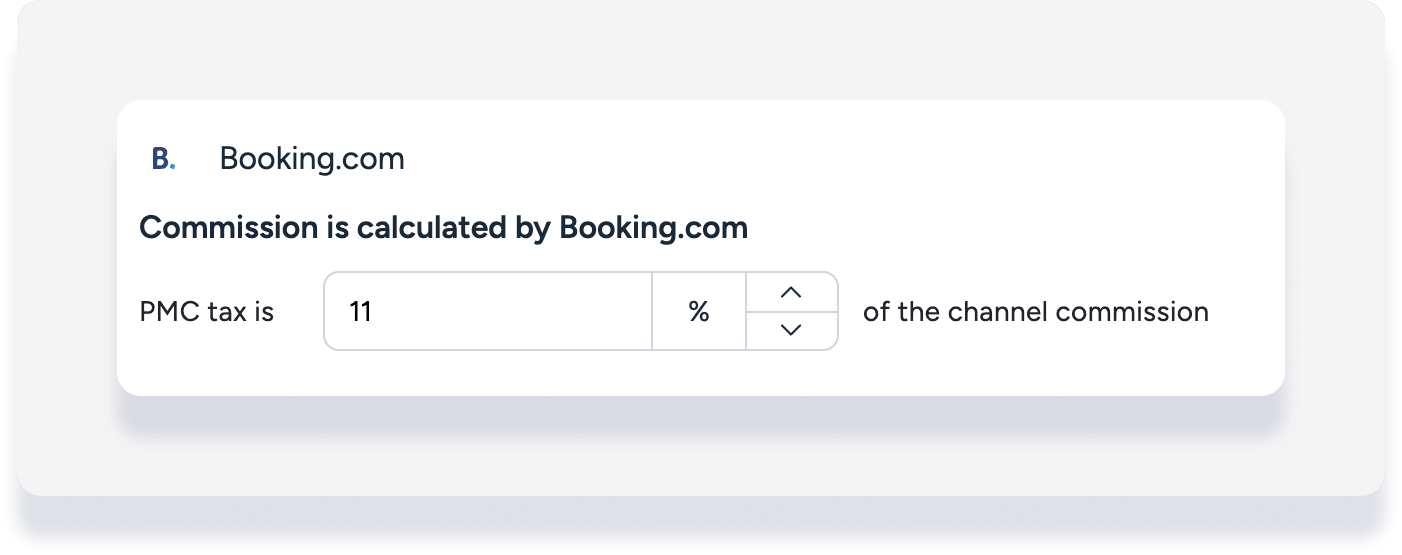
Commission calculated by channel
Where "Commission calculated by channel" is indicated, for example Booking.com, you can still set the PMC tax. This is calculated on the commission amount sent by the channel and broken down in financial data. Learn more about different commission types.
View commission data in a reservation
Once configured, review the specific costs associated with each new booking. Follow the steps below to view the commission breakdown in a reservation's guest folio.
Step by step:
- Sign in to your Guesty account.
- Navigate to the relevant reservation.
- IIn the left submenu, click Guest folio and invoice.
-
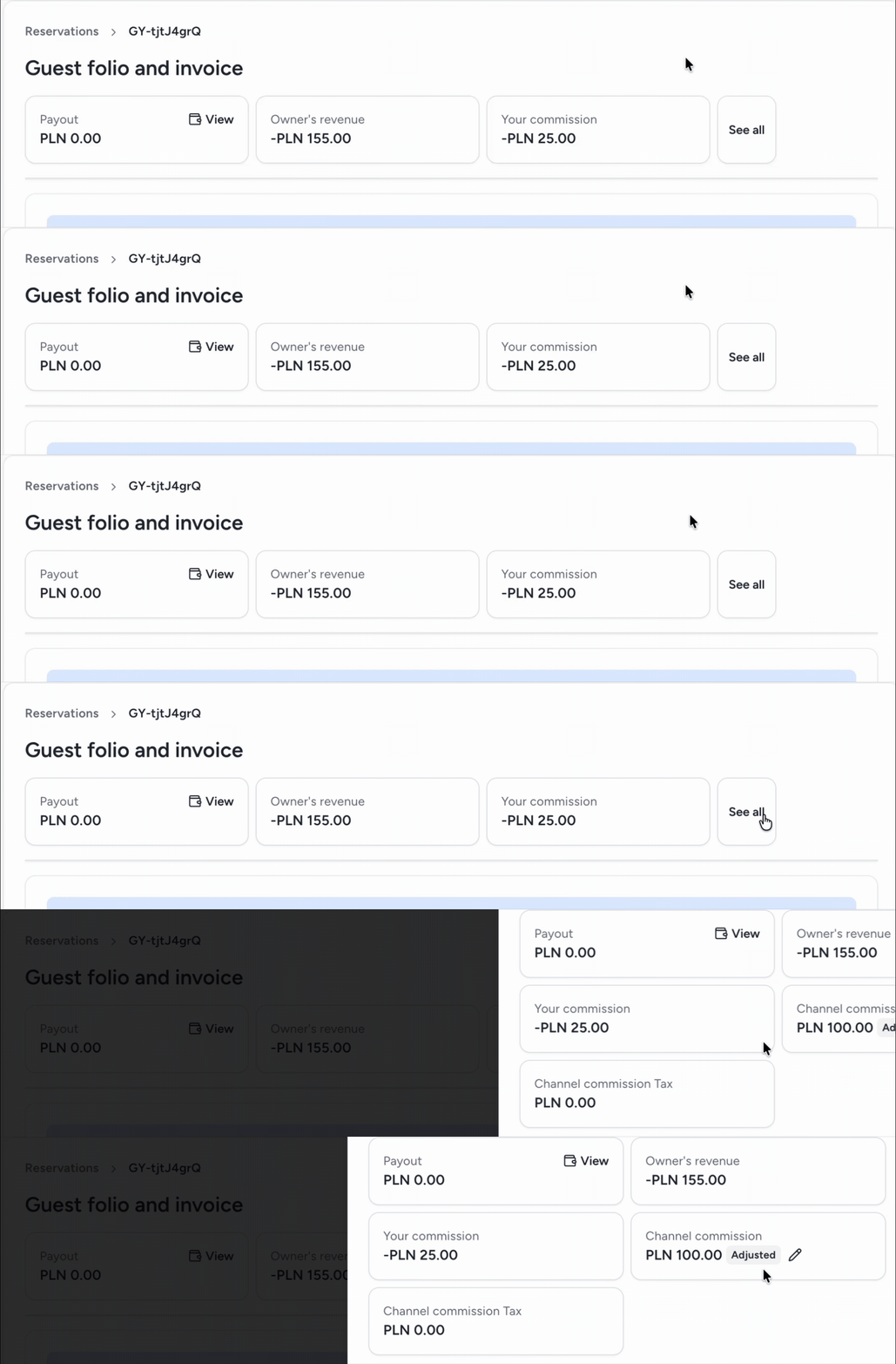
In the header, at the top-right corner, click See all. The side panel shows the total amounts for "Channel commission" and "Channel commission tax".
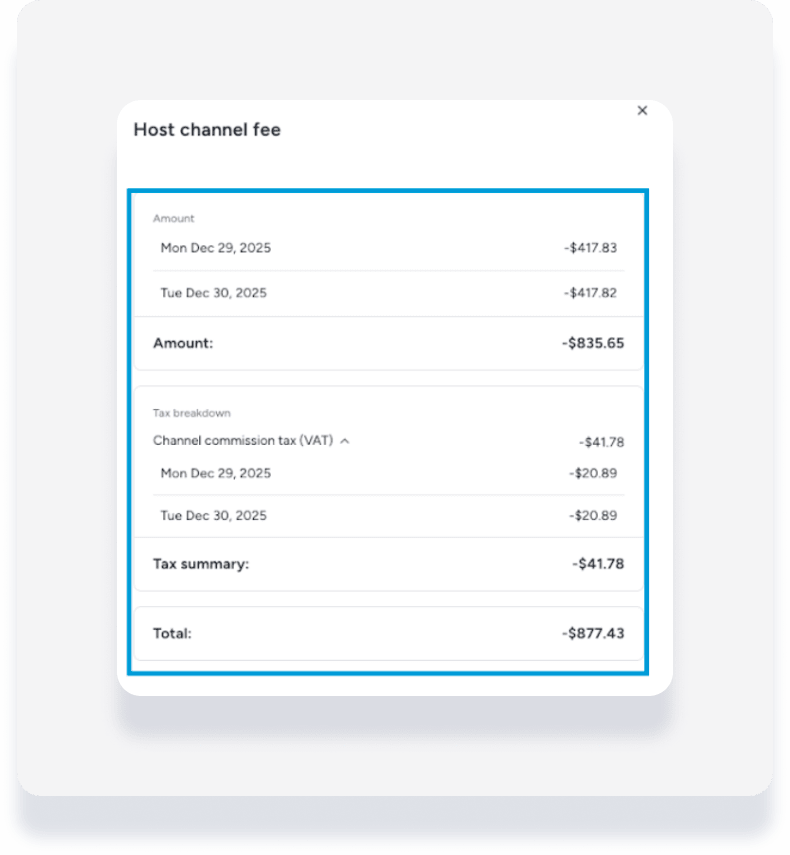
In the guest folio breakdown, click the Host channel fee line item.
-
View details in the side panel:
Net Channel Commission: Base commission before taxes
Tax amount: Calculated GST or VAT
-
Gross channel commission: Total amount (Net + Taxes)
Adjust channel commission in a reservation
Follow the steps below to correct a non-pre-deducted commission amount in a reservation. Once edited, the commission amount stays static and won't be recalculated by future channel updates or reservation alterations.
Step by step:
- Sign in to your Guesty account.
- Navigate to the relevant reservation.
- In the left submenu, click Guest folio and invoice.
- In the header, at the top-right corner, click See all.
- Under "Channel commission", click
 .
. - Edit the realization date if needed.
- At the bottom-right corner, click Save.
Tip:
Hover over "Adjusted" to see detailed history of the change. 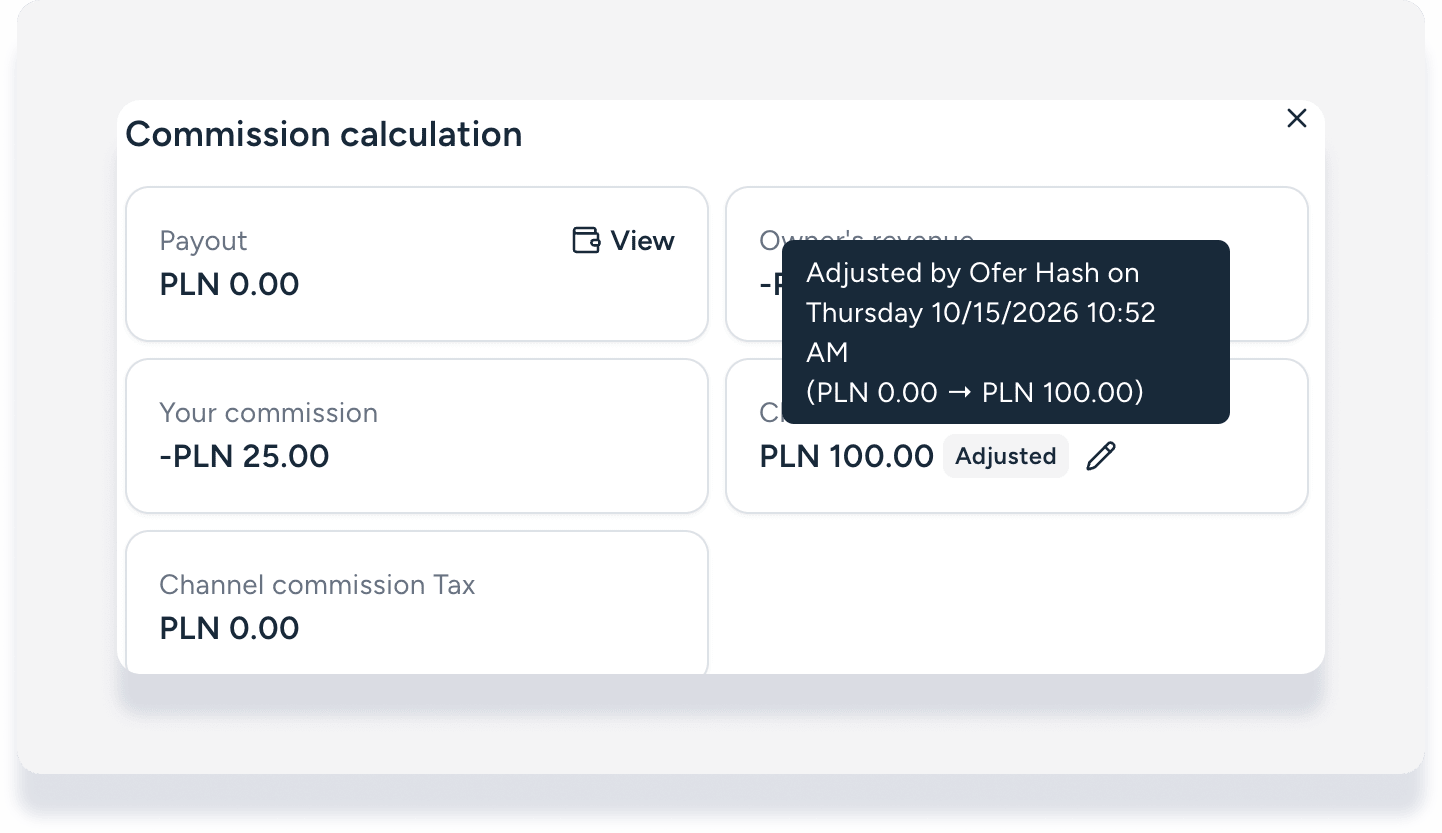
Accounting users
The following is automated in Guesty Accounting:
Separate journal entries: One entry for the net channel commission and a second entry for the commission tax.
Automatic reversals: If you reverse a channel commission, Guesty automatically reverses the related tax journal entry to maintain balanced books.
Ledger visibility: View the net commission and commission tax as separate line items in a reservation's accounting folio: