The guest folio provides a transparent financial summary for every reservation, including a tax breakdown for every line item, such as nightly rates, fees, or services. Each entry shows applicable taxes, including both percentage-based and fixed amounts, as set in your tax configuration.
Understand how adjustments affect the guest folio
All account users can view the guest folio breakdowns, but only users with administrative or accounting permissions can adjust line items or change tax settings. Guesty logs all tax and folio changes for audit purposes.
The tax breakdown is based on your tax setup in Guesty. Adjustments made to the guest folio have the following effect:
- Line item adjustment: Adjusting a taxable line item, like accommodation fare or fees, causes the related taxes to automatically recalculate. This change is reflected at the line item level and in the total tax summary.
- Standalone fixed tax adjustment: Adjusting a fixed rate tax not tied to a specific item, such as a $10 local tax, updates the tax like any other line item. This change appears at the line item level and in the total tax summary.
- Percentage tax adjustment: Adjusting a percentage tax related to a line item, such as a 10% city tax on accommodation fare, only affects the total tax summary. This won’t change individual line items, and the total shown in the tax column may differ from the sum of the individual line item taxes. (See more details below.)
See more information and screenshots below about the two different tax types.
Channel limitations
Booking.com
Guesty displays taxes as separate invoice items for accounting purposes. Because Booking.com doesn't display taxes as separate line items, Guesty deducts the taxed amount from the accommodation fare and adds it as a separate invoice item if taxes are included in the price on Booking.com.
Access the guest folio
Follow the steps below to access the guest folio breakdown and view the tax summary.
Step by step:
- Sign in to your Guesty account.
- Navigate to the relevant reservation.
- IIn the left submenu, click Guest folio and invoice.
- Toggle between By night and By line item to change the details displayed. Taxes appear in a new column for both options.
View payout details
The top banner displays the payout, owner's revenue, and your commission amounts.
- Click See all to display the complete commission calculations.
- To the right of "Payout", click View to see payment status details.
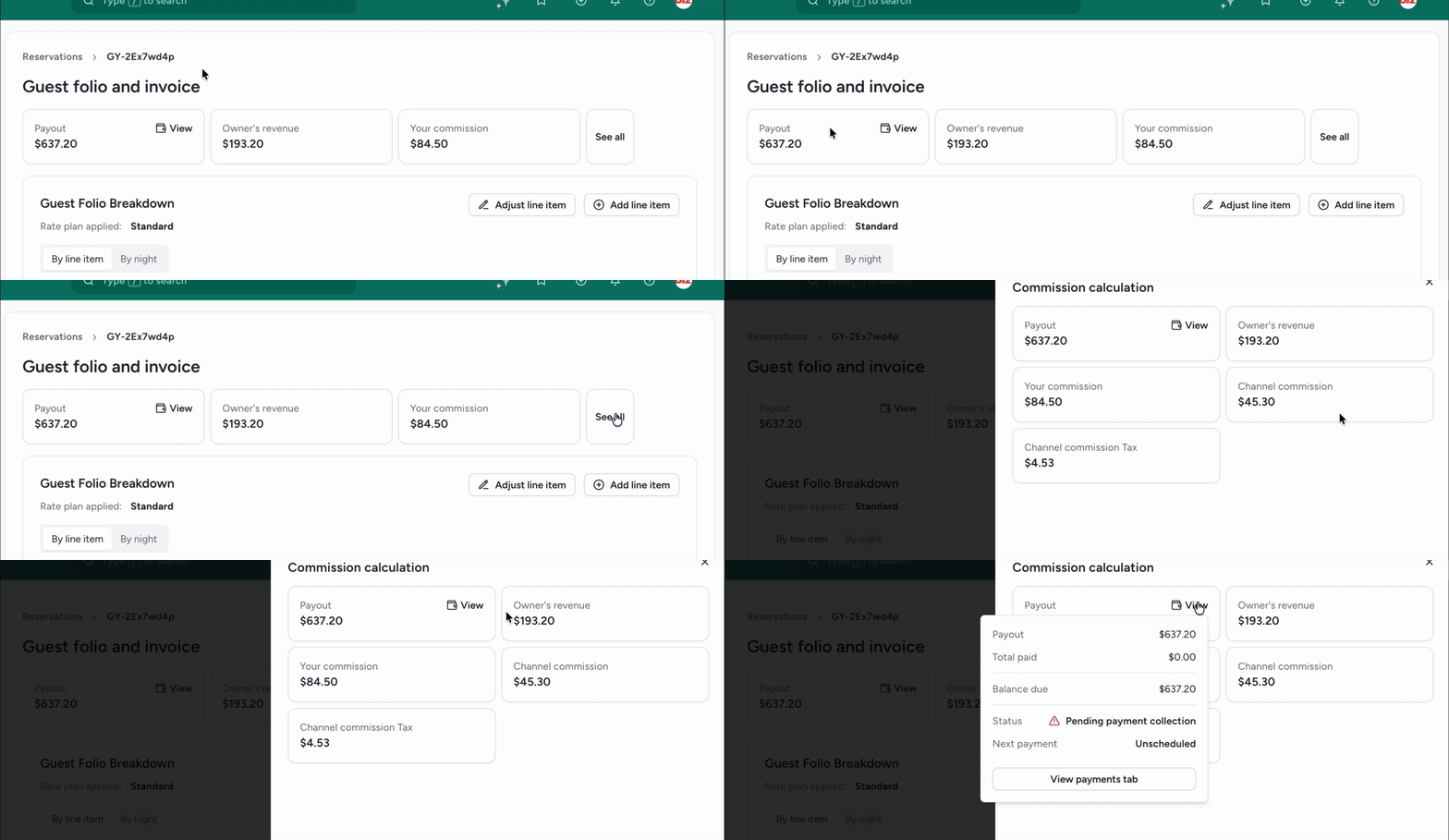
View guest folio breakdown
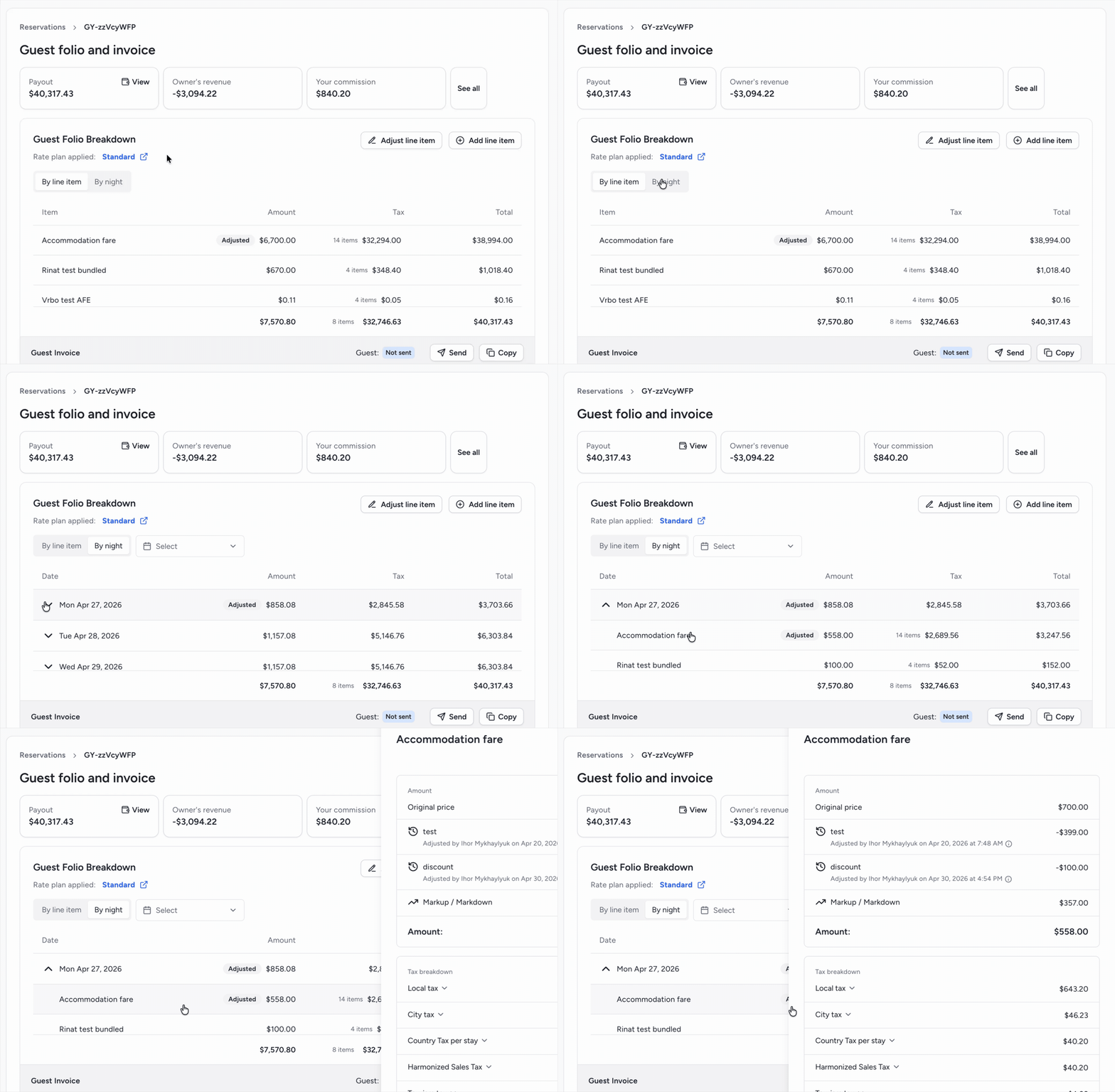
- Toggle between By line item and By night.
- Click the down arrow to expand the line items.
- Click a line item to open the side panel and view the percentage taxes applied to that item.
View tax breakdown details
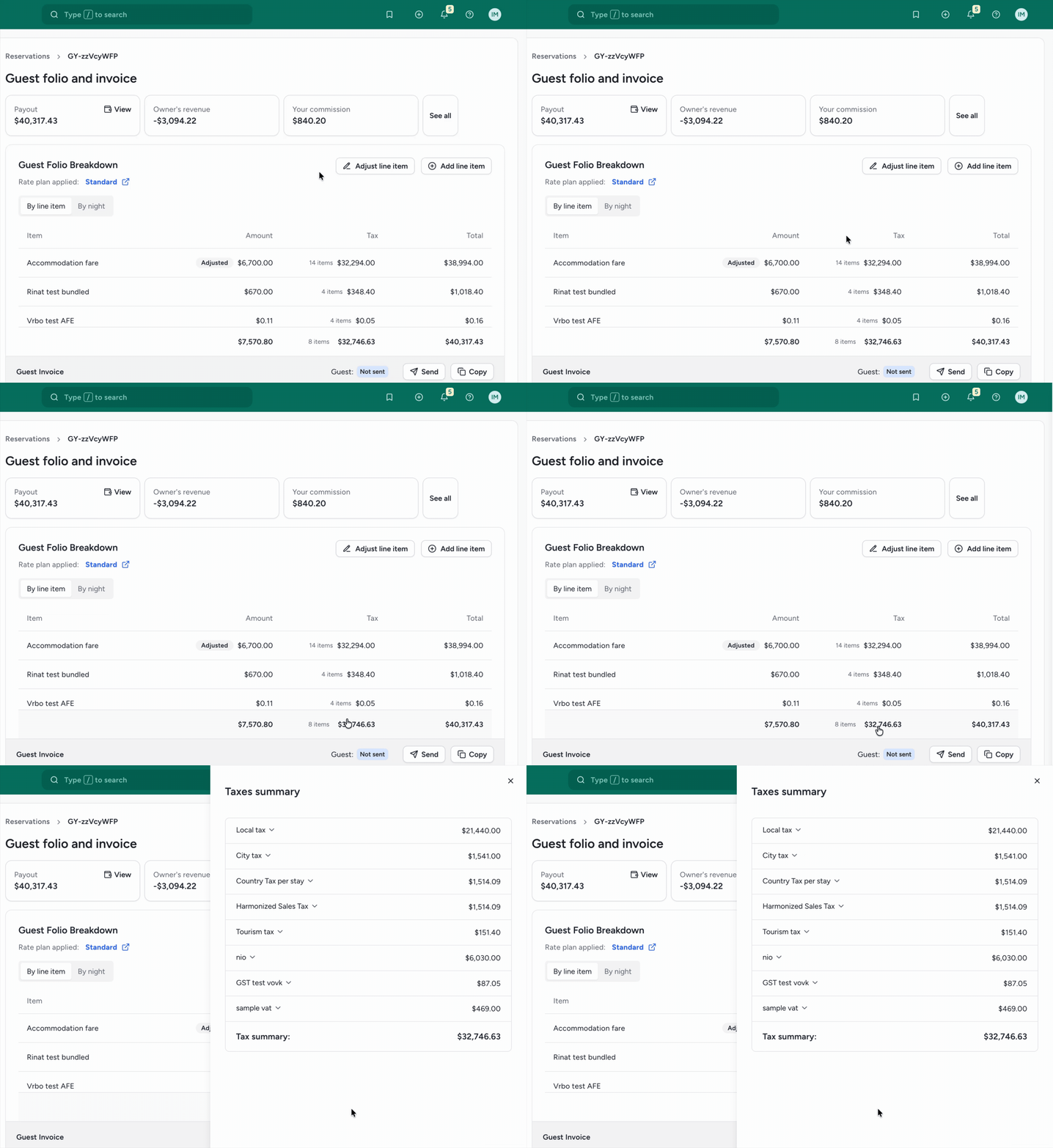
- From either the by night or by line item view, click the tax total at the bottom to open the slide panel.
- View the subtotal, total taxes, and net total, providing a transparent financial summary for every transaction. For auditing purposes, adjustments are indicated with the user name and timestamp.
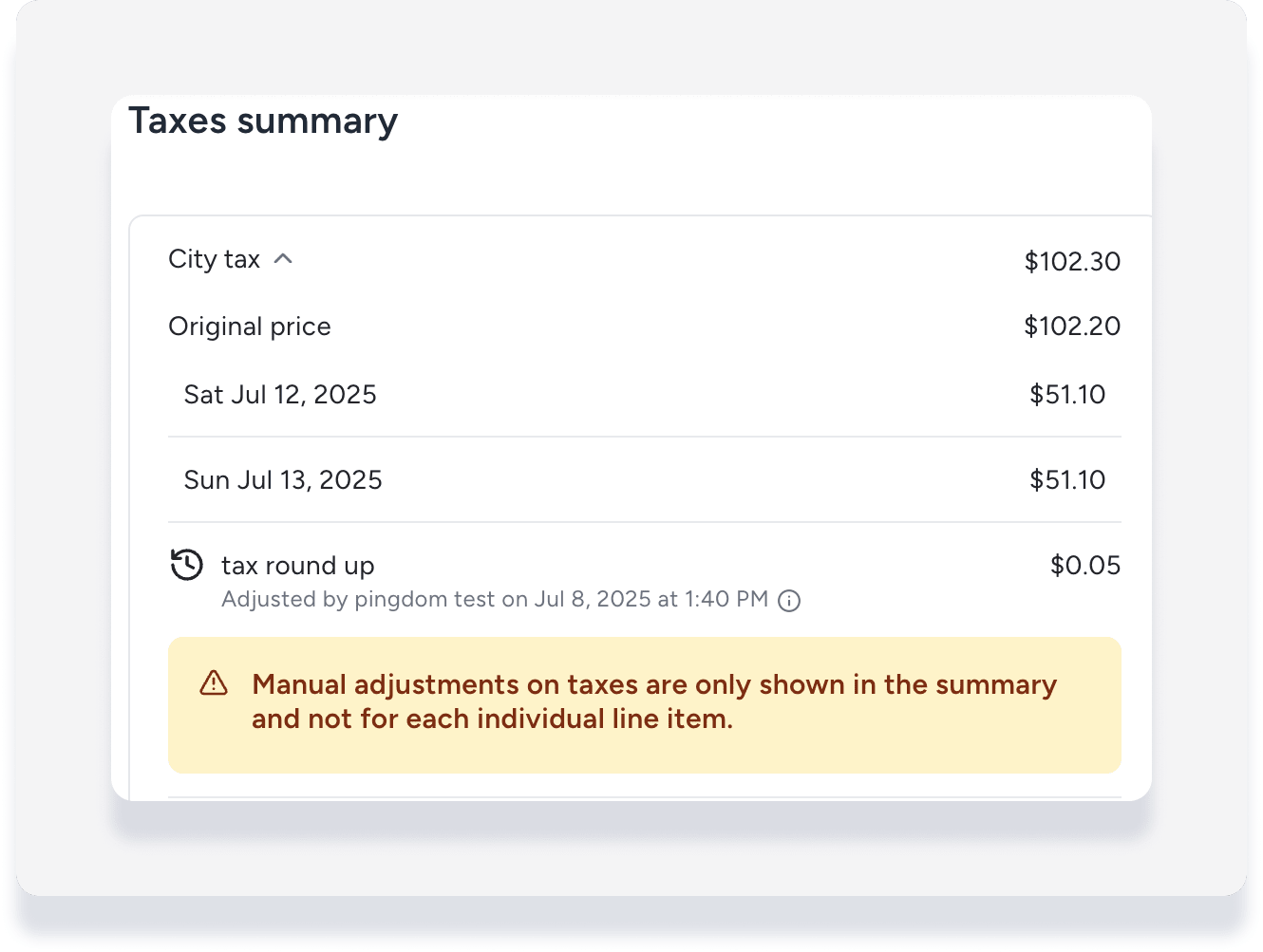
Tax total discrepancy
If the adjustment is made to a percentage tax applied to a line item, the adjustment applies to the total tax amount only. The total shown in the tax column may differ from the sum of the individual line item taxes. Guesty displays a warning when this occurs.
How nightly rates are calculated
Nightly rates remain fixed once a reservation is booked. The only exception is when a booking channel updates nightly rates for future dates.
Nightly rates for accommodation fare
The method used to calculate nightly rates depends on the booking channel:
- Rates calculated by the booking channel: Booking.com and Expedia send nightly rates using their own defined ratios. Guesty displays these rates exactly as received.
- Rates calculated by Guesty: If a booking channel doesn't provide nightly rates, Guesty checks the pricing on the listing's calendar for the booked dates and applies that same ratio to the reservation.
- Night 1: $100
- Night 2: $150
- Night 3: $250
Guesty determines the ratio for each night by dividing the calendar rate by the total accommodation fare. If the actual reservation accommodation fare is $650, the breakdown is:
- Night 1 = 0.2 x 650 = $130
- Night 2 = 0.3 x 650 = $195
- Night 3 = 0.5 x 650 = $325
Nightly rates for non-accommodation fares
Guesty divides the total non-accommodation fare by the number of nights in the reservation. These items appear on a "per night" or "per night per stay" basis. If not split, they appear as a single sum.
Note:
For Accounting users, Guesty calculates these nightly rates to support the nightly recognition setting defined in your business model.
Breakdown of items within the accommodation fare
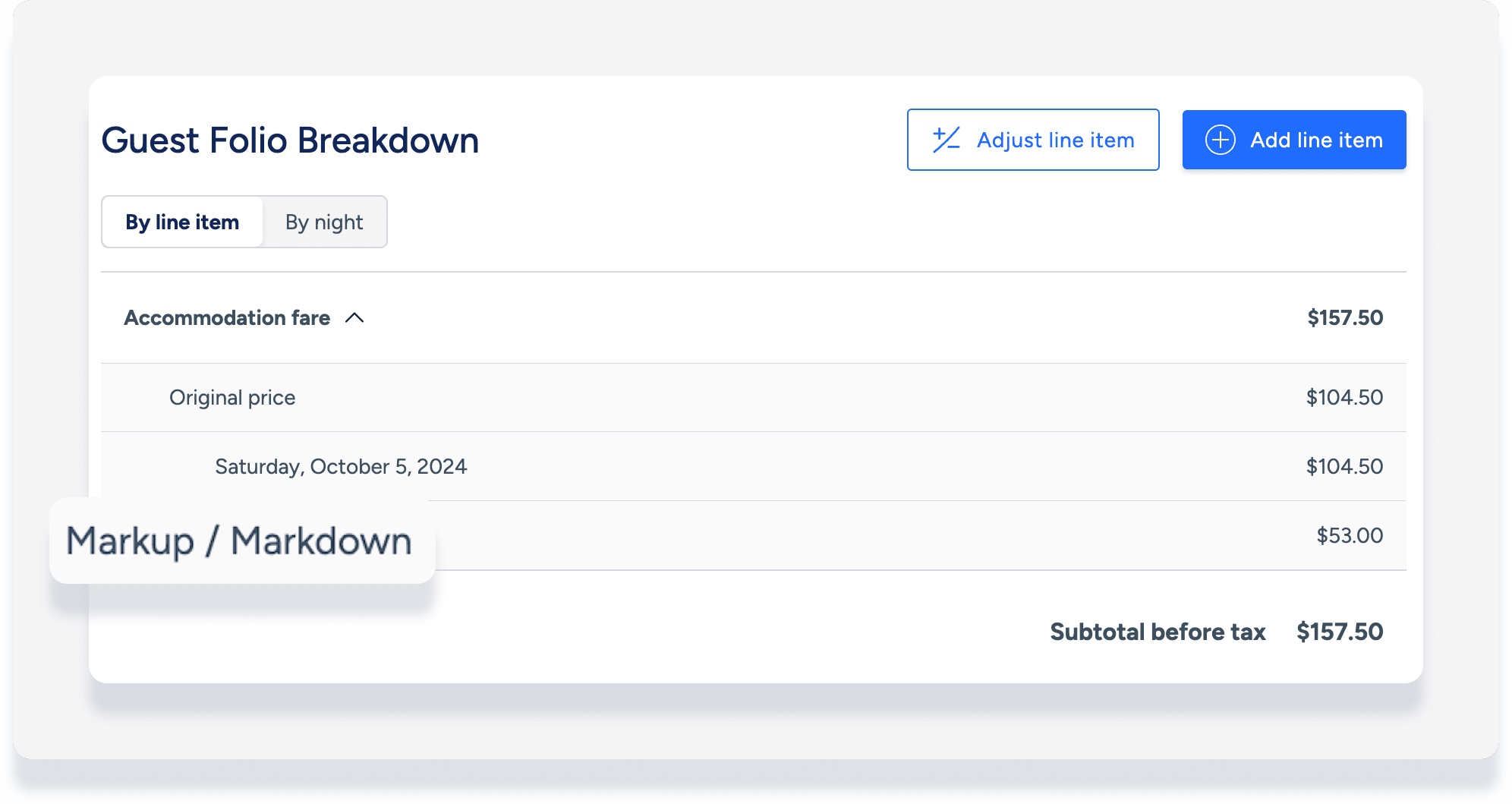
Markups, markdowns, extra person fees, and length-of-stay discounts appear as separate line items within the guest folio.
Channel-specific breakdowns
- Fees and discounts: Extra person fees or weekly/monthly discounts only appear if the booking channel communicates them to Guesty.
- Markups and markdowns: All connected channels with a markup or markdown display this breakdown. Guesty calculates this based on the accommodation fare in Guesty, which might differ from the channel's calculation.
This breakdown is for internal information and does not appear on the invoice sent to guests. However, it is available through the OpenAPI and Booking Engine API and may appear in guest-facing interfaces depending on your implementation.
Added or adjusted line items
Manually add or adjust line items in the guest folio to keep your records accurate. See instructions for Accounting users here. The guest folio also automatically displays adjusted line items for:
- Reservation changes made via booking channel
- Guest resolutions sent from the Airbnb resolution center (ARC)
