Streamline your property management workflow with bulk edits. Save time by selecting multiple properties and applying the same changes across all selected properties at once, significantly reducing the time needed to prepare and publish your properties.
Follow the instructions and the video below to edit properties in bulk.
Edit properties in bulk
Step by step
- Sign in to your Guesty account.
- In the side navigation menu, click
 Properties.
 -
Select the relevant properties. You can edit up to 400 properties at a time.
For a multi-unit, edit the main unit settings to update the sub-units.
- In the top-right corner, click Bulk edit.
-
In the side panel, select from the available editing options.

-
Click Apply changes.
After making changes, an indication appears on the properties page to signify that your bulk edits are being processed. Processing takes several minutes to complete. During this time, avoid making manual updates to prevent conflicts. Only one bulk update can run at a time.

- Multi-units: If at least one multi-unit was selected, choose whether to apply the changes only to the multi-unit or to both the multi-unit and sub-unit, and click Done.
Available bulk edit options
Learn about the available bulk edit options and how to edit them below.
Before editing, check the amenities setup guidelines.
Step by step:
- Under "Amenities to add" or "Amenities to remove", click Select amenities to open a dropdown menu.
-
Select the amenities you want to add or remove from the selected properties.
View the synced channels next to each amenity.
- To remove a selected amenity, click ✕ next to its name.
- Click Apply changes.
Note:
To inform guests about pet rules for the selected properties, edit house rules.

Before editing, check the custom fields setup guidelines.
Step by step:
- Click Select custom field and choose the custom field you want to edit from the dropdown menu.
- To add another custom field, click Select custom field again.
- Click
 to remove a field from the editing list.
 - Edit the field's value and click Apply changes.

Before editing, check the house rules setup guidelines.
Step by step:
- Click Select policy and choose the house rule you want to edit from the dropdown menu.
- To add another house rule, click Select policy again.
- Click to remove a rule from the editing list.
- Edit the rule's value and click Apply changes.

Airbnb: Edit cancellation policies and non-refundable discounts in bulk
See how changes in cancellation policies and non-refundable discounts are handled in other channels.
Before editing, check the cancellation policy setup guidelines.
Step by step:
- Sign in to your Guesty account.
- In the side navigation menu, click Properties.
-
Select the relevant properties. You can edit up to 400 properties at a time.
For a multi-unit, edit the main unit settings to update the sub-units.
- In the top-right corner, click Bulk edit.
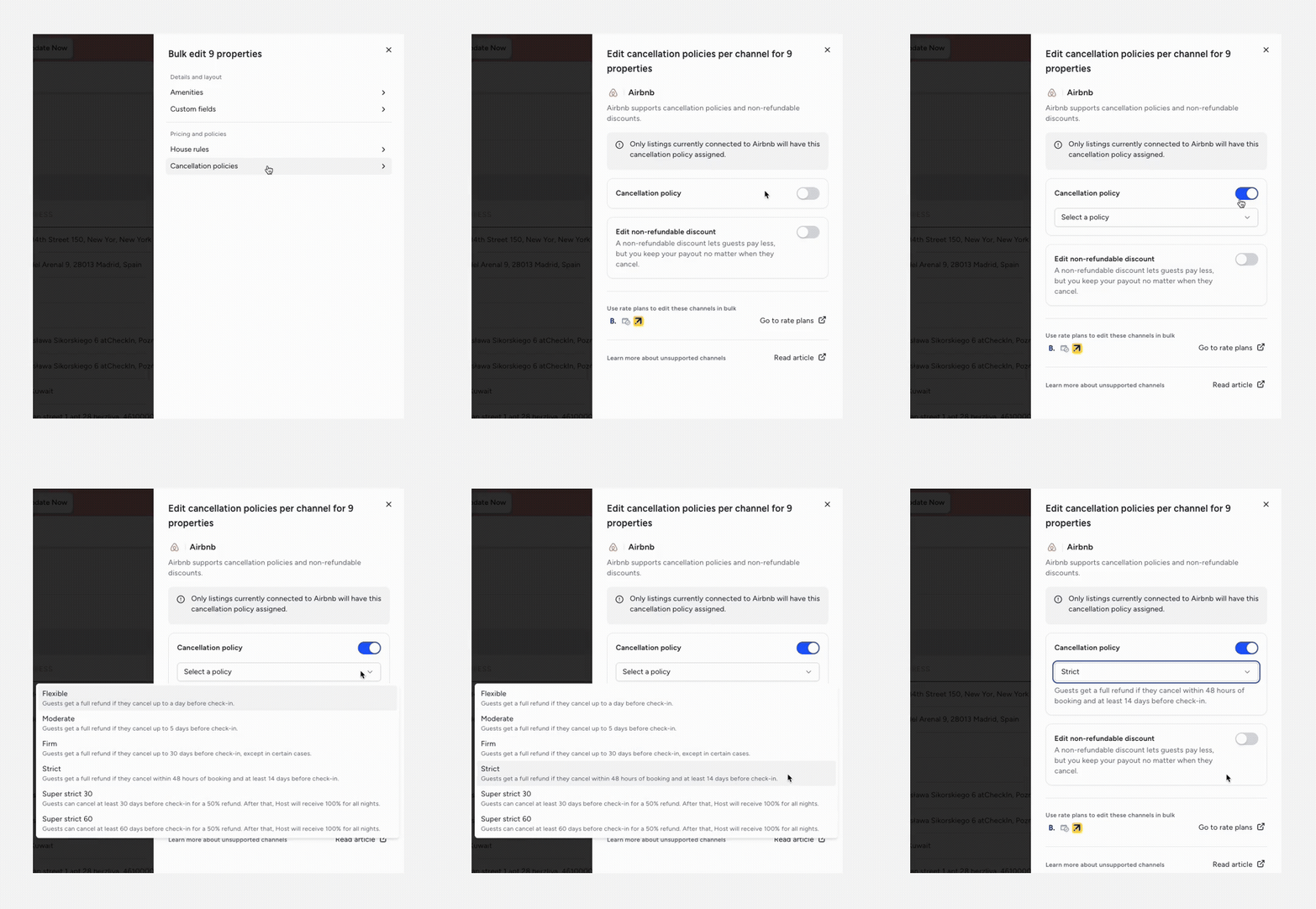
- Select Cancellation policies.
- Toggle on Cancellation policy.
- Click Select a policy and select the relevant policy from the dropdown.
- Click Apply changes.
Note:
This cancellation policy applies only to listings currently connected to Airbnb.
Before editing, check the non-refundable discounts setup guidelines.
Step by step:
- Sign in to your Guesty account.
- In the side navigation menu, click Properties.
-
Select the relevant properties. You can edit up to 400 properties at a time.
For a multi-unit, edit the main unit settings to update the sub-units.
- In the top-right corner, click Bulk edit.
- Toggle on Edit non-refundable discount.
- Select one of the following:
-
Select "Set discount" to set a new discount or replace any existing discounts.
By default, the discount is set to 10%; you can change the discount.
- Select "Remove discount" to remove all non-refundable discounts.
-
- Click Apply changes.
Note:
Properties with a "strict 30/60" cancellation policy can't be assigned a non-refundable discount; any assigned discounts will be removed.

