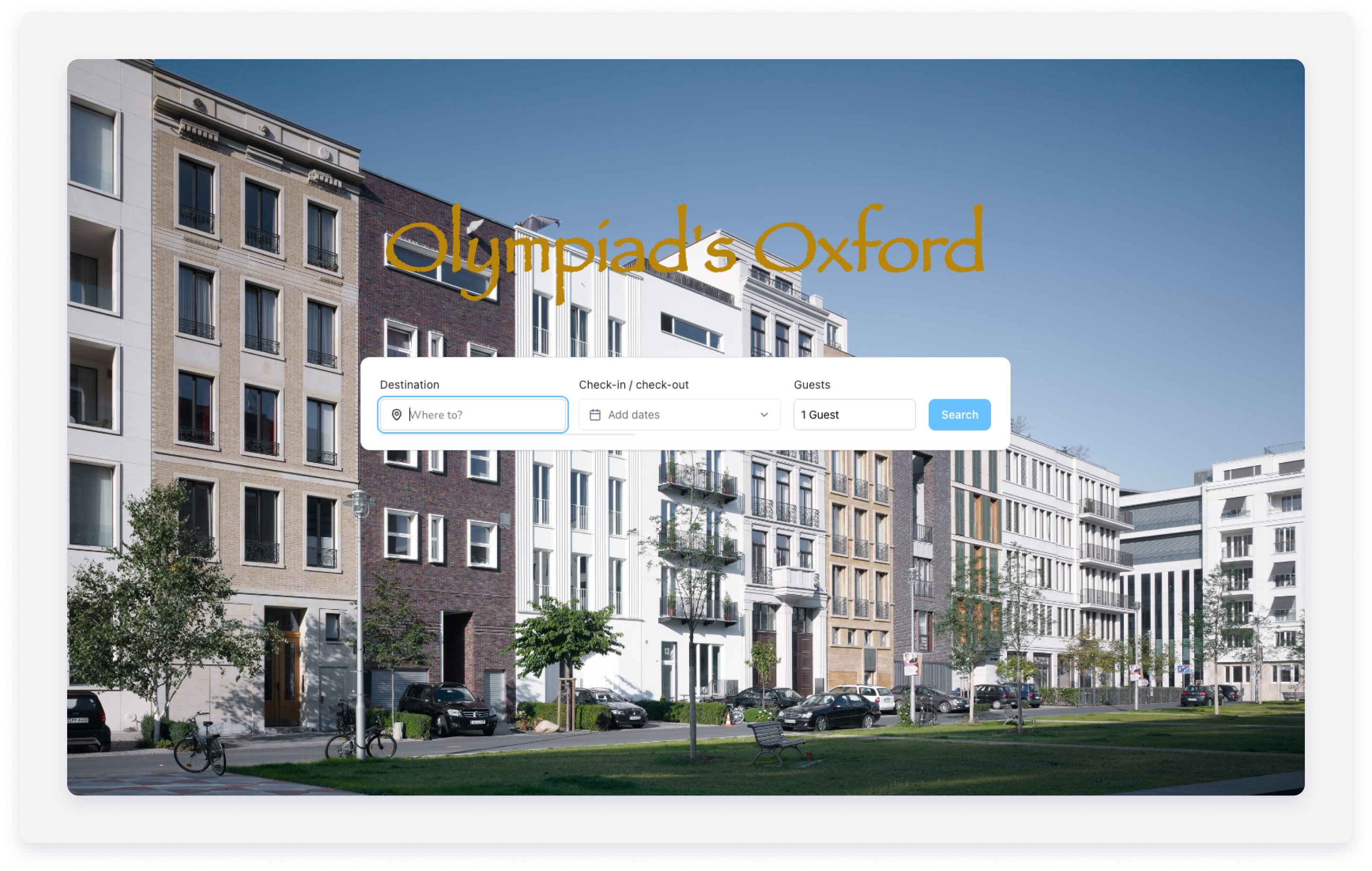
The Guesty Booking Engine is a simple, static booking portal where guests can view availability and book their reservations. Use the Guesty Booking Engine as a standalone booking site, or embed it as a widget on your own website. Explore our demo site.
Setting up a Guesty Booking Engine helps you avoid third-party distribution fees and maintain control over the guest experience. Integration with other third-party booking engines is not supported.
Set up a Guesty Booking Engine
Follow the steps below to create a Guesty Booking Engine.
Limitations
The system uses English as the default language for setup. You can add translations or edit optional fields after the initial creation process.
Step by step:
- Sign in to your Guesty account.
- In the side navigation menu, click
 Marketing and sales to open the dropdown menu.
 - Under Channel management, select Distribution.
- Click the Guesty Booking Engine card.
- If you haven’t created a Guesty Booking Engine, click Create your first Guesty Booking Engine. If you already have a Guesty Booking Engine, click + Create a new Guesty Booking Engine.
-
General settings: Enter the required business details into the relevant fields:
- Logo: Click Upload logo to select a file. The recommended height is 60 pixels.
-
Guesty Booking Engine domain (web address): Enter your website URL.
- The entered text must be between 4 and 44 characters.
- Accepted characters:
a-z,0-9and-.
- Business name: Enter your company name. This appears in the footer of your booking pages.
- Business email address: Enter your company email address.
Optional- Business address: Click the dropdown arrow to enter your physical address for the footer.
- About us: Click the dropdown arrow to add a company description.
- Link your logo to any web address: Toggle on to redirect guests to an external site when they click your logo.
- Default Booking Engine currency: Select the currency displayed to guests.
- Custom Booking Engine domain: Click the dropdown to enter a custom web address. This requires validation.
-
Custom code snippet: Click the dropdown to embed code into the
<head>tag.Note:
Guesty can't provide technical support for issues arising from custom code.
- Click Next.
-
In the side panel, select specific properties, all properties, or assign by rule. Learn more about these options in Selecting listings for features using dynamic assignment. At the bottom-right, click Done.
Optional- Under "Feature properties", click Select properties to choose at least three properties to feature on your site to boost exposure.
- In the side panel, select specific properties, or assign by rule. Learn more about these options in Selecting listings for features using dynamic assignment. We don't recommend featuring all properties.
- At the bottom-right, click Done.
- Enter a general title and description to introduce your featured properties, and click Next.
- Booking settings:
-
Under "Show Compliance"
To provide transparency and meet European regulatory requirements by displaying property compliance data and registration numbers directly on your Booking Engine property pages, Select Show legal compliance.
-
Under "Pricing visibility"
Select your preferred pricing visibility setting. Show final price (total price per night, which includes all mandatory fees and taxes) or show base price (nightly base rate first, additional fees and taxes appear later in the booking process).
Beta: Select if the prices display for guests searching without stay dates. Toggle the Show rates when no dates are selected on or off.
-
Under "Booking options"
Select how guests book: Click the dropdown arrow to select how guests book: Request to book or Instant booking.
Note: When using message automations, include details for both bank transfer and credit card payments, as the system treats payment methods identically.
Beta: Offer manual payments with bank transfer or payment apps for instant bookings (Currently available for US-registered accounts only). This requires manual payment collection and tracking. Reservations appear as "Confirmed" but show a "Payment failed" status until you manually mark them as "Fully paid." Track notifications in the "Payments" section.
-
Under "Final price calculation"
Decide whether you charge children or infants as adults and include them in the occupancy limit. If you leave both boxes unchecked, the system calculates the reservation total based on the total number of adult guests only and doesn't count children or infants into the listing's capacity limit.
-
-
Affect on the calendar: Click the dropdown arrow to select how a reservation affects your calendar.
Optional- Click the dropdown arrow next to "Show reviews on listings" and toggle on Show review score to show your average review rating.
- Click the dropdown arrow next to "Show a map on your website":
- Toggle on Show map on homepage to show the location of the property on your homepage.
- Toggle on Show map on properties page to show the location of the property on your properties page.
- Click the dropdown arrow next to "Search bar and filter settings (booking widget)" to filter guests search results:
- Toggle on Filter by amenities and select the relevant options from dropdown menu.
- Toggle on Enable bedrooms and enter the number of bedrooms
- Toggle on Enable bathrooms and enter the number of bathrooms
- Toggle on Filter by property type and select the relevant options from dropdown menu.
-
Toggle on Filter by property tags and enter the tag name.
Beta: You can allow guests to filter by the tags you added to your properties. Use indicative tag names that guests easily identify before activating this filter.
- Toggle on Enable sorting for guests and select the relevant option from dropdown menu.
- Toggle on Show guests filter to display the filters guests selected in your Guesty Booking Engine's search bar.
- Toggle on Show city filter to display the city filters guests selected in your Guesty Booking Engine's search bar.
- Advanced: Click the dropdown arrow next to "Guest information mandatory for booking" and toggle on additional fields to collect guest information before making a reservation:
- Ask for phone number. Check the box if the information is mandatory.
- Ask for guest requests. Check the box if the information is mandatory.
- Click Next
-
Company policy:
- Privacy and cookie policy:
- Select Use Guesty's template to implement Guesty's pre-made policy. Check the box to confirm you understand Guesty's Terms and Conditions.
- Select Use your own Privacy & Cookie Policy to create your own custom template. Enter a title with a title and description. When offering both credit card and bank transfer options, you can set up separate templates for each payment method.
- Terms and conditions:
- Select Use Guesty's template to implement Guesty's pre-made Terms and Conditions. Check the box to confirm you understand Guesty's Terms and Conditions.
- Select Use your own Terms and Conditions to create your own custom template. Enter a title with a title and description. When offering both credit card and bank transfer options, you can set up separate templates for each payment method.
Note:
Guesty populates Guesty template policies with the email address of the logged-in Guesty user. To display a different email address, configure your own policy and update the text with relevant email address.
- Privacy and cookie policy:
- Optional: Design, contact, analytics and languages
- Design: Upload a homepage image and select a color theme.
- Contact us: Click + to add phone numbers or social links, and toggle on Turn on the contact us form.
- Web analytics: Enter your Google Analytics or Facebook Pixel IDs.
- Languages: Click + Add languages to set the display languages for your Guesty Booking Engine. The default language is English.
Click Next.
- Click Create Booking Engine.
-
The pop-up indicates that your Guesty Booking Engine is ready.
Click Continue to create a Guesty Website, or Go to the Guesty Booking Engine dashboard to preview your Guesty Booking Engine, change its settings, or delete it.
After you create a Guesty Booking Engine, offer upsells to let guests upgrade their stay. Upsells appear on the reservation check-out page.
Learn how to create an upgraded Guesty Website.
