The Guesty Inbox helps you manage communications with guests and owners. Mark messages as unread, archive conversations, or snooze them to focus on urgent issues.
When you log into your Guesty account, you'll see the number of unread Inbox messages to the right of  Inbox in the side navigation menu. This number reflects unread messages from conversations, including those in the Guest, Owner, and Channel inboxes. Once you read a message, the number adjusts automatically. Click the icon to open the Guesty Inbox.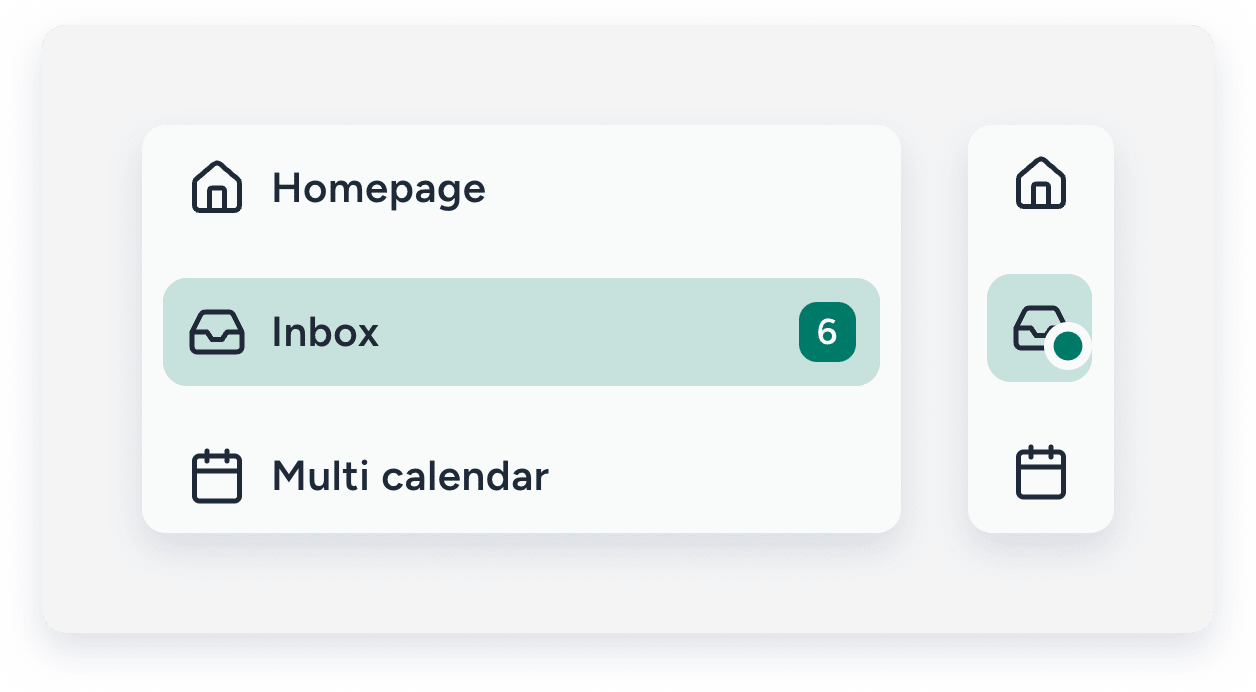
You can also access the Inbox from the Multi-Calendar. In the side navigation menu, click  Multi-calendar. Then, click the related reservation, and in the side panel, click
  . Select Go to inbox from the dropdown.
Manage your messages
Manage your workload by marking messages as unread, archived, or snoozed:
- Unread: Messages appear in bold, making them easy to spot when you want to reply later.
- Archived: Hides conversations you've already handled. The entire thread is archived, and you can view or unarchive it at any time.
- Snoozed: Temporarily hides less urgent messages so you can focus on priority issues.
-
Starred: Marks important messages in a conversation thread so they don't get missed and can be easily found later.

Understand Snooze and archive behaviour
Snoozed conversations appear in the Snoozed inbox in the left-side menu, while archived conversations appear in the Archived inbox. Both inboxes have a Guests tab for conversations with guests and an Owners tab for conversations with owners (direct messages are not included).
Once the snooze period ends (for example, after one hour, or immediately if the recipient replies) or a conversation is unarchived, it returns to its original inbox: guest messages to All, and owner messages to Owners.
Learn more about how to view and filter your Inbox messages.
Important:
- Archiving messages in the Airbnb channel inbox is not yet supported.
- To mark messages as unread, archived, or read in bulk, contact us.
- Bulk marking as archived or read is not supported for the Airbnb channel inbox and the Owners inbox.
Mark a message as unread, archived, snoozed, or starred
Follow the steps below to mark a message as unread, archived, or snoozed.
Step by step:
- Sign in to your Guesty account.
- In the side navigation menu, click Inbox.
- In the Inbox submenu, select the relevant inbox.
- Click the relevant message thread.
- At the top of the opened conversation thread, select the relevant option:
- To mark a message as unread, click
 .
. - To archive the conversation, click
 . If the conversation was assigned to a user, the assignee is removed once it's archived.
 - To snooze the conversation, click
 .
. - To star the conversation, click
 .
.
- To mark a message as unread, click
Unarchive, unsnooze, or unstar a conversation
Follow the instructions below to unarchive, remove the snooze, or unstar a conversation.
Step by step:
- Repeat steps 1-2 above.
- In the Inbox submenu, select the relevant inbox (Archived, Snoozed, or the inbox containing the starred conversation).
- Click the relevant message thread.
- At the top of the opened conversation thread, select the relevant option:
- To unarchive the conversation, click
 . The conversation thread is displayed in the All inbox.
 - To remove the snooze, click
 . The conversation thread instantly moves to the All inbox.
 - To unstar the conversation, click the filled icon.
- To unarchive the conversation, click
Manage conversations in bulk
Select multiple conversations in the Inbox and apply the same action to all of them at once, instead of opening each thread individually. Bulk actions are available on the desktop version, and only one bulk job can run at a time.
Limitations
Keep the following limitations in mind before managing your conversations in bulk.
- Undo is available for five seconds after you confirm an action; once the five seconds pass, the action is submitted and can't be reversed.
- You can apply Snooze to up to 100 conversations at a time.
- Run one bulk action at a time. If you start another while one is still running, a message prompts you to wait until it finishes.
- Archive and snooze aren't supported in the channel inboxes or in the Direct conversations tab under the Owners inbox.
- Check the background message for large jobs, as the screen stops tracking progress after roughly 100 conversations or 10 seconds.
Follow the steps below to manage multiple threads at once.
Step by step:
- Sign in to your Guesty account.
- In the side navigation menu, click Inbox.
- In the Inbox submenu, select the relevant inbox.
- Check the box next to All. By default, the 50 most recent conversations are selected.

- Select the conversations you want to manage in the following ways:
- Check the box next to each conversation.
- To select all fetched conversations (up to 50), click
 , then click Select first 50 conversations.
 - To select every conversation matching the currently applied filters, click , then click Select all [count] conversations.
- Uncheck individual conversations to exclude them from the selection.
- Click — to clear your selection.
- In the bulk action bar, click the action you want to apply. Mark as read, unread, star, and mark as replied are available in every inbox, subject to user permissions.
Depending on the inbox, you can also:- General inbox (Guests and Owners): Archive or Snooze.
- Archived: Unarchive or Snooze.
-
Snoozed: Unsnooze or Archive.

- In the pop-up, review the selection count and confirm the action.
- Click Undo within five seconds to cancel the bulk action. Once the five seconds pass, the action can't be reversed.
Understand why conversations are automatically marked unread or unarchived
A conversation thread automatically changes to unread in the following situations:
-
You receive a new message
- Any unread conversation indicates the most recent message has not been read or opened.
- Auto Messages don't impact the unread status of a conversation. If the last message is an Auto Message and is unread, the conversation was already unread when the Auto Message was sent.
-
The reservation status changes
- Any reservation status change marks the conversation thread as unread, even if there is no new message received.
- While there is no indication within the conversation thread, you can view the updates in the reservation side widget.
-
A new reservation is confirmed
- A conversation thread is created once a new reservation is confirmed, and it always starts as unread, regardless of whether an automated message was sent.
-
A new message is received in an archived thread
- If a new message is received in an archived conversation thread, the entire thread is automatically unarchived and moves back to the main conversation feed.
