Add internal notes to any reservation to keep your data organized and accessible in one place. You can use five types of notes to fit your workflow:
- "General notes": Store reservation-related information for your team.
- "Notes for cleaner": Add cleaning instructions specific to the reservation, such as a reminder to set up a sofa bed or refill coffee.
- "Notes for guest": Save guest-specific info, such as anniversaries, return visits, or agreed extra services. To add notes for a guest profile (not a single reservation), add a guest note.
- "Special requests": Record guest requests made during booking. Requests from the Guesty Booking Engine appear automatically here.
- "Keycode": Save the lock keycode here for staff reference. Most third-party lock providers fill this in automatically using the
{{key_code}}variable, but you can also add it manually.
You and guest service experts can write and edit these notes. Learn about all available reservation changes and updates you can make.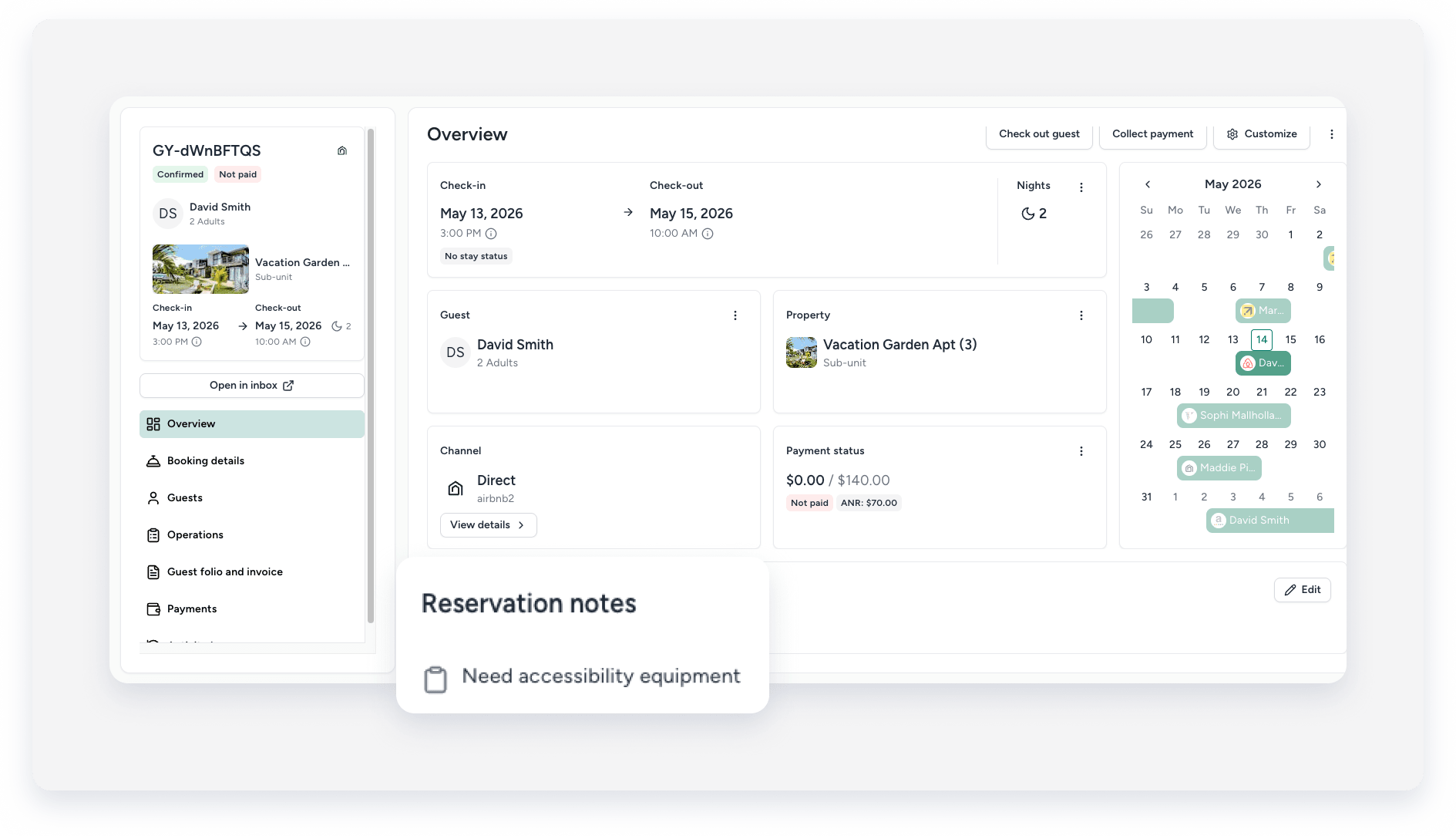
Add notes
Follow the instructions below to add notes to your reservations.
Step by step
- Sign in to your Guesty account.
- In the side navigation menu, click
 Reservations.
 - Click the relevant reservation.
- In the Overview tab, in the "Notes" tile, click Add your first note if you haven't added any yet. Click Edit in the top-right corner to manage existing notes.
- Add or edit the notes in the right-side panel. Notes are limited to 280 characters.
- At the bottom-right corner, click Save.
View and share notes
This information will then be available by adding the relevant columns in the reservations report.
In addition to viewing the information, you can also save and share the report (including notes) with your cleaners, colleagues, and owners.
To assign a cleaner or check-in person to a reservation, it is better to use the assignment feature.
