The Calendar conflict detector agent helps you manage availability by automatically identifying double bookings. When it finds overlapping reservations, it recommends which one to keep so you can resolve conflicts before they affect guests.
The agent doesn't cancel, modify, or merge reservations—it flags conflicts and, when possible, recommends which reservation to keep — but you must manually resolve each one.
Tip:
Learn more about choosing between the Reservation duplicate detector and Calendar conflict detector.
Limitations
- Scope of each run: The agent only evaluates reservations created or confirmed within the last four hours, checking them against existing reservations for date overlaps on the same listing.
- Skipped conflicts: The agent doesn't re-evaluate conflicts that were already flagged in an earlier run.
Understand the Calendar conflict detector agent
The agent runs automatically every four hours.
Each time the agent runs, it performs the following actions:
- Checks recently created or confirmed reservations for overlaps.
- Evaluates each conflict to determine whether it can recommend a reservation to keep.
- Reaches one of three outcomes: keep reservation A, keep reservation B, or escalate for your review.
- Creates a task summarizing the conflict and its recommendation, or explaining why your decision is needed.
The agent doesn't treat the following overlaps as double bookings and doesn't create tasks for them:
- Same guest, same dates: Two reservations for the same guest on identical dates are treated as one booking entered twice.
- Past overlaps: Overlaps that have already ended aren't reported.
- Same-day turnovers: The agent compares the listing's local check-in and check-out dates, so one guest checking out and the next checking in on the same day isn't a conflict.
When comparing two conflicting reservations, the agent weighs factors such as channel cancellation penalties, proximity to check-in, payouts, booking order, and guest review history.
The agent always escalates a conflict for your review when any of the following apply:
- A guest has already checked in.
- Either reservation has a same-day check-in.
- Accessibility or special-needs requirements are involved.
- Either reservation is an Airbnb reservation.
- The two reservations are too close to call.
Tip:
Learn how to cancel a reservation when needed.
Run the Calendar conflict detector manually
Follow the steps below to trigger the agent manually.
Step by step:
- Sign in to your Guesty account.
- In the side navigation menu, select
 Agents hub.
 - At the top, select the Operations tab.
- Click the Calendar conflict detector tile.
- Under "When it runs", click Run now.
Review the results and status of the run in the activity feed.
Review the activity feed
Follow the steps below to review your activity feed.
Step by step:
- Sign in to your Guesty account.
- In the side navigation menu, select Agents hub.
- In the left submenu, select Agent activity.
- Click the relevant row with the agent's name to review the report details in the right-side panel.
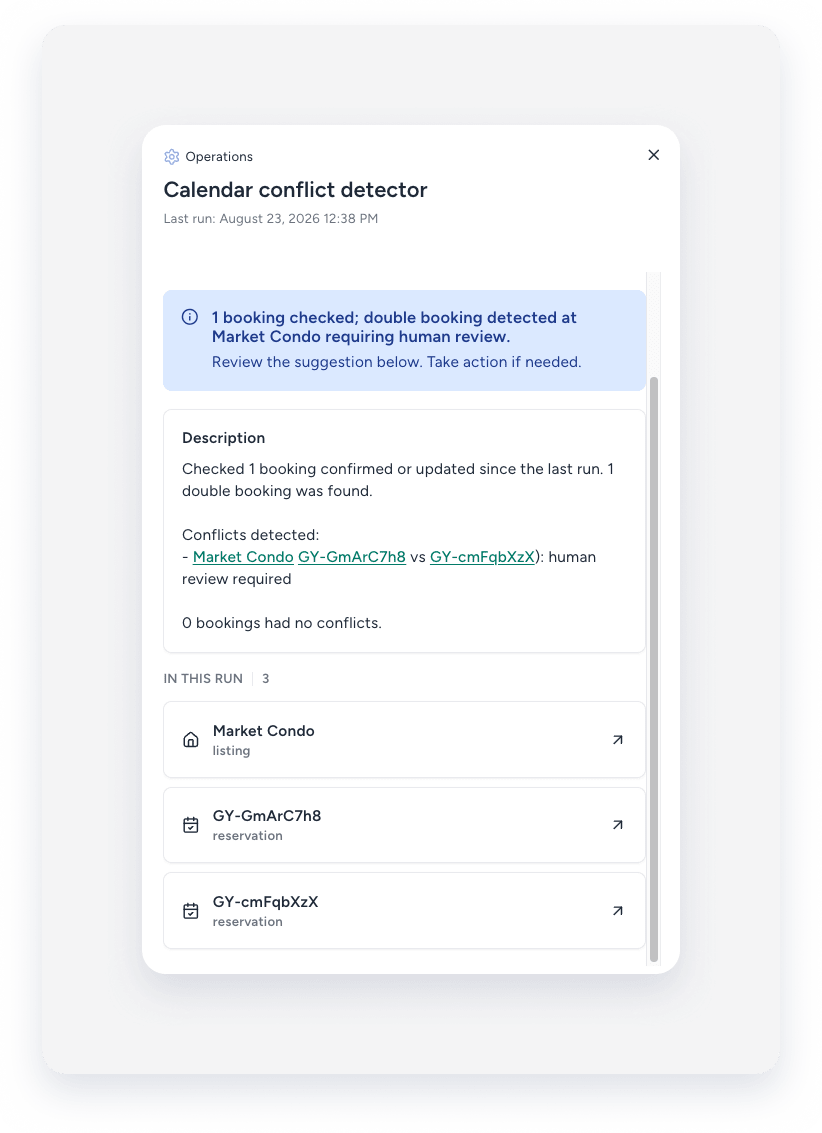
Understand the report status and details
After each run, you can find the report in your activity feed. The report will have one of the following statuses:
- Done: The run completed successfully, and no double bookings were found.
- Action needed: One or more double bookings were found and require follow-up.
The report includes a summary with the following information:
- Number of double bookings found
- Relevant listing
- Confirmation codes of the conflicting reservations
- Guest names, channels, and reservation dates
- The agent's outcome: a recommendation to keep one of the reservations, or an escalation for your review
- Plain-language reasoning for the recommendation, or an explanation of why your decision is needed
- Any further overlaps beyond the pair reported
The activity feed links to each reservation and to the listing, but it doesn't link to the task the agent creates.
Find tasks created by the agent
For each conflict, the agent creates a separate task. Each task title begins with "Double booking," followed by the listing name, the confirmation codes of the conflicting reservations, and a brief recommendation. The task description provides the agent's full recommendation for resolving the conflict, along with the supporting reasoning.
To locate it, create a custom tasks report that includes the filter Task type with the value Administrative and the column Priority.
