This article explains how to manage, monitor, and manually send electronic invoices for your Italian reservations after setting up the integration. It also covers required guest details, troubleshooting submission statuses, and handling reservation changes.
Understand guest and property requirements
To ensure successful data transmission to our partner, Invopop, you must collect specific guest information and configure your property correctly. Guesty acts as a data pipeline to transfer your reservation data to Invopop, but cannot authenticate or enforce local compliance rules. Property managers are entirely responsible for collecting, verifying, and ensuring the accuracy of all required information.
Collect Italian guest details
If your guests are Italian citizens, you must collect their personal tax ID and full address. Missing or incorrect details cause the invoice transmission to fail, resulting in a "Declined" status from the government.
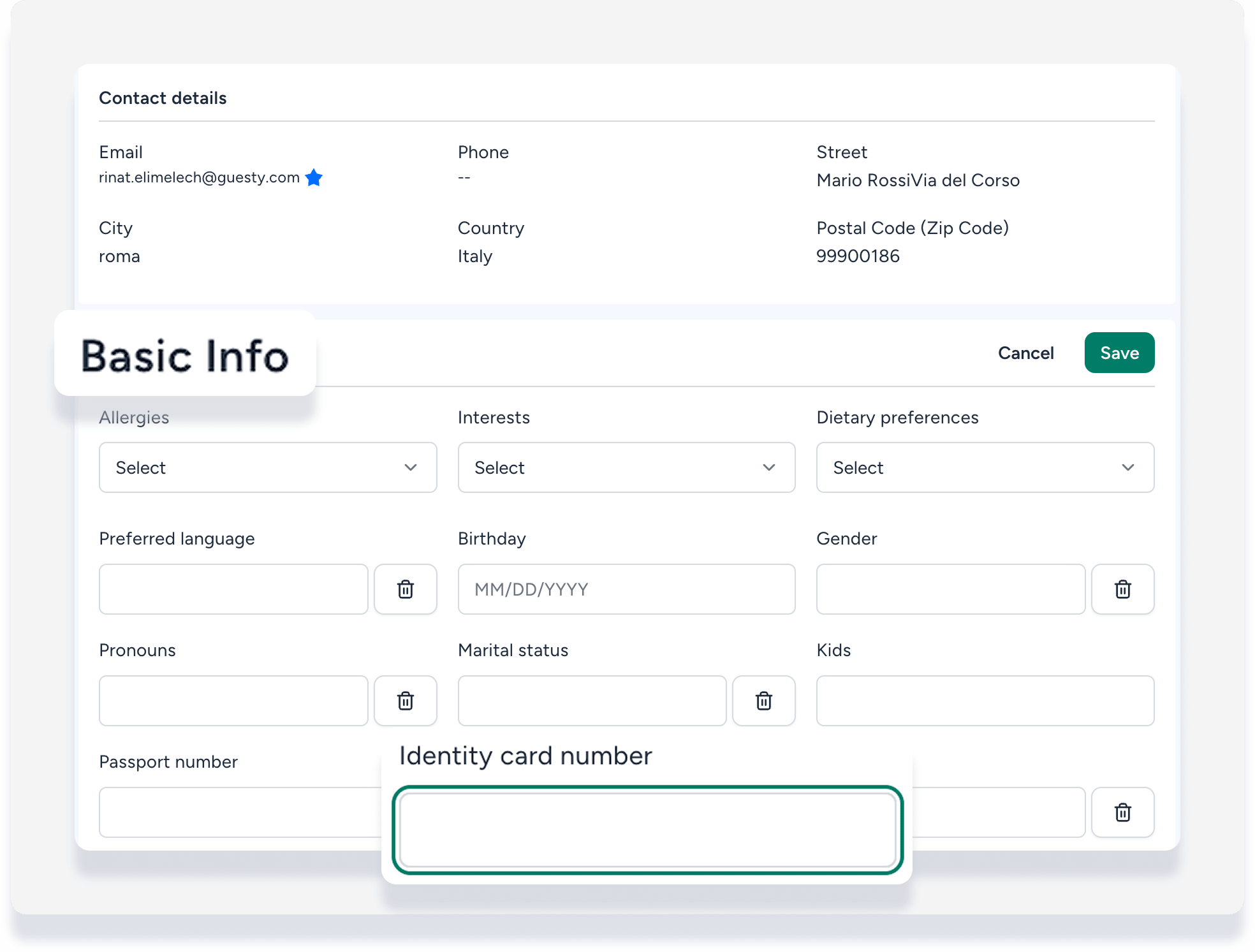
Tax ID collection: Enter the Italian guest's personal tax ID in the "Identity card number" field under the contact's basic info in Guesty.
Collection methods: Gather this information automatically through guest app check-in form or input the data manually in Guesty.
Verify listing currency
For Guesty to successfully send invoice data to Invopop, the listing property must use Euro (EUR) currency. Invoices for listings using any other currency cannot be processed.
View government invoice status in a reservation
Follow the steps below to check the current status of a government invoice within a specific reservation.
Step by step:
- Sign in to your Guesty account.
- In the side navigation menu, click
 Reservations.
 - Click the relevant reservation.
- In the side navigation menu, click Operations.
- Select Reservations.
- Click the relevant reservation to open it.
- In the left submenu, click Guest folio and invoice.
-
Scroll to the bottom of the folio to check the "Government" status:
"Received": The government authority successfully accepted the invoice.
"Pending": The invoice is currently being processed by the partner.
"Not sent": The invoice wasn't sent automatically, or an error prevented it from being sent.
"Declined": The government authority rejected the submission. The specific rejection reason appears next to the status.

Troubleshooting invoice issues
Fix a "Not sent" error
If an automatic invoice displays a "Not sent" status, you must resolve the indicated issue in Guesty before attempting a manual transmission. Common root causes include missing guest address details, a missing tax ID, or an incorrect VAT setup based on your Fiscale Regime code.
Handle a "Declined" submission
When a submission status shows "Declined", the local Italian tax authorities rejected the invoice after generation due to data errors. Sign in to your Invopop integration page to review the detailed rejection logs and specific error codes provided by the government platform.
Sending a government invoice manually
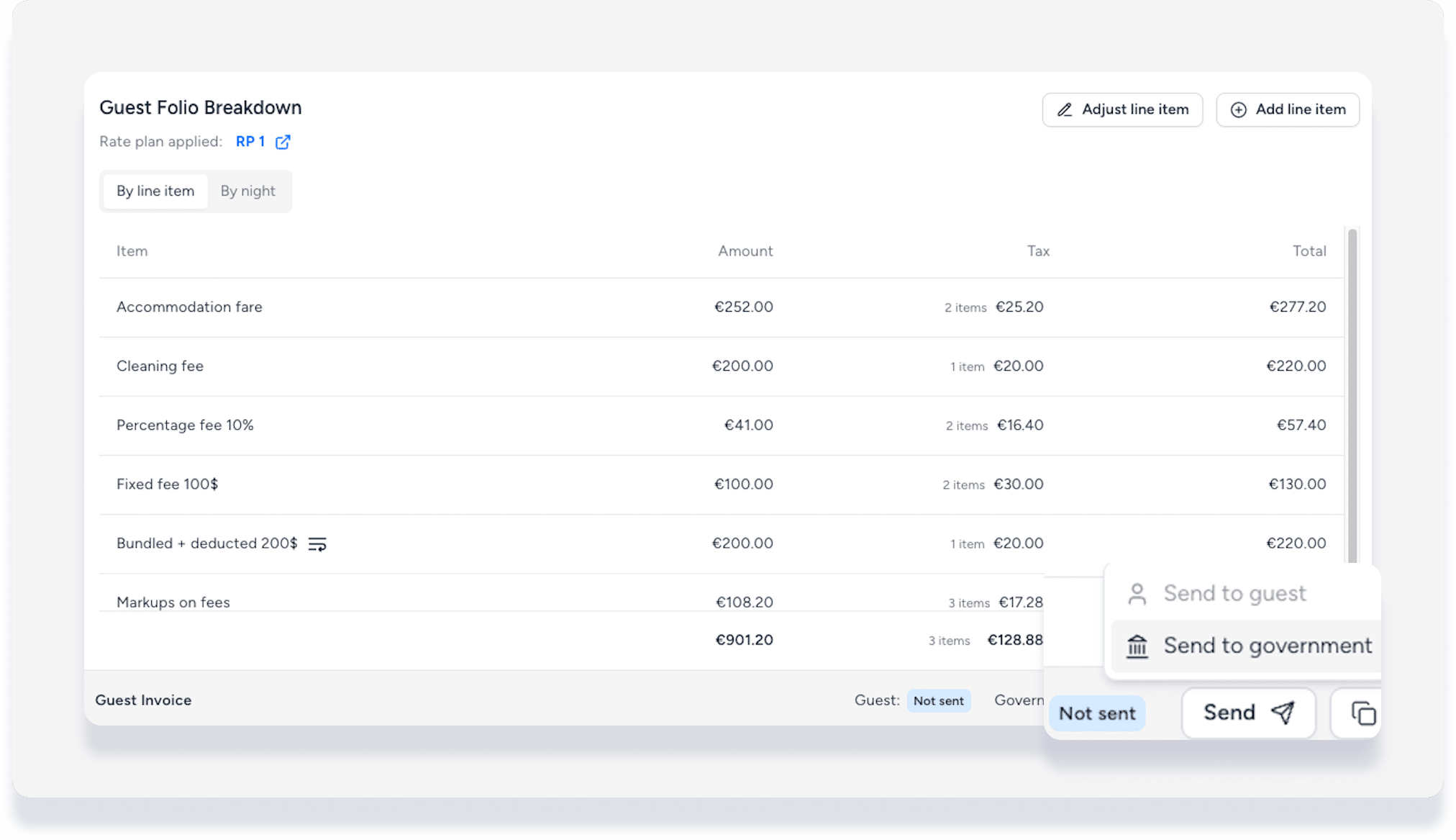
If you don't use automated sending, or if an automated submission fails, trigger the invoice generation process manually after correcting the data errors. The Send to government button only becomes clickable if the invoice hasn't been sent or previously failed, preventing duplicate submissions.
Step by step:
- Sign in to your Guesty account.
- In the side navigation menu, click Reservations.
- Click the relevant reservation.
- In the side navigation menu, click Operations.
- Select Reservations.
- Click the relevant reservation to open it.
- In the left submenu, click Guest folio and invoice.
- At the bottom of the folio, click Send.
- Select Send to government.
Manage reservation adjustments and cancellations
How adjustments are handled depends entirely on whether you use automatic or manual invoicing.
Automatic invoicing adjustments
Guesty automatically handles adjustments if a reservation changes after the government accepts the initial e-invoice, provided that you enabled automatic sending. This automated process applies to updates regarding:
Reservation dates
Accommodation charges
Taxes and processing fees
Cancellations
When a change impacts the total payout, Guesty transmits an amended data request to the partner. The partner then issues the appropriate legal correction document, such as a credit note or a new invoice, and submits it to the authorities. You can view a complete timeline of these fiscal documents in your Invopop integration page history log.
Manual invoicing adjustments
If you trigger invoices manually, Guesty does not automate updates or corrections for reservation changes. You must manually calculate, generate, and submit all necessary adjustments, credit notes, or corrected invoices directly.
