The Guest App check-in form helps you collect essential guest details effortlessly. You can send the form to guests automatically or manually. We recommend scheduling an automated message before check-in, but you must send the form manually for pre-confirmed reservations (in "Inquiry" or "Reserved" status).
The check-in form is part of the Guest App, so the link opens the entire app. For the best results, use SMS or email to send the form, as these channels reliably support links.
Any updates you make to the Guest App reflect in real time. If you update the app, you don't need to resend the link; simply ask the guest to refresh the page. If the guest needs to update a field in the form, delete and resend it.
You can also send multiple check-in forms to the same guest if each form uses a different variable.
Limitations
Review the limitations below before sending a Guest App check-in form link.
Channels
-
Booking.com
You can only send links and email addresses that are approved in Booking.com's messaging security settings. Add
guesty.comunder "Approved links" on Booking.com's Extranet to ensure links are delivered as expected.Learn more about sending messages from the Guesty Inbox.
Note:
URL shorteners, such as TinyURL, aren't supported in messages.
-
Vrbo
Vrbo users may face link delivery issues due to technical limitations. Contact Vrbo support for guidance.
-
Other booking channels
- Some booking channels block links in messages if the reservation isn't confirmed.
- Send forms after confirmation and review each channel's official guidelines.
Check-in form
- The check-in link remains active during the guest's stay. It expires only after the guest checks out. You can't send the check-in form after checkout.
- Updates to the Guest App reflect in real time. If you update the app, you don't need to resend the link. Ask the guest to refresh the page to see changes.
- To resubmit a completed check-in form, you must first remove it before resending.
Send the form or reminder manually
Follow the steps below to send a check-in form or reminder manually.
Step by step:
- Sign in to your Guesty account.
- In the side navigation menu, click
 Operations to open the dropdown menu.
 - Under Front desk, select Guest app.
-
Click
 to copy the link variable of the relevant app. The guest receives a link to the Guest App instead of the variable text.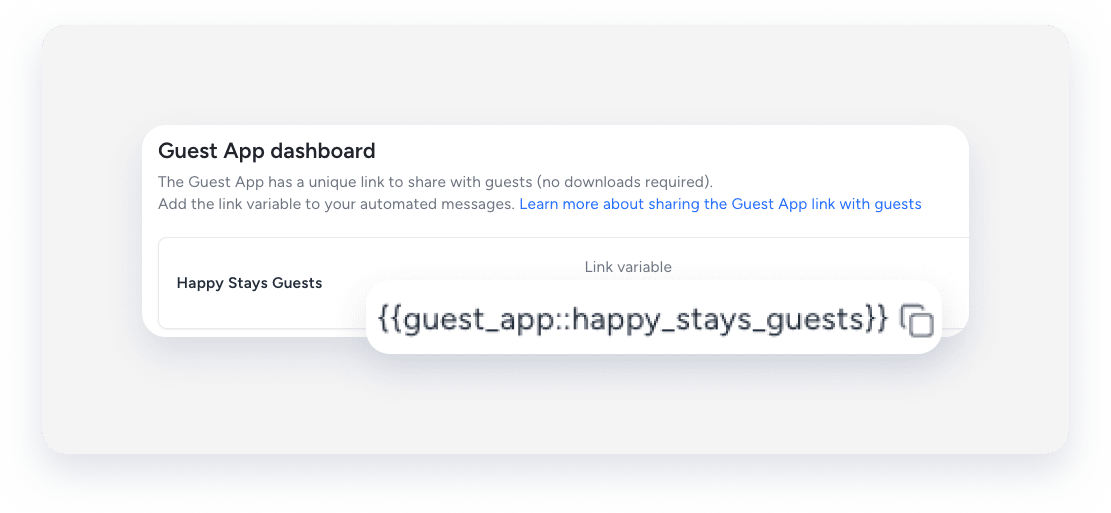
- Follow these instructions to create a message.
-
Add the link to the form in the automated message as a variable. The guest receives a link to the Guest App instead of the variable text.
Hi {{guest}},
We look forward to welcoming you to our {{listing_name}}. We kindly request that you complete the check-in form in the Guest App before your arrival.
Click here to access the Guest App, no download required:{{guest_app::[app_name]}}
Regards,
{{host_first}}
Schedule the form or reminder to be sent automatically
If you're sending a reminder, set it to be sent after confirmation but before check-in. To ensure only guests who haven't completed the form receive the reminder, add these message conditions:
- Add the "Check-in form submitted" condition and toggle it to No.
- If your account has multiple Guest Apps, use the "Guest App check-in form submitted" condition. Select the relevant app and choose "Is not complete" from the dropdown menu.
Step by step:
- Follow steps 1-4 above.
- Create the automated message.
- Add the link to the form in the automated message as a variable. The guest receives a link to the Guest App instead of the variable text.
Send an automated message for completed check-in forms
Create an automated message that sends automatically when a guest completes the form.
Step by step:
- Create or edit an automated message.
- Under the "Add conditions" section, click +Add condition and select:
- Check-in form submitted from the dropdown menu and toggle it on.
-
If you have multiple Guest Apps, select Guest App check-in form submitted. Choose the relevant Guest App, and "Is completed" from the dropdowns.

- Fill out the details and click Save.
- In the top-right corner, click Save.
- Click Apply changes.
Send a signed PDF agreement automatically
Automatically send guests a copy of their signed PDF agreement after they complete the check-in form.
Step by step:
- Repeat steps 1-2 above.
- Add
::pdfto the end of your Guest App variable in the message content. For example:{{guest_app::my_guest_app_1::pdf}} - Fill out the details and click Save.
- In the top-right corner, click Save.
- Click Apply changes.
The PDF variable automatically generates and sends the signed agreement that the guest completed.
