This article explains how to use the government e-invoicing integration to comply with local tax regulations in Italy. This integration connects your Guesty account to our certified third-party partner, Invopop, to automatically generate and submit electronic invoices to the Sistema di Interscambio (SDI).
Note:
Government invoicing is not supported for group reservations.
How it works
Once the integration is enabled, Guesty sends structured reservation data for your properties in Italy to the partner. The partner then handles all compliance requirements, including:
Converting the data into the required national format, such as FatturaPA.
Applying digital signatures, QR codes, and secure hashes.
Transmitting the e-invoice to the government authority.
Storing the invoice for long-term legal archiving.
Guesty receives the submission status from the partner and displays it on the relevant reservation page. This allows you to monitor compliance directly within your Guesty account.
Understand e-invoicing terminology
CIN (Codice Identificativo Nazionale – Italy): A mandatory national identification code for each property that must appear on invoices.
E-invoice / electronic invoice: A structured, machine-readable invoice in a government-approved format. This is not a PDF.
Government-compliant invoice / fiscal invoice: The official invoice submitted to the tax authority in the required national format, including digital signatures, hashes, and other audit metadata.
SDI (Sistema di Interscambio – Italy): The government exchange platform that receives and processes all Italian e-invoices.
FatturaPA (Italy): The mandatory XML format for Italian e-invoices.
QR code (Compliance QR): A mandatory QR code added to Spanish and some French invoices for verification.
Credit note / invoice correction: A legally controlled document used to correct or cancel a previously issued invoice.
Before you begin
Set up your guest invoice settings and property management company information first, as this is the critical path for data transmission.
Company information and tax IDs
Providing your VAT ID or Tax ID and your Fiscale Regime code in the Guest Invoicing settings is mandatory. If this information is missing or incorrect, the data transmission fails, and Guesty can't send your information to Invopop for government filing.
Managing multiple tax IDs with brands
If you manage multiple business entities, sub-companies, or need to issue invoices on behalf of your owners, use brands in Guesty to send invoices.
Add each entity as a separate brand.
Assign the specific Tax ID and VAT ID to each brand.
The system automatically uses the brand associated with the listing to declare taxes under the correct legal entity.
Configure tax settings
Configure the taxes in Guesty for tax types "goods and services" or "VAT". The system uses these settings to send the correct tax data to the partner.
If the VAT percentage in Guesty doesn't match the requirements for your selected Fiscale Regime code, an "Incorrect Tax setup" warning message appears, and the invoice isn't sent to the partner.
Note:
Changes to tax settings only apply to reservations created after the change is saved.
Enable government invoicing integration
Follow the steps below to enable government e-invoicing. For details on other guest invoicing fields, see Setting up guest invoices.
- Sign in to your Guesty account.
- In the side navigation menu, click
 Guest payments to open the dropdown menu.
 - Under General, select Guest invoicing.
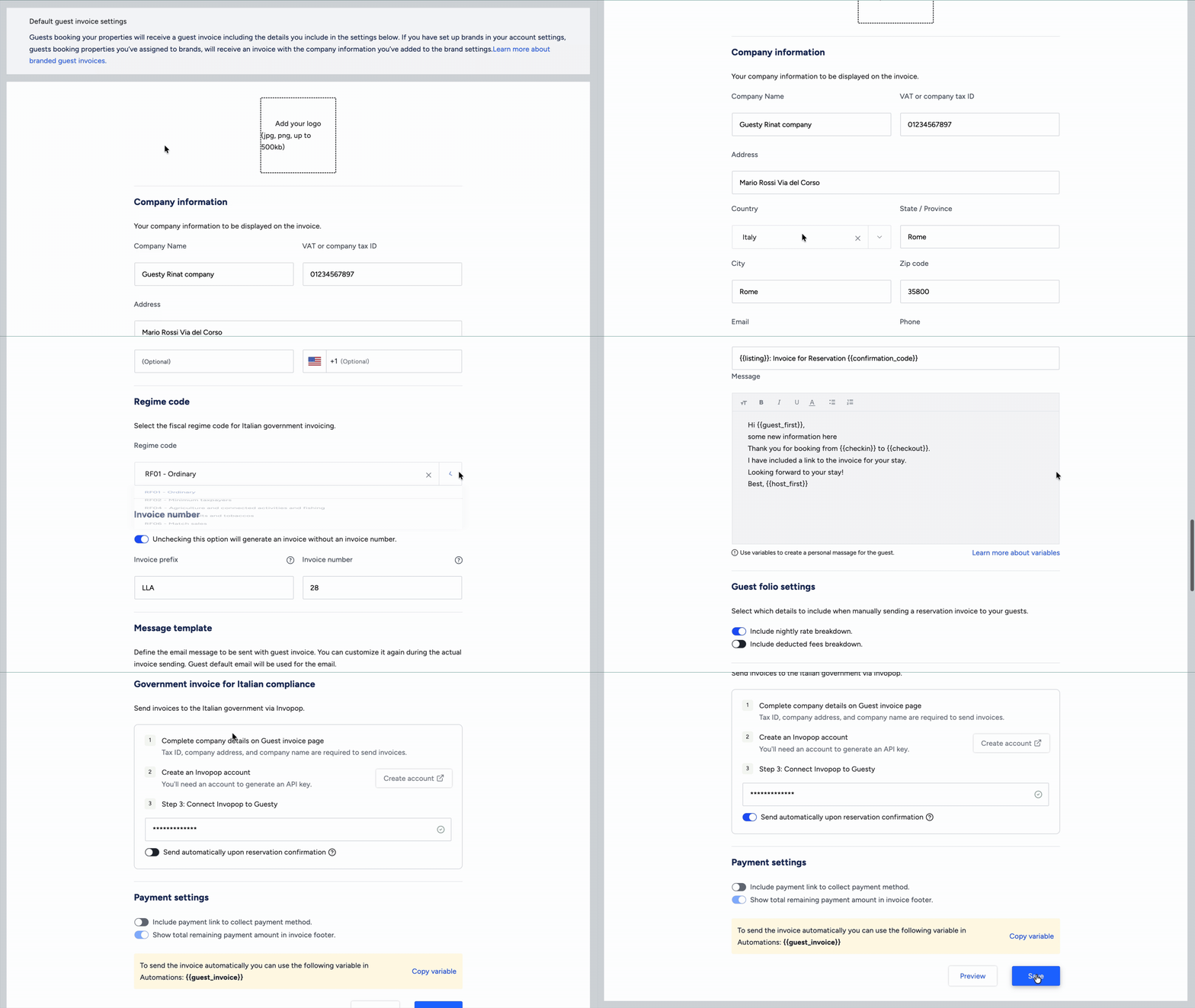
Under "Company information", fill in VAT or Company ID. If you use multiple Tax IDs, fill in the information for each sub-account in the brands setup as well.
Under "Company address", enter your full address and verify the Country field displays Italy.
Under "Regime code", select your Fiscale Regime code from the dropdown menu.
Scroll down to the "Government invoice for Italian compliance" section.
To the right of "Create an Invopop account", click Create account. A new browser tab opens, redirecting you to the partner's website.
On the Invopop website, enter your email and complete the registration process.
In the left-side menu of the Invopop site, click Configuration and select API keys.
In the top-right corner, click Create API key and copy the key.
In Guesty, enter the copied API key under "Step 3: Connect Invopop to Guesty".
Toggle on Send automatically upon reservation confirmation. If kept toggled off, you must send the government invoice manually in each reservation.
Scroll down and click Save.
Monitor invoices in reservations
Learn how to manually send and monitor government invoicing in your reservations.
