Add internal comments to easily collaborate with your team directly on a reservation page. They're a great way to hand over reservations between shifts, log updates, and review past decisions in one place.
Each comment is time-stamped and linked to the person who wrote it, so you always have the right context.
Internal comments are strictly for internal team communication. They're completely separate from general notes and aren't visible to guests or owners.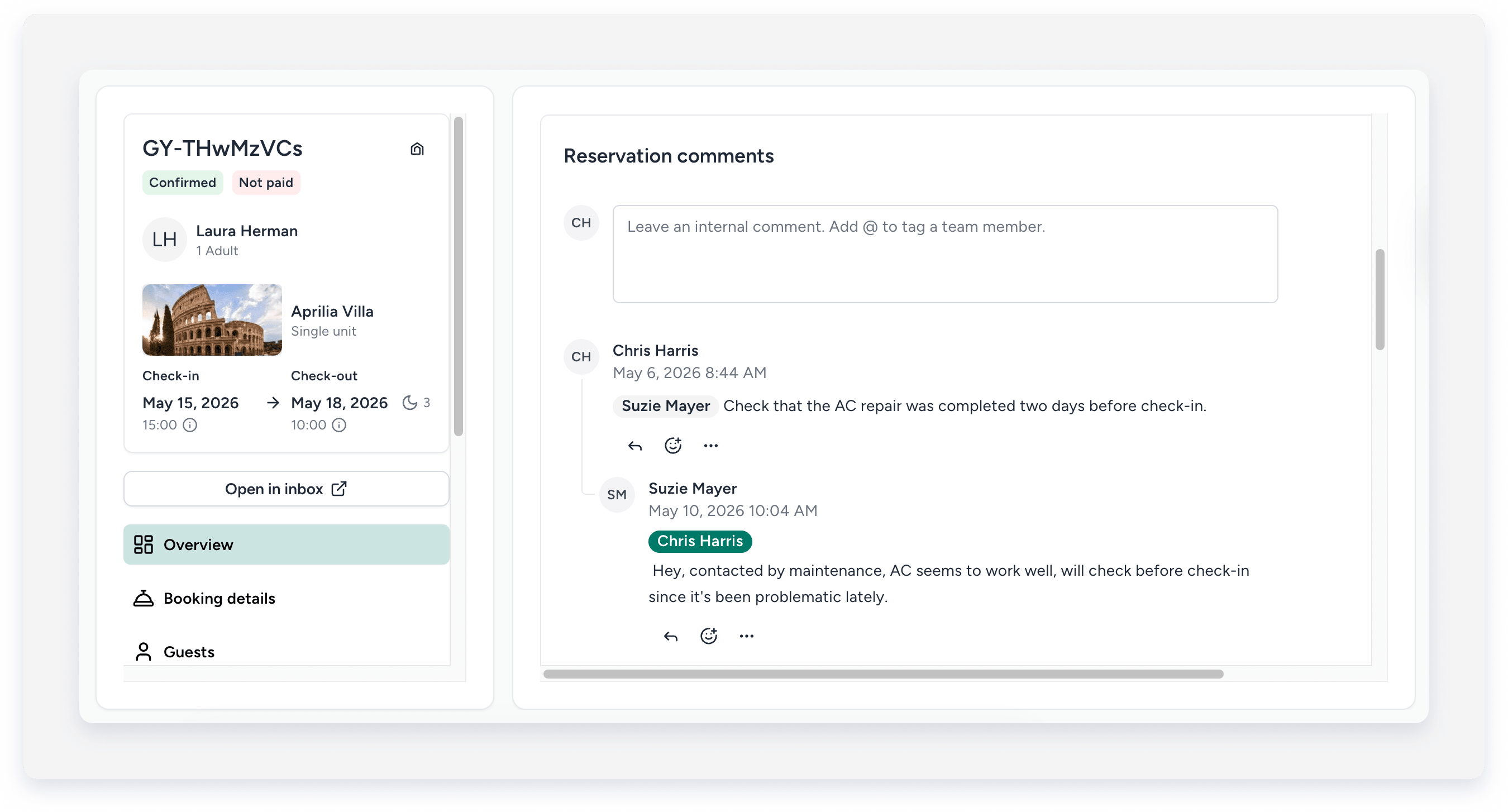
Manage internal comments
To read comments, you must have the "View reservations" permission. To create or edit comments, you must have the "Edit reservations" permission.
Manage team communication for single reservations and groups. You can:
- Add time-stamped comments to a reservation.
- Edit or delete past comments.
- Track changes and comment history using the activity log.
Add a comment
Follow the steps below to add an internal note to a reservation.
Step by step
- Sign in to your Guesty account.
- In the side navigation menu, click
 Reservations.
 - Click the relevant reservation.
- In the Overview tab, in the "Reservation comments" tile, click the comment field and type your comment.
- Click
 to tag a team member.
 - Click
 to add an emoji.
- Click
- Click
 to post your comment.
React or reply to a comment
Below an existing comment, click  to reply to the comment or
  to leave a reaction.
Delete or edit a comment
Below an existing comment, click  and select Edit or Delete a comment from the dropdown.
Comment notifications
Guesty sends automated notifications to keep your team updated on reservation comments. You receive a notification when:
- Someone tags you in a comment. The notification includes a short message preview.
- Someone replies to your comment. You don't receive a notification if you reply to your own comment.
- Someone reacts to your comment. You don't receive a notification if someone removes a reaction.
